# Sahi Script Reference
> Sahi Script is the scripting language of Sahi Pro, a test automation tool for web, mobile (Android and iOS), Windows desktop, SAP GUI and Java applications. This file has the best practices, the language basics, guides and every built-in Sahi function, for AI assistants that write or review Sahi scripts.
Notes for assistants:
- Variables start with $ (var $name = "x";).
- Built-in functions start with _. Accessor functions (for example _link, _textbox) find elements; action functions (for example _click, _setValue) and assertion functions (for example _assertExists) operate on them.
- Built-in functions were called "Sahi APIs" in earlier versions. They are not REST APIs.
- Follow the Best Practices section when writing scripts.
---
# Sahi Script Overview
Sahi Script is the scripting language of Sahi Pro. Its built-in functions, formerly called Sahi APIs, find elements with accessors, act on them, check results with assertions, and work with data, files, logs and screenshots.
A Sahi script is a `.sah` file of steps. Each step calls one of Sahi's built-in functions, which cover:
- **Accessors**, which find elements on the screen, such as `_link("Login")` or `_textbox("user")`.
- **Actions**, which act on those elements, such as `_click` or `_setValue`.
- **Assertions**, which check results, such as `_assertExists` or `_assertEqual`.
- **Everything else a test needs**: reading data from Excel, CSV files and databases, working with files, logging, taking screenshots, calling REST APIs and controlling how a script runs.
Most tests do not need code. Build them in the No-Code Test Editor, described in [Using Sahi](https://resources.sahipro.com/docs/using-sahi/). Use Sahi Script when you want to:
- Keep working with scripts you already have, for example from Sahi Pro Classic.
- Write a test faster in code, or have an AI assistant write it for you.
- Do something the Editor does not cover, such as calling Java, reading a PDF or connecting over SSH.
:::note
Sahi's built-in functions used to be called **Sahi APIs**. They are now the [Function Reference](https://resources.sahipro.com/docs/sahi-script/functions/), so they are not confused with REST APIs.
:::
## A short script
```js
_setValue(_textbox("user"), "test");
_setValue(_password("password"), "secret");
_click(_submit("Login"));
_assertExists(_link("Logout"));
```
Each line finds an element with an accessor function (`_textbox`, `_password`, `_submit`, `_link`) and acts on it or checks it with an action or assertion function (`_setValue`, `_click`, `_assertExists`).
## Where to start
| If you want to | Read |
| --- | --- |
| Have an AI assistant write or fix scripts | [Write Scripts with AI](https://resources.sahipro.com/docs/sahi-script/write-scripts-with-ai/) |
| Write scripts that are reliable and easy to maintain | [Best Practices](https://resources.sahipro.com/docs/sahi-script/best-practices/) |
| Learn the language | [Sahi Scripting Basics](https://resources.sahipro.com/docs/sahi-script/sahi-scripting-basics/) |
| Look up a function | [Function Reference](https://resources.sahipro.com/docs/sahi-script/functions/) |
---
# Write Keywords in Sahi Script
Write and refactor keyword code in the Test Scenario Editor's script view: the toolbar, the Context panel, Create Function, Find and Replace, Find Usage and Create AR.
Most keywords are built without code in the [No-Code Test Editor](https://resources.sahipro.com/docs/using-sahi/sahi-script-editor/#build-tests-in-the-no-code-test-editor). Some need logic that no-code can't express, such as a loop, a calculation or a call to Java. Behind every keyword is a Sahi Script function in a keyword file (`.sah`), and you can write that code yourself in the Test Scenario Editor's script view.
To open the script view, click a keyword file (`.sah`) in the Navigator, or Ctrl-click (⌘-click on Mac) a keyword in a scenario file.
## The Script View Toolbar
1. **Auto Format:** fixes the indentation of the whole file. See [Auto Format](#auto-format).
2. **Create Function:** turns selected lines into a function. See [Create a Function](#create-a-function).
3. **Show Context:** opens the [Context panel](#context-panel).
4. **Find and Replace:** finds text in the file. See [Find and Replace](#find-and-replace).
5. **Rest Client:** opens the [Rest API Editor](https://resources.sahipro.com/docs/using-sahi/rest-api/getting-started/).
6. **Create AR:** creates an Accessor Repository from the file. See [Create an Accessor Repository](#create-an-accessor-repository).
## Context Panel
A call to a keyword or an accessor kept in an Accessor Repository doesn't show where it's defined. The Context panel does. Click **Show Context**, or Ctrl-click (⌘-click on Mac) the call.
- **Function:** the file that defines the function, its parameters and their values. **Open** opens that file, and **Include** adds it to the current file if it isn't included yet. **Insert** adds the call, and **Update** changes the values in the line.
- **Accessor:** the AR key and value of the element in the line. You can change the value, or the key in every file or only this one.
:::caution
Write Accessor Repository keys in capitals with underscores, such as `$_LOGIN_BUTTON`. Tests still run with other keys, but their values don't show properly in the Context panel.
:::
Ctrl-click (⌘-click on Mac) also moves between files: on a keyword in a scenario file, on a function or AR key, or on a file path in an `_include` or `loadSahi` line. **Previous Location** and **Next Location**, the arrows at the right of the tabs, take you back.
## Create a Function
Recorded steps often repeat with different values. Turn them into one function with parameters:
1. Select the lines and click **Create Function**.
2. Enter a **Function Name**. You can choose from names listed in `userdata/config/function_names.txt`.
3. Check the values to turn into parameters under **Function Parameters**, and name them. **(more)** shows more of them.
4. Choose the options: **Remove Duplicates** merges parameters with the same value, **Add Function Call** replaces the lines with a call to the new function, and **Create JS Doc** adds the documentation comment.
5. Click **Create**.
## Find and Replace
**Find and Replace** searches the open file, with **Exact match** and **Match Case**. Enter text in **Replace with** and click **Replace** or **ReplaceAll**. To search only, press Ctrl + F (⌘ + F on Mac).
## Find Usage Across Files
When you rename a keyword or a variable, every file that uses it has to change too. **Tools** > **Find Usage** searches all the files in the project. Filter the results by **Exact match**, **Keyword**, **Variable** or **Pattern match** (for example `*.sah` to search only keyword files). To replace, enter the new name in **Replace With**, select the files and click **Replace**.
## Auto Format
**Auto Format** fixes the indentation of the whole file and makes it easier to read. It treats a semicolon as the end of a line.
## Create an Accessor Repository
**Create AR** moves the accessors of the selected files into an Accessor Repository. With no file selected, it works on the open file. To undo it, copy the files from `userdata/scripts_backup` back into the project.
:::note
Sahi Pro needs read and write permission for the `userdata` folder, set in `userdata/config/userdata_hidden.properties`.
:::
## Editor Shortcuts
| **Shortcut** | **Explanation** |
| --- | --- |
| Ctrl + S (⌘ + S on Mac) | Save the current file |
| Alt + Up Arrow | Move current line up |
| Alt + Down Arrow | Move current line down |
| Ctrl + D (⌘ + D on Mac) | Delete the current line |
| Ctrl + F (⌘ + F on Mac) | Search in the file |
| Ctrl + / (⌘ + / on Mac) | Comment selected lines |
| Ctrl + Alt + Up Arrow (⌘ + Alt + Up Arrow on Mac) | Copy current line above |
| Ctrl + Alt + Down Arrow (⌘ + Alt + Down Arrow on Mac) | Copy current line below |
| Ctrl + L (⌘ + L on Mac) | Go to a line number |
To run or debug the keywords you write, see [Run Tests](https://resources.sahipro.com/docs/using-sahi/run-tests-via-editor/) and [Debug a Test](https://resources.sahipro.com/docs/using-sahi/run-tests-via-editor/#debug-a-test).
---
# Sahi Script Best Practices
Rules for writing Sahi scripts that are reliable and easy to maintain, whether you write them yourself or an AI assistant writes them.
These rules make scripts reliable and easy to maintain. They are written so that people and AI assistants can both follow them. For organising whole suites and teams, see [Best Practices](https://resources.sahipro.com/docs/using-sahi/best-practices/) in Using Sahi.
:::note
This page is being written. Each rule will get examples of what to do and what to avoid.
:::
## Finding elements
- Identify elements by the text or label users see, for example `_link("Logout")`, not by position or generated ids.
- When the same text appears more than once, use a relation such as `_near` or `_in` instead of an index like `[2]`. See [Accessor Basics](https://resources.sahipro.com/docs/sahi-script/functions/accessor-basics/).
- Use the Controller to pick accessors instead of writing them by hand.
## Waiting
- Do not add fixed pauses. Sahi already waits for pages and AJAX requests to finish.
- When you must wait for something specific, use [`_wait`](https://resources.sahipro.com/docs/sahi-script/functions/script-execution-control/#_wait) with a condition and a time limit.
## Checking results
- End every test with assertions that prove it passed, such as `_assertExists` or `_assertEqual`. See [Assertion Functions](https://resources.sahipro.com/docs/sahi-script/functions/assertions/).
- Check one thing per assertion, so a failure tells you exactly what went wrong.
## Structure
- Put repeated steps in functions in a library file, and load it with [`_include`](https://resources.sahipro.com/docs/sahi-script/functions/include/).
- Keep test data out of the script. Read it from a file with the [Data Drive Functions](https://resources.sahipro.com/docs/sahi-script/functions/data-drive/).
- Give functions and variables names that say what they do. Remember that variables start with `$`.
## Handling failures
- Handle errors you expect and recover from them. See [Exception Handling](https://resources.sahipro.com/docs/sahi-script/exception-handling/).
- Use the [Logging Functions](https://resources.sahipro.com/docs/sahi-script/functions/logging/) to add messages that explain what the script was doing when it failed.
---
# Sahi Scripting Basics
Sahi script is based on javascript. Sahi script is parsed by Sahi and the parsed script is fully valid javascript which is executed by the rhino javascript engine. Below are the normal constructs used in Sahi script. They are the same as javascript except for the mandatory $ used in variables.
## Statements
Statements are normal lines of code. They end with a semi-colon.
Eg.
```js
_click(_link("Login"));
```
### Variable declaration
```js
var $variableName = value;
```
or
```js
var $variableName; // declaration
$variableName = value; // assignment
```
All variables start with a $. The keyword var is used for local variables.
Eg.
```js
var $username = "SahiTestUser";
var $password; // declaration;
$password = $username + "_password"; // "SahiTestUser_password"
```
### Comments
```js
// This is a single line comment
/*
This is a multiline comment.
This has two lines
*/
```
### if statements
```js
if (condition) {
// statements
}
```
Eg.
```js
// Comparing normal values
if ($username == "PartnerUser"){
_click(_link("Partner Login"));
}
// Comparing with browser attributes exposed by Sahi
if (_getText(_div("page_type")) == "Partner Page"){
_click(_link("Partner Login"));
}
// Comparing with browser attributes NOT exposed by Sahi's built-in fetch apis
// using _fetch
if (_fetch(_link(0).href) == "http://sahi.co.in/"){
_click(_link("Partner Login"));
}
// Comparing with browser attributes NOT exposed by Sahi's built-in fetch apis
// using _condition
if (_condition(_link(0).href="=" "http://sahi.co.in/")){
_click(_link("Partner Login"));
}
```
### for loops
```js
for (var $i=0; $i<$max; $i++){
// statements
}
```
Eg.
```js
// This loop will login with user1, password1, user2, password2 etc.
// login and logout are custom functions.
for (var $i=0; $i<10; $i++){
login("user"+$i, "password"+$i);
logout();
}
```
### while loops
```js
while (condition) {
// statements
}
```
Eg.
```js
$i = 0;
while ($i++ < 10) {
login("user"+$i, "password"+$i);
logout();
}
```
## Structuring Sahi Code
:::note
While recording gives us the low level steps to be performed on the browser, code needs to be restructured for better readability and maintainability. This section explains how to structure your code for effective but simple use of Sahi.
:::
### Functions
Functions are the basic building blocks in your automation. Functions are used to club together multiple steps into one logical action.
Functions reduce code duplication and allow easier maintenance of scripts.
```js
function functionName($parameter1, $parameter2) {
// statements
}
```
For example a login function may look like this
```js
// function declaration
function login($usr, $pwd){
_click(_link("Login"));
_setValue(_textbox("username"), $usr);
_setValue(_password("password"), $pwd);
_click(_submit("Login"));
}
// function call
login("test", "secret");
```
### Including another Sahi script file
To reuse a function from one script in another, we include the relevant script using [\_include](https://resources.sahipro.com/docs/sahi-script/functions/include/#_include). Functions and variables declared in the included script are available in the including script.
Eg.
**common.sah**
```js
// File: common.sah
// declare $DEFAULT_USER variable
var $DEFAULT_USER = "test";
// login function declaration
function login($usr, $pwd){
_click(_link("Login"));
_setValue(_textbox("username"), $usr);
_setValue(_password("password"), $pwd);
_click(_submit("Login"));
}
```
**testcase1.sah**
```js
// File: testcase1.sah
// include common.sah shown above.
_include("common.sah");
// Note how login and $DEFAULT_USER are actually declared
// in common.sah but available here in testcase1.sah.
login($DEFAULT_USER, "secret");
```
---
# Some Basic Data Types and Data Structures
## Data Types
Most interactions with browsers require us to validate either string or integer data. Both these can be stored in regular javascript variables.
## Data Structures
Since we work with web UIs, Sahi's need for data structures is fairly minimal. The few that are used are:
### Single dimensional array
```js
var $ar = ["Ram", "Sam", "Jam"];
var $firstUser = $ar[0]; // returns "Ram"
```
### Two dimensional array
```js
var $ar2d = [["Ram",18], ["Sam",20], ["Jam",25]];
var $firstRow = $ar2d[0]; // returns ["Ram",18]
var $firstUser = $firstRow[0] // returns "Ram"
// or
var $firstUser = $ar2d[0][0] // returns "Ram"
```
### Associative Array
```js
var $userInfo = {"name":"Ram", "age":"18"};
var $userName = $userInfo["name"];
var $userAge = $userInfo["age"];
```
---
# Exception Handling and Recovery
## Try Catch
For anticipated exceptions, one may use try catch blocks.
**Syntax**
```js
try{
// sahi statements
}catch($e){
// Corrective action
// Can print exact source of error in log
// Can throw the same or another exception
}
```
### Corrective Action
```js
try{
_click(_link("does not exist"));
}catch($e){
_log("Exception occured"); // simple logging. no failure
_click(_link("linkByHtml")); // Corrective action
}
```
### Corrective Action and Log the Exception Message
```js
try{
_disableDefaultErrorLogging(); // This will ignore and not log the failures which occur in try block
_click(_link("does not exist"));
}catch($e){
_click(_link("linkByHtml")); // Corrective action
_logException($e); // Logs the exception, but does not fail
}
```
### Corrective Action, Log and then Fail
```js
try{
_disableDefaultErrorLogging(); // This will ignore and not log the failures which occur in try block
_click(_link("does not exist"));
}catch($e){
_click(_link("linkByHtml")); // Corrective action
_logExceptionAsFailure($e); // Logs the exception, and fails,
// and in the logs, points to the original line as source of failure.
}
```
## Script Callback Functions
For unanticipated exceptions, override Sahi's callback functions to recover.
Example:
```js
function onScriptEnd(){
_click(_button("Logout"));
}
function onScriptError(){
_log(">> In onScriptError");
}
function onScriptFailure(){
_log(">> In onScriptFailure");
}
_navigateTo("http://sahi.co.in/demo/training/");
_setValue(_textbox("user"), "test");
_setValue(_password("password"), "secret");
_click(_submit("Login"));
_assertExists(_submit("Login")); // cause SCRIPT ASSERTION FAILURE - triggers onScriptFailure
_setValue(_textbox("q11"), "2"); // causes SCRIPT ERROR - triggers onScriptError
// Script aborts here, but executes onScriptEnd() to logout
_setValue(_textbox("q[1]"), "1");
_setValue(_textbox("q[2]"), "1");
_click(_button("Add"));
_assertEqual("1150", _textbox("total").value); // cause SCRIPT FAILURE
// If not aborted earlier, automatically calls onScriptEnd() to logout.
```
### Taking screenshots
Use \_focusWindow() and \_takeScreenShot() (available since Sahi Pro V4.3)
```js
function onScriptError($e){
_focusWindow();
_takeScreenShot();
}
onScriptFailure = onScriptError;
_navigateTo("http://sahi.co.in/demo/training/");
_setValue(_textbox("user"), "test");
_setValue(_password("password"), "secret");
_click(_submit("Login"));
```
### Force Sahi to continue on error after screenshots and logging.
```js
function onScriptError($e){
_logExceptionAsFailure($e);
_focusWindow();
_takeScreenShot();
return true; // Forces Sahi to continue execution and not stop at error. Since Sahi Pro V4.3
}
_navigateTo("http://sahi.co.in/demo/training/");
_setValue(_textbox("user"), "test");
_setValue(_password("password"), "secret");
_click(_submit("Login"));
```
## \_setRecovery
:::caution[Important]
\_setRecovery is no longer recommended and may be deprecated soon. Use the callback functions instead
:::
The relevant functions are:
\_setRecovery(fn) \_removeRecovery()
Any function can be assigned to a script as a recovery function. Once set, if there is an error during execution, the recovery function will be called before the script stops.
```js
_navigateTo("http://sahi.co.in/demo/");
function myRecoveryFn(){
_alert("In myRecoveryFn."); // This statement will be alerted in case of script error.
}
_setRecovery(myRecoveryFn); // Set the myRecoveryFn as recovery function.
_click(_link("Link Test")); // Works normally
_click(_link("Bad Link"));
// This statement fails and causes myRecoveryFn to be called.
_alert("done");
// This statement will not be called, because script failed in the last statement.
```
The recovery function can be removed via \_removeRecovery();
:::caution[Important]
\_setRecovery is no longer recommended and may be deprecated soon. Use the callback functions instead
:::
---
# Including Sahi Script Globally
Sahi automatically includes `userdata/scripts/global_include.sah` file into every script/scenario that is run.
Default implementation of [callback functions](https://resources.sahipro.com/docs/sahi-script/functions/script-execution-control/#callback-functions) are available in this file.
`global_include.sah` must always be present at the root of scripts folder. If you have manually configured more than one scripts folder, the `global_include.sah` from the respective root folders will be considered.
In case a script root folder doesn't have `global_include.sah` file, user will see an error on console reporting the same.
---
# Multiple Modes in a Single Script
From Sahi Pro v7.0.0, it is possible to interact with multiple applications from the same script. With the [Sahi Pro Desktop Engine](https://resources.sahipro.com/docs/introduction/sahi-pro-desktop-engine/), we can interact with Window Desktop applications and Java applications
The [\_setMode](https://resources.sahipro.com/docs/sahi-script/functions/script-execution-control/#_setmode) function is used to switch modes within a script.
```js
// by default start with browser interaction
_navigateTo("/demo/training/");
_setValue(_textbox("user"), "test");
...
// Switch to Windows automation
_setMode("WINDOWS");
_selectWindow("/Notepad/");
_mouseOver(_toolBar(""));
_click(_button("Replace..."));
_click(_tabItem("Find"));
...
// Switch back to browser
_setMode("BROWSER");
_click(_button("Logout"));
```
## Available Modes
| Mode | Description | Available in |
| --- | --- | --- |
| GENERIC | No specific technology. | All |
| BROWSER | Desktop browsers like Chrome, Firefox, Internet Explorer etc. as defined in browser\_types.xml. Eg. `chrome` | Sahi Pro |
| ANDROID\_BROWSER | Android web applications | Sahi Pro |
| IOS\_BROWSER | iOS web applications | Sahi Pro |
| WINDOWS | Native Windows applications (WPF, WinForms, .NET, SilverLight, XBAP) | Sahi Pro Desktop Engine |
| JAVA | Java desktop and Web Start/JNLP applications | Sahi Pro Desktop Engine |
| JAVA\_APPLET | Java Applets | Sahi Pro Desktop Engine |
| ANDROID | Android applications (native and hybrid) | Sahi Pro Mobile Engine |
| IOS | iOS applications (native, hybrid and web) | Sahi Pro Mobile Engine |
| SAP | SAP GUI Application | Sahi Pro SAP Engine |
## Start Mode
The Start Mode, specified before a script or suite is executed, is the mode with which scripts will start playing. The mode can be later changed using \_setMode. If Sahi Browser capability is enabled, Sahi Pro by default starts all scripts in BROWSER mode and automatically launches a browser at the start. If a script needs to start by interacting with JAVA applications, the start mode can be set as JAVA. In this case no browser is opened at start.
## Notes on Default and Start With options
- When "Browser" is chosen as the Start Mode option, a browser of the Default Desktop Browser type is started automatically at the start of the script. This browser session is automatically selected, so that the first step in the script is addressed to this browser instance.
- When "Generic" or "Windows" or "Java" is chosen as the Start Mode option, no browser launch is made. If you want to interact with the browser, the script has to explicitly do
```js
_setMode("BROWSER");
var $instanceId = _launchNewBrowser();
_selectBrowser($instanceId);
```
before steps on browser can be executed.
If browserType is not specified in \_launchNewBrowser, a new browser of the default browser type (as specified at run time from editor or batch file or ant) is launched.
:::caution[Important]
The ant target uses `startWith` parameter to specify start mode. The values of startWith are:
| Visible Text | startWith value |
| --- | --- |
| Browser | BROWSER |
| Generic | GENERIC |
| Windows | WINDOWS |
| Java | JAVA |
| Android | ANDROID |
| Android Browser | ANDROID\_BROWSER |
| iOS | IOS |
| iOS Browser | IOS\_BROWSER |
| SAP | SAP |
:::
---
# Log javascript dialog messages in reports
Javascript dialog messages can be logged in reports. This document describes the procedure to log javascript dialog messages in reports.
## Log javascript popup with expectation in reports
To log javascript popup messages with expectation in reports
1. Click on `Configure` link from Sahi Dashboard, and open `userdata.properties`.
2. Copy and paste the below statements and enter the appropriate values.
```properties
log.js.alert.popups.color.with.expectation=CUSTOM3
log.js.confirmation.popups.color.with.expectation=CUSTOM3
log.js.prompt.popups.color.with.expectation=CUSTOM3
log.js.print.popups.color.with.expectation=CUSTOM3
```
:::note
Note that these values are indicative. You need to modify these values as appropriate.
:::
:::note
- These properties can take CUSTOM, CUSTOM1, CUSTOM2, CUSTOM3, CUSTOM4 or CUSTOM5, ERROR or FAILURE as values. Default is blank(no background color)
- This controls the background color of popup message in reports when expectation is set.
- If value is not provided for the above properties javascript popup messages will not be logged in reports
:::
## Log javascript popup without expectation in reports
To log javascript popup messages without expectation in reports
1. Click on `Configure` link from Sahi Dashboard, and open `userdata.properties`.
2. Copy and paste the below statements and enter the appropriate values.
```properties
log.js.alert.popups.color.without.expectation=FAILURE
log.js.confirmation.popups.color.without.expectation=FAILURE
log.js.prompt.popups.color.without.expectation=FAILURE
log.js.print.popups.color.without.expectation=FAILURE
```
:::note
Note that these values are indicative. You need to modify these values as appropriate.
:::
:::note
- These properties can take CUSTOM, CUSTOM1, CUSTOM2, CUSTOM3, CUSTOM4 or CUSTOM5, ERROR or FAILURE as values. Default is blank(no background color)
- This controls the background color of popup message in reports when expectation is not set.
- If value is not provided for the above properties javascript popup messages will not be logged in reports
:::
## Color of javascript dialog messages in reports
1. Javascript dialog messages can be logged with various background color as described below:
```properties
CUSTOM = yellow
CUSTOM1 = orange
CUSTOM2 = grey
CUSTOM3 = green
CUSTOM4 = violet
CUSTOM5 = indigo
ERROR = red
FAILURE = red
```
:::note
For ERROR and FAILURE the script will be marked failed.
:::
---
# 401 Authentication
This section describes how to handle 401 authentication with Sahi Pro.
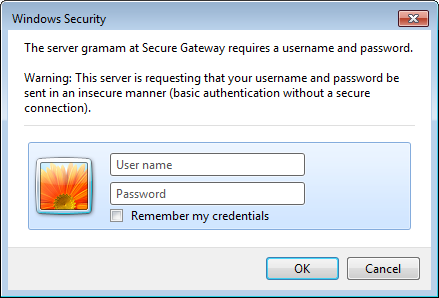
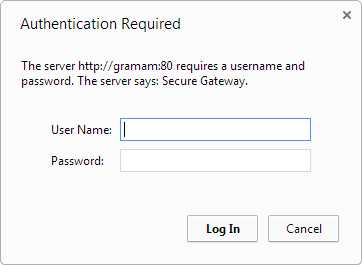
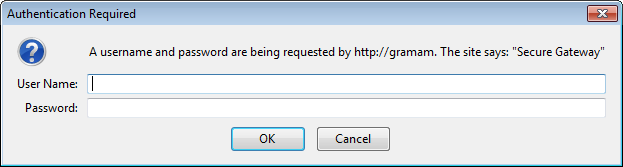
A 401 dialog may be used in authentication of websites.
On Internet Explorer, it looks like this:
On Chrome, it looks like this:
On Firefox, it looks like this:
However, when navigated to the same site, Sahi Pro automatically transforms this modal dialog into a simple web page.
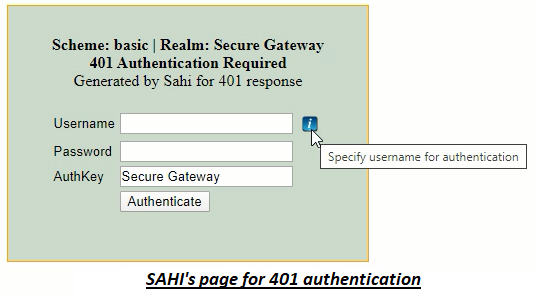
Since it is now just another HTML page, you can easily write scripts to enter username and password into the dialog.
:::note
Sometimes the AuthKey may have something dynamic like a timestamp in it. In such cases, a regular expression can be used. Eg. You can use `/Secure/` instead of `Secure Gateway` in the AuthKey field above. To accept for any AuthKey one can use `/.*/`. **Try setting AuthKey to `/.*/` before troubleshooting further.**
:::
:::caution[Important]
Ensure you have installed Java 1.8 or above.
To change the version of Java that Sahi Pro uses, edit `sahi/userdata/bin/setjava.bat` (or `setjava.sh`) and modify
```sh
set SAHI_JAVA_HOME=C:\path\to\java1.8
```
:::
## 401 authentication page for NTLM scheme loops or does not login even if the credentials are provided
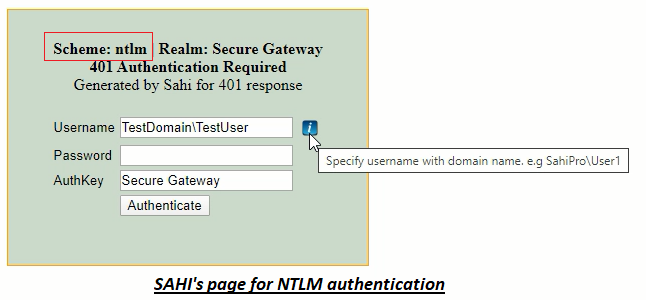
Sahi Pro automatically tries to authenticate the WINDOWS logged in user for the applications which support NTLM scheme. However if Sahi Pro is unable to authenticate the user automatically, the 401 page for NTLM authentication is displayed.
The solution would differ based on your environment. Thus to address this, employ below approaches one by one:
1. First approach :
1. Sahi Pro automatically populates the username for the currently logged in user. However if you use different credentials for authentication, kindly enter them.
2. Ensure that the username is in domain\\user format where both the domain name and user name are correct.
3. Provide your password for authentication in the password field and click on the Authenticate button.
2. Second approach :
1. If the first approach did not work, then ensure that following property is enabled in the **userdata.properties** file :
```properties
apacheclient.enabled=true
```
2. Add the following property in the **userdata.properties** file:
```properties
apacheclient.ntlm_authentication.enabled=true
```
3. Restart Sahi Pro and then launch your application in the browser.
4. Now enter valid credentials for authentication as done in the first approach.
## Sahi Pro authenticates automatically but the username is improper
Sahi Pro automatically tries to authenticate the WINDOWS logged in user for the applications which support NTLM scheme. If successfully authenticated, Sahi Pro's 401 authentication page will not be displayed. However you may wish to use different credentials i.e credentials of a user other than the currently logged in user.
To address this, follow below steps :
1. Add the following property in the **userdata.properties** file:
```properties
java.ntlm.transparent_authentication.enabled=false
```
2. Restart Sahi Pro and launch your application.
3. Now enter valid credentials for authentication. Ensure that the username is in domain\\user format where both the domain name and user name are correct.
4. Provide your password for authentication in the password field and click on the Authenticate button.
5. If it did not authenticate successfully, then ensure that following property is enabled in the **userdata.properties** file :
```properties
apacheclient.enabled=true
```
6. Then add the following property in the **userdata.properties** file:
```properties
apacheclient.ntlm_authentication.enabled=true
```
7. Restart Sahi Pro and try again.
## Handling 401 authentication page for NEGOTIATE or KERBEROS scheme
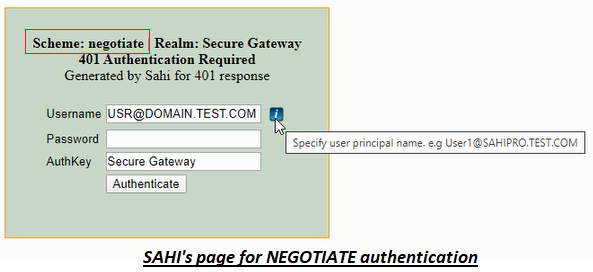
Sahi Pro automatically tries to authenticate the user for applications which support only NEGOTIATE or KERBEROS scheme. However if Sahi Pro is unable to authenticate the user automatically, the 401 page for authentication is displayed.
To address this, follow below steps :
1. Verify if `apacheclient.enabled` property is set as true in the **userdata.properties** file. If this property is set as false, set it as true. Restart Sahi Pro and try again.
2. If Sahi Pro was unable to authenticate automatically even after enabling `apacheclient.enabled` property, disable this property by setting it as false. Restart Sahi Pro and try again.
3. Now Sahi Pro's 401 page for authentication is displayed. Enter credentials in this web page.
1. Set User Principal Name as username in this web page. You can find your User Principal Name by running the command `whoami /upn` on the command prompt.
2. Provide your system login password in the password field and click on Authenticate button. Restart Sahi Pro and try again.
4. If the authentication did not succeed, ensure `apacheclient.enabled` property is set as false. Then, set below properties in the **userdata.properties** file.
1. Run the command 'whoami /upn' on the command prompt. This command prints your User Principal Name. Set your User Principal Name as value for `java.kinit.principal_name` property.
2. Encode your system login password using [Password Encoder](https://resources.sahipro.com/docs/using-sahi/sahi-script-editor/#password-encoder). Set this encoded password as value for `java.kinit.encrypted_password` property.
5. Restart Sahi Pro and try again. On start, Sahi Pro will now generate a Kerberos ticket at `USER_HOME\krb5cc_USER_NAME`. For example, if the Windows system's login user name is `userXYZ[icode], then the Kerberos ticket will be generated at [icode]C:\Windows\Users\userXYZ\krb5cc_userXYZ`.
:::note
Henceforth, the generated Kerberos ticket will be used for authentication. However, this ticket will expire after a period after which it needs to be renewed or regenerated. Sahi Pro will automatically regenerate the ticket on every start. To regenerate the ticket periodically without restarting Sahi Pro, add the following property in the **userdata.properties** file.
```properties
# Below example can be used to regenerate the ticket after every 500 minutes.
java.kinit.delay_between_regeneration=500
```
:::
## 401 dialog or page does not appear with Sahi Pro
Sahi Pro automatically tries to authenticate the WINDOWS logged in user for the applications. In this case, the 401 authentication page is not shown.
If Sahi Pro is unable to authenticate the user automatically, the 401 authentication page should appear. If it does not appear, the application will not get authenticated access. Thus, the application will not behave as expected.
In such a case, where the application expects authentication but the authentication page does not appear, follow below steps.
1. Ensure that `apacheclient.enabled` property is set as true in the **userdata.properties** file. Also, verify if `java.ntlm.transparent_authentication.enabled` is set as true. After enabling these properties, restart Sahi Pro and try again.
2. If Sahi Pro's 401 page for authentication is displayed, enter credentials in this web page.
3. If Sahi Pro's 401 page for authentication is still not displayed, use function [\_setAuthentication](https://resources.sahipro.com/docs/sahi-script/functions/actions/#_setauthentication) to add credentials for authentication. Reload the application page.
## Unable to authenticate different users in separate browser windows simultaneously
When you provide credentials for authentication on the 401 page, the user is authenticated in that browser session. Subsequently, Sahi Pro reuses the same credentials to automatically authenticate when other browser sessions are launched. This prevents you from using multiple user accounts at the same time. Follow the steps below to use different credentials, that is, credentials of a user other than the one currently logged in.
1. Ensure that following property is enabled in the **userdata.properties** file :
```properties
apacheclient.enabled=true
```
2. 1. For NTLM scheme, add the following property in the **userdata.properties** file:
```properties
apacheclient.ntlm_authentication.enabled=true
```
2. For Basic scheme, add the following property in the **userdata.properties** file:
```properties
apacheclient.basic_authentication.enabled=true
```
3. Restart Sahi Pro and try again.
---
# Client Certificate Authentication
This section describes how to handle client certificate authentication in Sahi.
Some applications seek a client certificate from the user for authentication. User will be able to connect to such applications only when a valid certificate is provided. When user tries to open such an application, the web browser may prompt to select a certificate as shown in the image below.
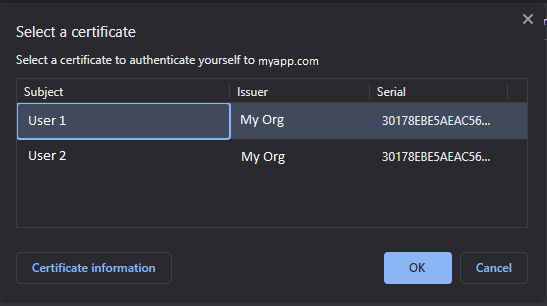
There are two ways to handle client certificate authentication in Sahi:
1. **Using \_setClientCertificate function**
-
- Add [\_setClientCertificate](https://resources.sahipro.com/docs/sahi-script/functions/actions/#_setclientcertificate) function to your script and specify the certificate details.
```js
// Add the application domain to the current script session.
_addToSession("https://protectedapplication.test.com");
// Specify details of the certificate to be used for authentication
_setClientCertificate("c:/myownpath/testuser1.pfx","Mg0BChVBGh1XOB0K", "PKCS12");
// Navigate to the application that seeks a client certificate
_navigateTo("https://protectedapplication.test.com");
```
- This function supports different types of certificates. For example, PKCS12 (.p12, .pfx), JKS (.jks), JCEKS (.jceks, .jcs) etc.
- Since this function sets a certificate in the current script session, different certificates can be used simultaneously in different browser instances.
2. **Using certificate present in the system**
-
- If the client certificate file is not available but the certificate is installed in the system, follow below steps.
- Add the following property in the **userdata.properties** file. Restart Sahi.
```properties
ssl.client.system_keystore.enabled=true
```
- If this does not work, add the following properties in the **userdata.properties** file. Restart Sahi.
```properties
ssl.client.system_keystore.enabled=true
ssl.client.system_keystore.name=WINDOWS-ROOT
```
:::note
By default, the userdata property **ssl.client.system\_keystore.name** is set as **WINDOWS-MY** to use certificates available in the keystore for the current Windows user. When this property is set as **WINDOWS-ROOT**, all the certificates trusted by the current machine can be used.
:::
---
# Parsing XML in Sahi Scripts
Sahi uses Rhino as its javascript engine and Rhino has excellent support for handling XML.
Below is a script which reads and asserts XML nodes and attributes. The example has been picked from [http://www.ibm.com/developerworks/webservices/library/ws-ajax1/](http://www.ibm.com/developerworks/webservices/library/ws-ajax1/) so that it is easy to experiment with the ibm examples in this script.
```js
var xmlStr = '' +
'' +
' ' +
' Ant' +
' Shaggy' +
' Blue' +
' 176' +
' ' +
' ' +
' Paul' +
' Spiky' +
' Grey' +
' 178' +
' ' +
'';
xmlStr = xmlStr.replace(/<\?xml[^>]*\?>/, ""); // needed in some cases
var $x = new XML(xmlStr);
_assertEqual("Ant", $x.person[0].name.toString());
_assertEqual("Grey", $x.person[1].eyes.toString());
for each (var $p in $x.person){
var $measure = $p.height.@measure.toString();
_assert($measure == "metric");
_assert($p.height > 170);
}
```
:::note
1. All nodes that you access are of type xml. You will need to use toString() on them before you assert them.
2. If your XML string starts with ``, it may throw an error
To fix it, do the following
```js
var xmlStr = xmlStr.replace(/<\?xml[^>]*\?>/, "");
var $x = new XML(xmlStr);
```
:::
## Parsing XML containing namespaces
```js "idns::Id"
var $xmlStr = '' +
'' +
' 123' +
' ' +
' Welcome1 to MyApp' +
' Thank1 you for using MyApp' +
' ' +
'' ;
var $x = new XML($xmlStr);
// Set the default namespace. All elements will be in this namespace
default xml namespace = "http://sahi.co.in";
var $welcome0 = $x..Welcome[0].toString();
_assertEqual("Welcome1 to MyApp", $welcome0);
// Specific namespace for id
var idns = new Namespace("http://www.tytosoftware.com");
// Access element using namespace::localName
var $id = $x.idns::Id.toString();
_assertEqual("123", $id);
```
For more details on e4x usage have a look at [https://developer.mozilla.org/en-US/docs/E4X/Processing_XML_with_E4X](https://developer.mozilla.org/en-US/docs/E4X/Processing_XML_with_E4X).
There is a lot more that can be done with the XML object. Have a look at these links:\
[http://www.ibm.com/developerworks/webservices/library/ws-ajax1/](http://www.ibm.com/developerworks/webservices/library/ws-ajax1/)\
[http://www.xml.com/pub/a/2007/11/28/introducing-e4x.html](http://www.xml.com/pub/a/2007/11/28/introducing-e4x.html)
---
# Calling Java
Sahi scripts run on the Rhino javascript engine. This allows Sahi to call any Java code in the classpath of Sahi.
## Calling inbuilt Java classes
Inbuilt Java classes can be directly called using their fully qualified name. Eg.
```js
function printThroughJava(s){
java.lang.System.out.println("Through Java: " + s);
}
printThroughJava("Hi there");
// Should print "Through Java: Hi there" on the console.
```
## Working with Java object directly in Sahi Script
Since Javascript does not have variable types, variables are declared with just **var**. Below is an example of reading property files via Java and Sahi Script.
In Java:
```java
public Properties loadProperties(String path, boolean isXML) {
Properties props = new Properties();
try {
FileInputStream inStream = new FileInputStream(path);
if (isXML) {
props.loadFromXML(inStream);
} else {
props.load(inStream);
}
inStream.close();
} catch (Exception e) {
// do nothing
}
return props;
}
// Usage
Properties props = loadProperties("a.properties", false);
System.out.println(props.getProperty("name"));
```
The same in Sahi Script:
```js
function loadProperties($path, $isXML) {
var $props = new java.util.Properties();
try {
var $inStream = new java.io.FileInputStream($path);
if ($isXML) {
$props.loadFromXML($inStream);
} else {
$props.load($inStream);
}
$inStream.close();
} catch (e) {
// do nothing
}
return $props;
}
// Usage
var $props = loadProperties("a.properties", false);
_alert($props.getProperty("name"));
```
## Calling Java classes in Custom Packages
Custom packages need to be prefixed with 'Packages' keyword. This is how \_readFile is implemented in Sahi:
```js
// Part of lib.js
Sahi.prototype._readFile = function (filePath) {
return "" + Packages.net.sf.sahi.util.Utils.readFileAsString(filePath);
};
```
## Accessing Your Own Custom Classes from Sahi
### Sample Custom Class
Suppose you have built a custom class called LanguageUtils.java which has a function to read property files.
```java
package com.example.utils;
public class LanguageUtils {
public static Properties loadProperties(String path, boolean isXML) {
Properties props = new Properties();
try {
FileInputStream inStream = new FileInputStream(path);
if (isXML) {
props.loadFromXML(inStream);
} else {
props.load(inStream);
}
inStream.close();
} catch (Exception e) {
e.printStackTrace();
}
return props;
}
}
```
Let us assume that this class has been compiled and added to languageutils.jar file.
## Add to Classpath
Copy languageutils.jar to sahi/userdata/extlib/ folder (create extlib folder if not present). Restart Sahi. Have a look at [adding-jars-to-sahis-classpath](https://resources.sahipro.com/docs/sahi-script/adding-jars-to-sahis-classpath/) for more details.
## Call loadProperties Method from Sahi Script
```js
var $LangUtils = Packages.com.example.utils.LanguageUtils;
var $props = $LangUtils.loadProperties("a.properties", false);
_alert($props.getProperty("name"));
```
Have a look at Rhino's documentation for a detailed discussion on [Scripting Java through Rhino](https://developer.mozilla.org/en-US/docs/Scripting_Java)
Refer here for [troubleshooting](https://resources.sahipro.com/docs/troubleshooting/calling-custom-java-code/)
---
# Adding Jars to Sahi's Classpath
While interacting with databases or while calling custom java code from Sahi scripts, the necessary jars need to be added to Sahi's classpath.
:::note
From Sahi Pro V5.1.0.0 onwards, we need to only add the jars to `sahi_pro/userdata/extlib` directory. All jars in `sahi_pro/userdata/extlib` are automatically added to Sahi Pro's classpath.
:::
## From command-line
If Sahi is started from the desktop shortcut or via commandline using start\_sahi.bat or start\_dashboard.bat, just copy the needed jars to `sahi_pro/userdata/extlib`.
:::caution[Important]
DO NOT use subfolders. Jars should be copied directly into `sahi_pro/userdata/extlib` folder.
:::
## From ant
If you are using ant, jars need to be copied in `sahi_pro/userdata/extlib` and additionally, we need to add `sahi_pro/userdata/extlib` as a path element to the classpath:
```xml
.. and other Sahi jars ...
```
:::caution[Important]
DO NOT use subfolders. Jars should be copied directly into `sahi_pro/userdata/extlib` folder.
:::
Make sure to change the pathelement locations properly. (Relative to where you are running the target from.)
---
# Working with SSH from Sahi
Consider this scenario
1. You create a loan from your banking web application
2. An xml is created and stored on your web server
3. The xml is then consumed by another third party service which you do not have control over (or you are not testing it right now)
In your test case you need to verify if the xml was created properly. Normally you would have created an ssh session via shell or putty and checked the contents of the XML file. This section explains how you can accomplish this via Sahi.
## Prerequisites
Download the following jars and copy them to sahi/userdata/extlib folder (create extlib if not already present)
1. enchanter-core-0.6.jar (Download from [http://code.google.com/p/enchanter/](http://code.google.com/p/enchanter/))
1. ganymed-ssh2-build210.jar (Download [http://www.ganymed.ethz.ch/ssh2/ganymed-ssh2-build210.zip](http://www.ganymed.ethz.ch/ssh2/ganymed-ssh2-build210.zip), unzip it and copy only ganymed-ssh2-build210.jar)
## The Sahi Script
```js
// Access enchanter
var ssh = new Packages.org.twdata.enchanter.impl.DefaultStreamConnection();
// Connect to your server. change the host, port, username and password
ssh.connect( "myserver.example.com", 7822, "username", "password");
// Wait for the prompt as seen when you connect via putty.
// Here we have used "~$", it may be different for your server
var $prompt = "~$";
ssh.waitFor($prompt);
// Send the command to be executed
ssh.sendLine("ls -al");
java.lang.System.out.println("Done sending");
// Collect the out put till it shows the prompt again
var $i=0;
var $outputAr = [];
while (true) {
var $line = ssh.getLine();
if ($line == null || $prompt == _sahi.trim($line) || $i++ > 100) break;
$outputAr.push($line);
}
var $output = $outputAr.join("\r\n");
// disconnect from the ssh session
ssh.disconnect();
// Use $output
_alert($output);
```
## NOTES
We are just utilizing a java class here to make the ssh connection. Sahi itself does not do much here, except calling the correct APIs. If you run into any trouble, have a look at the documentation for [enchanter](http://code.google.com/p/enchanter/). To connect using a private key, use something like this:
```js
ssh.connect( "myserver.example.com", 7822, "username", "password", "C:/mykey.pem");
```
Note that you need to use a .pem key and not .ppk keys as used with putty. If there is no password, try with null or `""`.
```js
ssh.connect( "myserver.example.com", 7822, "username", null, "C:/mykey.pem");
```
or
```js
ssh.connect( "myserver.example.com", 7822, "username", "", "C:/mykey.pem");
```
---
# Working with Telnet from Sahi
This section describes how to interact with Telnet server from Sahi.
## Prerequisites
Download the following jar and copy it to sahi/userdata/extlib folder (create extlib folder if not already present).
1. commons-net-3.8.0.jar (Download from [Apache Commons Net](https://commons.apache.org/proper/commons-net/), unzip it and copy only commons-net-3.8.0.jar)
## The Sahi Script
Refer the functions below. Functions `connect`, `receive`, and `send` are wrapper functions written to interact with the telnet server. Add these functions to your Sahi script. Also, refer the sample script below.
```js
// Wrapper functions
/*
* Call this function for connecting to the telnet server.
*/
function connect($host, $port)
{
var $telnet = new org.apache.commons.net.telnet.TelnetClient(); // Access telnet client
$telnet.connect($host, $port);
if( ! $telnet.isConnected() )
{
_log("Unable to connect to telnet server.");
}
return $telnet;
}
/*
* Call this function to receive data from the telnet server.
* In other words, whenever you expect the telnet server would send data, this function must be called.
*/
function receive($telnet)
{
try
{
var $sb = new java.lang.StringBuffer();
var $buffer = java.lang.reflect.Array.newInstance(java.lang.Byte.TYPE, 4096);
var $length = 0;
java.lang.Thread.sleep(800); // Alternatively, we can use _wait(800)
while ( ($length = $telnet.getInputStream().read($buffer)) > 0 )
{
$sb.append(new java.lang.String($buffer, 0, $length));
java.lang.Thread.sleep(800); // Alternatively use _wait(800)
if ( $telnet.getInputStream().available() == 0 )
{
break;
}
}
return $sb.toString() ;
}
catch ($e)
{
_log("Error while receiving data from the telnet server.");
_logExceptionAsFailure($e); // Logs the exception, and fails.
}
return "";
}
/*
* Call this function for sending data to the telnet server.
*/
function send($telnet, $data)
{
try
{
$telnet.getOutputStream().write(new java.lang.String($data).getBytes());
$telnet.getOutputStream().flush();
}
catch ($e)
{
_log("Error while sending data to the telnet server.");
_logExceptionAsFailure($e); // Logs the exception, and fails.
}
}
// Below is a sample script that employs above wrapper functions to interact with the telnet server.
var $telnet = connect("myserver.example.com", 8023); // Connect to the telnet server.
receive($telnet);
send($telnet, "0");
receive($telnet);
send($telnet, "1");
receive($telnet);
send($telnet, "username\r\n"); // Send User Name and enter key
receive($telnet);
send($telnet, "password\r\n"); // Send Password and enter key
var $str = receive($telnet);
_log($str);
$telnet.disconnect();
```
## NOTES
- These wrapper functions employ a java class 'org.apache.commons.net.telnet.TelnetClient' to communicate with the telnet server. Sahi itself does not do much here, except calling the correct APIs. If you run into any trouble, have a look at the documentation for [Apache Commons Net](https://commons.apache.org/proper/commons-net/).
- Telnet protocol provides bidirectional communication. Whenever you expect the telnet server would send data, the function `receive` must be called. It will wait and collect all the data sent by the server. Function `send` must be called only at a time when the server is not sending any data.
---
# Reading PDF Files in Sahi
During automation we sometimes need to verify contents of static PDF files and editable PDF files. A good open source library for reading PDF content is [Apache PDFbox](http://pdfbox.apache.org/). Below sample codes uses Apache PDFbox version **3.0.xx**.
## Prerequisites
- Download pdfbox-app-x.x.x.jar file from [http://pdfbox.apache.org/download.cgi](https://pdfbox.apache.org/download.cgi)
- Copy it to `SahiPro/userdata/extlib` folder (create if required).
:::note
Note: The jar file has to be copied into `SahiPro/userdata/extlib` folder, not in `SahiPro/extlib` folder.
:::
## Reading static pdf file
For reading static PDF files, extracting the data, and validating it, Sahi Pro utilizes Apache PDFBox. This tool streamlines the process of extracting text content from PDF files via the command line.
To run the below code:
- Copy the code below to `SahiPro/userdata/scripts/pdf_pdfboxapp.sah` file.
- Copy [Gandhiji.pdf](https://resources.sahipro.com/docs/assets/images/using-sahi/pdfreader/gandhiji.pdf) and save it in `SahiPro/userdata/scripts` folder.
**Code**
We are using pdfbox-app-x.x.x.jar to convert pdf to text using below code.\
The `showPDFText` function reads pdf file and shows the text in the current web page, by replacing the html body.\
The `getPDFText` function reads pdf file and returns the contents of the pdf as a string.
```js
/**
Reads PDF file and shows the text in the current web page.
Useful for adding assertions
@param $pdf- PDF file path relative to the current script directory
*/
function showPDFText($pdf) {
var $pdfboxAppJarPath = _userDataPath("extlib\\pdfbox-app-3.x.x.jar");
var $pdf = _resolvePath($pdf);
var $txt = _resolvePath("PDFAstext.txt");
var $data = _execute("java -jar " + $pdfboxAppJarPath + " export:text -html -i=" + $pdf + " -o=" +$txt, true);
var $text = _readFile($txt);
_call(document.body.innerHTML = $text);
}
/**
Reads PDF file and returns the contents as a string
@param $pdf- PDF file path relative to the current script directory
@returns string text contents of the PDF file
*/
function getPDFText($pdf,$txt) {
var $pdfboxAppJarPath = _userDataPath("extlib\\pdfbox-app-3.x.x.jar");
var $pdf = _resolvePath($pdf);
var $txt = _resolvePath("PDFAstext.txt");
var $data = _execute("java -jar " + $pdfboxAppJarPath + " export:text -i=" + $pdf + " -o=" +$txt, true);
var $text = _readFile($txt);
return $text;
}
var $pdf = "Gandhiji.pdf"; // Gandhiji.pdf needs to be present in the current script directory
showPDFText($pdf);
_assertContainsText("2 October 1869", _paragraph("/Born/"));
_assertContainsText("30 January 1948", _paragraph("/Died/"));
var $data = getPDFText($pdf);
_assertTrue($data.includes("2 October 1869"));
```
## Reading values of editable fields from pdf file
To read editable PDF files, extract the data entered by users, validate the data entered into editable PDF files, Sahi Pro typically utilize libraries from Apache PDFbox that support the manipulation of editable PDFs.
To run the below code:
- Copy the code below to `SahiPro/userdata/scripts/read_pdf_fields.sah` file.
- Copy [editablePDF.pdf](https://resources.sahipro.com/docs/assets/images/using-sahi/pdfreader/editablepdf.pdf) and save it in `SahiPro/userdata/scripts` folder.
- Copy [pdf\_fields\_lib.sah](https://resources.sahipro.com/docs/assets/images/using-sahi/pdfreader/pdf_fields_lib.sah) and save it in `SahiPro/userdata/scripts` folder.
**Code**
The below code uses library functions like load(), printAll(), getValue(), isChecked(), which are defined in `pdf_fields_lib.sah` file.
```js
_include("pdf_fields_lib.sah")
var $pdf = new SahiFrameWork_PDFFields();
var $file = _resolvePath("editablePDF.pdf");
$pdf.load($file);
$pdf.printAll();
_assertEqual("Sahi Pro", $pdf.getValue("Name"));
_assertTrue($pdf.isChecked("Option 1"));
```
---
# Sending Emails
Sahi can send emails at the end of a suite, or from anywhere inside a script. To email test run reports at the end of a suite run, refer to Run Tests via Editor. This section explains how to send out emails from within a script.
There is a small program to send emails which is bundled with Sahi. It is just a thin wrapper over JavaMail.
1. **NOTE:** Java 1.8 or above is required.
2. Call the below function for sending emails, and make changes accordingly.
```js
function sendEmail($emailSubject, $emailBody) {
var $host = "smtp.gmail.com";
var $port = 587;
var $username = "from@gmail.com";
var $password = "password";
var $isSSL = true; // set to true if you use SSL
var $mailer = new Packages.net.sf.sahi.util.Mailer($host, $port, $username, $password, $isSSL);
$mailer.setMailProperty("mail.smtp.starttls.enable", "true");
$mailer.setMailProperty("mail.smtp.auth", "true");
$mailer.setMailProperty("mail.smtp.ssl.protocols", "TLSv1.2")
$mailer.setFrom("from@gmail.com");
$mailer.setTo("to@example.com");
$mailer.setSubject($emailSubject);
$mailer.setBody($emailBody);
$mailer.addAttachment("Attachment.zip", "d:/Attachment.zip");
$mailer.send();
}
```
Call the below function for sending emails with inline attachments after making appropriate changes.
```js
function sendEmailWithInlineAttachment($emailSubject, $emailBody, $contentId1, $contentId2) {
var $host = "smtp.gmail.com";
var $port = 587;
var $username = "from@gmail.com";
var $password = "password";
var $isSSL = true; // set to true if you use SSL
var $mailer = new Packages.net.sf.sahi.util.Mailer($host, $port, $username, $password, $isSSL);
$mailer.setMailProperty("mail.smtp.starttls.enable", "true");
$mailer.setMailProperty("mail.smtp.auth", "true");
$mailer.setMailProperty("mail.smtp.ssl.protocols", "TLSv1.2")
$mailer.setFrom("from@gmail.com");
$mailer.setTo("to@example.com");
$mailer.setSubject($emailSubject);
$mailer.setBody($emailBody);
$mailer.addAttachment("Attachment.zip", "d:/Attachment.zip");
$mailer.addAttachmentInline($contentId1, "d:/image1.png");
$mailer.addAttachmentInline($contentId2, "d:/image2.png");
$mailer.send();
}
```
Call following function to use `sahi/userdata/config/email.properties` file for sending email.
:::note
For details about email.properties, refer [Email.properties file explained](https://resources.sahipro.com/docs/using-sahi/email-during-playback/#emailproperties-file-explained).
:::
```js
function sendEmailWithProps($emailSubject, $emailBody) {
var $props = loadProperties(_userDataPath("config/email.properties"), false);
var $mailer = new Packages.net.sf.sahi.util.Mailer($props);
$mailer.addTo("additional@gmail.com"); //This will append to the already present receipent address from properties file
$mailer.setBody($emailBody);
$mailer.setSubject($emailSubject);
$mailer.addAttachment("Attachment.zip", "d:/Attachment.zip");
$mailer.send();
}
function loadProperties($path, $isXML) {
var $props = new java.util.Properties();
try {
var $inStream = new java.io.FileInputStream($path);
if ($isXML) {
$props.loadFromXML($inStream);
} else {
$props.load($inStream);
}
$inStream.close();
} catch (e) {
// do nothing
}
return $props;
}
```
:::note
NOTE: Refer to the functions listed below for more details.
:::
Refer to [Working with Java object directly in Sahi Script](https://resources.sahipro.com/docs/sahi-script/calling-java/#working-with-java-object-directly-in-sahi-script) to see an example of reading property files via Java and Sahi Script Refer to [Email.properties file explained](https://resources.sahipro.com/docs/using-sahi/email-during-playback/#emailproperties-file-explained) for detailed explanation about email.properties.
3. Call it directly as
```js
sendEmail("Mail from Sahi", "All izz well");
or
//contentId's must be unique
var $contentId1 = "inlineImage1";
var $contentId2 = "inlineImage2";
var $inlineImg1 = "";
var $inlineImg2 = "";
sendEmail("Mail from Sahi", "All izz well"+$inlineImg1 + "2nd phrase" +$inlineImg2, $contentId1, $contentId2);
or
sendEmailWithProps("Mail from Sahi", "All izz well");
```
4. To trigger an email at the end of script, add an onScriptEnd function to your script:
```js
function onScriptEnd(){
var $status = _scriptStatus(); // "FAILURE" or "SUCCESS"
var $scriptName = _scriptName();
var $scriptPath = _scriptPath(); // Script name with full file path
sendEmail($status + ": " + $scriptName, "Script: " + $scriptPath + "\nStatus: " + $status);
}
```
The Mailer class mentioned above exposes the following public methods that can be used while sending email:
| Method | Documentation |
| --- | --- |
| setTo($toList) | Sets recipient address to $toList. eg. $mailer.setTo("awesome@gmail.com"); or $mailer.setTo("pro@gmail.com, else@gmail.com"); |
| addTo($toList) | Adds $toList to existing recipient To address list eg. $mailer.addTo("awesome@gmail.com"); or $mailer.addTo("pro@gmail.com, else@gmail.com"); |
| setCC($ccList) | Sets CC to $ccList. eg. $mailer.setCC("awesome@gmail.com"); or $mailer.setCC("pro@gmail.com, else@gmail.com"); |
| addCC($ccList) | Adds $ccList to existing list for CC eg. $mailer.addCC("awesome@gmail.com"); or $mailer.addCC("pro@gmail.com, else@gmail.com"); |
| setBCC($bccList) | Sets BCC to $bccList. eg. $mailer.setBCC("awesome@gmail.com"); or $mailer.setBCC("pro@gmail.com, else@gmail.com"); |
| addBCC($bccList) | Adds $bccList to existing list for BCC eg. $mailer.addBCC("awesome@gmail.com"); or $mailer.addBCC("pro@gmail.com, else@gmail.com"); |
| setSubject($subject) | Sets the subject of email to $subject. |
| addSubject($subject) | Sets the subject of email to $subject. This is now deprecated. Use setSubject instead. |
| setBody($body) | Sets the body of email to $body |
| addBody($body) | Sets the body of email to $body. This is now deprecated. Use setBody instead. |
| addAttachment($name, $path); | Adds attachment with name as $name and path as $path. Can be called multiple times for multiple attachments. |
| setMailProperty($property, $value); | Sets additional email properties. eg. $mailer.setMailProperty("mail.smtp.starttls.enable", "true"); |
Refer to [Sahi call back functions](https://resources.sahipro.com/docs/sahi-script/functions/script-execution-control/#callback-functions) for more details on onScriptEnd
---
# Working with Polymer
[Google Polymer](https://www.polymer-project.org/) is a project which provides custom components for ready consumption by web developers. Polymer leverages newer HTML5 features like custom tags and shadowDOM where available. Due to the growing popularity of Polymer and as a proof of concept, Sahi Pro 6.1.0 ships with customizations to work with Polymer elements out of the box.
## Recommendations
- Turn on `_setStrictVisibilityCheck` to true to make the script ignore elements that are created but hidden on the page
- Some waits may be needed before `_paperFab` buttons
## Sample Script
```js
_navigateTo("http://polymer-topeka.appspot.com/");
_setStrictVisibilityCheck(true);
_click(_paperInput("first"));
_setValue(_textbox("First Name"), "test");
_setValue(_textbox("Last Initial"), "secret");
_click(_coreIcon("avatar-12"));
_wait(1000);
_click(_paperFab("check"));
_click(_coreIcon("play-arrow"));
_wait(1000);
_click(_paperFab("av:play-arrow"));
_click(_paperButton("Ricotta"));
_wait(1000);
_click(_paperFab("check"));
_click(_paperButton("False"));
_wait(1000);
_click(_paperFab("check"));
_click(_paperCheckbox("Honey"));
_click(_paperCheckbox("Water"));
_click(_paperCheckbox("Brown Sugar"));
_wait(1000);
_click(_paperFab("check"));
_click(_paperButton("Corn"));
_click(_paperButton("Wheat"));
_wait(1000);
_click(_paperFab("check"));
_assertEqual("8", _getText(_div("pts")));
_wait(2000);
_click(_paperIconButton("arrow-back"));
_assertEqual("test s", _getText(_div("user-name")));
_click(_coreIcon("arrow-forward[1]"));
_wait(1000);
_click(_paperButton("Sign Out"));
```
---
# Tweaking Sahi Functions
## Accessor metadata explained
Sahi's Accessors are defined via json files.
Sahi uses `userdata/config/accessor_metadata/metadata.properties` file to determine which jsons to use. For example, to determine what accessors to use for html components, you will see:
```properties
html=custom_html.json,polymer.json,html.json
```
Here, custom\_html.json is in `userdata/config/accessor_metadata` and the others are in `config/accessor_metadata`
Default json files are in `config/accessor_metadata` Custom json files can be added in `userdata/config/accessor_metadata`. If the file names are same in both folders, the userdata one is used.
When an accessor is defined in multiple json files, the first definition is used. If you want to override any existing html accessor, redefine them in custom\_html.json and use
```properties
html=custom_html.json,polymer.json,html.json
```
### accessor\_metadata JSON explained
The json files contain an array of objects. A typical entry may look like
```json
{"tag": "A", "type": null, "event":"click", "name": "_link", "attributes": ["sahiText", "title|alt", "id", "index", "href", "className"], "action": "_click", "value": "sahiText"}
```
This defines an `_link` function which helps identify an "A" html tag by one of the "attributes". During recording, the "event" (click) will be recorded by default.
If it was a form input element, the "type" and "value" attributes will also be specified.
```json
{"tag": "INPUT", "type": "text", "event":"change", "name": "_textbox", "attributes": ["aria-label", "name", "id", "_sahi.getAssociatedLabel", "index", "className"], "action": "_setValue", "value": "value"}
```
Note also that the action has been specified as "\_setValue", so \_setValue will be recorded.
## Adding a custom element
To add a custom element, add relevent properties to one of the json files.
Example: To identify a polymer `CORE-ICON-BUTTON`, add
```json
{"tag": "CORE-ICON-BUTTON", "type": null, "event":"click", "name": "_coreIconButton", "attributes": ["aria-label", "sahiText", "id", "className", "index"], "action": "_click", "value": "sahiText"},
```
You can add it in custom\_html.json file. (Note: this element is already defined in polymer.json.)
## Identifying elements by an attribute not available with Sahi
It is possible that Sahi does not use your desired element attribute while identifying elements. For example one of our users wished to use the "title" attribute of a button
```xml
```
To add title as one of the attributes, do the following:
1. Open `sahi/config/accessors_metadata/html.json`
2. Search for
```js
{tag: "INPUT", type: "button", event:"click", name: "_button",
attributes: ["value", "name", "id", "index", "className"],
action: "_click", value: "value"};
```
3. Copy this into `userdata/config/accessors_metadata/custom_html.json` Add "title" to the list of attributes so that
```js
attributes: ["value", "name", "id", "index", "className"]
```
becomes
```js
attributes: ["value", "name", "id", "index", "title", "className"]
```
The full line looks like this after the change:
```js
{tag: "INPUT", type: "button", event:"click", name: "_button",
attributes: ["value", "name", "id", "index", "title", "className"],
action: "_click", value: "value"};
```
4. Save the file, restart Sahi and clear browser cache.
From now on Sahi will identify buttons by their title also.
NOTES:
1. Any attribute of the HTML element can be used for identification. So if you are using a framework which introduces something like widgetID="myId", you can add "widgetID" in the above attributes list.
2. The order of the attributes is significant. So if you wish to move "title" to be the default attribute, make it
```js
attributes: ["title", "value", "name", "id", "index", "className"]
```
3. When an attribute is added, regular expression matching, adding of index for duplicates etc. are handled automatically by Sahi.
:::note
NOTE: title is now added by default to Sahi
:::
---
# Function Reference
All the functions built into Sahi Script, which used to be called Sahi APIs. Use them to find elements, act on them, check results, and work with files, data and logs.
Sahi's built-in functions are what a Sahi script calls to test an application. They used to be called **Sahi APIs**. Each function lists the Sahi Pro versions it is available in, the modes it supports, its arguments and its return value.
Sahi's functions can broadly be classified into three categories.
## Accessor functions
Accessor functions find elements in the application, for example `_link("Login")` or `_textbox("user")`. For the browser, Sahi injects these functions into the page via the proxy. Start with [Accessor Basics](https://resources.sahipro.com/docs/sahi-script/functions/accessor-basics/).
## Action functions
Action functions act on elements and check them, such as clicking, typing keys and asserting the state of elements. See [Action Functions](https://resources.sahipro.com/docs/sahi-script/functions/actions/) and [Assertion Functions](https://resources.sahipro.com/docs/sahi-script/functions/assertions/).
## Other functions
Other functions handle exceptions, files, Excel sheets, databases, logging, screenshots and more.
---
# Accessor Basics
## Overview
Browser Accessor functions help access elements on the browser. They need to be executed on the browser and not in the proxy. They should be used as parameters to Browser Action functions.
All accessor functions take an _identifier_ and an optional _domRelation_.
- Identifiers can either be a numerical index or a property as specified in each case.
- Identifiers which are not numerical, can either be a string or a javascript regular expression.
- Identifiers which are strings can also have an index along with them in square brackets as part of the string.
## Identifying unique element
For example,
```xml
Link to Sahi website
```
can be represented in the following ways:
| Accessor | Description |
| --- | --- |
| `_link(12)` | Using index in the page; assuming it is the 13th link on the page. |
| `_link("sahi_link")` | Using id as string |
| `_link(/.*_link/)` | Using id as regular expression |
| `_link("Link to Sahi website")` | Using visible text as string |
| `_link(/Link to .* website/)` | Using visible text as regular expression |
| `_link("/Link to .* website/")` | Using visible text as regular expression |
| `_link({id:"sahi_link"})` | Using an associative array with id |
| `_link({sahiText:"/Link to .*/"})` | Using an associative array with visible text as regular expression |
| `_link({className:"low",sahiText:"/Link.*/"})` | Using an associative array with multiple attributes like className and sahiText |
## Identifying element among similar elements
For example,
```xml
```
There are two delete links in this table and there may be more.
| Accessor | Description |
| --- | --- |
| `_link("delete")` | points to the first delete link. This is the same as `_link("delete[0]")` |
| `_link("delete[1]")` | points to the second delete link; Note that indexing starts at 0 |
| `_link("/del/[1]")` | points to the second delete link; Note that indexing starts at 0 |
:::danger[Caution]
Using indexes works fine as long as the page is static, but it is not recommended for dynamic applications, as it makes scripts fail when changes are made to the web pages.
:::
## Use of DOM Relation Functions
When elements are not uniquely identifiable by themselves, we should try to identify them in relation to either some element near them or by the element in which they are contained.
`_near` is a DOM relation marker which specifies that the element should be searched **near** another element.
`_in` is a DOM relation marker which specifies that the element should be searched **within** another element.
For example, in the above case, the second delete link is near User Two.
| Accessor | Description |
| --- | --- |
| `_link(0, _near(_cell("User Two")))` | points to the 0th link near cell with text "User Two". Note that the index is 0 here since it is the nearest link. |
| `_link("delete", _near(_cell("User Two")))` | points to the nearest link with text "delete" near cell with text "User Two". Note that we do not need to specify "delete\[1\]" since it is the delete. link nearest to User Two. |
| `_link(/del/, _near(_cell("User Two")))` | points to the nearest link with text which matches regular expression /del/ near cell with text "User Two". |
| `_link("delete[2]", _near(_cell("User Two")))` | points to the 3rd nearest link with text "delete" near cell with text "User Two". |
| `_link("/del/[2]", _near(_cell("User Two")))` | points to the 3rd nearest link with text matching /del/ near cell with text "User Two". Note how the regular expression is appended with the index in square brackets and quoted to make it a string |
A similar DOM relation is \_in
| Accessor | Description |
| --- | --- |
| `_link(0, _in(_cell("del2")))` | points to the 0th link in cell with id "del2" |
| `_link("delete", _in(_cell("del2")))` | points to the link with text "delete" within cell with id "del2" |
## Use of Positional Relation Functions
Position relations like under, rightOf, leftOf etc. relate one element to another via their position.
One important frequent requirement in web applications is the assertion of elements in a column of a grid. For example
```xml
```
| Name | Delete | Status |
| --- | --- | --- |
| User One | delete | Active |
| User Two | delete | Inactive |
In the above table:
| Accessor | Description |
| --- | --- |
| `_cell(0, _near(_cell("User One")), _under(_cell("Status")))` | Finds first cell near `User One` and under `Status` |
| `_cell(0, _rightOf(_cell("User One")), _under(_cell("Status")))` | Finds first cell to the right of `User One` and under `Status` |
| `_cell("Inactive", _under(_cell("Status")))` | Finds first `Inactive` cell under `Status` |
## \_near vs \_rightOf or\_leftOf
Using \_near where the element to be found may or may not exist can give you unexpected results.
For example, in the table below
| Name | Delete | Status |
| --- | --- | --- |
| User One | delete | Active |
| User Two | ? | Inactive |
Let us say we are looking to check if a delete link exists against all users.
`_assertExists(_link("delete", _near(_cell("User Two"))))` may be expected to fail, but it passes.\
`_link("delete", _near(_cell("User Two")))` actually points to the above highlighted link.
This is because, \_near is a DOM relation function and finds an element within 7 ancestors (parent nodes) of the given anchor. In our case this link was found within 2 ancestors of the cell in the next row.
The correct way of asserting this would be `_assertExists(_link("delete", _rightOf(_cell("User Two"))))`. \_rightOf forces location only along the same line
## Forcing Sahi Pro to ignore case when identifying elements
### _setAccessorIgnoreCase
Since: Sahi Pro 5.1.0, Desktop Engine 7.5.0, Mobile Engine 7.5.0
Modes: Browser, Windows, Java, Android, iOS
```js
_setAccessorIgnoreCase($isIgnore)
```
| Argument | Type | Description |
| --- | --- | --- |
| `$isIgnore` | boolean | true or false |
Returns: `null`
If `_setAccessorIgnoreCase` is used with `isIgnore` parameter as true, on further steps, case differences will be ignored in identifiers of Accessors.
For example, given a link with text "Home", `_link("Home")` will identify the element, but not `_link("HOME")` or `_link("home")`.
If `_setAccessorIgnoreCase` is added with `isIgnore` parameter as true, then the same element can be identified using `_link("Home")`, `_link("HOME")` or `_link("home")`
```js "FAILURE" "_setAccessorIgnoreCase(true);" "SUCCESS" "_setAccessorIgnoreCase(false);"
_assertExists(_link("Home")); // SUCCESS
_assertExists(_link("HOME")); // FAILURE
_assertExists(_link("/home/")); // FAILURE
_setAccessorIgnoreCase(true);
_assertExists(_link("Home")); // SUCCESS
_assertExists(_link("HOME")); // SUCCESS
_assertExists(_link("/home/")); // SUCCESS
_setAccessorIgnoreCase(false);
_assertExists(_link("Home")); // SUCCESS
_assertExists(_link("HOME")); // FAILURE
_assertExists(_link("/home/")); // FAILURE
```
:::note
The default value of \_setAccessorIgnoreCase is **false**. It can be forced to be true by default by adding
```properties
sahi.accessor.ignore_case=true
```
to `sahi/userdata/config/userdata.properties`
:::
---
# Browser Accessor Functions
## Form Input Elements
### _password
Since: Sahi Pro 3.5
**API:** _password(identifier [, relation1 [, relation2 ...]])
**Tag:** Tag: INPUT of type: password
**HTML:** ```html
```
**Identifiers:** name, id, sahiLabel, css class, data-testid, index
Valid Accessors and alternatives: (Assume this is the 6th password in the UI and 2nd password with class "shaded bigfont")
```js
//name
_password("password_name")
//id
_password("password_id")
//index
_password(5)
//css class with index
_password("shaded bigfont[1]")
//css class with regular expression and index
_password("/bigfont/[1]")
//multiple attributes as JSON
_password({className: "shaded bigfont", sahiIndex: 1})
//multiple attributes as JSON including regular expression
_password({className: "/shaded .*font/", sahiIndex: 1})
// Use sahiIndex for index, className for class and sahiText for visible text attributes.
```
**Relations:** Relational functions _in, _near, _leftOf, _rightOf, _under, _above can be used.
```js
// with _in
_password("password_name", _in(_div("Container")))
// index with 2 relational APIs, _rightOf and _under
_password(0, _rightOf(_span("Name")), _under(_cell("Action")))
// with regular expression and relations
_password("/bigfont/", _rightOf(_span("Name")), _under(_cell("Action")))
```
**Value:** value (this is the default attribute used in assertions etc.)
**Actions:** Default event recorded is _setValue
Example usage:
```js
_setValue(_password("password_name"), "apple");
_setValue(_password("/bigfont/[1]", _rightOf(_span("Name"))), "apple");
```
**Assertions:** Example assertions:
```js
// Check if element exists
_assertExists(_password("password_id"));
// Check if element is visible
_assert(_isVisible(_password("password_id")));
_assertEqual("apple", _getValue(_password("password_id")));
```
### _radioGroup
Since: Sahi Pro 11.0.0
**API:** _radioGroup(identifier [, relation1 [, relation2 ...]])
**Tag:** Tag: INPUT of type: radio
**HTML:** ```html
```
**Identifiers:** id, name, value, sahiLabel, css class, data-testid, index
Valid Accessors and alternatives: (Assume this is the 6th radioGroup in the UI and 2nd radioGroup with class "shaded bigfont")
```js
//id
_radioGroup("radioGroup_id")
//name
_radioGroup("radioGroup_name")
//value
_radioGroup("apple")
//index
_radioGroup(5)
//css class with index
_radioGroup("shaded bigfont[1]")
//css class with regular expression and index
_radioGroup("/bigfont/[1]")
//multiple attributes as JSON
_radioGroup({className: "shaded bigfont", sahiIndex: 1})
//multiple attributes as JSON including regular expression
_radioGroup({className: "/shaded .*font/", sahiIndex: 1})
// Use sahiIndex for index, className for class and sahiText for visible text attributes.
```
**Relations:** Relational functions _in, _near, _leftOf, _rightOf, _under, _above can be used.
```js
// with _in
_radioGroup("radioGroup_id", _in(_div("Container")))
// index with 2 relational APIs, _rightOf and _under
_radioGroup(0, _rightOf(_span("Name")), _under(_cell("Action")))
// with regular expression and relations
_radioGroup("/bigfont/", _rightOf(_span("Name")), _under(_cell("Action")))
```
**Value:** _sahi.getSelectValueFn (this is the default attribute used in assertions etc.)
**Actions:** Default event recorded is _setSelected
Example usage:
```js
_setSelected(_radioGroup("radioGroup_id"), null);
_setSelected(_radioGroup("/bigfont/[1]", _rightOf(_span("Name"))), null);
```
**Assertions:** Example assertions:
```js
// Check if element exists
_assertExists(_radioGroup("radioGroup_id"));
// Check if element is visible
_assert(_isVisible(_radioGroup("radioGroup_id")));
```
### _textbox
Since: Sahi Pro 3.5
**API:** _textbox(identifier [, relation1 [, relation2 ...]])
**Tag:** Tag: INPUT of type: text
**HTML:** ```html
```
**Identifiers:** aria-label, name, id, sahiLabel, css class, data-testid, index
Valid Accessors and alternatives: (Assume this is the 6th textbox in the UI and 2nd textbox with class "shaded bigfont")
```js
//aria-label
_textbox("descriptive label")
//name
_textbox("textbox_name")
//id
_textbox("textbox_id")
//index
_textbox(5)
//css class with index
_textbox("shaded bigfont[1]")
//css class with regular expression and index
_textbox("/bigfont/[1]")
//multiple attributes as JSON
_textbox({className: "shaded bigfont", sahiIndex: 1})
//multiple attributes as JSON including regular expression
_textbox({className: "/shaded .*font/", sahiIndex: 1})
// Use sahiIndex for index, className for class and sahiText for visible text attributes.
```
**Relations:** Relational functions _in, _near, _leftOf, _rightOf, _under, _above can be used.
```js
// with _in
_textbox("descriptive label", _in(_div("Container")))
// index with 2 relational APIs, _rightOf and _under
_textbox(0, _rightOf(_span("Name")), _under(_cell("Action")))
// with regular expression and relations
_textbox("/bigfont/", _rightOf(_span("Name")), _under(_cell("Action")))
```
**Value:** value (this is the default attribute used in assertions etc.)
**Actions:** Default event recorded is _setValue
Example usage:
```js
_setValue(_textbox("descriptive label"), "apple");
_setValue(_textbox("/bigfont/[1]", _rightOf(_span("Name"))), "apple");
```
**Assertions:** Example assertions:
```js
// Check if element exists
_assertExists(_textbox("textbox_id"));
// Check if element is visible
_assert(_isVisible(_textbox("textbox_id")));
_assertEqual("apple", _getValue(_textbox("textbox_id")));
```
### _hidden
Since: Sahi Pro 3.5
**API:** _hidden(identifier [, relation1 [, relation2 ...]])
**Tag:** Tag: INPUT of type: hidden
**HTML:** ```html
```
**Identifiers:** name, id, css class, sahiLabel, data-testid, index
Valid Accessors and alternatives: (Assume this is the 6th hidden in the UI and 2nd hidden with class "shaded bigfont")
```js
//name
_hidden("hidden_name")
//id
_hidden("hidden_id")
//index
_hidden(5)
//css class with index
_hidden("shaded bigfont[1]")
//css class with regular expression and index
_hidden("/bigfont/[1]")
//multiple attributes as JSON
_hidden({className: "shaded bigfont", sahiIndex: 1})
//multiple attributes as JSON including regular expression
_hidden({className: "/shaded .*font/", sahiIndex: 1})
// Use sahiIndex for index, className for class and sahiText for visible text attributes.
```
**Relations:** Relational functions _in, _near, _leftOf, _rightOf, _under, _above can be used.
```js
// with _in
_hidden("hidden_name", _in(_div("Container")))
// index with 2 relational APIs, _rightOf and _under
_hidden(0, _rightOf(_span("Name")), _under(_cell("Action")))
// with regular expression and relations
_hidden("/bigfont/", _rightOf(_span("Name")), _under(_cell("Action")))
```
**Value:** value (this is the default attribute used in assertions etc.)
**Actions:** Default event recorded is _setValue
Example usage:
```js
_setValue(_hidden("hidden_name"), "apple");
_setValue(_hidden("/bigfont/[1]", _rightOf(_span("Name"))), "apple");
```
**Assertions:** Example assertions:
```js
// Check if element exists
_assertExists(_hidden("hidden_id"));
// Check if element is visible
_assert(_isVisible(_hidden("hidden_id")));
_assertEqual("apple", _getValue(_hidden("hidden_id")));
```
### _datebox
Since: Sahi Pro 3.5
**API:** _datebox(identifier [, relation1 [, relation2 ...]])
**Tag:** Tag: INPUT of type: date
**HTML:** ```html
```
**Identifiers:** name, id, sahiLabel, index, css class, data-testid
Valid Accessors and alternatives: (Assume this is the 6th datebox in the UI and 2nd datebox with class "shaded bigfont")
```js
//name
_datebox("datebox_name")
//id
_datebox("datebox_id")
//index
_datebox(5)
//css class with index
_datebox("shaded bigfont[1]")
//css class with regular expression and index
_datebox("/bigfont/[1]")
//multiple attributes as JSON
_datebox({className: "shaded bigfont", sahiIndex: 1})
//multiple attributes as JSON including regular expression
_datebox({className: "/shaded .*font/", sahiIndex: 1})
// Use sahiIndex for index, className for class and sahiText for visible text attributes.
```
**Relations:** Relational functions _in, _near, _leftOf, _rightOf, _under, _above can be used.
```js
// with _in
_datebox("datebox_name", _in(_div("Container")))
// index with 2 relational APIs, _rightOf and _under
_datebox(0, _rightOf(_span("Name")), _under(_cell("Action")))
// with regular expression and relations
_datebox("/bigfont/", _rightOf(_span("Name")), _under(_cell("Action")))
```
**Value:** value (this is the default attribute used in assertions etc.)
**Actions:** Default event recorded is _setValue
Example usage:
```js
_setValue(_datebox("datebox_name"), "2012-12-18");
_setValue(_datebox("/bigfont/[1]", _rightOf(_span("Name"))), "2012-12-18");
```
**Assertions:** Example assertions:
```js
// Check if element exists
_assertExists(_datebox("datebox_id"));
// Check if element is visible
_assert(_isVisible(_datebox("datebox_id")));
_assertEqual("2012-12-18", _getValue(_datebox("datebox_id")));
```
### _datetimebox
Since: Sahi Pro 3.5
**API:** _datetimebox(identifier [, relation1 [, relation2 ...]])
**Tag:** Tag: INPUT of type: datetime
**HTML:** ```html
```
**Identifiers:** name, id, sahiLabel, index, css class, data-testid
Valid Accessors and alternatives: (Assume this is the 6th datetimebox in the UI and 2nd datetimebox with class "shaded bigfont")
```js
//name
_datetimebox("datetimebox_name")
//id
_datetimebox("datetimebox_id")
//index
_datetimebox(5)
//css class with index
_datetimebox("shaded bigfont[1]")
//css class with regular expression and index
_datetimebox("/bigfont/[1]")
//multiple attributes as JSON
_datetimebox({className: "shaded bigfont", sahiIndex: 1})
//multiple attributes as JSON including regular expression
_datetimebox({className: "/shaded .*font/", sahiIndex: 1})
// Use sahiIndex for index, className for class and sahiText for visible text attributes.
```
**Relations:** Relational functions _in, _near, _leftOf, _rightOf, _under, _above can be used.
```js
// with _in
_datetimebox("datetimebox_name", _in(_div("Container")))
// index with 2 relational APIs, _rightOf and _under
_datetimebox(0, _rightOf(_span("Name")), _under(_cell("Action")))
// with regular expression and relations
_datetimebox("/bigfont/", _rightOf(_span("Name")), _under(_cell("Action")))
```
**Value:** value (this is the default attribute used in assertions etc.)
**Actions:** Default event recorded is _setValue
Example usage:
```js
_setValue(_datetimebox("datetimebox_name"), "9/6/2011 14:06:48");
_setValue(_datetimebox("/bigfont/[1]", _rightOf(_span("Name"))), "9/6/2011 14:06:48");
```
**Assertions:** Example assertions:
```js
// Check if element exists
_assertExists(_datetimebox("datetimebox_id"));
// Check if element is visible
_assert(_isVisible(_datetimebox("datetimebox_id")));
_assertEqual("9/6/2011 14:06:48", _getValue(_datetimebox("datetimebox_id")));
```
### _datetimelocalbox
Since: Sahi Pro 3.5
**API:** _datetimelocalbox(identifier [, relation1 [, relation2 ...]])
**Tag:** Tag: INPUT of type: datetime-local
**HTML:** ```html
```
**Identifiers:** name, id, sahiLabel, index, css class, data-testid
Valid Accessors and alternatives: (Assume this is the 6th datetimelocalbox in the UI and 2nd datetimelocalbox with class "shaded bigfont")
```js
//name
_datetimelocalbox("datetimelocalbox_name")
//id
_datetimelocalbox("datetimelocalbox_id")
//index
_datetimelocalbox(5)
//css class with index
_datetimelocalbox("shaded bigfont[1]")
//css class with regular expression and index
_datetimelocalbox("/bigfont/[1]")
//multiple attributes as JSON
_datetimelocalbox({className: "shaded bigfont", sahiIndex: 1})
//multiple attributes as JSON including regular expression
_datetimelocalbox({className: "/shaded .*font/", sahiIndex: 1})
// Use sahiIndex for index, className for class and sahiText for visible text attributes.
```
**Relations:** Relational functions _in, _near, _leftOf, _rightOf, _under, _above can be used.
```js
// with _in
_datetimelocalbox("datetimelocalbox_name", _in(_div("Container")))
// index with 2 relational APIs, _rightOf and _under
_datetimelocalbox(0, _rightOf(_span("Name")), _under(_cell("Action")))
// with regular expression and relations
_datetimelocalbox("/bigfont/", _rightOf(_span("Name")), _under(_cell("Action")))
```
**Value:** value (this is the default attribute used in assertions etc.)
**Actions:** Default event recorded is _setValue
Example usage:
```js
_setValue(_datetimelocalbox("datetimelocalbox_name"), "1985-04-12T23:20:50.52");
_setValue(_datetimelocalbox("/bigfont/[1]", _rightOf(_span("Name"))), "1985-04-12T23:20:50.52");
```
**Assertions:** Example assertions:
```js
// Check if element exists
_assertExists(_datetimelocalbox("datetimelocalbox_id"));
// Check if element is visible
_assert(_isVisible(_datetimelocalbox("datetimelocalbox_id")));
_assertEqual("1985-04-12T23:20:50.52", _getValue(_datetimelocalbox("datetimelocalbox_id")));
```
### _emailbox
Since: Sahi Pro 3.5
**API:** _emailbox(identifier [, relation1 [, relation2 ...]])
**Tag:** Tag: INPUT of type: email
**HTML:** ```html
```
**Identifiers:** name, id, sahiLabel, index, css class, data-testid
Valid Accessors and alternatives: (Assume this is the 6th emailbox in the UI and 2nd emailbox with class "shaded bigfont")
```js
//name
_emailbox("emailbox_name")
//id
_emailbox("emailbox_id")
//index
_emailbox(5)
//css class with index
_emailbox("shaded bigfont[1]")
//css class with regular expression and index
_emailbox("/bigfont/[1]")
//multiple attributes as JSON
_emailbox({className: "shaded bigfont", sahiIndex: 1})
//multiple attributes as JSON including regular expression
_emailbox({className: "/shaded .*font/", sahiIndex: 1})
// Use sahiIndex for index, className for class and sahiText for visible text attributes.
```
**Relations:** Relational functions _in, _near, _leftOf, _rightOf, _under, _above can be used.
```js
// with _in
_emailbox("emailbox_name", _in(_div("Container")))
// index with 2 relational APIs, _rightOf and _under
_emailbox(0, _rightOf(_span("Name")), _under(_cell("Action")))
// with regular expression and relations
_emailbox("/bigfont/", _rightOf(_span("Name")), _under(_cell("Action")))
```
**Value:** value (this is the default attribute used in assertions etc.)
**Actions:** Default event recorded is _setValue
Example usage:
```js
_setValue(_emailbox("emailbox_name"), "my_email@sahipro.com");
_setValue(_emailbox("/bigfont/[1]", _rightOf(_span("Name"))), "my_email@sahipro.com");
```
**Assertions:** Example assertions:
```js
// Check if element exists
_assertExists(_emailbox("emailbox_id"));
// Check if element is visible
_assert(_isVisible(_emailbox("emailbox_id")));
_assertEqual("my_email@sahipro.com", _getValue(_emailbox("emailbox_id")));
```
### _monthbox
Since: Sahi Pro 3.5
**API:** _monthbox(identifier [, relation1 [, relation2 ...]])
**Tag:** Tag: INPUT of type: month
**HTML:** ```html
```
**Identifiers:** name, id, sahiLabel, index, css class, data-testid
Valid Accessors and alternatives: (Assume this is the 6th monthbox in the UI and 2nd monthbox with class "shaded bigfont")
```js
//name
_monthbox("monthbox_name")
//id
_monthbox("monthbox_id")
//index
_monthbox(5)
//css class with index
_monthbox("shaded bigfont[1]")
//css class with regular expression and index
_monthbox("/bigfont/[1]")
//multiple attributes as JSON
_monthbox({className: "shaded bigfont", sahiIndex: 1})
//multiple attributes as JSON including regular expression
_monthbox({className: "/shaded .*font/", sahiIndex: 1})
// Use sahiIndex for index, className for class and sahiText for visible text attributes.
```
**Relations:** Relational functions _in, _near, _leftOf, _rightOf, _under, _above can be used.
```js
// with _in
_monthbox("monthbox_name", _in(_div("Container")))
// index with 2 relational APIs, _rightOf and _under
_monthbox(0, _rightOf(_span("Name")), _under(_cell("Action")))
// with regular expression and relations
_monthbox("/bigfont/", _rightOf(_span("Name")), _under(_cell("Action")))
```
**Value:** value (this is the default attribute used in assertions etc.)
**Actions:** Default event recorded is _setValue
Example usage:
```js
_setValue(_monthbox("monthbox_name"), "1996-12");
_setValue(_monthbox("/bigfont/[1]", _rightOf(_span("Name"))), "1996-12");
```
**Assertions:** Example assertions:
```js
// Check if element exists
_assertExists(_monthbox("monthbox_id"));
// Check if element is visible
_assert(_isVisible(_monthbox("monthbox_id")));
_assertEqual("1996-12", _getValue(_monthbox("monthbox_id")));
```
### _numberbox
Since: Sahi Pro 3.5
**API:** _numberbox(identifier [, relation1 [, relation2 ...]])
**Tag:** Tag: INPUT of type: number
**HTML:** ```html
```
**Identifiers:** name, id, sahiLabel, index, css class, data-testid
Valid Accessors and alternatives: (Assume this is the 6th numberbox in the UI and 2nd numberbox with class "shaded bigfont")
```js
//name
_numberbox("numberbox_name")
//id
_numberbox("numberbox_id")
//index
_numberbox(5)
//css class with index
_numberbox("shaded bigfont[1]")
//css class with regular expression and index
_numberbox("/bigfont/[1]")
//multiple attributes as JSON
_numberbox({className: "shaded bigfont", sahiIndex: 1})
//multiple attributes as JSON including regular expression
_numberbox({className: "/shaded .*font/", sahiIndex: 1})
// Use sahiIndex for index, className for class and sahiText for visible text attributes.
```
**Relations:** Relational functions _in, _near, _leftOf, _rightOf, _under, _above can be used.
```js
// with _in
_numberbox("numberbox_name", _in(_div("Container")))
// index with 2 relational APIs, _rightOf and _under
_numberbox(0, _rightOf(_span("Name")), _under(_cell("Action")))
// with regular expression and relations
_numberbox("/bigfont/", _rightOf(_span("Name")), _under(_cell("Action")))
```
**Value:** value (this is the default attribute used in assertions etc.)
**Actions:** Default event recorded is _setValue
Example usage:
```js
_setValue(_numberbox("numberbox_name"), "13579");
_setValue(_numberbox("/bigfont/[1]", _rightOf(_span("Name"))), "13579");
```
**Assertions:** Example assertions:
```js
// Check if element exists
_assertExists(_numberbox("numberbox_id"));
// Check if element is visible
_assert(_isVisible(_numberbox("numberbox_id")));
_assertEqual("13579", _getValue(_numberbox("numberbox_id")));
```
### _rangebox
Since: Sahi Pro 3.5
**API:** _rangebox(identifier [, relation1 [, relation2 ...]])
**Tag:** Tag: INPUT of type: range
**HTML:** ```html
```
**Identifiers:** name, id, sahiLabel, index, css class, data-testid
Valid Accessors and alternatives: (Assume this is the 6th rangebox in the UI and 2nd rangebox with class "shaded bigfont")
```js
//name
_rangebox("rangebox_name")
//id
_rangebox("rangebox_id")
//index
_rangebox(5)
//css class with index
_rangebox("shaded bigfont[1]")
//css class with regular expression and index
_rangebox("/bigfont/[1]")
//multiple attributes as JSON
_rangebox({className: "shaded bigfont", sahiIndex: 1})
//multiple attributes as JSON including regular expression
_rangebox({className: "/shaded .*font/", sahiIndex: 1})
// Use sahiIndex for index, className for class and sahiText for visible text attributes.
```
**Relations:** Relational functions _in, _near, _leftOf, _rightOf, _under, _above can be used.
```js
// with _in
_rangebox("rangebox_name", _in(_div("Container")))
// index with 2 relational APIs, _rightOf and _under
_rangebox(0, _rightOf(_span("Name")), _under(_cell("Action")))
// with regular expression and relations
_rangebox("/bigfont/", _rightOf(_span("Name")), _under(_cell("Action")))
```
**Value:** value (this is the default attribute used in assertions etc.)
**Actions:** Default event recorded is _setValue
Example usage:
```js
_setValue(_rangebox("rangebox_name"), "5");
_setValue(_rangebox("/bigfont/[1]", _rightOf(_span("Name"))), "5");
```
**Assertions:** Example assertions:
```js
// Check if element exists
_assertExists(_rangebox("rangebox_id"));
// Check if element is visible
_assert(_isVisible(_rangebox("rangebox_id")));
_assertEqual("5", _getValue(_rangebox("rangebox_id")));
```
### _searchbox
Since: Sahi Pro 3.5.2
**API:** _searchbox(identifier [, relation1 [, relation2 ...]])
**Tag:** Tag: INPUT of type: search
**HTML:** ```html
```
**Identifiers:** name, id, sahiLabel, index, css class, data-testid
Valid Accessors and alternatives: (Assume this is the 6th searchbox in the UI and 2nd searchbox with class "shaded bigfont")
```js
//name
_searchbox("searchbox_name")
//id
_searchbox("searchbox_id")
//index
_searchbox(5)
//css class with index
_searchbox("shaded bigfont[1]")
//css class with regular expression and index
_searchbox("/bigfont/[1]")
//multiple attributes as JSON
_searchbox({className: "shaded bigfont", sahiIndex: 1})
//multiple attributes as JSON including regular expression
_searchbox({className: "/shaded .*font/", sahiIndex: 1})
// Use sahiIndex for index, className for class and sahiText for visible text attributes.
```
**Relations:** Relational functions _in, _near, _leftOf, _rightOf, _under, _above can be used.
```js
// with _in
_searchbox("searchbox_name", _in(_div("Container")))
// index with 2 relational APIs, _rightOf and _under
_searchbox(0, _rightOf(_span("Name")), _under(_cell("Action")))
// with regular expression and relations
_searchbox("/bigfont/", _rightOf(_span("Name")), _under(_cell("Action")))
```
**Value:** value (this is the default attribute used in assertions etc.)
**Actions:** Default event recorded is _setValue
Example usage:
```js
_setValue(_searchbox("searchbox_name"), "apple");
_setValue(_searchbox("/bigfont/[1]", _rightOf(_span("Name"))), "apple");
```
**Assertions:** Example assertions:
```js
// Check if element exists
_assertExists(_searchbox("searchbox_id"));
// Check if element is visible
_assert(_isVisible(_searchbox("searchbox_id")));
_assertEqual("apple", _getValue(_searchbox("searchbox_id")));
```
### _telephonebox
Since: Sahi Pro 4.2
**API:** _telephonebox(identifier [, relation1 [, relation2 ...]])
**Tag:** Tag: INPUT of type: tel
**HTML:** ```html
```
**Identifiers:** name, id, sahiLabel, index, css class, data-testid
Valid Accessors and alternatives: (Assume this is the 6th telephonebox in the UI and 2nd telephonebox with class "shaded bigfont")
```js
//name
_telephonebox("telephonebox_name")
//id
_telephonebox("telephonebox_id")
//index
_telephonebox(5)
//css class with index
_telephonebox("shaded bigfont[1]")
//css class with regular expression and index
_telephonebox("/bigfont/[1]")
//multiple attributes as JSON
_telephonebox({className: "shaded bigfont", sahiIndex: 1})
//multiple attributes as JSON including regular expression
_telephonebox({className: "/shaded .*font/", sahiIndex: 1})
// Use sahiIndex for index, className for class and sahiText for visible text attributes.
```
**Relations:** Relational functions _in, _near, _leftOf, _rightOf, _under, _above can be used.
```js
// with _in
_telephonebox("telephonebox_name", _in(_div("Container")))
// index with 2 relational APIs, _rightOf and _under
_telephonebox(0, _rightOf(_span("Name")), _under(_cell("Action")))
// with regular expression and relations
_telephonebox("/bigfont/", _rightOf(_span("Name")), _under(_cell("Action")))
```
**Value:** value (this is the default attribute used in assertions etc.)
**Actions:** Default event recorded is _setValue
Example usage:
```js
_setValue(_telephonebox("telephonebox_name"), "123-555-2000");
_setValue(_telephonebox("/bigfont/[1]", _rightOf(_span("Name"))), "123-555-2000");
```
**Assertions:** Example assertions:
```js
// Check if element exists
_assertExists(_telephonebox("telephonebox_id"));
// Check if element is visible
_assert(_isVisible(_telephonebox("telephonebox_id")));
_assertEqual("123-555-2000", _getValue(_telephonebox("telephonebox_id")));
```
### _timebox
Since: Sahi Pro 3.5
**API:** _timebox(identifier [, relation1 [, relation2 ...]])
**Tag:** Tag: INPUT of type: time
**HTML:** ```html
```
**Identifiers:** name, id, sahiLabel, index, css class, data-testid
Valid Accessors and alternatives: (Assume this is the 6th timebox in the UI and 2nd timebox with class "shaded bigfont")
```js
//name
_timebox("timebox_name")
//id
_timebox("timebox_id")
//index
_timebox(5)
//css class with index
_timebox("shaded bigfont[1]")
//css class with regular expression and index
_timebox("/bigfont/[1]")
//multiple attributes as JSON
_timebox({className: "shaded bigfont", sahiIndex: 1})
//multiple attributes as JSON including regular expression
_timebox({className: "/shaded .*font/", sahiIndex: 1})
// Use sahiIndex for index, className for class and sahiText for visible text attributes.
```
**Relations:** Relational functions _in, _near, _leftOf, _rightOf, _under, _above can be used.
```js
// with _in
_timebox("timebox_name", _in(_div("Container")))
// index with 2 relational APIs, _rightOf and _under
_timebox(0, _rightOf(_span("Name")), _under(_cell("Action")))
// with regular expression and relations
_timebox("/bigfont/", _rightOf(_span("Name")), _under(_cell("Action")))
```
**Value:** value (this is the default attribute used in assertions etc.)
**Actions:** Default event recorded is _setValue
Example usage:
```js
_setValue(_timebox("timebox_name"), "17:39:57");
_setValue(_timebox("/bigfont/[1]", _rightOf(_span("Name"))), "17:39:57");
```
**Assertions:** Example assertions:
```js
// Check if element exists
_assertExists(_timebox("timebox_id"));
// Check if element is visible
_assert(_isVisible(_timebox("timebox_id")));
_assertEqual("17:39:57", _getValue(_timebox("timebox_id")));
```
### _urlbox
Since: Sahi Pro 3.5
**API:** _urlbox(identifier [, relation1 [, relation2 ...]])
**Tag:** Tag: INPUT of type: url
**HTML:** ```html
```
**Identifiers:** name, id, sahiLabel, index, css class, data-testid
Valid Accessors and alternatives: (Assume this is the 6th urlbox in the UI and 2nd urlbox with class "shaded bigfont")
```js
//name
_urlbox("urlbox_name")
//id
_urlbox("urlbox_id")
//index
_urlbox(5)
//css class with index
_urlbox("shaded bigfont[1]")
//css class with regular expression and index
_urlbox("/bigfont/[1]")
//multiple attributes as JSON
_urlbox({className: "shaded bigfont", sahiIndex: 1})
//multiple attributes as JSON including regular expression
_urlbox({className: "/shaded .*font/", sahiIndex: 1})
// Use sahiIndex for index, className for class and sahiText for visible text attributes.
```
**Relations:** Relational functions _in, _near, _leftOf, _rightOf, _under, _above can be used.
```js
// with _in
_urlbox("urlbox_name", _in(_div("Container")))
// index with 2 relational APIs, _rightOf and _under
_urlbox(0, _rightOf(_span("Name")), _under(_cell("Action")))
// with regular expression and relations
_urlbox("/bigfont/", _rightOf(_span("Name")), _under(_cell("Action")))
```
**Value:** value (this is the default attribute used in assertions etc.)
**Actions:** Default event recorded is _setValue
Example usage:
```js
_setValue(_urlbox("urlbox_name"), "http://www.example.com/blah.html");
_setValue(_urlbox("/bigfont/[1]", _rightOf(_span("Name"))), "http://www.example.com/blah.html");
```
**Assertions:** Example assertions:
```js
// Check if element exists
_assertExists(_urlbox("urlbox_id"));
// Check if element is visible
_assert(_isVisible(_urlbox("urlbox_id")));
_assertEqual("http://www.example.com/blah.html", _getValue(_urlbox("urlbox_id")));
```
### _weekbox
Since: Sahi Pro 3.5
**API:** _weekbox(identifier [, relation1 [, relation2 ...]])
**Tag:** Tag: INPUT of type: week
**HTML:** ```html
```
**Identifiers:** name, id, sahiLabel, index, css class, data-testid
Valid Accessors and alternatives: (Assume this is the 6th weekbox in the UI and 2nd weekbox with class "shaded bigfont")
```js
//name
_weekbox("weekbox_name")
//id
_weekbox("weekbox_id")
//index
_weekbox(5)
//css class with index
_weekbox("shaded bigfont[1]")
//css class with regular expression and index
_weekbox("/bigfont/[1]")
//multiple attributes as JSON
_weekbox({className: "shaded bigfont", sahiIndex: 1})
//multiple attributes as JSON including regular expression
_weekbox({className: "/shaded .*font/", sahiIndex: 1})
// Use sahiIndex for index, className for class and sahiText for visible text attributes.
```
**Relations:** Relational functions _in, _near, _leftOf, _rightOf, _under, _above can be used.
```js
// with _in
_weekbox("weekbox_name", _in(_div("Container")))
// index with 2 relational APIs, _rightOf and _under
_weekbox(0, _rightOf(_span("Name")), _under(_cell("Action")))
// with regular expression and relations
_weekbox("/bigfont/", _rightOf(_span("Name")), _under(_cell("Action")))
```
**Value:** value (this is the default attribute used in assertions etc.)
**Actions:** Default event recorded is _setValue
Example usage:
```js
_setValue(_weekbox("weekbox_name"), "1996-W16");
_setValue(_weekbox("/bigfont/[1]", _rightOf(_span("Name"))), "1996-W16");
```
**Assertions:** Example assertions:
```js
// Check if element exists
_assertExists(_weekbox("weekbox_id"));
// Check if element is visible
_assert(_isVisible(_weekbox("weekbox_id")));
_assertEqual("1996-W16", _getValue(_weekbox("weekbox_id")));
```
### _textarea
Since: Sahi Pro 3.5
**API:** _textarea(identifier [, relation1 [, relation2 ...]])
**Tag:** Tag: TEXTAREA
**HTML:** ```html
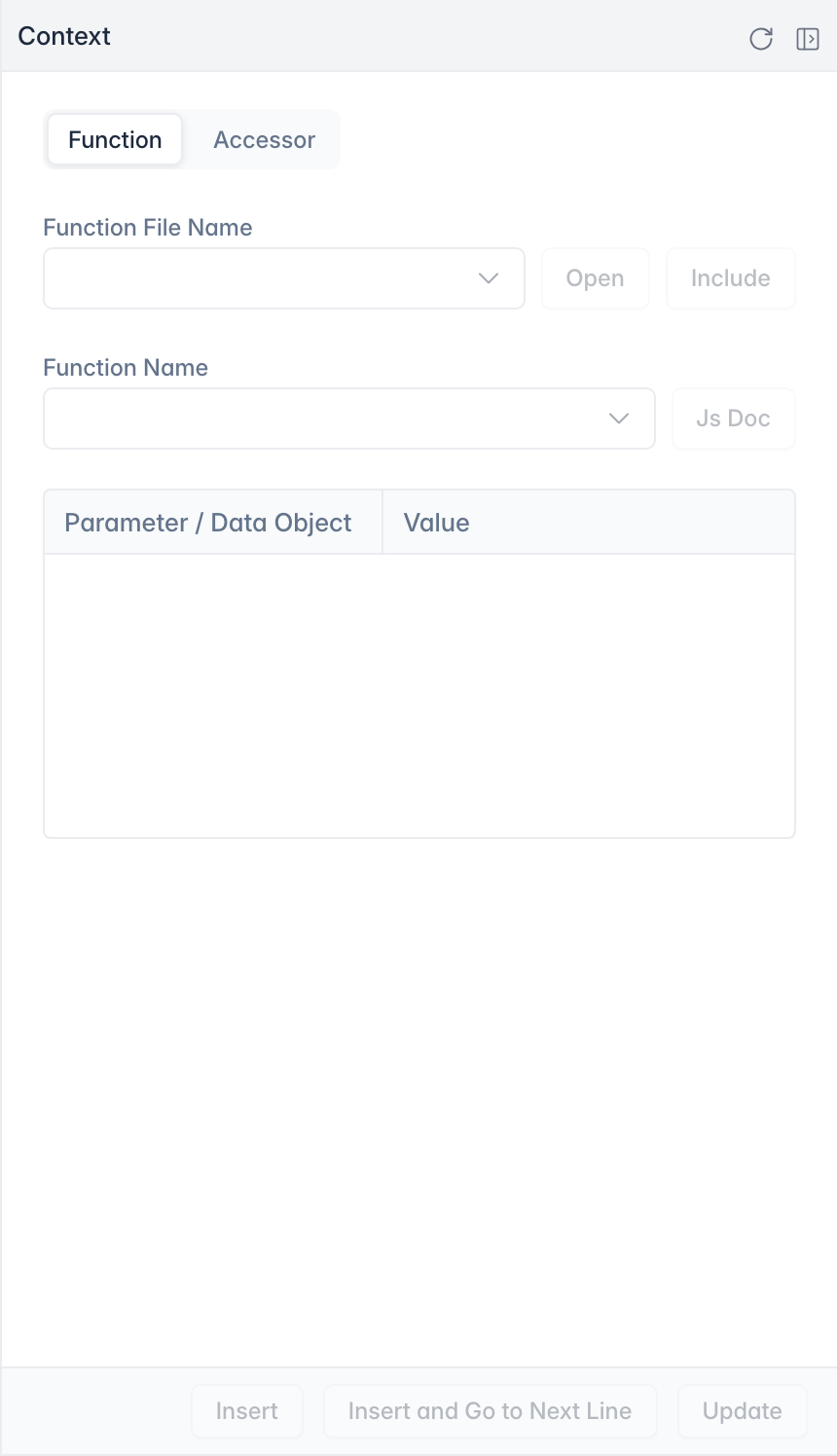
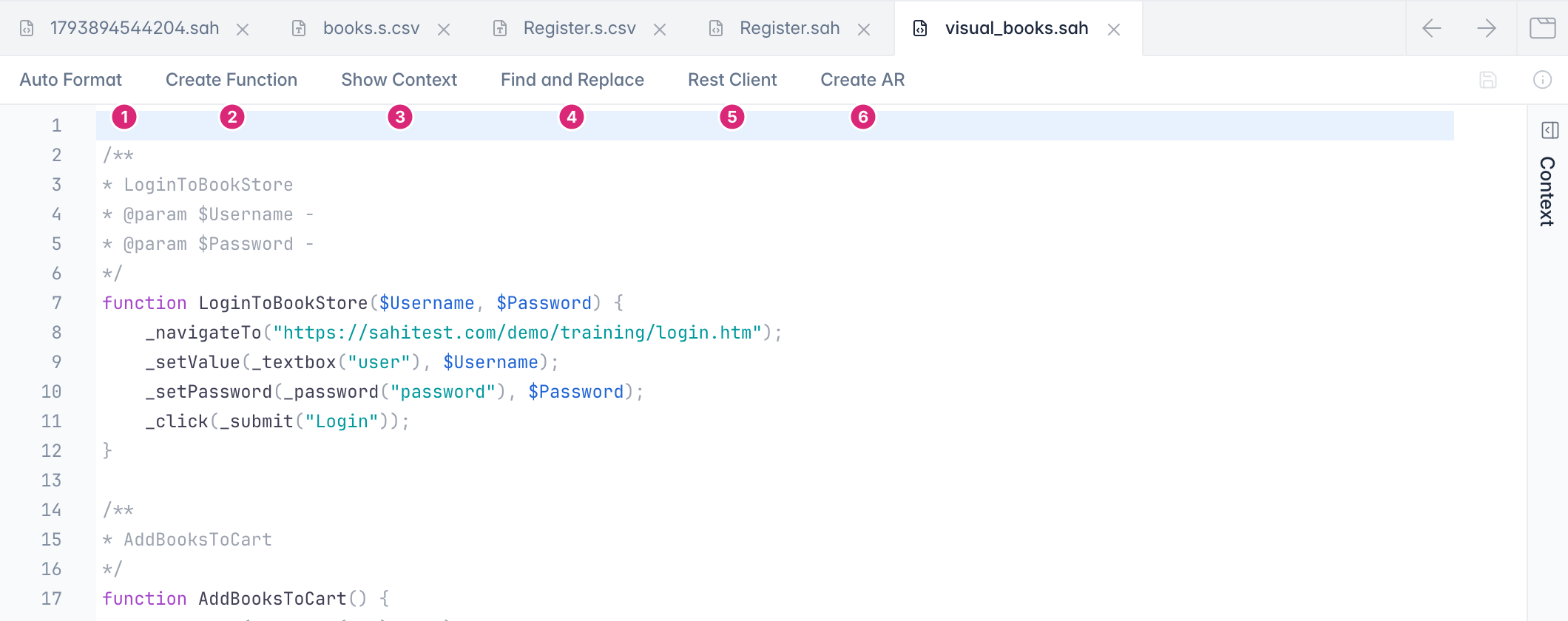 1. **Auto Format:** fixes the indentation of the whole file. See [Auto Format](#auto-format).
2. **Create Function:** turns selected lines into a function. See [Create a Function](#create-a-function).
3. **Show Context:** opens the [Context panel](#context-panel).
4. **Find and Replace:** finds text in the file. See [Find and Replace](#find-and-replace).
5. **Rest Client:** opens the [Rest API Editor](https://resources.sahipro.com/docs/using-sahi/rest-api/getting-started/).
6. **Create AR:** creates an Accessor Repository from the file. See [Create an Accessor Repository](#create-an-accessor-repository).
## Context Panel
A call to a keyword or an accessor kept in an Accessor Repository doesn't show where it's defined. The Context panel does. Click **Show Context**, or Ctrl-click (⌘-click on Mac) the call.
- **Function:** the file that defines the function, its parameters and their values. **Open** opens that file, and **Include** adds it to the current file if it isn't included yet. **Insert** adds the call, and **Update** changes the values in the line.
- **Accessor:** the AR key and value of the element in the line. You can change the value, or the key in every file or only this one.
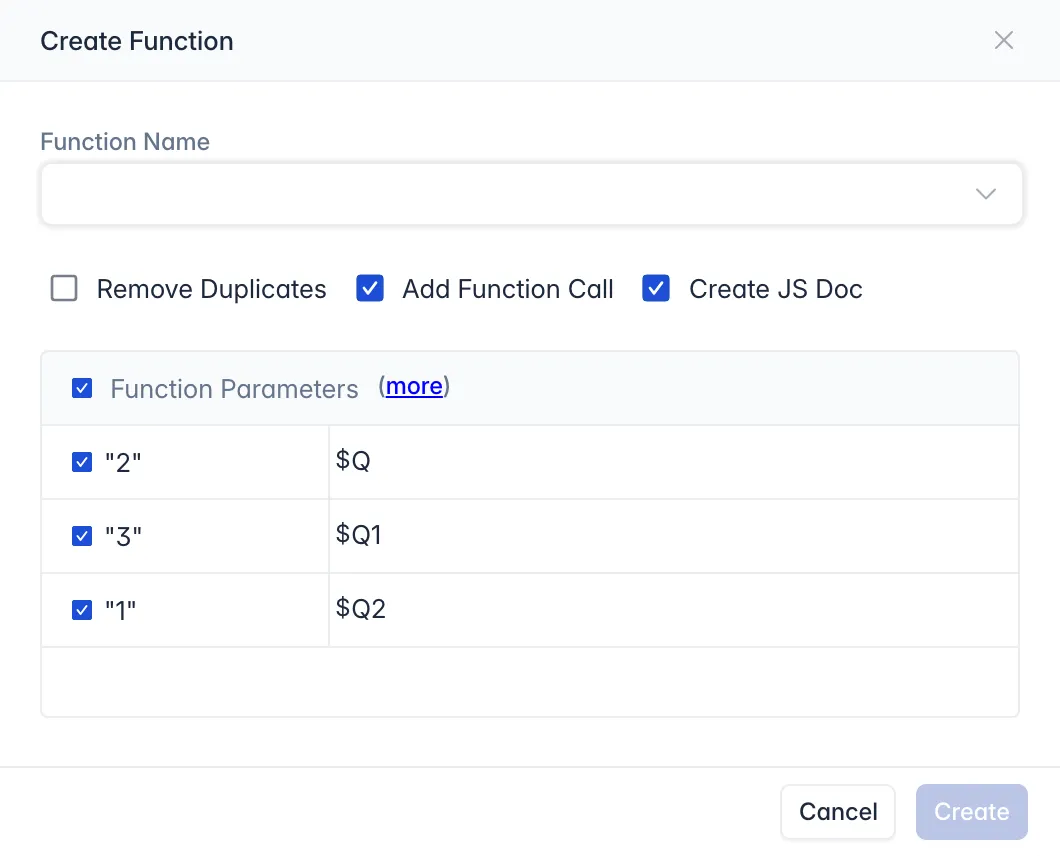
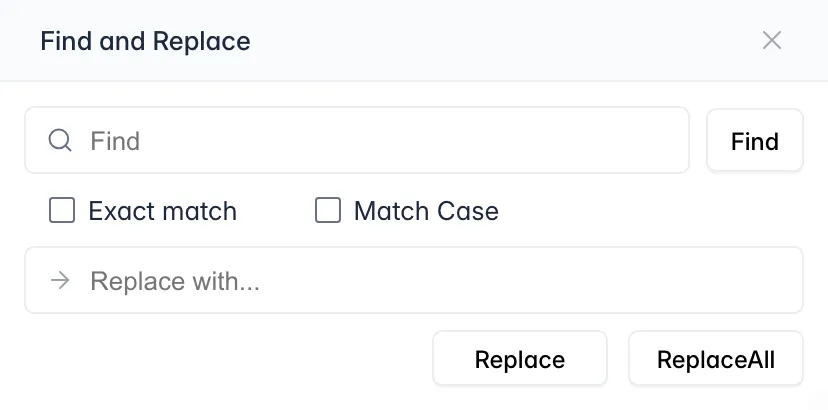
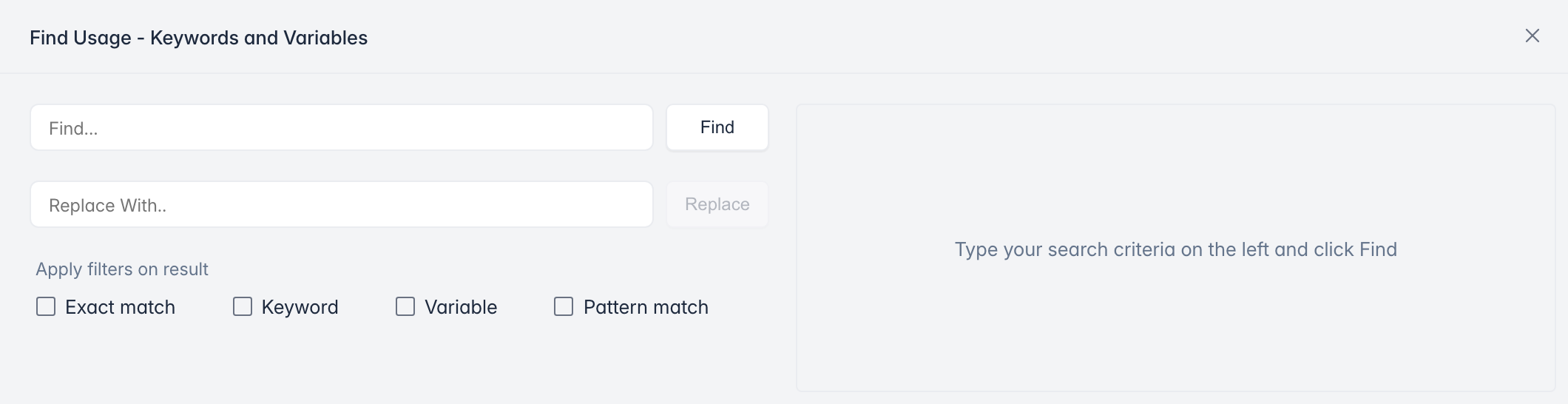 ## Auto Format
**Auto Format** fixes the indentation of the whole file and makes it easier to read. It treats a semicolon as the end of a line.
## Create an Accessor Repository
**Create AR** moves the accessors of the selected files into an Accessor Repository. With no file selected, it works on the open file. To undo it, copy the files from `userdata/scripts_backup` back into the project.
:::note
Sahi Pro needs read and write permission for the `userdata` folder, set in `userdata/config/userdata_hidden.properties`.
:::
## Editor Shortcuts
| **Shortcut** | **Explanation** |
| --- | --- |
| Ctrl + S (⌘ + S on Mac) | Save the current file |
| Alt + Up Arrow | Move current line up |
| Alt + Down Arrow | Move current line down |
| Ctrl + D (⌘ + D on Mac) | Delete the current line |
| Ctrl + F (⌘ + F on Mac) | Search in the file |
| Ctrl + / (⌘ + / on Mac) | Comment selected lines |
| Ctrl + Alt + Up Arrow (⌘ + Alt + Up Arrow on Mac) | Copy current line above |
| Ctrl + Alt + Down Arrow (⌘ + Alt + Down Arrow on Mac) | Copy current line below |
| Ctrl + L (⌘ + L on Mac) | Go to a line number |
To run or debug the keywords you write, see [Run Tests](https://resources.sahipro.com/docs/using-sahi/run-tests-via-editor/) and [Debug a Test](https://resources.sahipro.com/docs/using-sahi/run-tests-via-editor/#debug-a-test).
---
# Sahi Script Best Practices
Rules for writing Sahi scripts that are reliable and easy to maintain, whether you write them yourself or an AI assistant writes them.
These rules make scripts reliable and easy to maintain. They are written so that people and AI assistants can both follow them. For organising whole suites and teams, see [Best Practices](https://resources.sahipro.com/docs/using-sahi/best-practices/) in Using Sahi.
:::note
This page is being written. Each rule will get examples of what to do and what to avoid.
:::
## Finding elements
- Identify elements by the text or label users see, for example `_link("Logout")`, not by position or generated ids.
- When the same text appears more than once, use a relation such as `_near` or `_in` instead of an index like `[2]`. See [Accessor Basics](https://resources.sahipro.com/docs/sahi-script/functions/accessor-basics/).
- Use the Controller to pick accessors instead of writing them by hand.
## Waiting
- Do not add fixed pauses. Sahi already waits for pages and AJAX requests to finish.
- When you must wait for something specific, use [`_wait`](https://resources.sahipro.com/docs/sahi-script/functions/script-execution-control/#_wait) with a condition and a time limit.
## Checking results
- End every test with assertions that prove it passed, such as `_assertExists` or `_assertEqual`. See [Assertion Functions](https://resources.sahipro.com/docs/sahi-script/functions/assertions/).
- Check one thing per assertion, so a failure tells you exactly what went wrong.
## Structure
- Put repeated steps in functions in a library file, and load it with [`_include`](https://resources.sahipro.com/docs/sahi-script/functions/include/).
- Keep test data out of the script. Read it from a file with the [Data Drive Functions](https://resources.sahipro.com/docs/sahi-script/functions/data-drive/).
- Give functions and variables names that say what they do. Remember that variables start with `$`.
## Handling failures
- Handle errors you expect and recover from them. See [Exception Handling](https://resources.sahipro.com/docs/sahi-script/exception-handling/).
- Use the [Logging Functions](https://resources.sahipro.com/docs/sahi-script/functions/logging/) to add messages that explain what the script was doing when it failed.
---
# Sahi Scripting Basics
Sahi script is based on javascript. Sahi script is parsed by Sahi and the parsed script is fully valid javascript which is executed by the rhino javascript engine. Below are the normal constructs used in Sahi script. They are the same as javascript except for the mandatory $ used in variables.
## Statements
Statements are normal lines of code. They end with a semi-colon.
Eg.
```js
_click(_link("Login"));
```
### Variable declaration
```js
var $variableName = value;
```
or
```js
var $variableName; // declaration
$variableName = value; // assignment
```
All variables start with a $. The keyword var is used for local variables.
Eg.
```js
var $username = "SahiTestUser";
var $password; // declaration;
$password = $username + "_password"; // "SahiTestUser_password"
```
### Comments
```js
// This is a single line comment
/*
This is a multiline comment.
This has two lines
*/
```
### if statements
```js
if (condition) {
// statements
}
```
Eg.
```js
// Comparing normal values
if ($username == "PartnerUser"){
_click(_link("Partner Login"));
}
// Comparing with browser attributes exposed by Sahi
if (_getText(_div("page_type")) == "Partner Page"){
_click(_link("Partner Login"));
}
// Comparing with browser attributes NOT exposed by Sahi's built-in fetch apis
// using _fetch
if (_fetch(_link(0).href) == "http://sahi.co.in/"){
_click(_link("Partner Login"));
}
// Comparing with browser attributes NOT exposed by Sahi's built-in fetch apis
// using _condition
if (_condition(_link(0).href="=" "http://sahi.co.in/")){
_click(_link("Partner Login"));
}
```
### for loops
```js
for (var $i=0; $i<$max; $i++){
// statements
}
```
Eg.
```js
// This loop will login with user1, password1, user2, password2 etc.
// login and logout are custom functions.
for (var $i=0; $i<10; $i++){
login("user"+$i, "password"+$i);
logout();
}
```
### while loops
```js
while (condition) {
// statements
}
```
Eg.
```js
$i = 0;
while ($i++ < 10) {
login("user"+$i, "password"+$i);
logout();
}
```
## Structuring Sahi Code
:::note
While recording gives us the low level steps to be performed on the browser, code needs to be restructured for better readability and maintainability. This section explains how to structure your code for effective but simple use of Sahi.
:::
### Functions
Functions are the basic building blocks in your automation. Functions are used to club together multiple steps into one logical action.
Functions reduce code duplication and allow easier maintenance of scripts.
```js
function functionName($parameter1, $parameter2) {
// statements
}
```
For example a login function may look like this
```js
// function declaration
function login($usr, $pwd){
_click(_link("Login"));
_setValue(_textbox("username"), $usr);
_setValue(_password("password"), $pwd);
_click(_submit("Login"));
}
// function call
login("test", "secret");
```
### Including another Sahi script file
To reuse a function from one script in another, we include the relevant script using [\_include](https://resources.sahipro.com/docs/sahi-script/functions/include/#_include). Functions and variables declared in the included script are available in the including script.
Eg.
**common.sah**
```js
// File: common.sah
// declare $DEFAULT_USER variable
var $DEFAULT_USER = "test";
// login function declaration
function login($usr, $pwd){
_click(_link("Login"));
_setValue(_textbox("username"), $usr);
_setValue(_password("password"), $pwd);
_click(_submit("Login"));
}
```
**testcase1.sah**
```js
// File: testcase1.sah
// include common.sah shown above.
_include("common.sah");
// Note how login and $DEFAULT_USER are actually declared
// in common.sah but available here in testcase1.sah.
login($DEFAULT_USER, "secret");
```
---
# Some Basic Data Types and Data Structures
## Data Types
Most interactions with browsers require us to validate either string or integer data. Both these can be stored in regular javascript variables.
## Data Structures
Since we work with web UIs, Sahi's need for data structures is fairly minimal. The few that are used are:
### Single dimensional array
```js
var $ar = ["Ram", "Sam", "Jam"];
var $firstUser = $ar[0]; // returns "Ram"
```
### Two dimensional array
```js
var $ar2d = [["Ram",18], ["Sam",20], ["Jam",25]];
var $firstRow = $ar2d[0]; // returns ["Ram",18]
var $firstUser = $firstRow[0] // returns "Ram"
// or
var $firstUser = $ar2d[0][0] // returns "Ram"
```
### Associative Array
```js
var $userInfo = {"name":"Ram", "age":"18"};
var $userName = $userInfo["name"];
var $userAge = $userInfo["age"];
```
---
# Exception Handling and Recovery
## Try Catch
For anticipated exceptions, one may use try catch blocks.
**Syntax**
```js
try{
// sahi statements
}catch($e){
// Corrective action
// Can print exact source of error in log
// Can throw the same or another exception
}
```
### Corrective Action
```js
try{
_click(_link("does not exist"));
}catch($e){
_log("Exception occured"); // simple logging. no failure
_click(_link("linkByHtml")); // Corrective action
}
```
### Corrective Action and Log the Exception Message
```js
try{
_disableDefaultErrorLogging(); // This will ignore and not log the failures which occur in try block
_click(_link("does not exist"));
}catch($e){
_click(_link("linkByHtml")); // Corrective action
_logException($e); // Logs the exception, but does not fail
}
```
### Corrective Action, Log and then Fail
```js
try{
_disableDefaultErrorLogging(); // This will ignore and not log the failures which occur in try block
_click(_link("does not exist"));
}catch($e){
_click(_link("linkByHtml")); // Corrective action
_logExceptionAsFailure($e); // Logs the exception, and fails,
// and in the logs, points to the original line as source of failure.
}
```
## Script Callback Functions
For unanticipated exceptions, override Sahi's callback functions to recover.
Example:
```js
function onScriptEnd(){
_click(_button("Logout"));
}
function onScriptError(){
_log(">> In onScriptError");
}
function onScriptFailure(){
_log(">> In onScriptFailure");
}
_navigateTo("http://sahi.co.in/demo/training/");
_setValue(_textbox("user"), "test");
_setValue(_password("password"), "secret");
_click(_submit("Login"));
_assertExists(_submit("Login")); // cause SCRIPT ASSERTION FAILURE - triggers onScriptFailure
_setValue(_textbox("q11"), "2"); // causes SCRIPT ERROR - triggers onScriptError
// Script aborts here, but executes onScriptEnd() to logout
_setValue(_textbox("q[1]"), "1");
_setValue(_textbox("q[2]"), "1");
_click(_button("Add"));
_assertEqual("1150", _textbox("total").value); // cause SCRIPT FAILURE
// If not aborted earlier, automatically calls onScriptEnd() to logout.
```
### Taking screenshots
Use \_focusWindow() and \_takeScreenShot() (available since Sahi Pro V4.3)
```js
function onScriptError($e){
_focusWindow();
_takeScreenShot();
}
onScriptFailure = onScriptError;
_navigateTo("http://sahi.co.in/demo/training/");
_setValue(_textbox("user"), "test");
_setValue(_password("password"), "secret");
_click(_submit("Login"));
```
### Force Sahi to continue on error after screenshots and logging.
```js
function onScriptError($e){
_logExceptionAsFailure($e);
_focusWindow();
_takeScreenShot();
return true; // Forces Sahi to continue execution and not stop at error. Since Sahi Pro V4.3
}
_navigateTo("http://sahi.co.in/demo/training/");
_setValue(_textbox("user"), "test");
_setValue(_password("password"), "secret");
_click(_submit("Login"));
```
## \_setRecovery
:::caution[Important]
\_setRecovery is no longer recommended and may be deprecated soon. Use the callback functions instead
:::
The relevant functions are:
\_setRecovery(fn) \_removeRecovery()
Any function can be assigned to a script as a recovery function. Once set, if there is an error during execution, the recovery function will be called before the script stops.
```js
_navigateTo("http://sahi.co.in/demo/");
function myRecoveryFn(){
_alert("In myRecoveryFn."); // This statement will be alerted in case of script error.
}
_setRecovery(myRecoveryFn); // Set the myRecoveryFn as recovery function.
_click(_link("Link Test")); // Works normally
_click(_link("Bad Link"));
// This statement fails and causes myRecoveryFn to be called.
_alert("done");
// This statement will not be called, because script failed in the last statement.
```
The recovery function can be removed via \_removeRecovery();
:::caution[Important]
\_setRecovery is no longer recommended and may be deprecated soon. Use the callback functions instead
:::
---
# Including Sahi Script Globally
Sahi automatically includes `userdata/scripts/global_include.sah` file into every script/scenario that is run.
Default implementation of [callback functions](https://resources.sahipro.com/docs/sahi-script/functions/script-execution-control/#callback-functions) are available in this file.
`global_include.sah` must always be present at the root of scripts folder. If you have manually configured more than one scripts folder, the `global_include.sah` from the respective root folders will be considered.
In case a script root folder doesn't have `global_include.sah` file, user will see an error on console reporting the same.
---
# Multiple Modes in a Single Script
From Sahi Pro v7.0.0, it is possible to interact with multiple applications from the same script. With the [Sahi Pro Desktop Engine](https://resources.sahipro.com/docs/introduction/sahi-pro-desktop-engine/), we can interact with Window Desktop applications and Java applications
The [\_setMode](https://resources.sahipro.com/docs/sahi-script/functions/script-execution-control/#_setmode) function is used to switch modes within a script.
```js
// by default start with browser interaction
_navigateTo("/demo/training/");
_setValue(_textbox("user"), "test");
...
// Switch to Windows automation
_setMode("WINDOWS");
_selectWindow("/Notepad/");
_mouseOver(_toolBar(""));
_click(_button("Replace..."));
_click(_tabItem("Find"));
...
// Switch back to browser
_setMode("BROWSER");
_click(_button("Logout"));
```
## Available Modes
| Mode | Description | Available in |
| --- | --- | --- |
| GENERIC | No specific technology. | All |
| BROWSER | Desktop browsers like Chrome, Firefox, Internet Explorer etc. as defined in browser\_types.xml. Eg. `chrome` | Sahi Pro |
| ANDROID\_BROWSER | Android web applications | Sahi Pro |
| IOS\_BROWSER | iOS web applications | Sahi Pro |
| WINDOWS | Native Windows applications (WPF, WinForms, .NET, SilverLight, XBAP) | Sahi Pro Desktop Engine |
| JAVA | Java desktop and Web Start/JNLP applications | Sahi Pro Desktop Engine |
| JAVA\_APPLET | Java Applets | Sahi Pro Desktop Engine |
| ANDROID | Android applications (native and hybrid) | Sahi Pro Mobile Engine |
| IOS | iOS applications (native, hybrid and web) | Sahi Pro Mobile Engine |
| SAP | SAP GUI Application | Sahi Pro SAP Engine |
## Start Mode
The Start Mode, specified before a script or suite is executed, is the mode with which scripts will start playing. The mode can be later changed using \_setMode. If Sahi Browser capability is enabled, Sahi Pro by default starts all scripts in BROWSER mode and automatically launches a browser at the start. If a script needs to start by interacting with JAVA applications, the start mode can be set as JAVA. In this case no browser is opened at start.
## Notes on Default and Start With options
- When "Browser" is chosen as the Start Mode option, a browser of the Default Desktop Browser type is started automatically at the start of the script. This browser session is automatically selected, so that the first step in the script is addressed to this browser instance.
- When "Generic" or "Windows" or "Java" is chosen as the Start Mode option, no browser launch is made. If you want to interact with the browser, the script has to explicitly do
```js
_setMode("BROWSER");
var $instanceId = _launchNewBrowser();
_selectBrowser($instanceId);
```
before steps on browser can be executed.
If browserType is not specified in \_launchNewBrowser, a new browser of the default browser type (as specified at run time from editor or batch file or ant) is launched.
:::caution[Important]
The ant target uses `startWith` parameter to specify start mode. The values of startWith are:
| Visible Text | startWith value |
| --- | --- |
| Browser | BROWSER |
| Generic | GENERIC |
| Windows | WINDOWS |
| Java | JAVA |
| Android | ANDROID |
| Android Browser | ANDROID\_BROWSER |
| iOS | IOS |
| iOS Browser | IOS\_BROWSER |
| SAP | SAP |
:::
---
# Log javascript dialog messages in reports
Javascript dialog messages can be logged in reports. This document describes the procedure to log javascript dialog messages in reports.
## Log javascript popup with expectation in reports
To log javascript popup messages with expectation in reports
1. Click on `Configure` link from Sahi Dashboard, and open `userdata.properties`.
2. Copy and paste the below statements and enter the appropriate values.
```properties
log.js.alert.popups.color.with.expectation=CUSTOM3
log.js.confirmation.popups.color.with.expectation=CUSTOM3
log.js.prompt.popups.color.with.expectation=CUSTOM3
log.js.print.popups.color.with.expectation=CUSTOM3
```
:::note
Note that these values are indicative. You need to modify these values as appropriate.
:::
:::note
- These properties can take CUSTOM, CUSTOM1, CUSTOM2, CUSTOM3, CUSTOM4 or CUSTOM5, ERROR or FAILURE as values. Default is blank(no background color)
- This controls the background color of popup message in reports when expectation is set.
- If value is not provided for the above properties javascript popup messages will not be logged in reports
:::
## Log javascript popup without expectation in reports
To log javascript popup messages without expectation in reports
1. Click on `Configure` link from Sahi Dashboard, and open `userdata.properties`.
2. Copy and paste the below statements and enter the appropriate values.
```properties
log.js.alert.popups.color.without.expectation=FAILURE
log.js.confirmation.popups.color.without.expectation=FAILURE
log.js.prompt.popups.color.without.expectation=FAILURE
log.js.print.popups.color.without.expectation=FAILURE
```
:::note
Note that these values are indicative. You need to modify these values as appropriate.
:::
:::note
- These properties can take CUSTOM, CUSTOM1, CUSTOM2, CUSTOM3, CUSTOM4 or CUSTOM5, ERROR or FAILURE as values. Default is blank(no background color)
- This controls the background color of popup message in reports when expectation is not set.
- If value is not provided for the above properties javascript popup messages will not be logged in reports
:::
## Color of javascript dialog messages in reports
1. Javascript dialog messages can be logged with various background color as described below:
```properties
CUSTOM = yellow
CUSTOM1 = orange
CUSTOM2 = grey
CUSTOM3 = green
CUSTOM4 = violet
CUSTOM5 = indigo
ERROR = red
FAILURE = red
```
:::note
For ERROR and FAILURE the script will be marked failed.
:::
---
# 401 Authentication
This section describes how to handle 401 authentication with Sahi Pro.
A 401 dialog may be used in authentication of websites.
On Internet Explorer, it looks like this:

On Chrome, it looks like this:

On Firefox, it looks like this:

However, when navigated to the same site, Sahi Pro automatically transforms this modal dialog into a simple web page.

Since it is now just another HTML page, you can easily write scripts to enter username and password into the dialog.
:::note
Sometimes the AuthKey may have something dynamic like a timestamp in it. In such cases, a regular expression can be used. Eg. You can use `/Secure/` instead of `Secure Gateway` in the AuthKey field above. To accept for any AuthKey one can use `/.*/`. **Try setting AuthKey to `/.*/` before troubleshooting further.**
:::
:::caution[Important]
Ensure you have installed Java 1.8 or above.
To change the version of Java that Sahi Pro uses, edit `sahi/userdata/bin/setjava.bat` (or `setjava.sh`) and modify
```sh
set SAHI_JAVA_HOME=C:\path\to\java1.8
```
:::
## 401 authentication page for NTLM scheme loops or does not login even if the credentials are provided

Sahi Pro automatically tries to authenticate the WINDOWS logged in user for the applications which support NTLM scheme. However if Sahi Pro is unable to authenticate the user automatically, the 401 page for NTLM authentication is displayed.
The solution would differ based on your environment. Thus to address this, employ below approaches one by one:
1. First approach :
1. Sahi Pro automatically populates the username for the currently logged in user. However if you use different credentials for authentication, kindly enter them.
2. Ensure that the username is in domain\\user format where both the domain name and user name are correct.
3. Provide your password for authentication in the password field and click on the Authenticate button.
2. Second approach :
1. If the first approach did not work, then ensure that following property is enabled in the **userdata.properties** file :
```properties
apacheclient.enabled=true
```
2. Add the following property in the **userdata.properties** file:
```properties
apacheclient.ntlm_authentication.enabled=true
```
3. Restart Sahi Pro and then launch your application in the browser.
4. Now enter valid credentials for authentication as done in the first approach.
## Sahi Pro authenticates automatically but the username is improper
Sahi Pro automatically tries to authenticate the WINDOWS logged in user for the applications which support NTLM scheme. If successfully authenticated, Sahi Pro's 401 authentication page will not be displayed. However you may wish to use different credentials i.e credentials of a user other than the currently logged in user.
To address this, follow below steps :
1. Add the following property in the **userdata.properties** file:
```properties
java.ntlm.transparent_authentication.enabled=false
```
2. Restart Sahi Pro and launch your application.
3. Now enter valid credentials for authentication. Ensure that the username is in domain\\user format where both the domain name and user name are correct.
4. Provide your password for authentication in the password field and click on the Authenticate button.
5. If it did not authenticate successfully, then ensure that following property is enabled in the **userdata.properties** file :
```properties
apacheclient.enabled=true
```
6. Then add the following property in the **userdata.properties** file:
```properties
apacheclient.ntlm_authentication.enabled=true
```
7. Restart Sahi Pro and try again.
## Handling 401 authentication page for NEGOTIATE or KERBEROS scheme

Sahi Pro automatically tries to authenticate the user for applications which support only NEGOTIATE or KERBEROS scheme. However if Sahi Pro is unable to authenticate the user automatically, the 401 page for authentication is displayed.
To address this, follow below steps :
1. Verify if `apacheclient.enabled` property is set as true in the **userdata.properties** file. If this property is set as false, set it as true. Restart Sahi Pro and try again.
2. If Sahi Pro was unable to authenticate automatically even after enabling `apacheclient.enabled` property, disable this property by setting it as false. Restart Sahi Pro and try again.
3. Now Sahi Pro's 401 page for authentication is displayed. Enter credentials in this web page.
1. Set User Principal Name as username in this web page. You can find your User Principal Name by running the command `whoami /upn` on the command prompt.
2. Provide your system login password in the password field and click on Authenticate button. Restart Sahi Pro and try again.
4. If the authentication did not succeed, ensure `apacheclient.enabled` property is set as false. Then, set below properties in the **userdata.properties** file.
1. Run the command 'whoami /upn' on the command prompt. This command prints your User Principal Name. Set your User Principal Name as value for `java.kinit.principal_name` property.
2. Encode your system login password using [Password Encoder](https://resources.sahipro.com/docs/using-sahi/sahi-script-editor/#password-encoder). Set this encoded password as value for `java.kinit.encrypted_password` property.
5. Restart Sahi Pro and try again. On start, Sahi Pro will now generate a Kerberos ticket at `USER_HOME\krb5cc_USER_NAME`. For example, if the Windows system's login user name is `userXYZ[icode], then the Kerberos ticket will be generated at [icode]C:\Windows\Users\userXYZ\krb5cc_userXYZ`.
:::note
Henceforth, the generated Kerberos ticket will be used for authentication. However, this ticket will expire after a period after which it needs to be renewed or regenerated. Sahi Pro will automatically regenerate the ticket on every start. To regenerate the ticket periodically without restarting Sahi Pro, add the following property in the **userdata.properties** file.
```properties
# Below example can be used to regenerate the ticket after every 500 minutes.
java.kinit.delay_between_regeneration=500
```
:::
## 401 dialog or page does not appear with Sahi Pro
Sahi Pro automatically tries to authenticate the WINDOWS logged in user for the applications. In this case, the 401 authentication page is not shown.
If Sahi Pro is unable to authenticate the user automatically, the 401 authentication page should appear. If it does not appear, the application will not get authenticated access. Thus, the application will not behave as expected.
In such a case, where the application expects authentication but the authentication page does not appear, follow below steps.
1. Ensure that `apacheclient.enabled` property is set as true in the **userdata.properties** file. Also, verify if `java.ntlm.transparent_authentication.enabled` is set as true. After enabling these properties, restart Sahi Pro and try again.
2. If Sahi Pro's 401 page for authentication is displayed, enter credentials in this web page.
3. If Sahi Pro's 401 page for authentication is still not displayed, use function [\_setAuthentication](https://resources.sahipro.com/docs/sahi-script/functions/actions/#_setauthentication) to add credentials for authentication. Reload the application page.
## Unable to authenticate different users in separate browser windows simultaneously
When you provide credentials for authentication on the 401 page, the user is authenticated in that browser session. Subsequently, Sahi Pro reuses the same credentials to automatically authenticate when other browser sessions are launched. This prevents you from using multiple user accounts at the same time. Follow the steps below to use different credentials, that is, credentials of a user other than the one currently logged in.
1. Ensure that following property is enabled in the **userdata.properties** file :
```properties
apacheclient.enabled=true
```
2. 1. For NTLM scheme, add the following property in the **userdata.properties** file:
```properties
apacheclient.ntlm_authentication.enabled=true
```
2. For Basic scheme, add the following property in the **userdata.properties** file:
```properties
apacheclient.basic_authentication.enabled=true
```
3. Restart Sahi Pro and try again.
---
# Client Certificate Authentication
This section describes how to handle client certificate authentication in Sahi.
Some applications seek a client certificate from the user for authentication. User will be able to connect to such applications only when a valid certificate is provided. When user tries to open such an application, the web browser may prompt to select a certificate as shown in the image below.

There are two ways to handle client certificate authentication in Sahi:
1. **Using \_setClientCertificate function**
-
- Add [\_setClientCertificate](https://resources.sahipro.com/docs/sahi-script/functions/actions/#_setclientcertificate) function to your script and specify the certificate details.
```js
// Add the application domain to the current script session.
_addToSession("https://protectedapplication.test.com");
// Specify details of the certificate to be used for authentication
_setClientCertificate("c:/myownpath/testuser1.pfx","Mg0BChVBGh1XOB0K", "PKCS12");
// Navigate to the application that seeks a client certificate
_navigateTo("https://protectedapplication.test.com");
```
- This function supports different types of certificates. For example, PKCS12 (.p12, .pfx), JKS (.jks), JCEKS (.jceks, .jcs) etc.
- Since this function sets a certificate in the current script session, different certificates can be used simultaneously in different browser instances.
2. **Using certificate present in the system**
-
- If the client certificate file is not available but the certificate is installed in the system, follow below steps.
- Add the following property in the **userdata.properties** file. Restart Sahi.
```properties
ssl.client.system_keystore.enabled=true
```
- If this does not work, add the following properties in the **userdata.properties** file. Restart Sahi.
```properties
ssl.client.system_keystore.enabled=true
ssl.client.system_keystore.name=WINDOWS-ROOT
```
:::note
By default, the userdata property **ssl.client.system\_keystore.name** is set as **WINDOWS-MY** to use certificates available in the keystore for the current Windows user. When this property is set as **WINDOWS-ROOT**, all the certificates trusted by the current machine can be used.
:::
---
# Parsing XML in Sahi Scripts
Sahi uses Rhino as its javascript engine and Rhino has excellent support for handling XML.
Below is a script which reads and asserts XML nodes and attributes. The example has been picked from [http://www.ibm.com/developerworks/webservices/library/ws-ajax1/](http://www.ibm.com/developerworks/webservices/library/ws-ajax1/) so that it is easy to experiment with the ibm examples in this script.
```js
var xmlStr = '' +
'