
Steps to run Sahi Pro from Windows Task Scheduler
-
Open
Task Schedulerfrom windows search.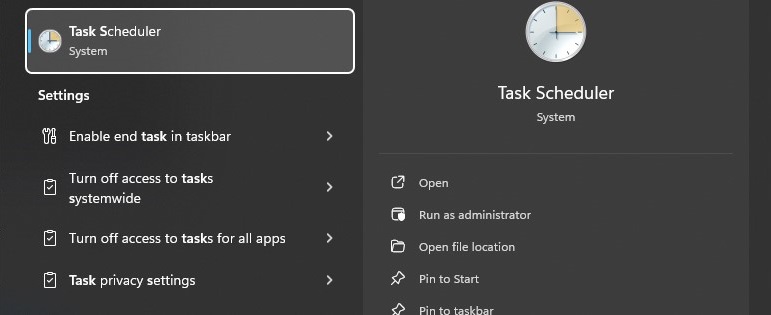
-
Click on
Action > Create Basic Taskon the Task Scheduler’s window.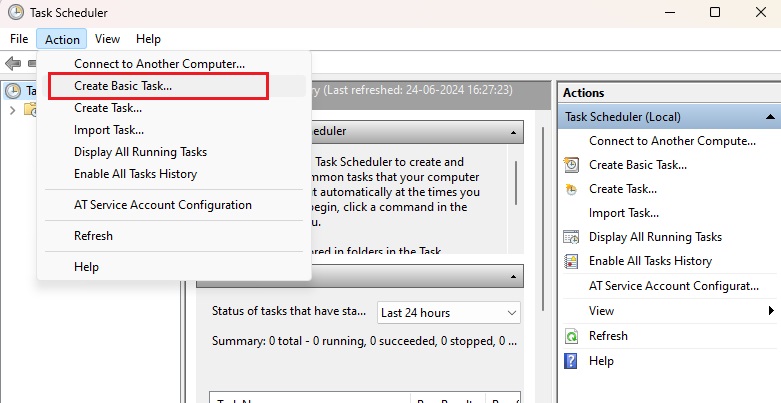
-
Enter the
NameandDescriptionfor the task. Click onNext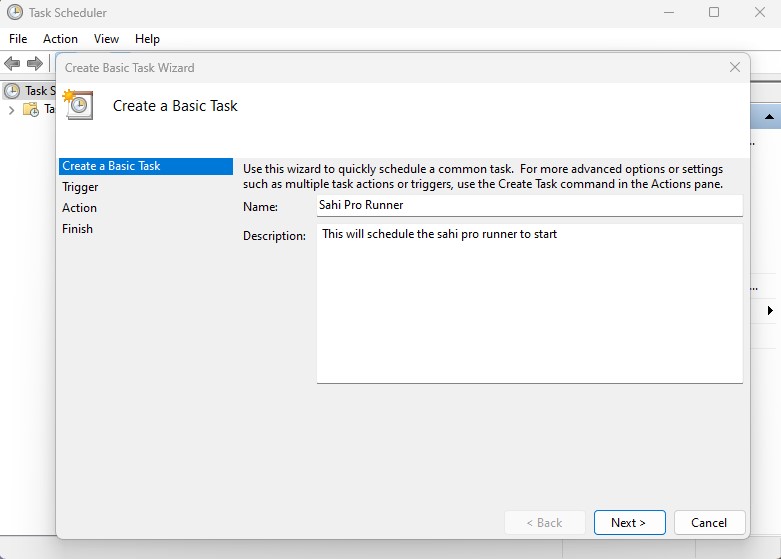
-
Select the
Trigger. You can set a daily, weekly, monthly schedule, or even an event trigger. ClickNext.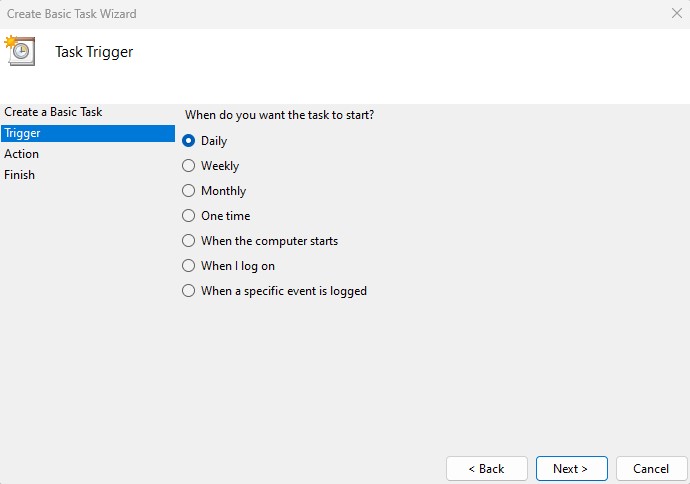
-
If you chose a
Triggerthat requires a specific start time, enter the date and time accordingly. ClickNext.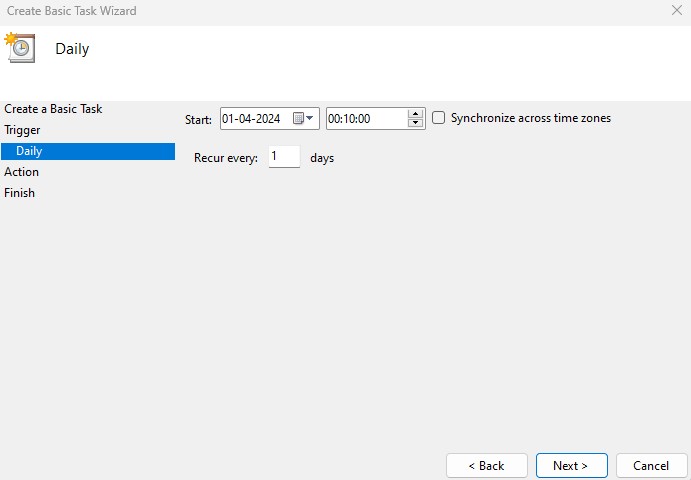
-
Select the option
Start a programand clickNext.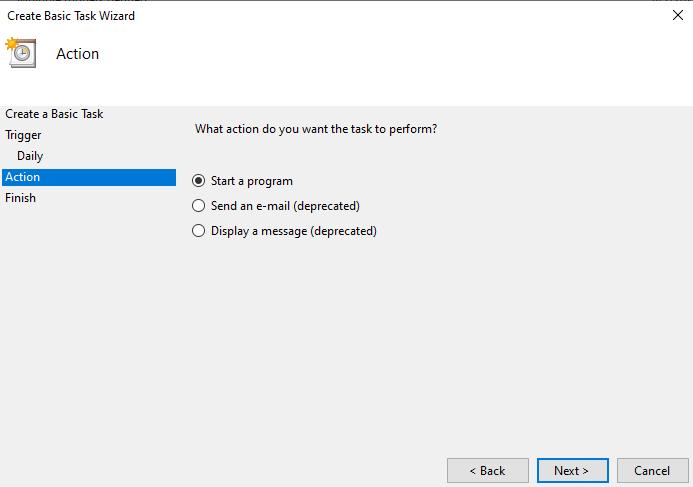
-
Click “Browse” and select
SAHI_RUNNER_HOME\userdata\bin\start_dashboard.batfile and clickOpen.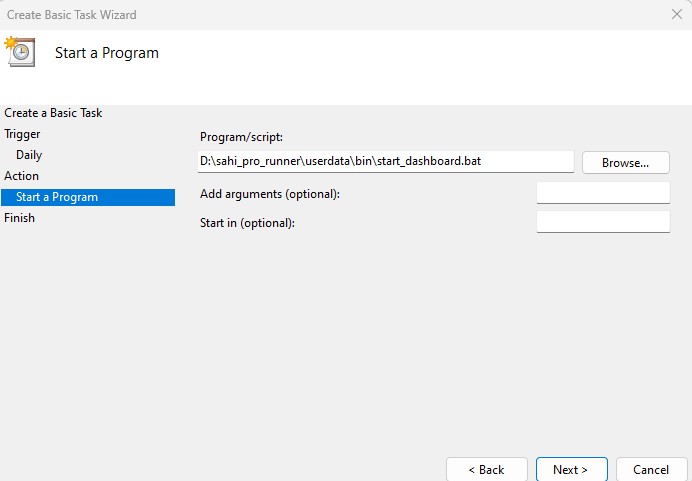
-
In
Start in (optional)field enterSAHI_RUNNER_HOME\userdata\bin\folder path. ClickNext.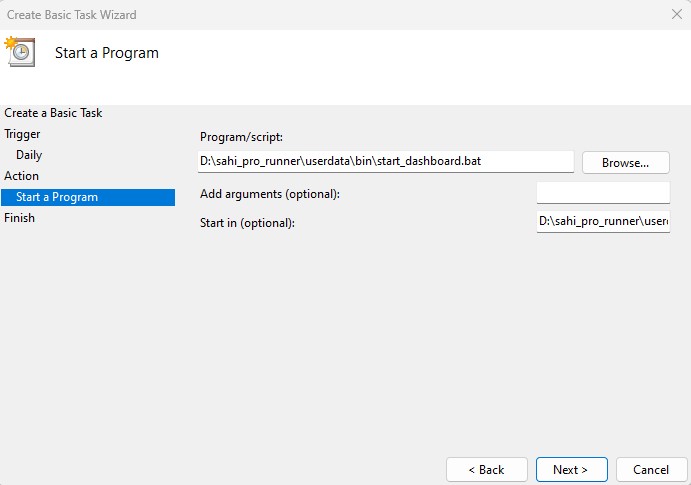
-
Check the checkbox at
Open the properties dialog for this task when I click Finishand clickFinish.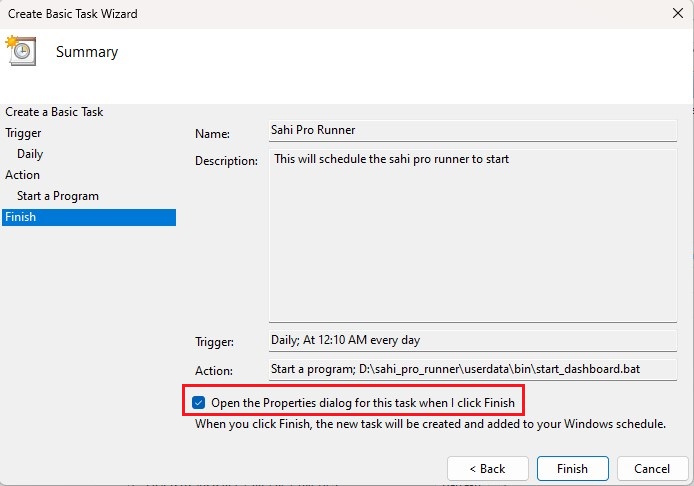
-
In properties dialog Select
Run whether user is logged on or notoption and clickOK.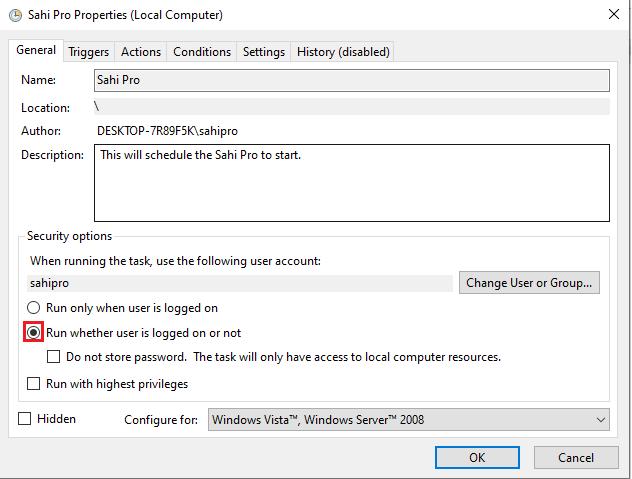
-
Enter credentials and authenticate if required.
Steps to run Sahi Pro as a Service
Section titled “Steps to run Sahi Pro as a Service”-
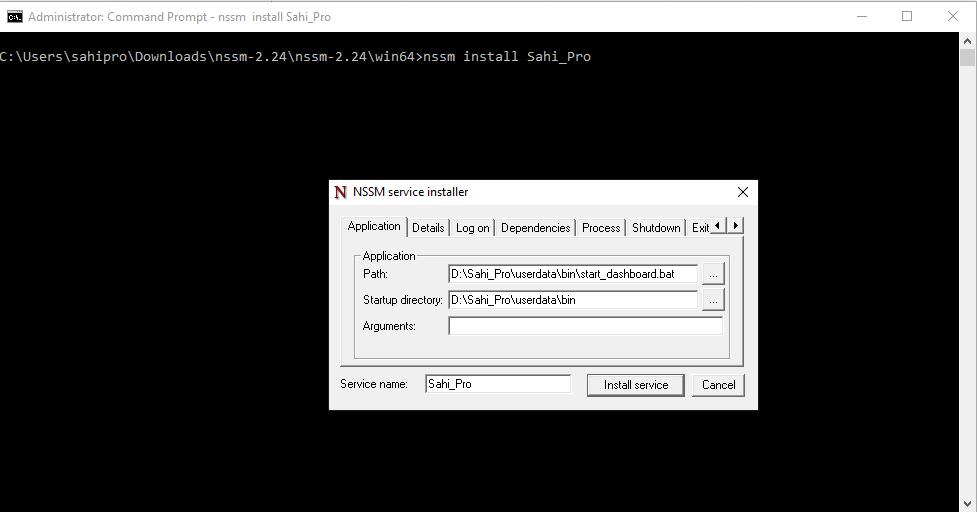
Download NSSM from http://nssm.cc/.
-
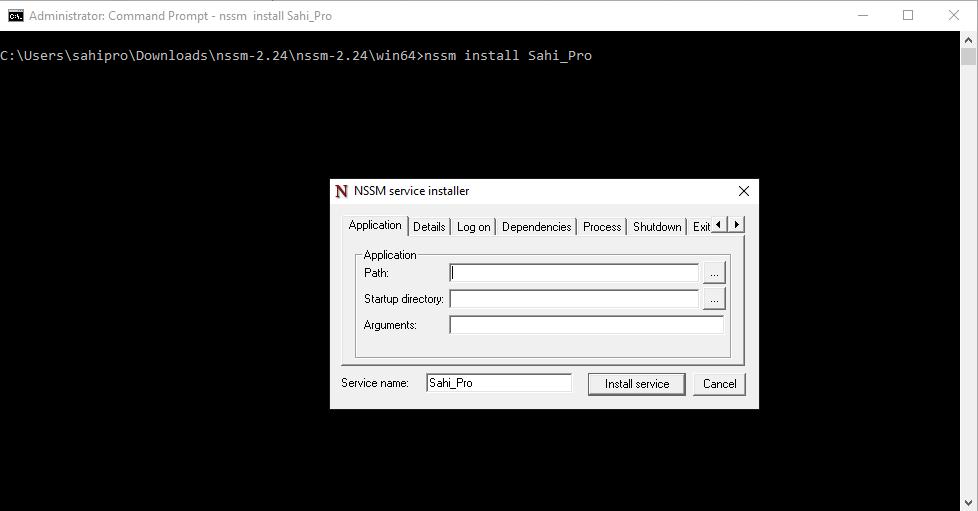
Install your sevice with nssm.exe install
[serviceName]. -
This will open a GUI which you will use to locate your executable.
-
Set the correct values for Path and Arguments here and click on
Install Service.