

Install and Set Up Sahi Pro
Install Sahi Pro, start the Dashboard and add your license, the first step of Getting Started.
Prerequisites
Section titled “Prerequisites”Java 1.8 or above is needed for running Sahi Pro.
Download Sahi Pro
Section titled “Download Sahi Pro”Download Sahi Pro from the Download Center. You will need a valid license to run Sahi Pro. If you do not have a valid license yet, book a demo to get a 14 day trial license.
Upgrade Sahi
Section titled “Upgrade Sahi”If you wish to upgrade from an older version of Sahi, refer to Upgrade for details.
Install Sahi
Section titled “Install Sahi”-
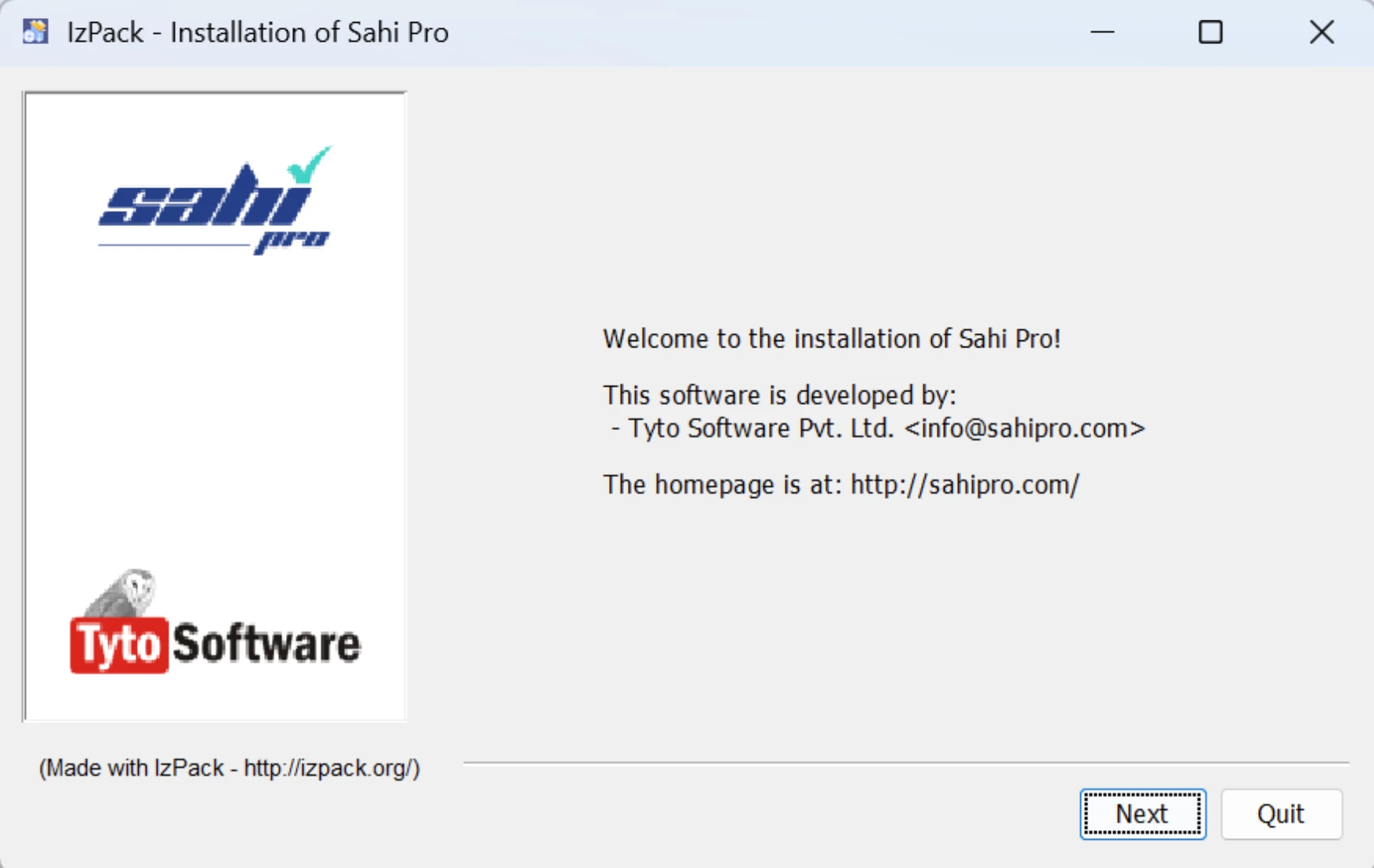
Double click on install_sahi_pro_xxx.jar to start the installer. If Java is configured properly, it will launch the installer.
-
Install Sahi Pro in a folder path without spaces. (If there are spaces, Chrome will have trouble launching correctly.)
Start Sahi Dashboard
Section titled “Start Sahi Dashboard”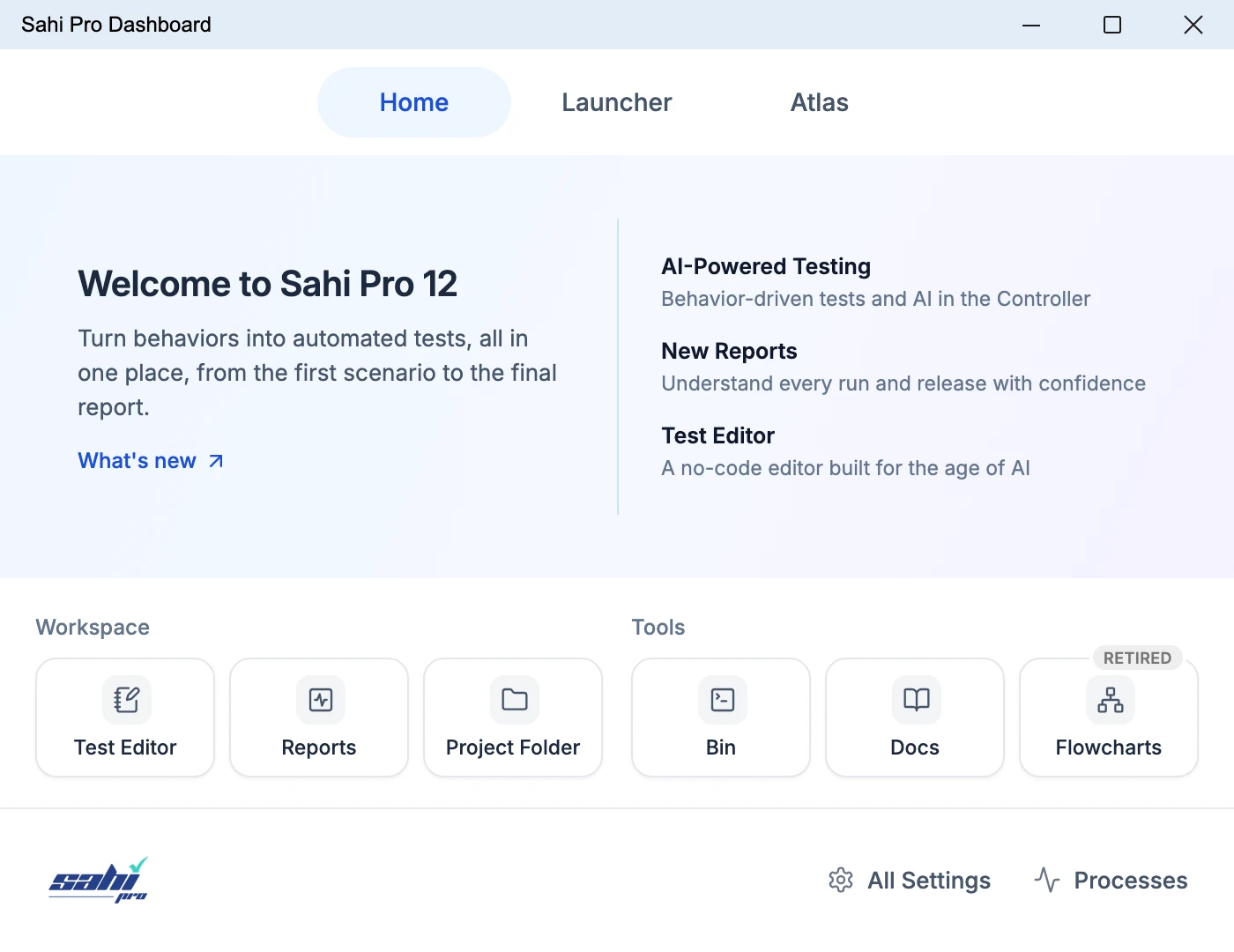
Start Sahi Dashboard by any of the following methods
-
Double click on the desktop shortcut
or
-
Start from the command line.
Windows: - Go to
<sahi_root>\userdata\binand runstart_dashboard.batLinux - Go to
<sahi_root>/userdata/binand run./start_dashboard.sh
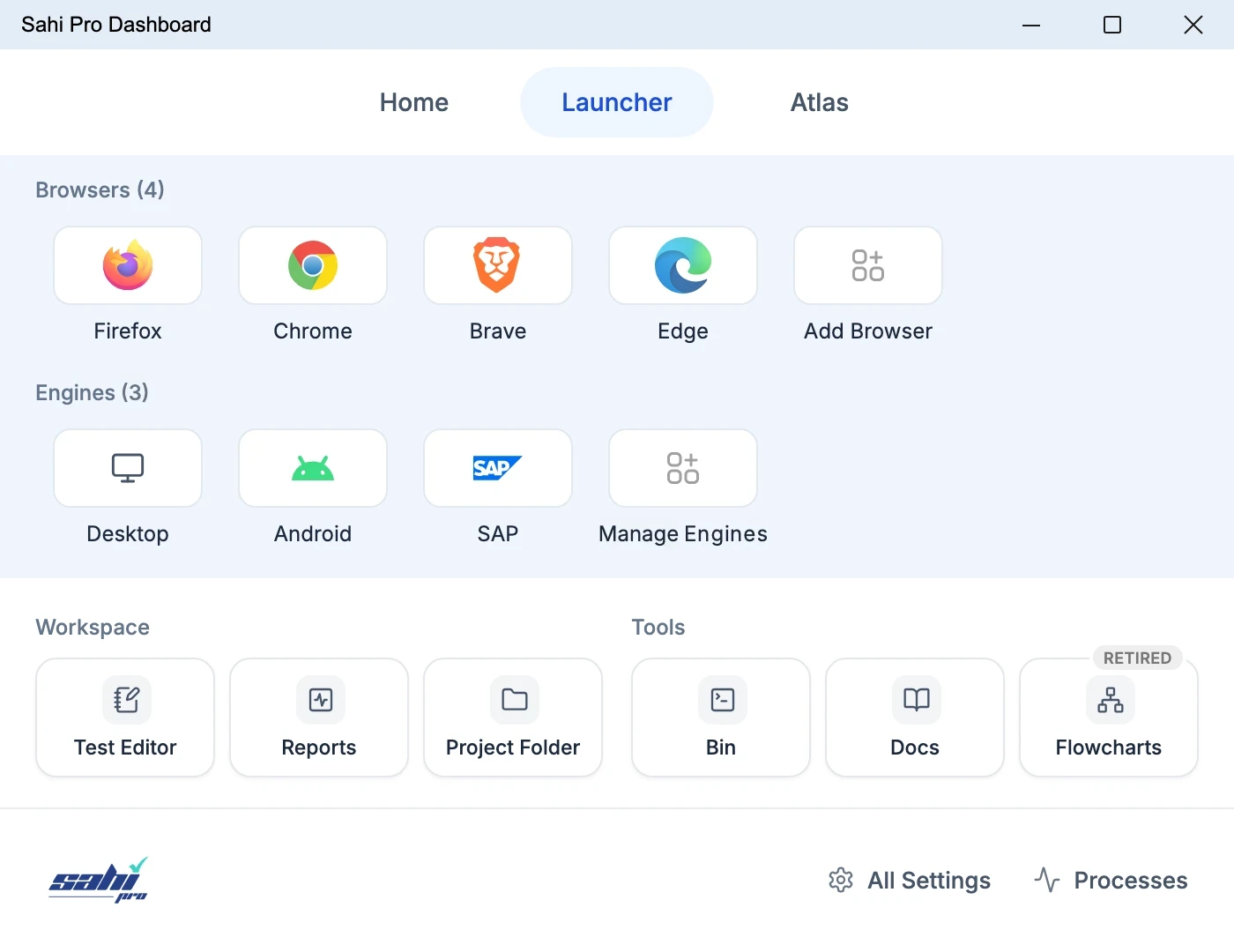
Click the Launcher button to see the installed browsers and engines.
Add License Product Key
Section titled “Add License Product Key”-
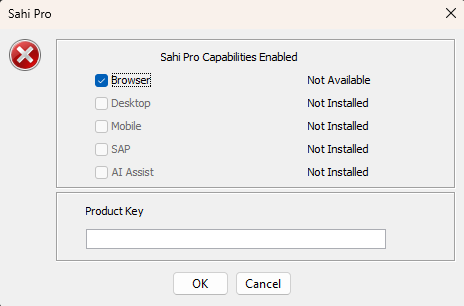
If you have never added your Product Key, you will be presented with Sahi product key popup window.
-
Enter the
Product Keyand click ‘OK’.or
-
Copy the
Product Keyintouserdata\config\productkey.txt(create the file if needed).
If the
Product Keyis valid for selected product, Sahi Pro will start normally. -
Troubleshooting Installation
Section titled “Troubleshooting Installation”Most first-time problems come from the local machine. If something doesn’t work, start here:
- Startup issues, such as browsers missing from the Dashboard, or a browser that doesn’t load the application
- Check that Sahi Pro is installed correctly
- Configure browsers on the Dashboard
- Proxy issues, such as no internet access when Sahi Pro isn’t running
- Use a license file