Issues in Chromium based browsers
Multiple Chrome instances
Section titled “Multiple Chrome instances”Symptom: Whenever Chrome browser is launched from the Dashboard, multiple instances of the Chrome browser are opened.
Resolution: Install Sahi to a path that does NOT contain spaces.
Test Runs Fail Randomly on Popup Windows
Section titled “Test Runs Fail Randomly on Popup Windows”Symptom: Test runs fail for popup windows in Chromium project based browsers namely Google Chrome, Microsoft Edge, etc. This failure happens when the popup window is in the background. This issue is observed in Chrome 77 and above.
Cause: Chromium project based browsers namely Google Chrome, Microsoft Edge, etc. employ WebContent Occlusion feature. With this feature, the browser hides the content of a window that is not in use. So test runs with Sahi fail on such windows having no content.
Resolution: Disable this feature by following the steps in the examples below.
- Google Chrome:
In browser_types.xml, search forchrome. Add--disable-backgrounding-occluded-windowsto startup options for Google Chrome. - Microsoft Edge:
In browser_types.xml, search formsedge. Add--disable-backgrounding-occluded-windowsto startup options for Microsoft Edge.
<options>--no-default-browser-check --user-data-dir=$userDir\browser\chrome\profiles\sahi$threadNo --proxy-server=127.0.0.1:$port --disable-popup-blocking --always-authorize-plugins --allow-outdated-plugins --enable-npapi --incognito --disable-background-networking --disable-component-update --disable-renderer-backgrounding --disable-backgrounding-occluded-windows</options>Error for HTTP websites on Chromium 130
Section titled “Error for HTTP websites on Chromium 130”Symptom: Browsers have adopted a secure-by-default model. As a result, modern browsers prefer HTTPS connections over HTTP connections. In recent updates, the following error occurs when launching HTTP websites in incognito mode using Chromium-based browsers.
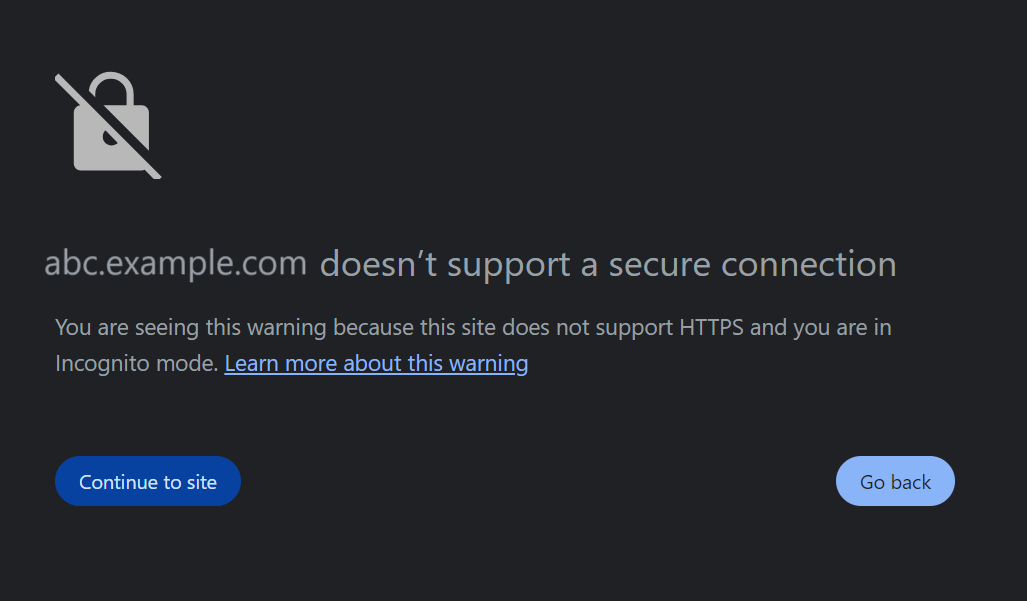
Consequently, test runs with Sahi Pro on HTTP websites (but not on HTTPS websites) are aborted in Google Chrome version 130 and above. Similarly, this issue occurs in Microsoft Edge version 130 and above.
Resolution: Follow the steps below:
For Google Chrome:
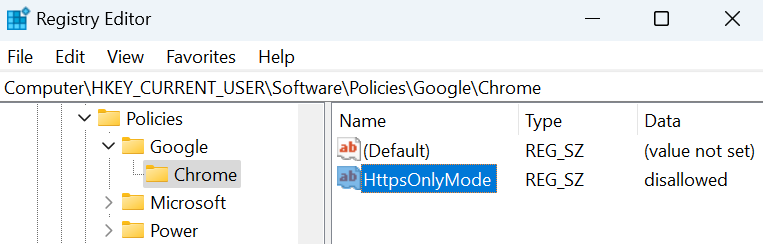
a) Check if the following key exists in the Windows Registry. If it does not exist, create it:
HKEY_CURRENT_USER\Software\Policies\Google\Chrome
b) Under this key, create a String Value named HttpsOnlyMode and set its value to disallowed.
For Microsoft Edge:
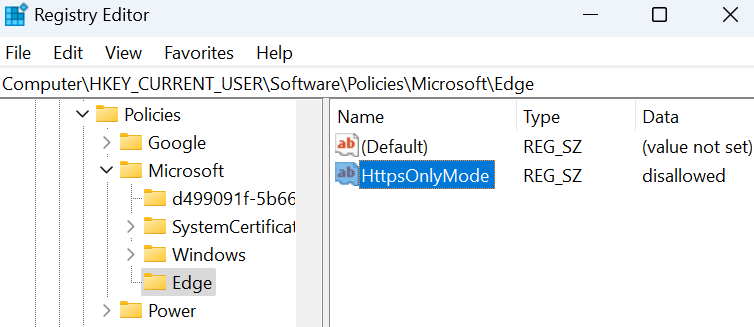
a) Check if the following key exists in the Windows Registry. If it does not exist, create it:
HKEY_CURRENT_USER\Software\Policies\Microsoft\Edge
b) Under this key, create a String Value named HttpsOnlyMode and set its value to disallowed.