Miscellaneous Issues
Content blocked from being loaded
Section titled “Content blocked from being loaded”Symptom: Sahi proxy seems to block content from being loaded
Cause: The blocked content is probably of content type application/octet-stream. This content type is part of download_contenttypes.txt which causes the content to get downloaded instead of being displayed on the page.
Resolution:
-
Take a backup of
userdata\config\download_contenttypes.txt. -
Edit
download_contenttypes.txt. Remove the following lineapplication/octet-stream -
Save
download_contenttypes.txt. Restart Sahi server and clear browser cache, and try your application again.
Element’s class identified incorrectly
Section titled “Element’s class identified incorrectly”Symptom: Sahi seems to identify an element by an incorrect class name. This causes the script to fail. On doing an Inspect element, we can see that the class is different.
Cause: Sometimes when you do mouse over an element, its class will change. Since elements are identified by doing a Ctrl + Mouse Over (⌘ + Mouse Over on Mac), the class will be wrongly identified.
Resolution: In such cases, you may need to do a View Source or Inspect Element to find out the original class and use that to identify the element.
Controller does not open in Linux
Section titled “Controller does not open in Linux”Symptom: Clicking Alt + DoubleClick does not bring up the controller on Linux. I have tried this on Firefox and Chrome.
This does not work on Ubuntu 12.04 as well as on CentOS.
Resolution: Kindly follow the steps below
- Check that the Popup blocker has not been turned ON by some update. If it has been, turn it OFF.
- If it still doesn’t work, try accessing the controller by
Ctrl + Alt + Double Click(⌘ + Alt + Double Clickon Mac). Usually, we do it byAlt + Double Click. Try pressing theCtrl(⌘on Mac) key as well.
Incorrect screenshot captured with dual screen
Section titled “Incorrect screenshot captured with dual screen”Symptom: The screenshot captured by Sahi shows a bigger screen part in black colour.
Cause: If a dual screen system is running in an Extended mode and the smaller screen is set as main display, then the bigger screen’s screen shot will appear in black colour.
Resolution: Make the bigger screen as the main display:
-
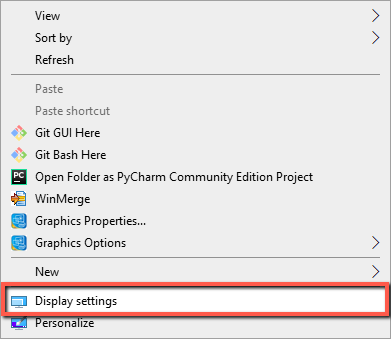
Right click on Desktop screen.
-
Click on Display settings.
-
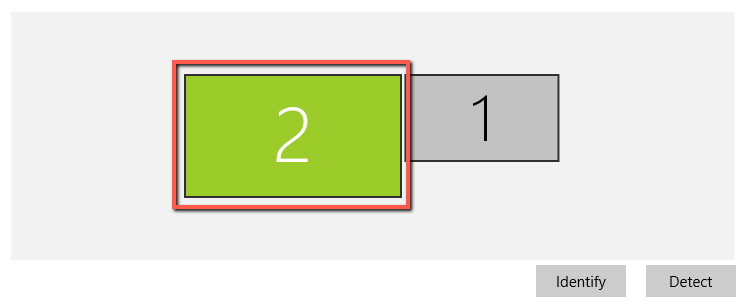
Select Bigger screen.
-
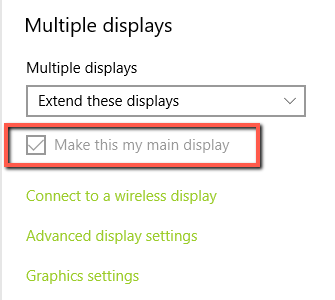
Scroll to the bottom of the page and do check at Make this my main display.