

Client Certificate Authentication
This section describes how to handle client certificate authentication in Sahi.
Some applications seek a client certificate from the user for authentication. User will be able to connect to such applications only when a valid certificate is provided. When user tries to open such an application, the web browser may prompt to select a certificate as shown in the image below.
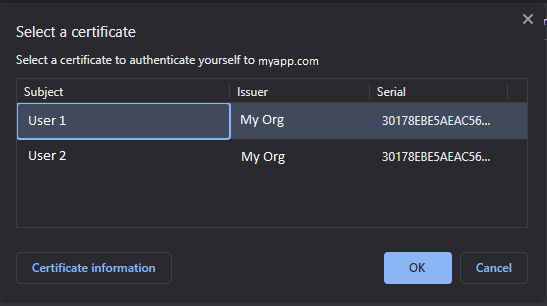
There are two ways to handle client certificate authentication in Sahi:
-
Using _setClientCertificate function
Section titled “Using _setClientCertificate function”-
Add _setClientCertificate function to your script and specify the certificate details.
// Add the application domain to the current script session._addToSession("https://protectedapplication.test.com");// Specify details of the certificate to be used for authentication_setClientCertificate("c:/myownpath/testuser1.pfx","Mg0BChVBGh1XOB0K", "PKCS12");// Navigate to the application that seeks a client certificate_navigateTo("https://protectedapplication.test.com"); -
This function supports different types of certificates. For example, PKCS12 (.p12, .pfx), JKS (.jks), JCEKS (.jceks, .jcs) etc.
-
Since this function sets a certificate in the current script session, different certificates can be used simultaneously in different browser instances.
-
-
Using certificate present in the system
-
If the client certificate file is not available but the certificate is installed in the system, follow below steps.
-
Add the following property in the userdata.properties file. Restart Sahi.
ssl.client.system_keystore.enabled=true -
If this does not work, add the following properties in the userdata.properties file. Restart Sahi.
ssl.client.system_keystore.enabled=truessl.client.system_keystore.name=WINDOWS-ROOT
-