

Write Keywords in Sahi Script
Write and refactor keyword code in the Test Scenario Editor's script view: the toolbar, the Context panel, Create Function, Find and Replace, Find Usage and Create AR.
Most keywords are built without code in the No-Code Test Editor. Some need logic that no-code can’t express, such as a loop, a calculation or a call to Java. Behind every keyword is a Sahi Script function in a keyword file (.sah), and you can write that code yourself in the Test Scenario Editor’s script view.
To open the script view, click a keyword file (.sah) in the Navigator, or Ctrl-click (⌘-click on Mac) a keyword in a scenario file.
The Script View Toolbar
Section titled “The Script View Toolbar”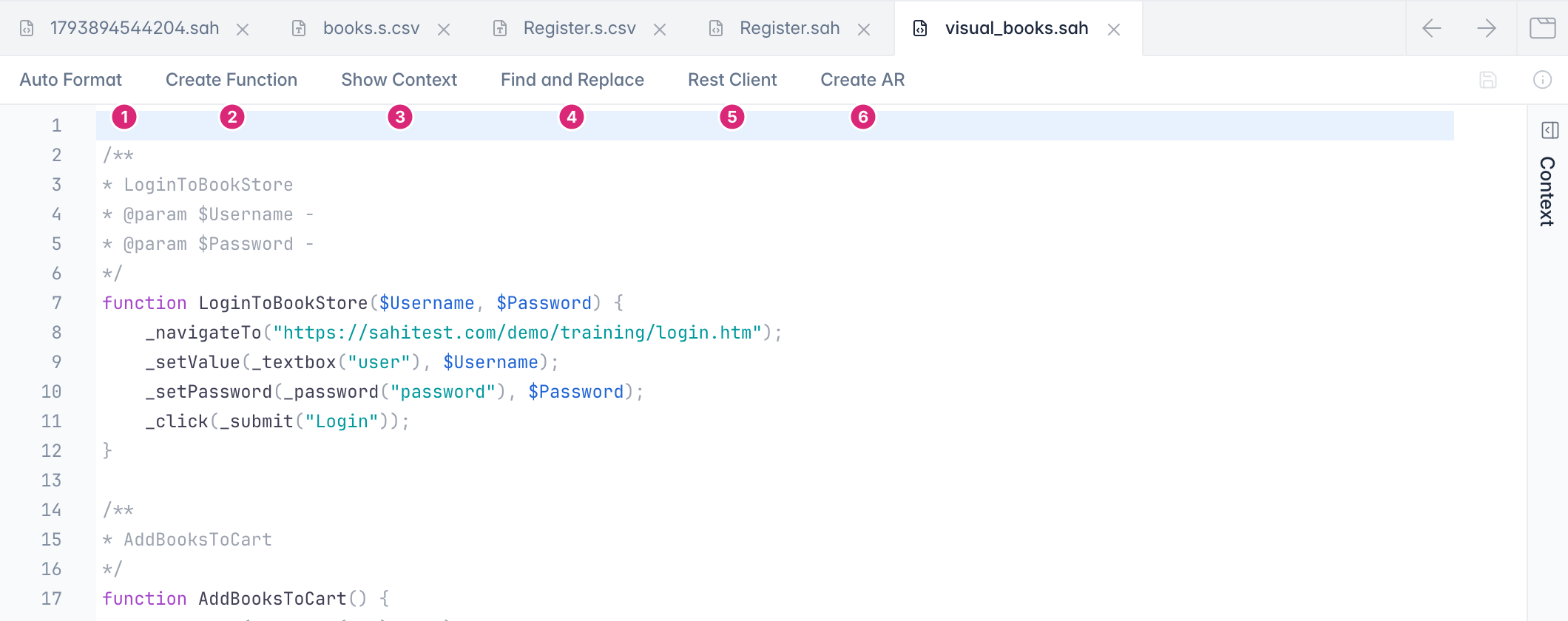
- Auto Format: fixes the indentation of the whole file. See Auto Format.
- Create Function: turns selected lines into a function. See Create a Function.
- Show Context: opens the Context panel.
- Find and Replace: finds text in the file. See Find and Replace.
- Rest Client: opens the Rest API Editor.
- Create AR: creates an Accessor Repository from the file. See Create an Accessor Repository.
Context Panel
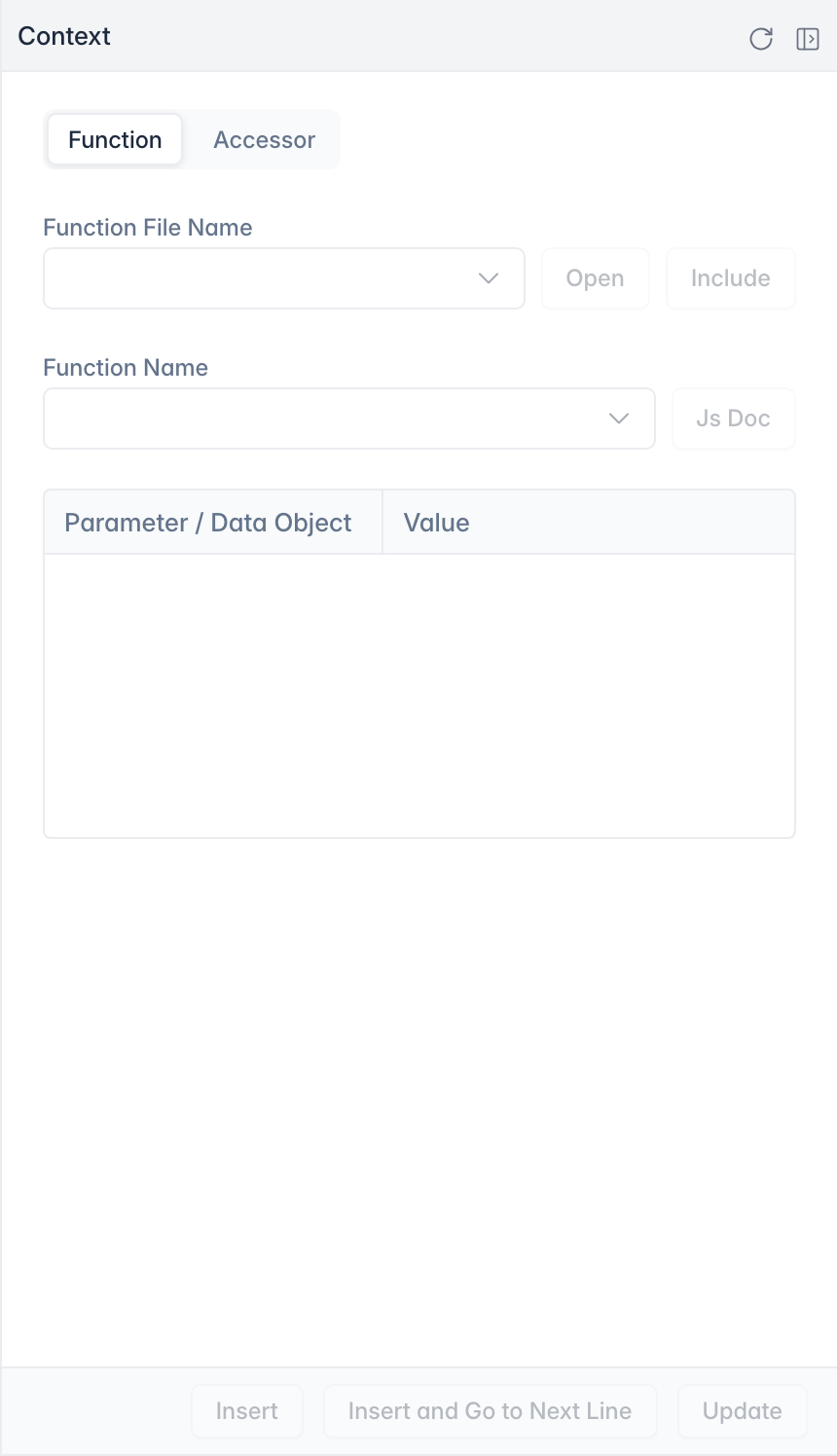
Section titled “Context Panel”A call to a keyword or an accessor kept in an Accessor Repository doesn’t show where it’s defined. The Context panel does. Click Show Context, or Ctrl-click (⌘-click on Mac) the call.
- Function: the file that defines the function, its parameters and their values. Open opens that file, and Include adds it to the current file if it isn’t included yet. Insert adds the call, and Update changes the values in the line.
- Accessor: the AR key and value of the element in the line. You can change the value, or the key in every file or only this one.
Ctrl-click (⌘-click on Mac) also moves between files: on a keyword in a scenario file, on a function or AR key, or on a file path in an _include or loadSahi line. Previous Location and Next Location, the arrows at the right of the tabs, take you back.
Create a Function
Section titled “Create a Function”Recorded steps often repeat with different values. Turn them into one function with parameters:
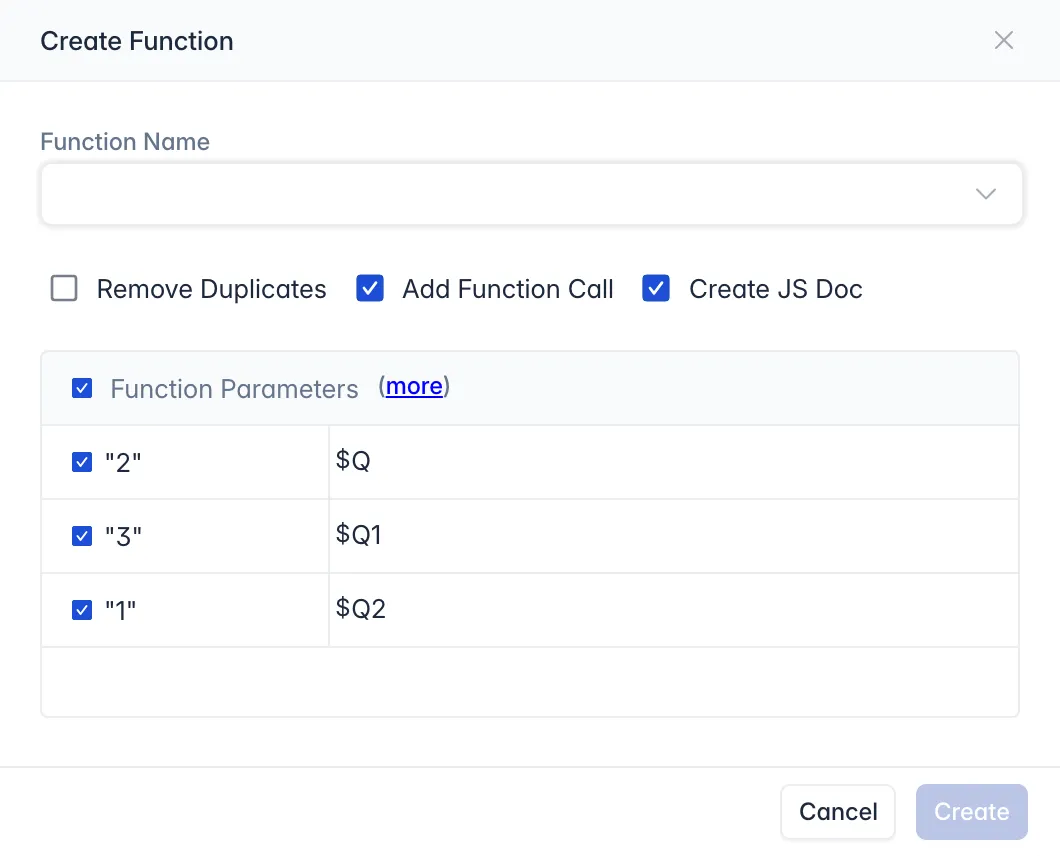
- Select the lines and click Create Function.
- Enter a Function Name. You can choose from names listed in
userdata/config/function_names.txt. - Check the values to turn into parameters under Function Parameters, and name them. (more) shows more of them.
- Choose the options: Remove Duplicates merges parameters with the same value, Add Function Call replaces the lines with a call to the new function, and Create JS Doc adds the documentation comment.
- Click Create.
Find and Replace
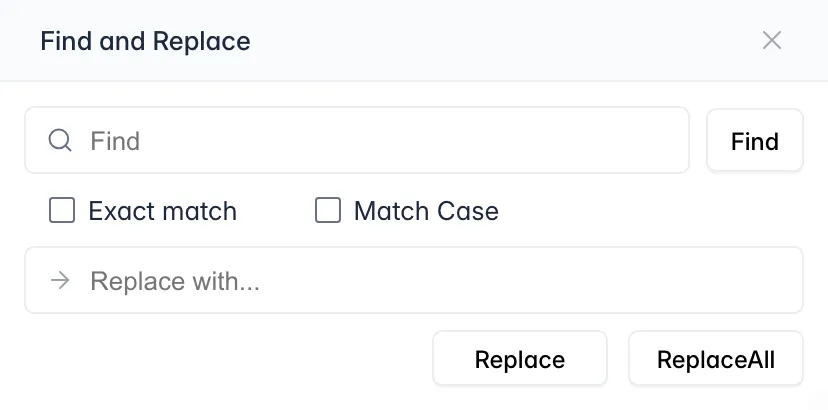
Section titled “Find and Replace”Find and Replace searches the open file, with Exact match and Match Case. Enter text in Replace with and click Replace or ReplaceAll. To search only, press Ctrl + F (⌘ + F on Mac).
Find Usage Across Files
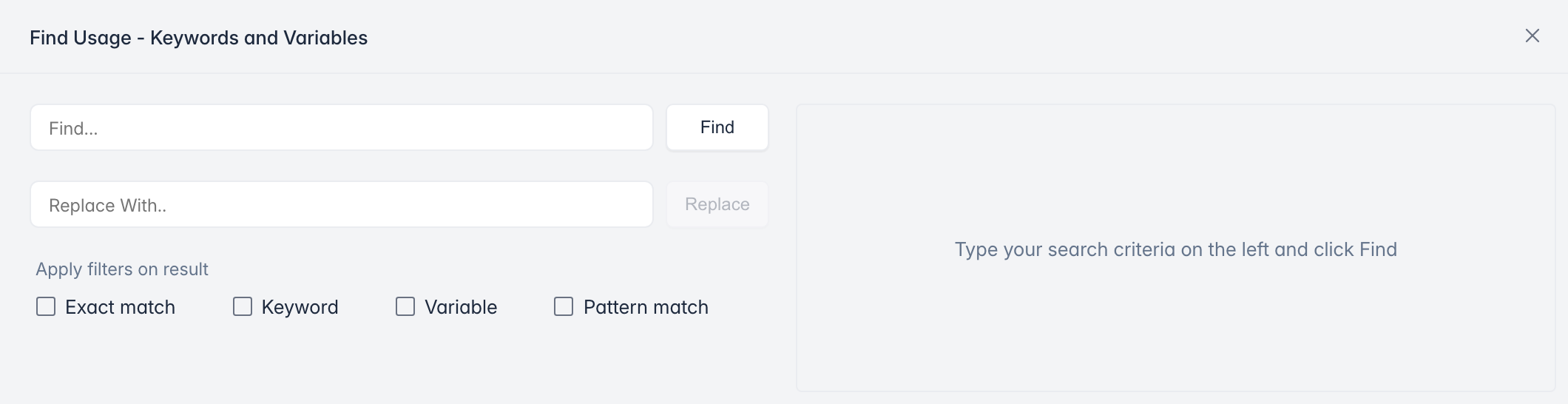
Section titled “Find Usage Across Files”When you rename a keyword or a variable, every file that uses it has to change too. Tools > Find Usage searches all the files in the project. Filter the results by Exact match, Keyword, Variable or Pattern match (for example *.sah to search only keyword files). To replace, enter the new name in Replace With, select the files and click Replace.
Auto Format
Section titled “Auto Format”Auto Format fixes the indentation of the whole file and makes it easier to read. It treats a semicolon as the end of a line.
Create an Accessor Repository
Section titled “Create an Accessor Repository”Create AR moves the accessors of the selected files into an Accessor Repository. With no file selected, it works on the open file. To undo it, copy the files from userdata/scripts_backup back into the project.
Editor Shortcuts
Section titled “Editor Shortcuts”| Shortcut | Explanation |
|---|---|
| Ctrl + S (⌘ + S on Mac) | Save the current file |
| Alt + Up Arrow | Move current line up |
| Alt + Down Arrow | Move current line down |
| Ctrl + D (⌘ + D on Mac) | Delete the current line |
| Ctrl + F (⌘ + F on Mac) | Search in the file |
| Ctrl + / (⌘ + / on Mac) | Comment selected lines |
| Ctrl + Alt + Up Arrow (⌘ + Alt + Up Arrow on Mac) | Copy current line above |
| Ctrl + Alt + Down Arrow (⌘ + Alt + Down Arrow on Mac) | Copy current line below |
| Ctrl + L (⌘ + L on Mac) | Go to a line number |
To run or debug the keywords you write, see Run Tests and Debug a Test.