

REST Client - Getting Started
Test Rest APIs with the REST Client: add a REST step to a keyword, or generate Sahi Script from a request.
Many applications have Rest APIs behind their screens. Checking an API directly is faster and more stable than going through the user interface, and it can set up data for the tests that do. The REST Client is where you build a request, send it, check the response and keep values from it.
Two Ways to Use It
Section titled “Two Ways to Use It”It’s the same REST Client either way; only the button at the bottom differs:
| Open it from | What you get | Use it when |
|---|---|---|
| Add Step in a keyword, then Rest Client | Add Rest Step adds a REST step to the keyword, with its assertions and variables | You build tests in the No-Code Test Editor. This is the usual way. |
| Tools › REST Client | Generate Sahi Script writes Sahi Script code that sends the request and checks the response | Your keywords are written in Sahi Script, as in tests from older Sahi Pro versions |
Add a REST Step to a Keyword
Section titled “Add a REST Step to a Keyword”-
In the No-Code Test Editor, select the keyword and click Add Step.
-
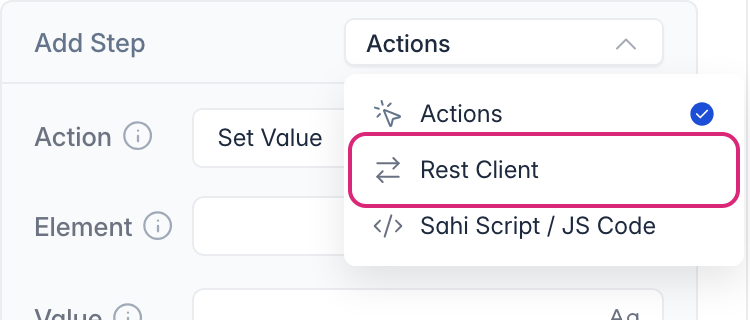
In the dropdown at the top right of the Add Step panel, change Actions to Rest Client.
-
The REST Client opens. Build the request, set up authorization if the API needs it, and click Send Request.
-
Click Add Rest Step. The request is added to the keyword as a step, with its assertions and variables. Save the file.
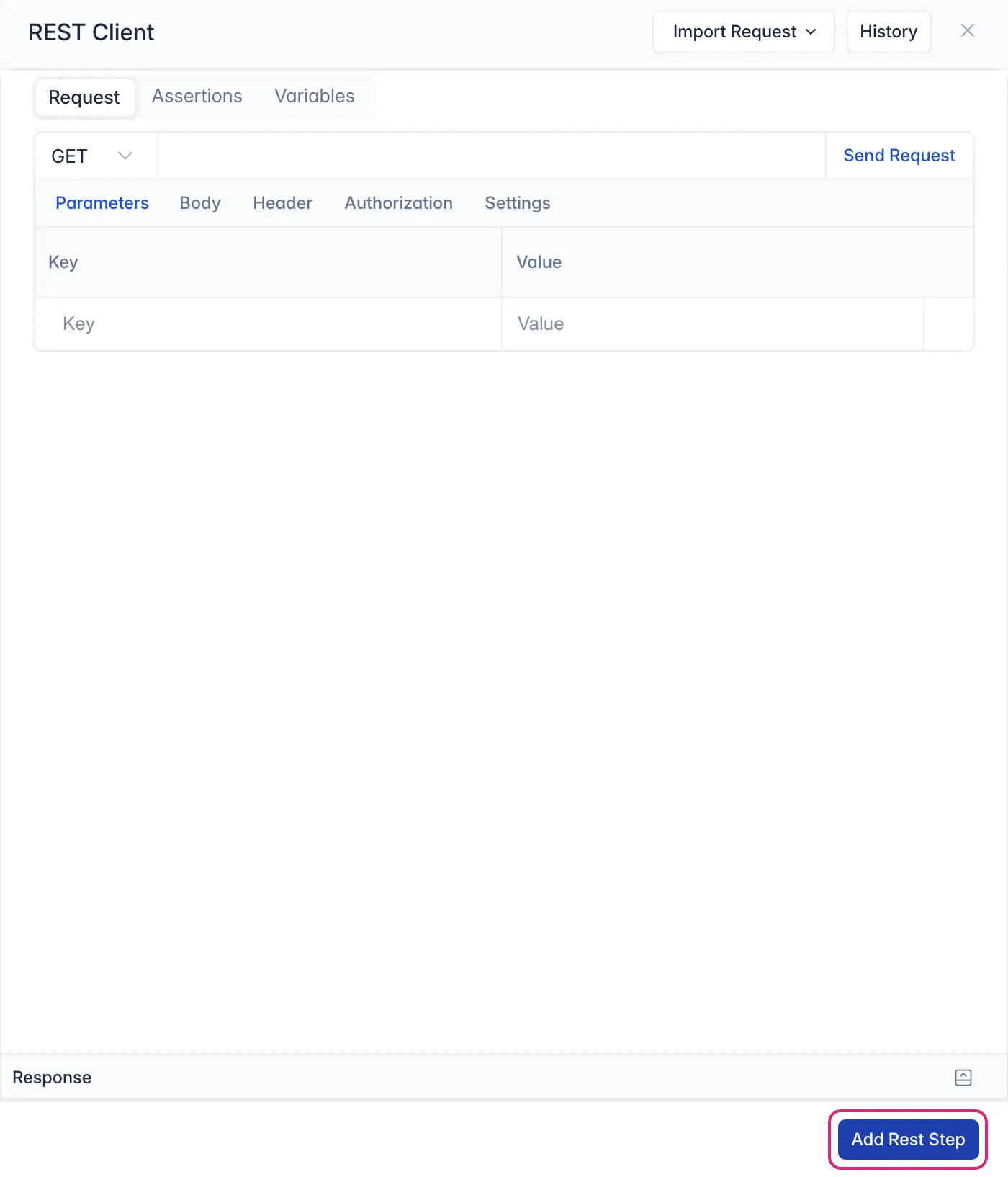
To change a REST step later, open it from the keyword’s steps. The REST Client opens with the request, its assertions and variables, and the button reads Update Rest Step.
When the step runs, its results appear in Reports.
For Keywords in Sahi Script
Section titled “For Keywords in Sahi Script”Tests from older Sahi Pro versions often have keywords written in Sahi Script. To support them, the REST Client also opens from Tools › REST Client. There it ends with Generate Sahi Script instead of Add Rest Step, and writes the request and its checks as Sahi Script code for you to copy into a keyword file.