What is new in Sahi Pro v11.5.0.0
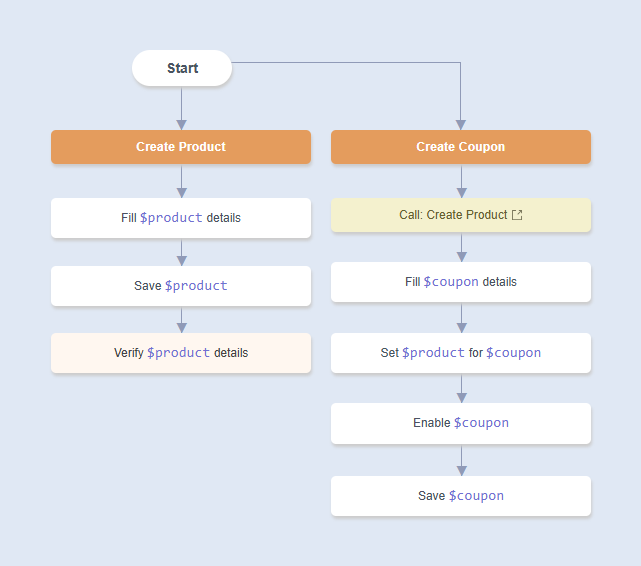
This feature allows one path to invoke another. By adding a
Call Path node, you can create a hierarchical structure in which paths reference and invoke other paths, thereby promoting reusability and modular design. In the example below,
Create Coupon path invokes the
Create Product path, since a product must be created before a coupon can be generated.
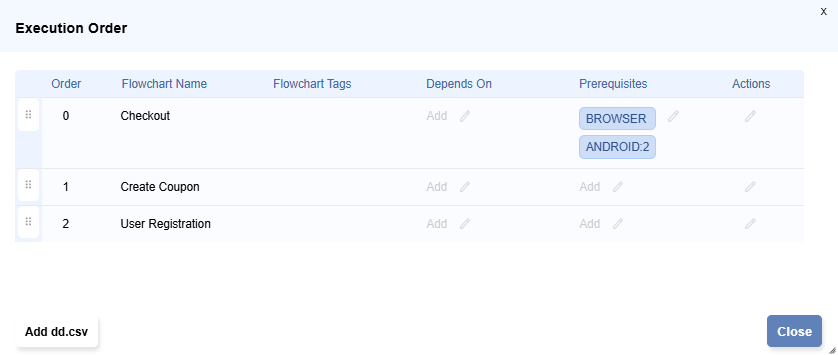
During distributed playback, different nodes may have varying capabilities. Consequently, a path that requires a specific capability, such as
ANDROID mode, might be assigned to a node that does not have the Mobile Add-on or its license. This will result in failure because the required capability is not available on that node.
To avoid such issues, you can specify
prerequisites for a path to ensure that the path runs only on a node with the required capabilities. Similarly, you can specify
prerequisites for a flowchart.
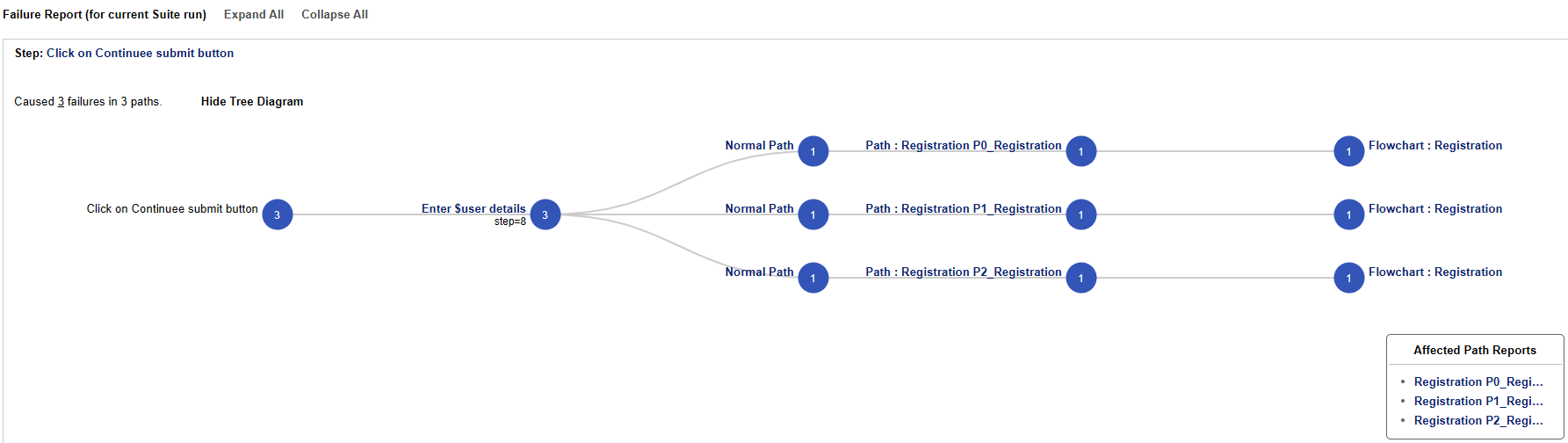
The Suite Analysis page consolidates all executed flowcharts, making it easier to trace errors to specific steps. It is designed to help identify and quickly fix the steps that cause the most failures during flowchart execution.
In addition, the
Suite Analysis page displays historical results for flowcharts that failed in earlier runs, providing valuable insights into recurring issues.
A
Test Case node is used to mark the beginning and end of a test case within a path. This enables the creation of multiple test case blocks within a single path, improving organization and readability.
Callbacks are user-defined keywords that can be automatically triggered at different stages during the execution of a path. They can be executed at the end of a path, when an error occurs, or when an assertion fails. Callbacks can be specified for an entire
project, a specific
flowchart, or for an individual
path.
- Lightning Web Components in Salesforce like lightning-button, lightning-input-field, etc. are now available by default in Sahi Pro. Salesforce Accessor APIs lists all such salesforce web components. Explore how Sahi Pro simplifies Salesforce Test Automation.
- Identification of HTML elements such as input, select, and textarea has been improved. Sahi Pro now automatically associates these elements with the nearest span, table cell, or label when identifying them. This enhancement ensures more accurate element identification and reduces the need for manual adjustments during automation.
- Now, you can easily create Gradle tasks to execute automation artifacts. These tasks can be generated automatically in both Groovy and Kotlin. Later, these tasks can be configured to run within your CI/CD pipeline using tools like Jenkins, GitLab, etc. Refer Playback via Gradle for details.
- A provision has been added to list and delete unused artifacts in a project. The Unused Artifacts feature identifies artifacts that can be safely removed without affecting the project's functionality.
- Performance Improvements
- Pages and dialogs will now respond faster across Flowcharts UI especially for larger projects.
- Significant improvements are made to overall script execution time by optimizing execution startup time and reducing delays between script executions.
- Flowcharts and Projects when run with Tags will start executing faster than earlier. This is because the script generation time has been reduced for such cases.
- DRun playback performance is now made better by optimizing zip file creation of suite files.
- Generated scripts folder and zip file were not being deleted even after the execution completes for flowcharts as well as for projects. This is now fixed.
- Run From Next: Provision to execute all Keywords that follow the current Keyword in the execution flow.
- Run Selected Steps: Provision to select and execute specific, contiguous steps within a Keyword
- The Run This action now offers additional control over data-driven execution for nodes with attached datasets.
- Steps in the Keywords will now be displayed in plain english to improve readability.
- HTML elements inside <object> elements can now be identified.
- Request body can now be specified from UI as well for GET and DELETE HTTP request methods.
- Automating localhost URLs is now allowed. For example, URL
http://localhost:8088/home.html is now inherently supported on all modern browsers.
- Sub-Label Grouping value can be viewed in Table View.
- Improvements in Reports
- PDF Reports : Reports can now be downloaded in PDF format.
- Reports are now compatible with Java version 24 and above.
- Script Report page will now load faster than earlier for large reports.
- Suite Report page will now load faster even when there are many sub-suites present.
- Added Start and End Time for test cases in Reports.
- Switching between different modes is easily possible using Set Mode action. This switch is now indicated prominently in Reports.
- The Edit Step dialog is now made more intuitive.
- Now you can create another copy of a flowchart directly from the project page.
- Added a provision to disable a node to skip the node in a path.
- When running flowcharts from outside a dataset loop, all rows of the node's attached dataset will be executed. Earlier, only the selected row (first row if not selected) was executed.
- Dimensions: This action gets the width and height as an array for the specified element.
- Microsoft once had two Edge versions: Legacy (EdgeHTML) and Chromium-based. Only Chromium-based Edge remains today. Thus, browser type 'edge new' has been renamed to 'edge'. Also, Is Edge New action is deprecated. Instead, use Is Edge action.
- Type Native: Added
$isEncrypted parameter to allow encrypted text in the $text parameter.
- Resource XML file i.e
.resx file type is now supported as properties file in Set Language API.
- Password will now be stored in encrypted form by default in Set Password action.
- Fixed: Unable to select option in a drop down using Select Option action in Internet Explorer 7.
- Fixed: Unable to open a specific web page due to a content security policy restriction.
- Fixed: Browser crashes when logging into the Facebook application.
- Fixed: Unable to identify on web pages for 'login.microsoftonline.com' when opened in Microsoft Edge browser.
- Fixed: Action Is Visible returns false for elements on a specific page in the Salesforce application.
- Fixes to Controller
- Embedded Flowcharts Controller would hide when navigating to another page. Also, it could open only after refreshing the page. This is fixed.
- Fixed: Run step not working from Flowcharts Controller for Java mode and Android mode.
- Fixed: In the classic Controller, changing the script directory does not reflect in the script directory dropdown.
- Fixed: Assertion fails in Flowcharts Controller when values contain special symbols (e.g.
$+).
- Fixed: Long steps are not fully visible when increasing the width of the Flowcharts Controller.
- Fixes in Diff-Merge
- Fixed: Multi-line project description is not readable.
- Compare With operation is now made simpler.
- Fixed: Ant playback is not working for projects with merge conflicts or when any other project has unresolved conflicts.
- Fixed: Compare With dropdown does not appear for project names containing special German characters.
- Fixed: Unable to resolve node add/remove differences under condition nodes.
- Fixed: Deleted nodes under dynamic conditions are not shown in Flowchart Diff-Merge view.
- Fixed: Yes and No branches of condition nodes interchange after resolving merge conflicts.
- Fixed: Clicking
Use All Right button in flowcharts does not work as expected.
- Fixed: If
depends is modified but it is not present in either Local or Remote branch, it does not display this in gray in Table View.
- Fixed: Dataset name appears in the Data Tab even when datasets are missing from the DataSource during merge conflicts.
- For environment-based datasets, under each data source, merge conflicts will now be shown separately for each environment.
- Fixed: If flowchart project itself is the Git repository, then resolving the changes of any artifact moves it to resolved state instead of merged state.
- Fixed: Syntax error occurs when storing a keyword's return value to a variable.
- Fixed: Flowchart names containing a backslash do not display any warning when deleting them.
- Fixed: When the save operation fails, alert does not stay open to enter the flowchart name.
- Fixed: Check action step does not execute if Has Value checkbox is checked and Checked parameter passed from dataset is false.
- Fixed: Unable to edit path tags and change dataset from Truth Table and Execution Order tab if name contains double quotes or backslashes.
- Fixed: External variables with special character gets converted to a different character in Ant playback.
- Fixed: Custom function does not execute with Run Step from Add Step dialog.
- Fixed: Variable and entity data does not persist correctly across different interactive run modes like Run This, Run Till Here, Run From Here, Run Selected, and Run Step from Add Step dialog.
- If Take Page Screenshot action is unable to capture screenshot, Sahi Pro captures a screenshot as fallback using Take Screenshot action. This screenshot as a fallback was captured earlier in BMP format. Now, the image format for this fallback screenshot can be configured using a property
sahi.screenshot.placed_pattern.debug.image.format. The default value for this property is png.
- Fixed: Offline report is generated for formats that are not selected.
- Fixed: Flowcharts fail to load after copying and pasting when the dataset attached to a node is not present.
- Fixed: Path names containing a colon (':') with sub-label grouping cause the
depends function to not work correctly.
- Fixed: ANT run fails when project or flowchart names contain a special character.
- Fixed: The keyword is incorrectly highlighted as unimplemented when there is no space before entity name(e.g.,
Register$user).
- Fixed: Lengthy flowchart name is not displayed correctly on flowchart page, in truth table and execution order table.
- Fixed: Unable to read dataset from data sources having non-alphabetic and non-numeric characters in their filename.
- Fixed: Incorrect keyword selection in left pane of automate dialog when the same keyword is used multiple times in the path.
- Fixed: Unable to attach dataset to a node at the end of a dataset boundary.
- Fixed: If some of the parameters in a step are not specified, then parameters to the right are shifted over it, resulting in wrong value being picked for remaining parameters.
- Fixed: For large flowcharts, undo/redo does not work.
- Fixed: In REST step's parameterized body, if
isFile parameter is set to true, then updating the parameters keeps re-encoding the file path.
- Fixed: On renaming a keyword, nodes with different entity instances are not renamed correspondingly.
- Fixed: Node is allowed to convert to condition or dynamic condition node, even if that node has more than two branches, leaving the flowchart in an invalid state
- Fixed: Nodes are allowed to connect in a cyclic manner.
- Fixed: When executing using Run Till Here, and some node before the selected node has a dataset, keyword color does not update correctly on keyword failure.
- Fixed: If column header is empty, values from corresponding column are still picked up in execution.
- Fixed: Scripts with Non-ASCII characters are not saved correctly in Sahi Pro Classic Editor.
- Fixed: In Scenario Editor, if
[Return Value] is specified in a data drive, then instead of saving the return value of previous step in the variable, it is picking the value from data drive.
- Fixed: In Scenario Editor, if a number is provided as an argument in European decimal format, it is not parsed correctly.
- In the data generator type Text, the minimum value must always be less than the maximum value. Also, the text will be generated only within the specified minimum and maximum range.
- Fixed: Path information does not update as expected when nodes are added or deleted.
- Fixed: The run step does not work when an entity attribute is specified in JS Mode, or inside Raw Script, or when an entity object is passed to a Custom Function.
- Fixed: Automate Dialog does not load details when a dataset is attached to a navigation node.
- Fixed: Data Loop does not run when attached to a node with flowchart login syntax.
- Fixed: Flowchart not saving properly in some cases.
- Fixed: AutoHeal not working from ANT run, when isAutoHealEnabled is set to true in the XML file.
- Fixed: New keywords appear as undefined when tests are triggered from Jenkins/Ant after pulling the latest Git changes.
- Dynamic conditions not functioning as expected in certain cases..
- Fixed: Incorrect JS Syntax Error appears on UI for Raw Step when the step ends with a semicolon.
- Fixed: Pasted nodes sometimes do not update in the UI immediately (visible after refresh).
- Fixed: Distributed playback does not work on port other than 9999 when run is triggered from UI.
- Fixed: Issue where
\n is not un-escaping when attribute values are passed from node or path-level datasets.
- Fixed: Automate Dialog loads slowly if branching has more than 20 in single path.
- Fixed: Depends warning appears in the console even when no dependencies are defined.
- Fixed: Issue where runs failed with ReferenceError: CustomFunctionName is not defined when a step overridden in a keyword with call custom function step.
- While recording actions on a web application, if Controller is launched, an unnecessary
Double Click step gets recorded. This is now inherently avoided. Consequently, this will cause Alt + Click and Alt + Double Click actions to not be recorded. To allow recording these actions, enable userdata property recorder.record.controller_hotkey_click.
Bug Fixes
- Fixed: Unable to identify inner elements of a specific Toolbar element.
- Fixed: Unable to identify inner elements of a specific Pane element.
Bug Fixes
- Fixed: Connect device is not working for Android on
Java 21 onwards
- Fixed: Android and iOS execution are not starting on
AWS Device Farm.
Improvements
- Action Select Rows now supports tree elements.
- Tree node paths now support 0-based identifier indexing for repeated node texts. For example, if a tree has three nodes with same visible text 'Documents' under the same node hierarchy, node path "Verticals/BFSI/Insurance/Documents[2]" will refer to the third 'Documents' node under 'Insurance' node.
- Click actions on tree nodes and tree node items will now be recorded.
Bug Fixes
- Fixed: Unable to capture image from Controller after changing directory in
scripts.dir property.