

Repeatable Tests - Data Generator
We can create unique data for repeated execution using Data Generators.
We will find it fails if we run the user registration path we just created. It fails because the email ID was already registered (when we recorded it). To run the path repeatedly, we need to create a new email ID each time.
Email Data Generator
Section titled “Email Data Generator”Let us add a data generator for the user’s email field.
-
Click on any node of the flowchart > click on
Automate> Go toEntitiestab. -
Select
$userentity on the left pane. -
Select
emailattribute on the left pane. -
Select the sub tab
Data Generator
Notice that Flowcharts has detected the value as an email and separated it into meaningful tokens like name, domain etc.
You can add more names and domains to generate more emails. -
Of particular interest for us is the add-timestamp field. Let us set it to true.
This will add a timestamp to the email and make it unique for each run.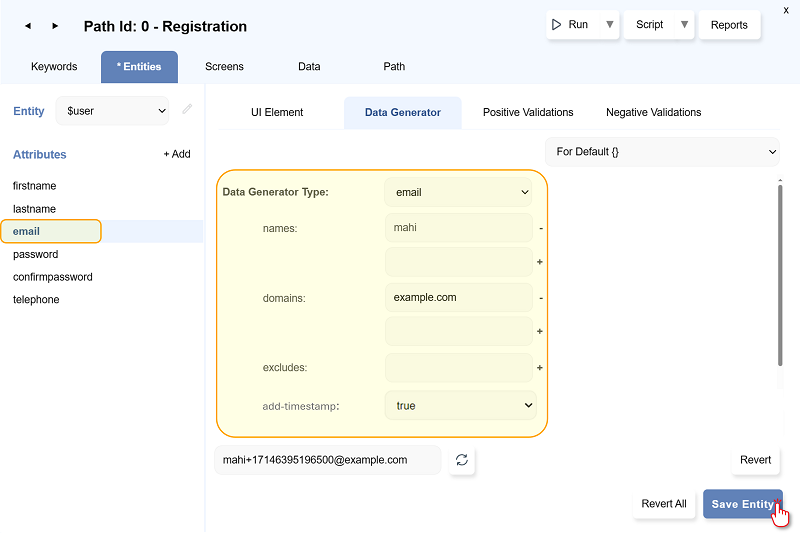
-
Check the sample values by using the
Refresh Previewbutton . -
Click on
Save Entity.
Text Data Generator
Section titled “Text Data Generator”Similarly, let us add a Text Data Generator to the user’s firstname.
-
Select the attribute name:
firstname -
Set the parameters as shown here :
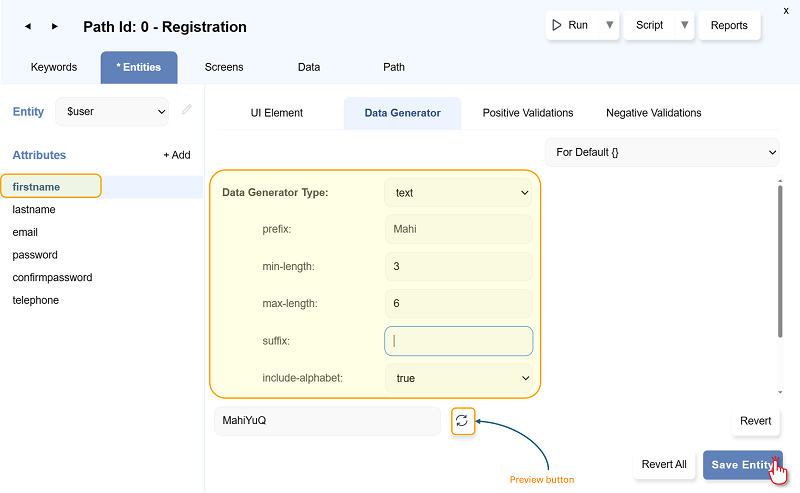
prefix: The text must start with the specified stringmin-length: The minimum length of the text datamax-length: The maximum length of the text datasuffix: The text must end with the specified stringinclude-alphabet: Should the auto generated part of the data include alphabets or notinclude-numeric: Should the auto generated part of the data include numeric values or notadd-timestamp: Should the auto generated part of the data include timestamp for uniqueness or notis-encrypted: Iftrue, the password will be generated in encrypted format. Otherwise, the generated password is in plaintext.
-
Check the sample values by using the
Refresh Previewbutton . -
Click on Save Entity button.
Other Data Generators
Section titled “Other Data Generators”-
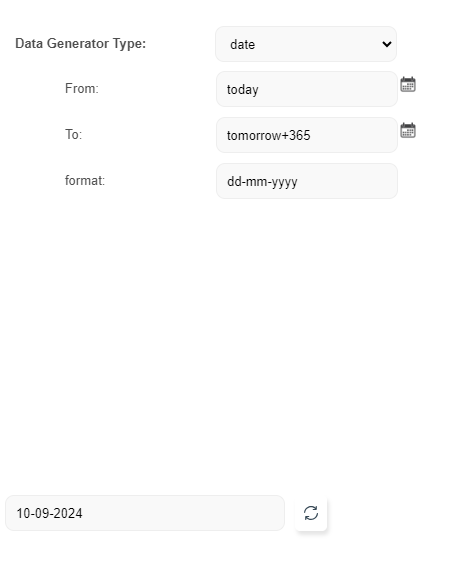
Date: To generate date between the given range and in the desired format.
-
From/To: Minimum and Maximum dates can be selected from the calendar icon. -
Relative maximum and minimum dates can be set.
-
Example: To generate dates for next one year
-
From= today
-
To= tomorrow+365
Similarly, ‘yesterday’ and ‘minus’ symbol can also be used.
-
-
format: Date format can be set such asdd-mm-yyyy.
-
-
Number: To generate number based data/series with or without extra characters.
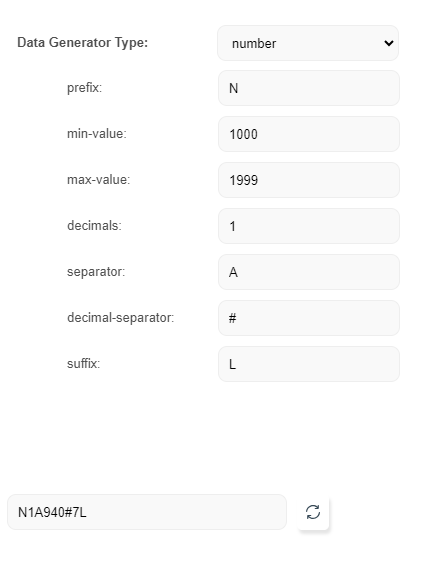
prefix: Any alphabet, number or special character to put in the starting of the numbermin-value/max-value: Range of the numberdecimals: Number of decimal digitsseparator: Character to use as a unit separatordecimal-separator: Character to use instead of dot for decimal numberssuffix: Characters to add at the end of the number
-
Boolean: To generate a value among
trueandfalse.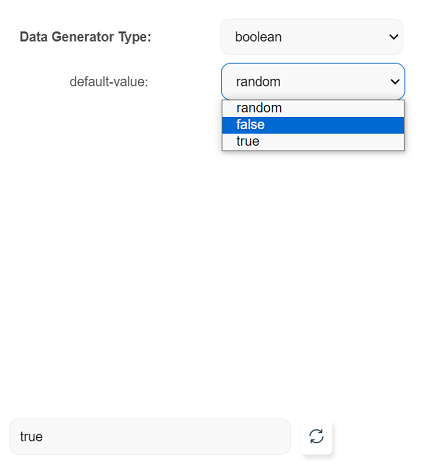
default-value: Value can be chosen from the three options available in the list-random, false or true.
-
Phone: To generate phone number with desired country or area code in given format.
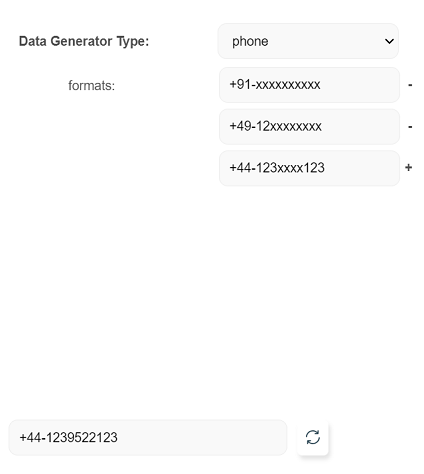
formats: Type the phone number format along with the country/area code.- The symbol
xcan be used to generate random digit.
-
Simple-text: To generate any text based data with an option to mask it.
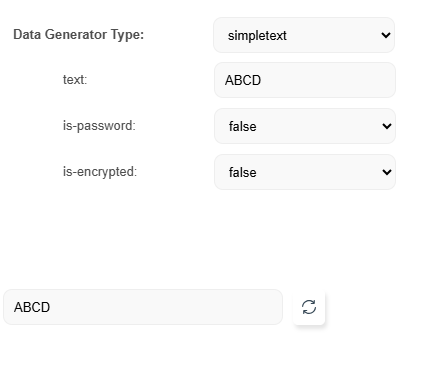
text: Provide a set of alphanumeric characters. The value gets hardcoded.is-password: Set preference to mask the text on UI.- Once the
is-passwordis set totrue, the value in text field gets masked and can not be unmasked. If theis-passwordis changed back tofalse, the text field gets reset.
- Once the
is-encrypted: Iftrue, the given password will be stored in encrypted format. Otherwise, the password is stored in plaintext.
-
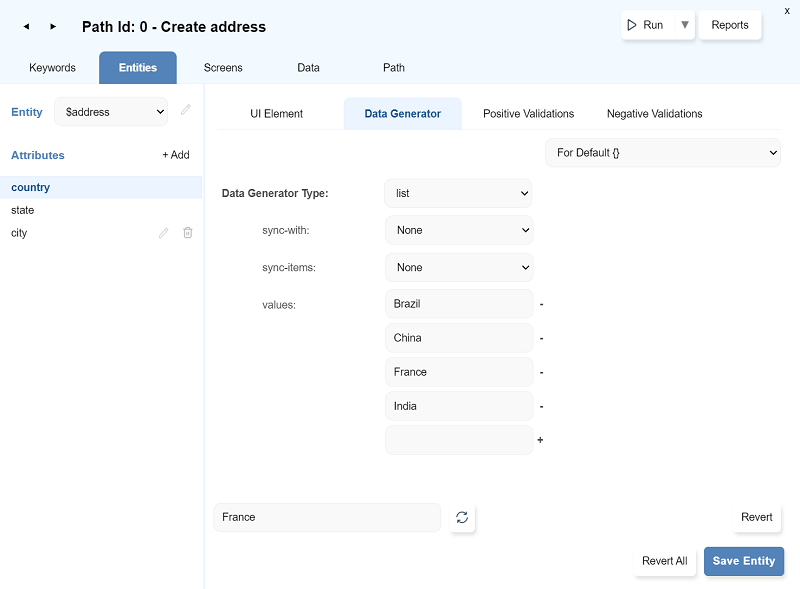
List: To generate a list based on a given set. The list is generated based on the hierarchy of the other lists to which it is referring to. It can be understood with the help of an
addressentity. This entity consists of three attributes: country, state and city.-
Select
countryattribute and selectData Generator Type-list.- Type a few country names in
valuesfield.
- Type a few country names in
-
Select
stateattribute and selectData Generator Type-list.-
Set the fields as follows:
-
sync-with: Selectcountry -
sync-items: Select a country name from the list. -
values: Type few state names. -
Enter few state names for each country.
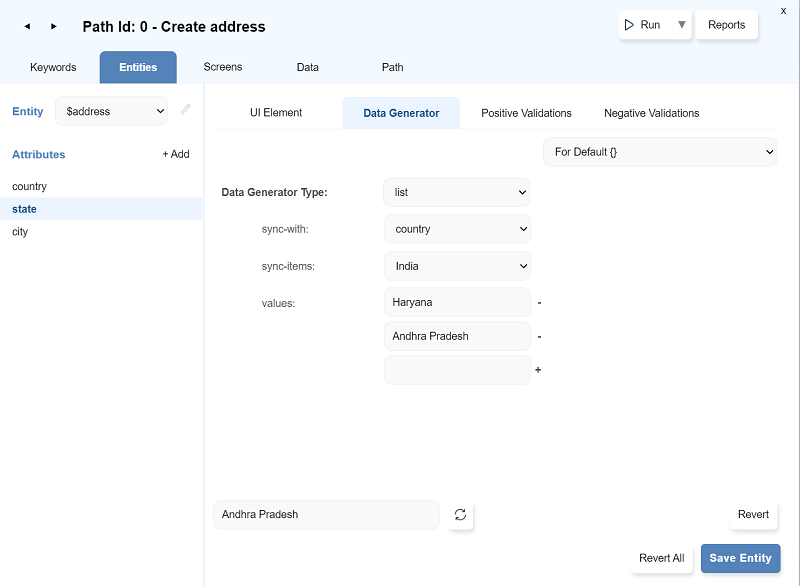
-
-
Select
cityattribute and selectData Generator Type-list.-
Set the fields as follows:
-
sync-with: Selectstate -
sync-items: Select a state name from the list. Select the state name from the next list. -
values: Type a few city names. -
Enter a few city names for each state under each country.
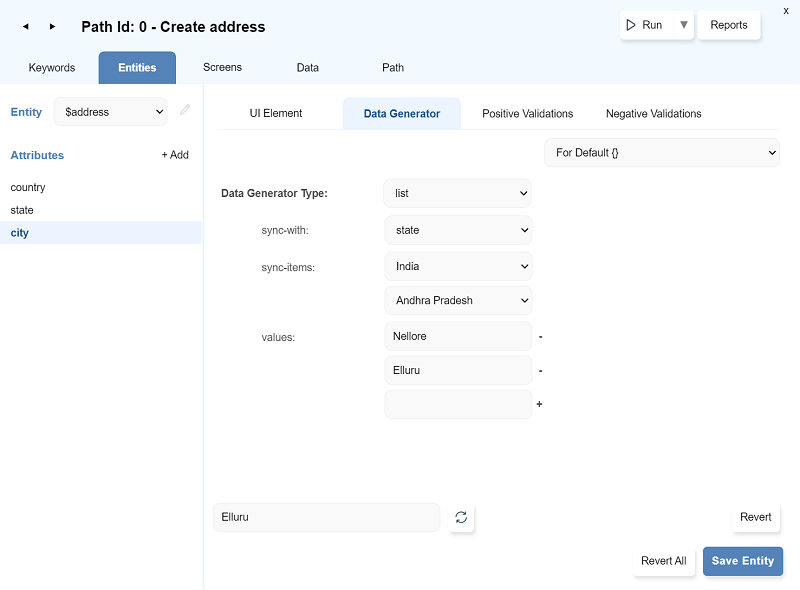
-
-
Now, the data generator will generate a complete address where
city,stateandcountryare in sync.
-
Next: Positive Validations