

Integrate with Jenkins
Jenkins and other Continuous Integration systems can trigger Sahi Pro Flowcharts as part of the build process using Sahi's ANT target.
Sahi Pro Flowcharts with Jenkins
Section titled “Sahi Pro Flowcharts with Jenkins”Automation is useless without Continuous Integration. Sahi Pro Flowcharts should be periodically executed and CI systems can trigger execution when code changes happen. Sahi Pro Flowcharts can be triggered via ANT. We configure Jenkins to call Sahi’s ANT target and then make Sahi’s report accessible from Jenkins.
Sahi Pro needs real browsers to playback test scenarios. But most Jenkins/build machines run in server mode and do not have a GUI. This forces end users to either try with headless browsers or to execute Sahi scripts remotely.
With Sahi, this is what you can do:
Jenkins machine (J): Run Jenkins on server. No Sahi installed.
Sahi Master machine (SM): Sahi Pro Runner (or Sahi Pro) runs on this machine and behaves as Master
Sahi slave machines (SL1, SL2, SL3): These are slave machines with Sahi Pro Runner (or Sahi Pro) running on them.
Central Database: Sync all the logs from Sahi Master to this machine. For more info, look at Sahi Sync DB.
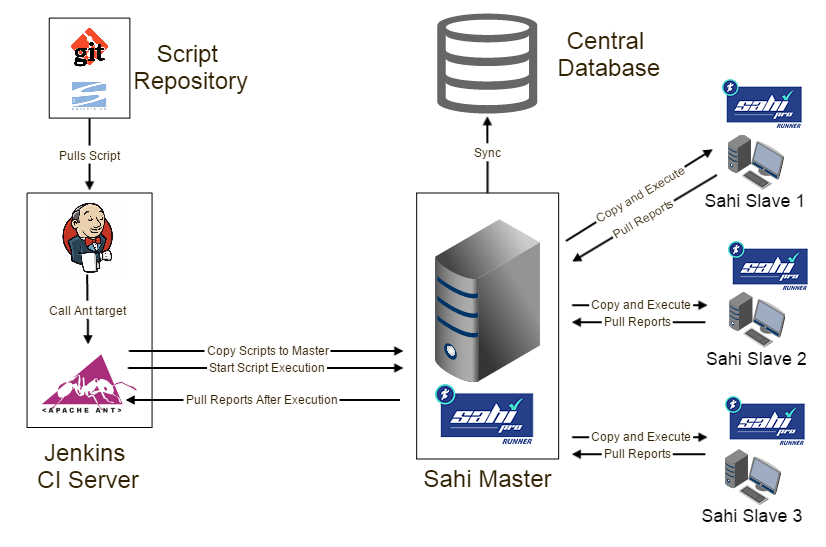
During the build process:
Jenkins pulls the latest scripts from the Source Control Management (SCM) system. It calls the Sahi ant target. Sahi target copies over the scripts from Jenkins (J) to master (SM). SM then copies scripts to SL1, SL2, SL3, distributes the execution and collects all reports. Sahi ant target then pulls reports from SM to Jenkins. This allows Jenkins to remain a headless server and does not need Sahi installed on it. Also, all distribution of scripts and pulling of reports happens through Sahi’s ant target itself.
Prerequisites
Section titled “Prerequisites”Before integration, you will first need an ant target to run the flowchart file. You can create the ANT target using Run Settings dialog. Save the file in any path accessible by Jenkins (say C:\jenkins_sahi) and let’s call it build.xml.
In the build.xml make sure that:
-
scriptDirpoints to where your Sahi Pro flowchartsdata will reside on your Jenkins machine. This will mostly be the local directory where the flowcharts are checked out via Git or SVN. If your checkout directory isE:/automation/scripts/flowchartsdatayour build.xml should have<property name="scriptDir" value="E:/automation/scripts/"/> -
Offline reports path should be configured correctly. The path in report tag in build.xml should be the same as that used in Publish HTML Reports in Jenkins configuration In this example, we use
<report type="html" logdir="C:/jenkins_sahi/logs/]"/> -
If email is configured to be sent at the end of a build, the path to
email.propertiesinbuild.xmlshould point to the correct location. You will need to copySahiPro/userdata/config/email.propertiesinto"C:/jenkins_sahi/email.properties"and have this inbuild.xml<property name="emailproperties" value="C:/jenkins_sahi/email.properties"/>
Also Install the HTML Publisher plugin if you wish to see HTML logs via Jenkins UI.
Let us assume that Jenkins is available in C:\.jenkins\
Configure Jenkins
Section titled “Configure Jenkins”-
From the Jenkins dashboard, click on
New job(orNew item). -
Enter job (or item) name as
SahiFunctionalTests(This will be the name of the job identified by Jenkins.) -
Select
Build a free-style software project. Click OK. -
At this point, you should be directed to the Configure page. Click on
Add build step. Selectinvoke Ant -
Type
-f C:/jenkins_sahi/build.xmlin the ANT target textbox.
-
Copy
SahiPro/lib/ant-sahi.jarfrom your Sahi Pro Runner installation folder intoC:/jenkins_sahi/lib/ant-sahi.jar -
To publish HTML reports after build, click on
Add Post Build Actionbutton and selectPublish HTML Reports.Provide Logs directory and other details.

In the field of “HTML directory to archive” you need to provide the same path defined in the report attribute of Sahi task in build.xml. e.g.
<report type="html" logdir="C:/jenkins_sahi/logs/"/>. This is configured via theOffline Reportsin the Editor Playback Properties UI. -
On the Jenkins dashboard, click
Build now.
View Sahi Pro Flowcharts Reports in Jenkins
Section titled “View Sahi Pro Flowcharts Reports in Jenkins”-
If starting Jenkins using jenkins.war file then use the below command.
Terminal window java -Dhudson.model.DirectoryBrowserSupport.CSP= -jar jenkins.war -
If starting Jenkins as a service on a Windows machine:
-
Go to
<Home>/.jenkins/jenkins.xmlfile, and add"-Dhudson.model.DirectoryBrowserSupport.CSP=\"\""under the<arguments>Tag. After adding the property in the<arguments>tag, the tag will look as below.<arguments>-Xrs -Xmx256m -Dhudson.lifecycle=hudson.lifecycle.WindowsServiceLifecycle "-Dhudson.model.DirectoryBrowserSupport.CSP=\"\"" -jar "%BASE%\jenkins.war" --httpPort=8080 --webroot="%BASE%\war"</arguments> -
Save the file, Restart Jenkins.
-
-
If starting Jenkins as a service on a Linux machine:
-
Create a new directory with name
init.groovy.din Jenkins home directory/var/jenkins_home. -
Within
init.groovy.ddirectory create a new groovy script. Saystartup-properties.groovy -
Copy the below content to the
startup-properties.groovyfile.import jenkins.model.Jenkinsimport java.util.logging.LogManager/* Jenkins home directory */def jenkinsHome = Jenkins.instance.getRootDir().absolutePathdef logger = LogManager.getLogManager().getLogger("")/* Replace the Key and value with the values you want to set.*//* System.setProperty(key, value) */System.setProperty("hudson.model.DirectoryBrowserSupport.CSP", "")logger.info("Jenkins Startup Script: Successfully updated the system properties value for hudson.model.DirectoryBrowserSupport.CSP . Script location : ${jenkinsHome}/init.groovy.d ") -
Save the file, Restart the Jenkins server.
-
:::
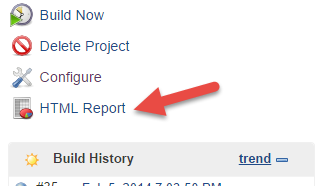
Once HTML Reports are configured, one can view Sahi’s report logs by clicking on the “HTML Reports” link on the left side navigation links on the Jenkins project page.
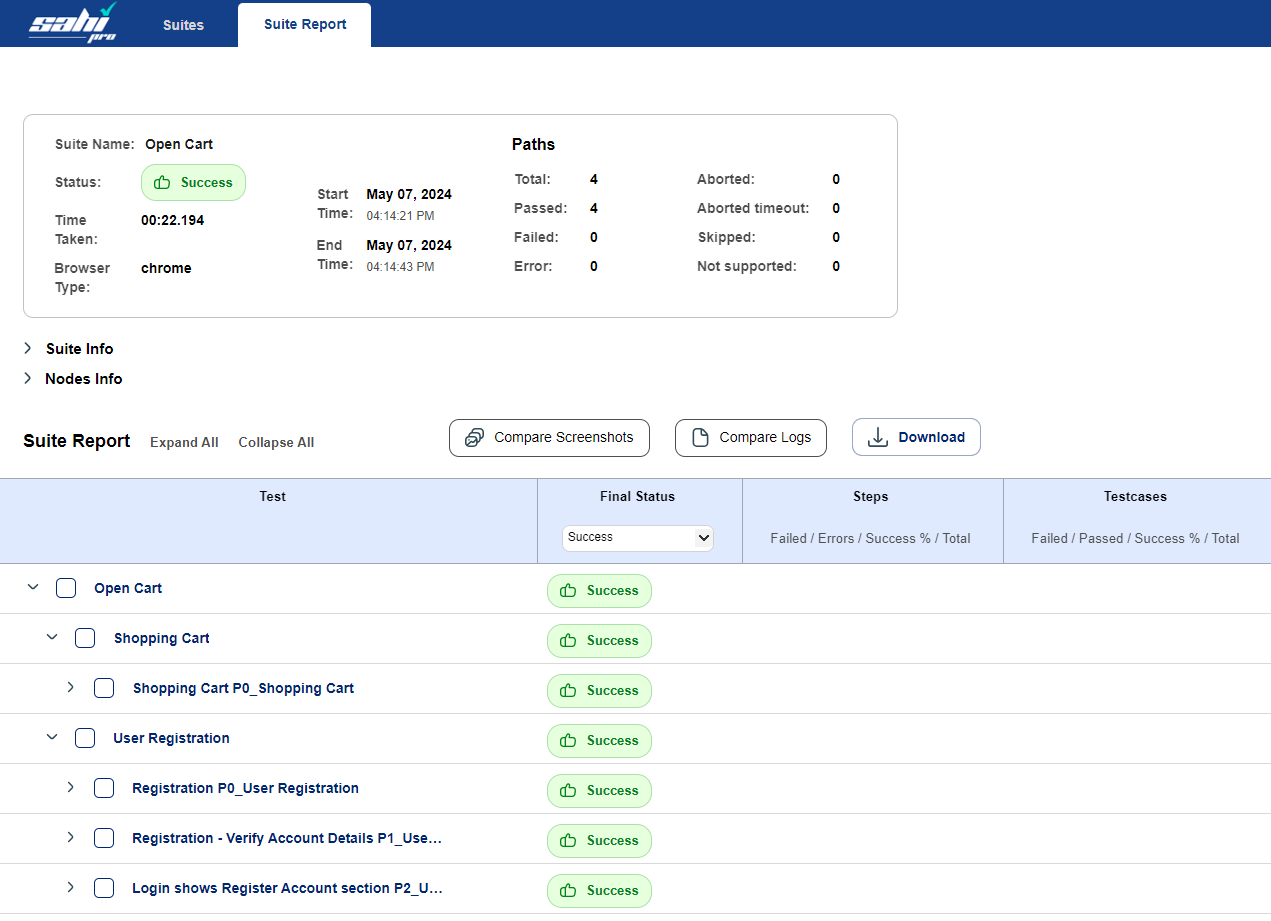
Sahi Pro Flowcharts Report looks like this:
Next: Run from Command Line