

Loop over Dataset
Datasets allow running the same path with multiple sets of data. This is useful for: Data setup Verifying against calculations
Create Dataset
Section titled “Create Dataset”Dataset can be created in two ways:
- From
Automate Dialog - From
Node
From Automate Dialog
Section titled “From Automate Dialog”Let us create a simple Dataset.
-
Open the
Automate dialog. -
Navigate to the
Datatab. -
Click on the
plus iconto create new dataSet.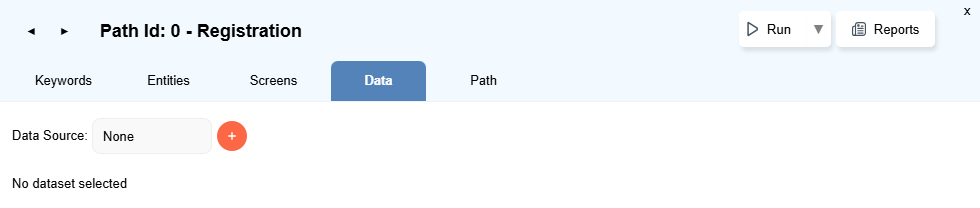
-
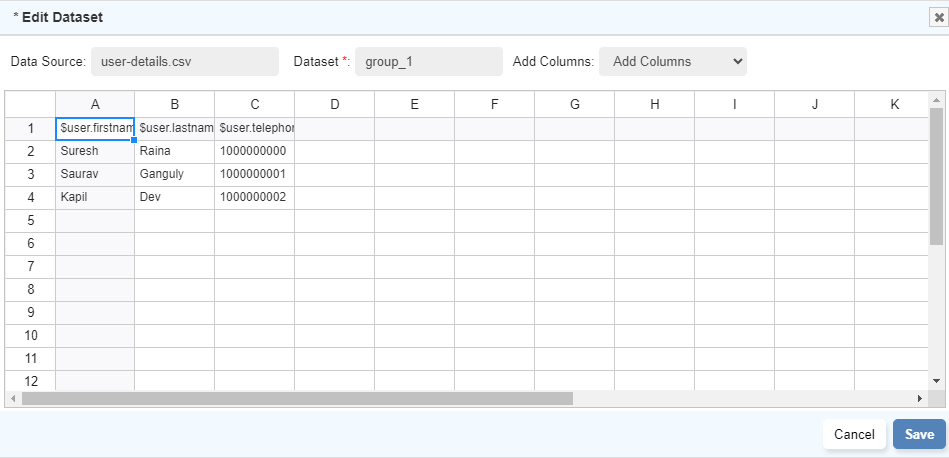
Set the
Data Sourcename touser_details.csv. -
Enter a dataset identifier in the
Dataset. (If not provided, it will bedefault). -
Choose the attribute from
Add Columnsdrop-down. Eg.$user.firstname, $user.lastname. -
Type the values for the attributes below the attribute names.
-
Click on
Save.
From Node
Section titled “From Node”-
On the
flowchart page, right click on theNodefor which dataset needs to be created. -
Click on
Dataset Loop. -
In the
Dataset Loopdialog box, click onplusicon, to create new dataSet.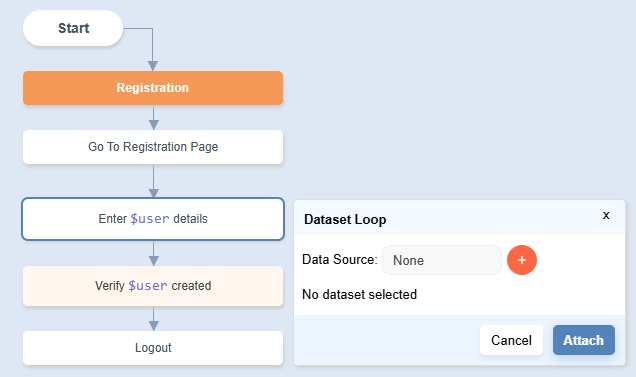
-
The
Edit Datasetdialog opens up. Enter the required data and save.
Password Encryption in Dataset
Section titled “Password Encryption in Dataset”-
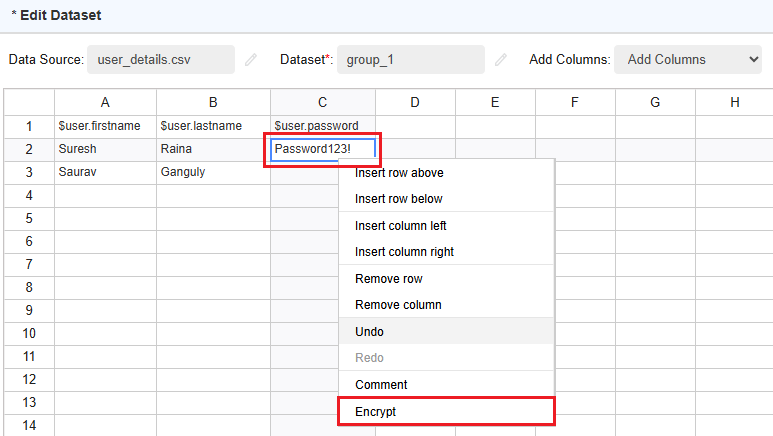
Enter the plaintext password values in the cells beneath the corresponding attribute names.
-
Right-click the desired cells and select
Encryptfrom the context menu. The plaintext password will be converted into an encrypted string.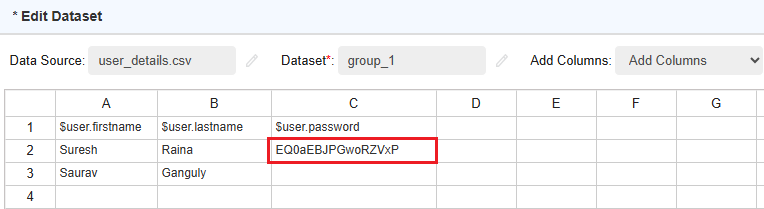
Run Dataset
Section titled “Run Dataset”Path Level
Section titled “Path Level”-
On the
Automatedialog, go toDatatab -
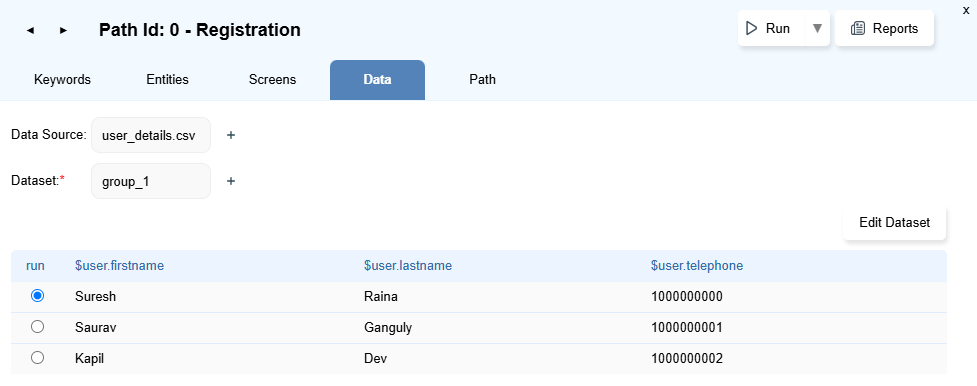
Select the
Data Sourceand aDataset(group name) to associate it with the Path. -
Select the dataset row to run by default when run from Automate dialog.
-
Click on
Runbutton onAutomatedialog. -
On the
Run Settingsdialog, select theRun Normal Pathand click onRunbutton. -
The flow executes one time and uses the select dataset row.
View Report
Section titled “View Report”-
Open the report by clicking on the
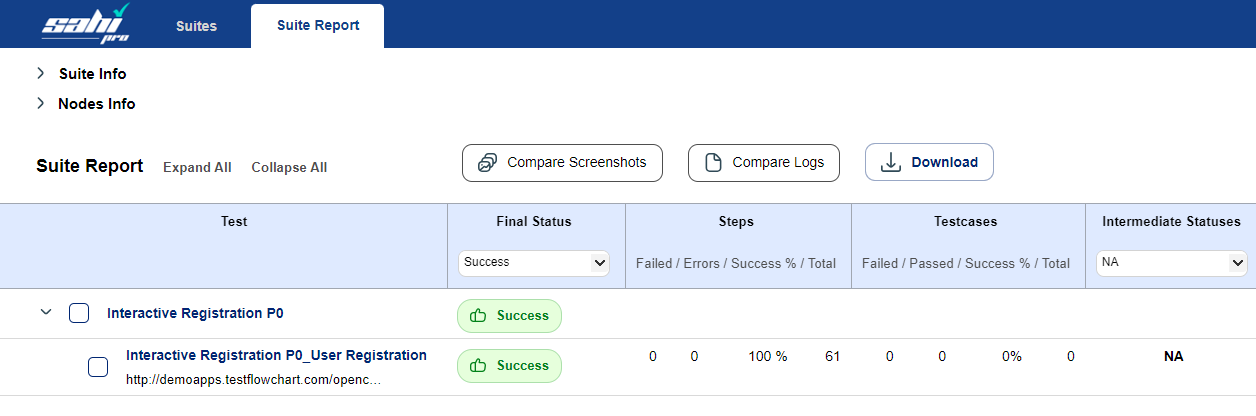
Reportsbutton/option either from theAutomatedialog or from the flowcharts page. -
The detailed report shows the execution with the used dataset row details.
Flowchart level/Project Level
Section titled “Flowchart level/Project Level”- Click on
Runbutton on the flowchart page or the project page. - On the
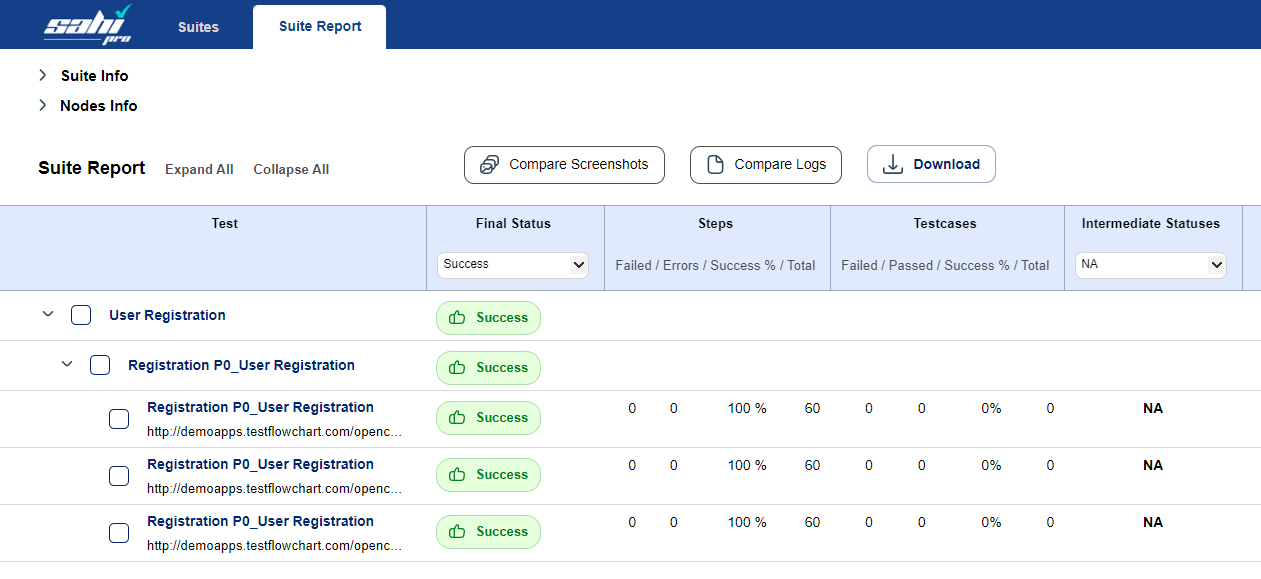
Run Settingsdialog, select theRun Normal Pathand click onRunbutton. - The flow will be run multiple times to exercise each row of the dataset. For each row in the dataset, an individual target website browser will open and the steps will be carried out.
View Report
Section titled “View Report”-
Open the report by clicking on the
Reportsbutton/option. -
The detailed report shows the multiple path execution with the used dataset row details.
Node level
Section titled “Node level”-
Lets take another example where the flowchart verifies the cart total for books purchase.
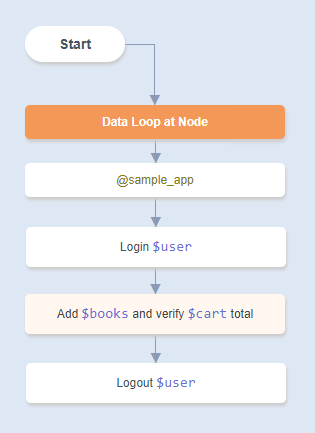
-
The
Add $booksandVerify $cart totalkeyword will be automated and extracted as follows: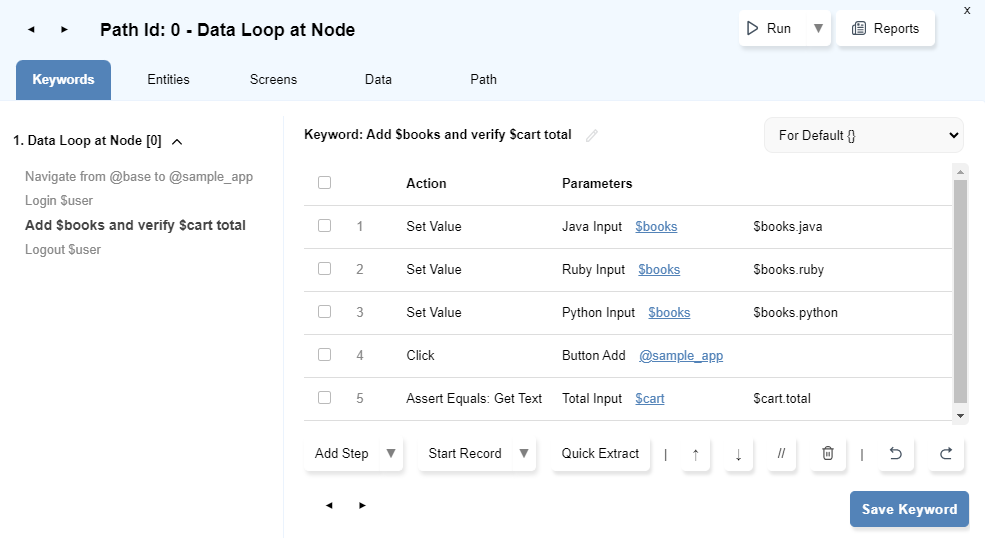
-
Click on
Add $booksandVerify $cart totalnode and chooseDataset Loopfrom the menu. -
Choose the Data Source and Dataset or Create a new one.
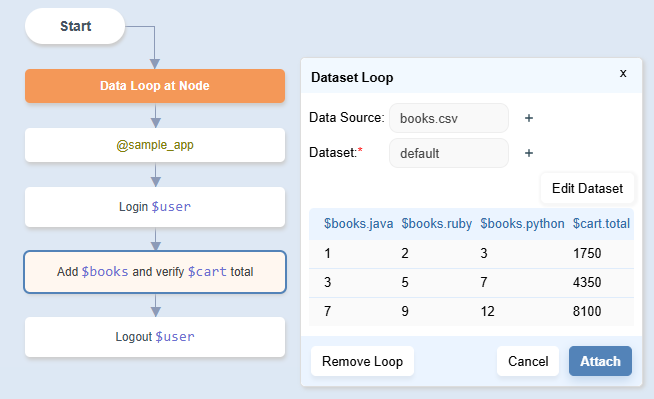
-
Data source and dataset may be set from a variable as well.
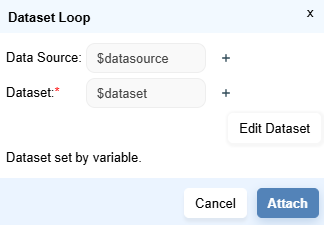
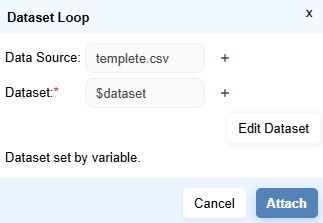
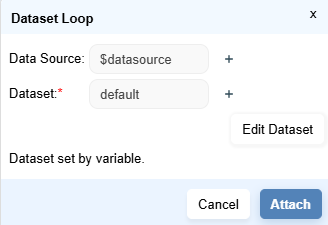
-
The keyword in the Node will be run in a loop over all rows of the dataset.
View Report
Section titled “View Report”-
Open the report by clicking on the
Reportsbutton/option. -
The detailed report shows the multiple path execution with the used dataset row details. The keyword
Add $booksandVerify $cart totalhas executed thrice.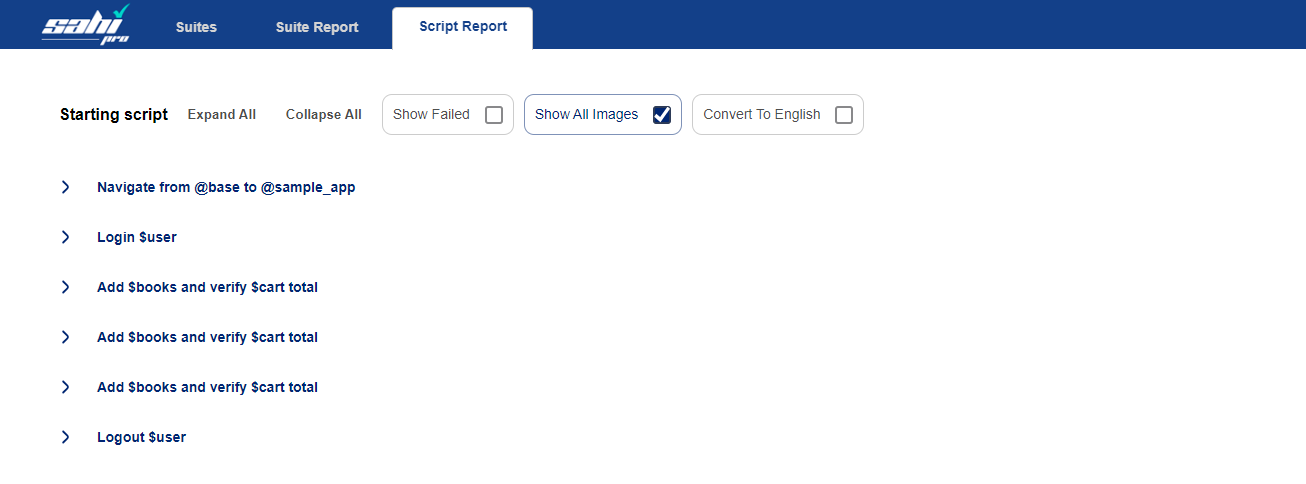
Dataset Loop Boundary
Section titled “Dataset Loop Boundary”The start and end boundaries can be defined for the dataset attached to a node.
The Keywords in the Nodes inside the start and end boundaries will be run in a loop over all rows of the dataset.
-
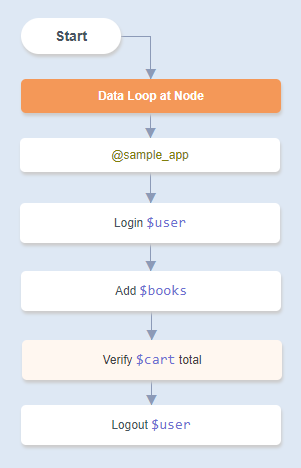
Lets take the above example but split the keyword
Add $booksandVerify $cart totalinto two nodes.-
-
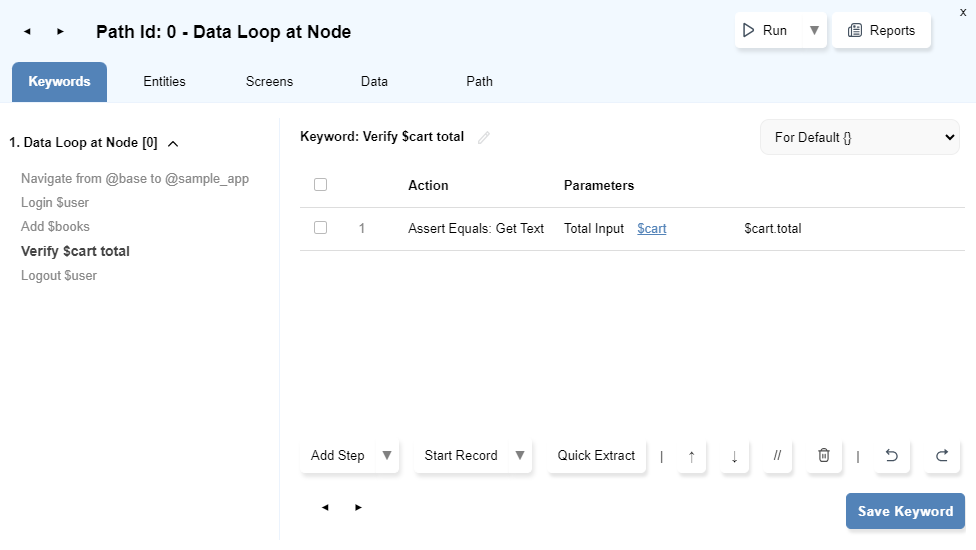
The
Add $booksandVerify $cart totalkeywords will be automated and extracted individually as follows: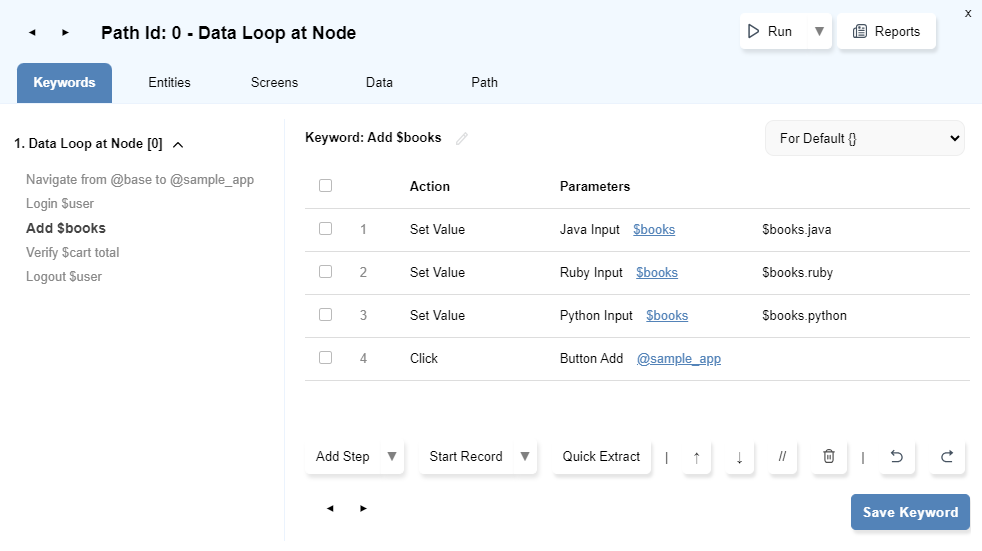
-
Select
Add $booksnode andVerify $cart totalnode and chooseDataset Loopfrom the menu to attach the datasetbooks.csvwith the node. -
Since two nodes are selected,
Add $booksnode act as starting point of the dataset loop andVerify $cart totalnode act as ending point of the dataset loop.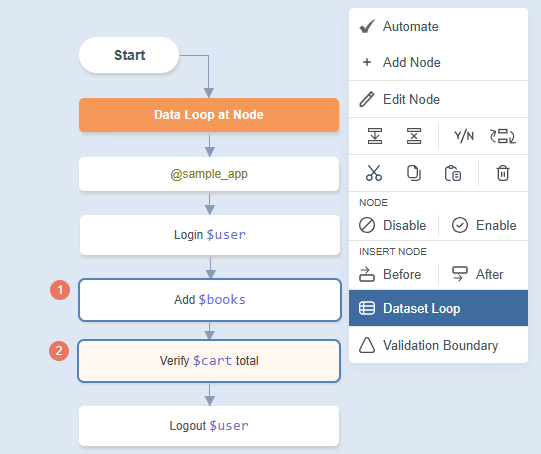
- When executed, the whole flow will be executed once but within that flow the set of nodes within the data loop boundary will be executed multiple times to exercise each row of the dataset.
View Report
Section titled “View Report”-
Open the report by clicking on the
Reportsbutton/option. -
The detailed report shows the path execution with the used dataset row details. The keywords
Add $booksandVerify $cart totalboth have executed three times.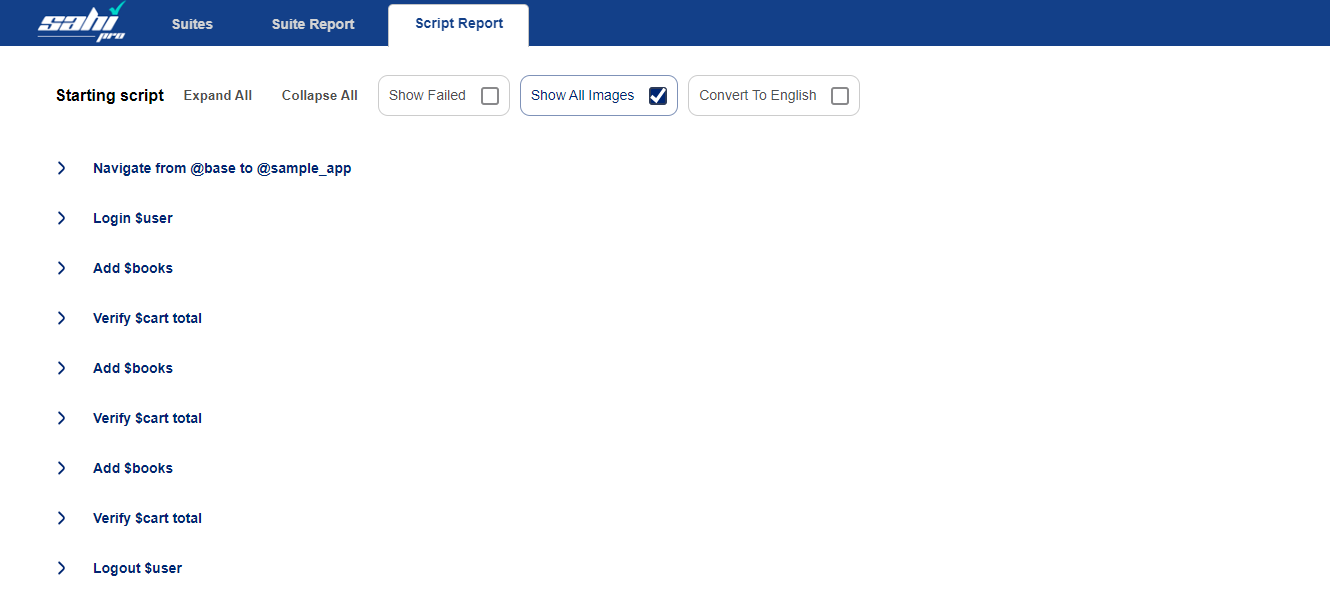
Environment based Datasets
Section titled “Environment based Datasets”Datasets can be overridden to use different data in different environments.
For example, to use different data for default, QA and production environments.-
Create a new dataset as shown here.
-
Open the Edit Dataset dialog.

-
To create new environment, click on the drop-down near
Envand selectAdd New.
-
Enter the
env namein the prompt. -
This will clear the
Edit Datasetdialog and a new folder with givenenv namewill be created underdatasetsfolder of the project.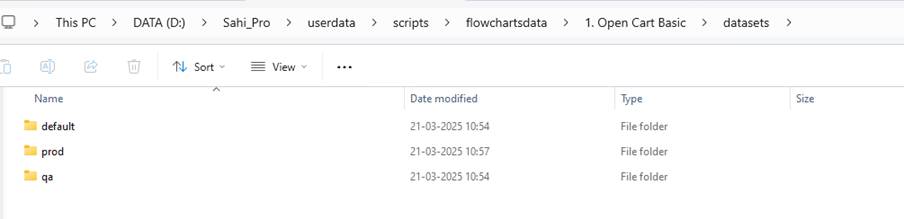
-
Enter the required data and save.
-
-
To set the environment of execution, set
sahi_envvariable inExternal Variablesunder Advanced Run Settings section ofRun Settingsdialog before running.
Data will be picked from data file of given environment instead of the default dataset.
-