

Types of Run
Flowcharts can be run at the Path, Flowchart or Project level.
Path Run
Section titled “Path Run”-
Open a Flowchart
-
Click on any node and click on Automate
-
Click Run at the top right.
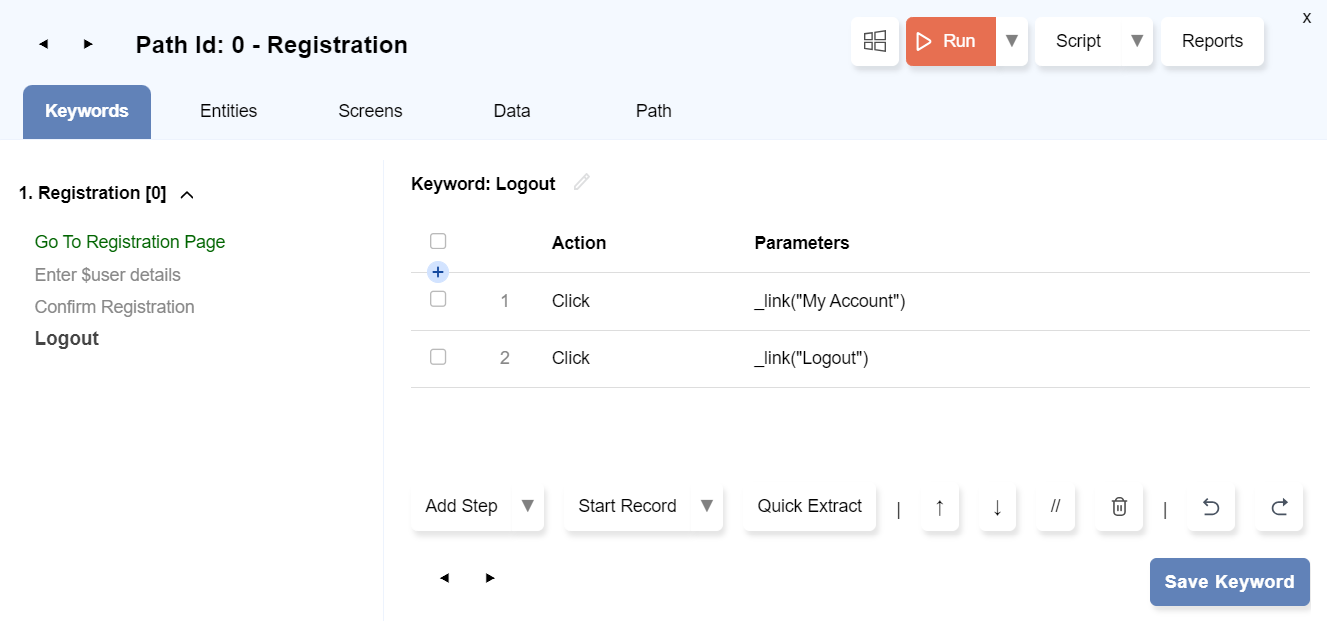
-
This brings up the Run dialog.
-
Set the Browser, Start URL etc.
-
You can check any combination of:
- Run Normal Path
- Run Positive Validations
- Run Negative Validations
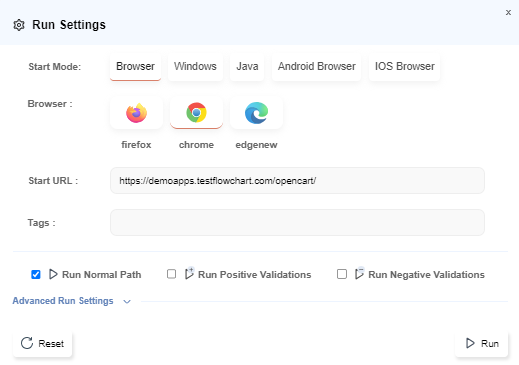
Depending on what you chose, multiple browsers may open up and execute the flows.
Flowchart Run
Section titled “Flowchart Run”-
Open a Flowchart
-
Click on Run button at the top.
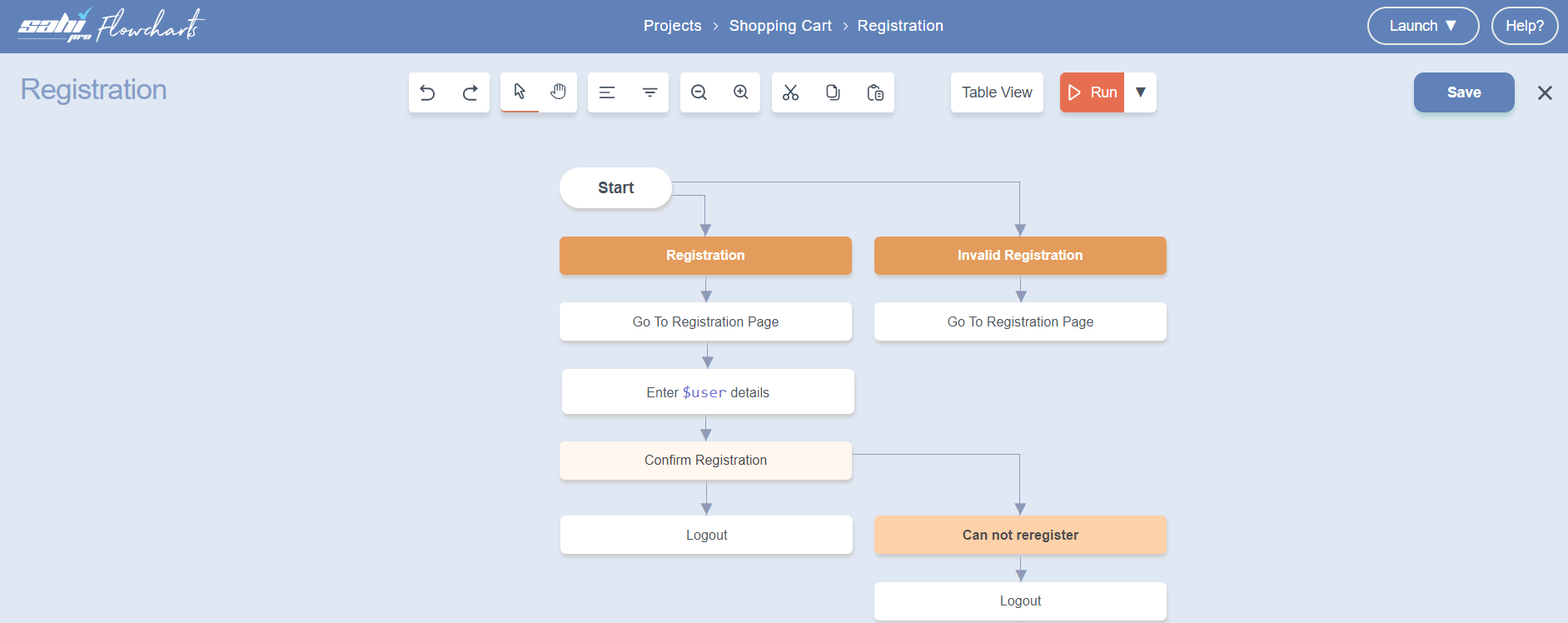
-
The rest is similar to Path Run.
Path Execution Order
Section titled “Path Execution Order”The execution order of paths in a flowchart is automatically decided by Flowcharts.
This is mostly the natural order in which the paths were added to the flowchart.
However, if you wish to change the order, you can do it as follows:
-
Click on the dropdown arrow to the right of Run button and choose Execution Order
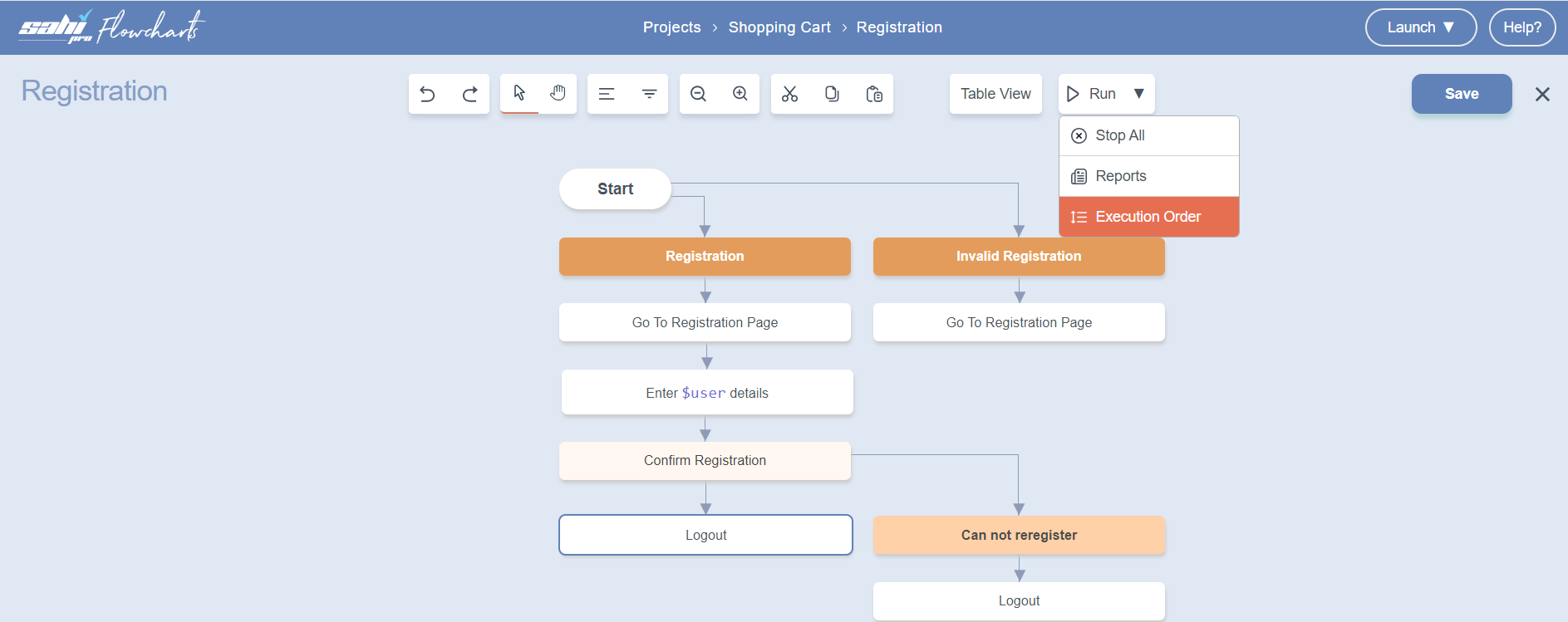
-
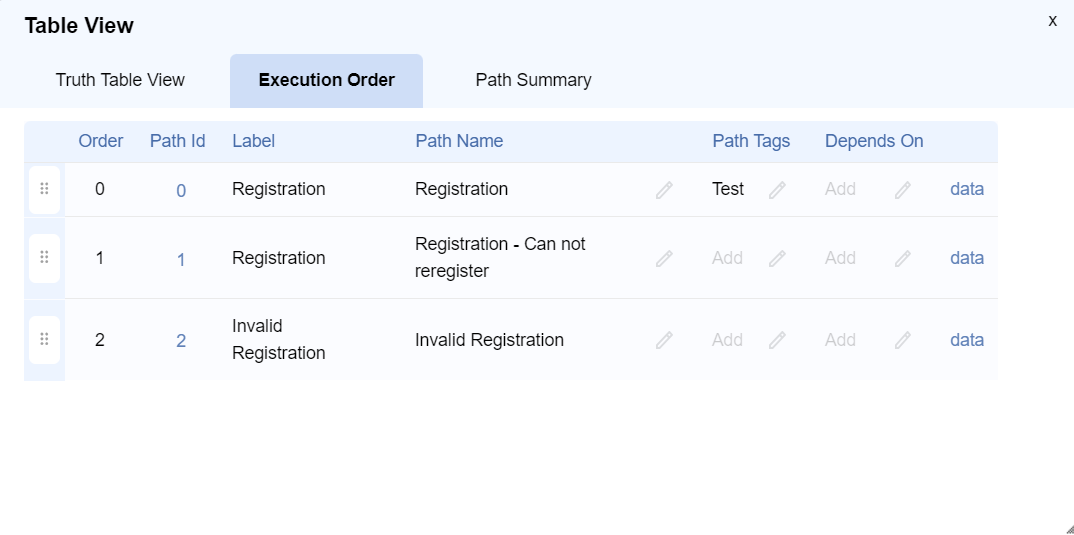
This shows the paths in a tabular format.
-
Each row has a draggable handle at the left. Drag and drop to re-order the paths.
-
When a flowchart is run, the paths will be triggered in the specified order.
Depends - Path Dependency
Section titled “Depends - Path Dependency”- Execution Order specifies the order in which paths are triggered for execution.
- In case of sequential execution, this will work fine.
- However, in case of parallel playback, it is not guaranteed that path 2 will start only after path 1 finishes.
The only guarantee is that path 2 will be started after path 1 is started.
If more control is needed, we can use Path Dependency.
- On the Execution Order dialog, Click on “Depends On” near a path (path 2).
- Choose the other path that it depends on (path 1).
- Click Save.
- In this case, Path 2 will execute only if Path 1 has executed and has passed. Else Path 2 will be skipped.
For example, we don’t want to run other flows which depend on a successful product creation, if product creation itself is failing.
This will save build time and give faster feedback.
Prerequisites at Path Level
Section titled “Prerequisites at Path Level”-
When a flowchart is run with distributed playback, any path may be assigned to any available node. However, different nodes may have different add-ons and licenses available.
For example, a path that requiresANDROIDmode might get assigned to a node that doesn’t have theMobile Engine or its license, leading to unwanted failures.
This is where prerequisites come in. By specifying prerequisites at the path level, you ensure that each path runs only on nodes that meet its required capabilities.-
In the
Table Viewdialog, navigate to theTruth Table VieworExecution Order, then click onPrerequisiteslocated near theLogin and Validate - Browser Android Flow.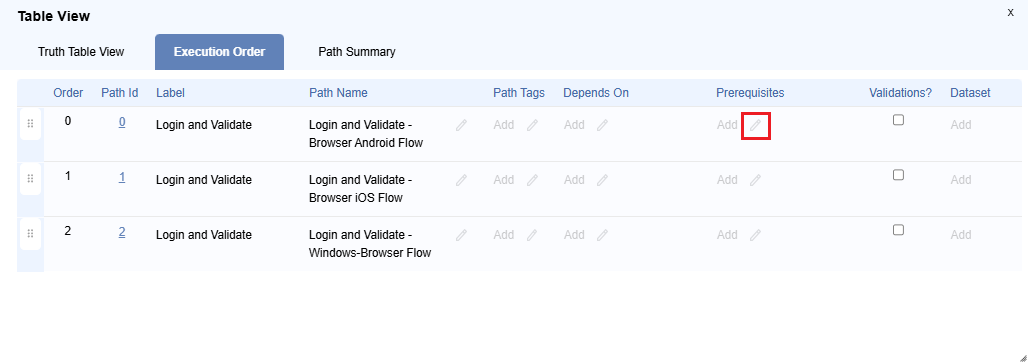
-
This will open up the
Prerequisitesdialog.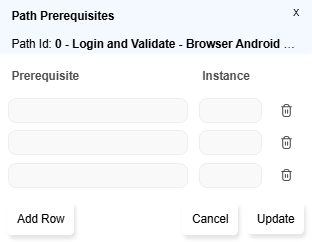
-
Set the necessary prerequisites in the dialog. Click
Update.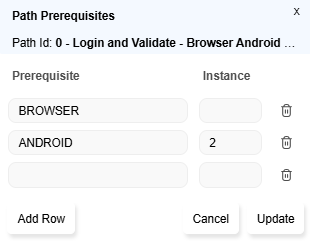
The
Execution Orderdialog will reflect the change in prerequisites.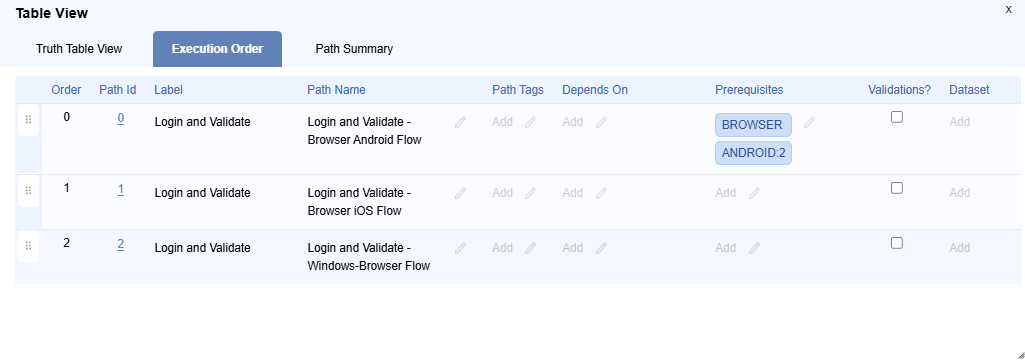
-
In this case, path
Login and Validate - Browser Android Flowwill execute only on a node which has theBROWSERmode and theANDROIDmode with 2 device instances. -
We can also specify multiple browsers with their instances for a particular path.

For example, in the case of path
Browser Flow chrome and firefox, one instance ofchromeand 2 instances offirefoxare specified in prerequisites.
PathBrowser Flow chrome and firefoxwill run only on the node which has atleast one instance ofchromeand 2 instances offirefoxavailable for run.
The path execution will start with the default browser type. -
To run a path on a specific node, we can specify the
node tagin prerequisites.
For example, in the case of path
Login and Validate - Windows Browser Flow,BROWSERmode andwindows10node tag are specified in prerequisites.
PathLogin and Validate - Windows Browser Flowwill run only on the node which has theBROWSERmode and thewindows10tag.
Project Run
Section titled “Project Run”-
Open a Project
-
Click on Run button at the top right.

-
The rest is similar to Path Run and Flowchart Run.
Flowchart Execution Order
Section titled “Flowchart Execution Order”The execution order of flowchart in a project is automatically decided by Flowcharts.
This is mostly the natural order in which the flowcharts were created in the project.
However, if you wish to change the order, you can do it as follows:-
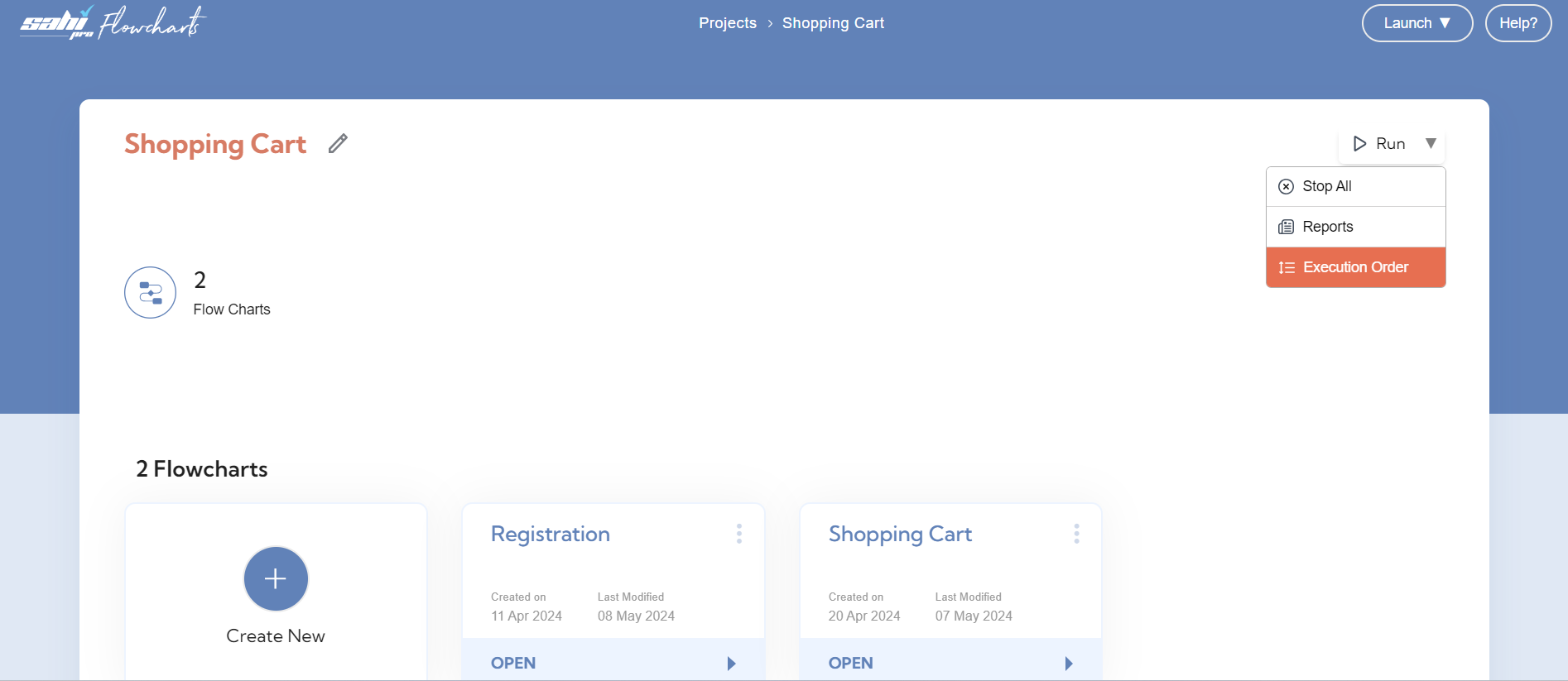
Click on the dropdown arrow to the right of Run button and choose Execution Order
-
This shows the flowcharts in a tabular format.
-
Each row has a draggable handle at the left. Drag and drop to re-order the paths.
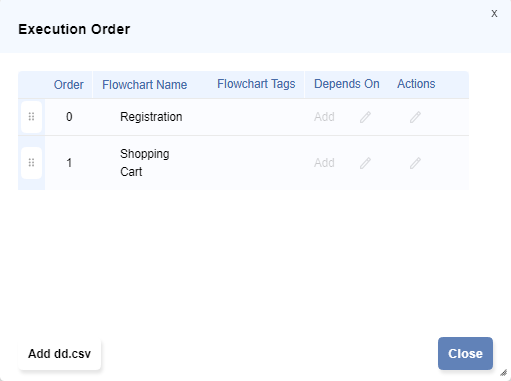
When a project is run, the flowcharts will be triggered in the specified order.
Depends - Flowchart Dependency
Section titled “Depends - Flowchart Dependency”- Execution Order specifies the order in which flowcharts are triggered for execution.
- In case of sequential execution, this will work fine.
- However, in case of parallel playback, it is not guaranteed that flowchart 2 will start only after flowchart 1 finishes.
The only guarantee is that flowchart 2 will be started after flowchart 1 is started.
If more control is needed, we can use Flowchart Dependency.
- On the Execution Order dialog, Click on “Depends On” near a flowchart (flowchart 2).
- Choose the other flowchart that it depends on (flowchart 1).
- Click Save.
- In this case, Flowchart 2 will execute only if Flowchart 1 has executed and has passed. Else Flowchart 2 will be skipped.
For example, we don’t want to run other flowcharts which depend on a successful product creation, if product creation itself is failing.
This will save build time and give faster feedback.
Prerequisites at Flowchart Level
Section titled “Prerequisites at Flowchart Level”-
When a project is run with distributed playback, any flowchart may be assigned to any available node. However, different nodes may have different add-ons and licenses available.
For example, a flowchart that requiresANDROIDmode might get assigned to a node that doesn’t have theMobile Engine or its license, leading to unwanted failures.
This is where prerequisites come in. By specifying prerequisites at the flowchart level, you ensure that each flowchart runs only on nodes that meet its required capabilities.-
In the
Execution Orderdialog, Click onPrerequisitesnear a flowchartCheckout.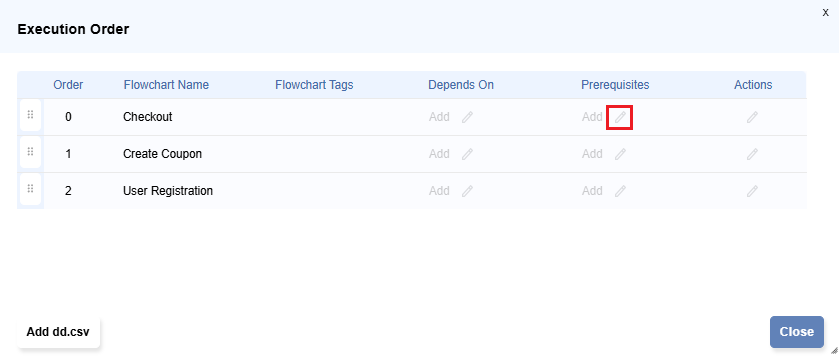
-
This will open up the
Prerequisitesdialog.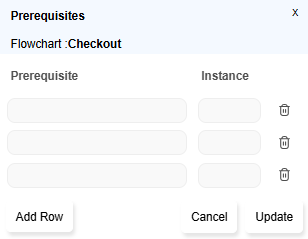
-
Set the necessary prerequisites in the dialog. Click
Update.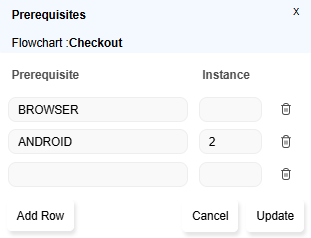
The
Execution Orderdialog will reflect the change in prerequisites.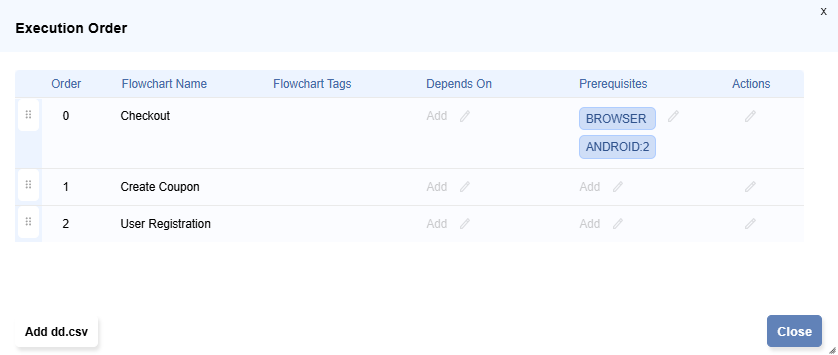
-
In this case, flowchart
Checkoutwill execute only on a node which has theBROWSERmode and theANDROIDmode with 2 device instances. -
We can also specify multiple browsers with their instances for a particular flowchart.

For example, in the case of flowchart
Create Coupon, one instance ofchromeand 2 instances offirefoxare specified in prerequisites.
FlowchartCreate Couponwill run only on the node which has atleast one instance ofchromeand 2 instances offirefoxavailable for run.
The flowchart execution will start with the default browser type. -
To run a flowchart on a specific node, we can specify the
node tagin prerequisites.
For example, in the case of flowchart
User Registration,BROWSERmode andwindows10node tag are specified in prerequisites.
FlowchartUser Registrationwill run only on the node which has theBROWSERmode and thewindows10tag.
Next: Playback via Ant
-
-