

Precondition Matching
Precondition Matching is a powerful feature of Flowcharts. When dealing with complex flows, Precondition Matching allows us to separate the setup steps from the business rules.
A path can define its preconditions via the Condition node. When a path is to be executed, Flowcharts will check if there are any conditions. If these conditions are on state attributes, Flowcharts will look for other paths which can satisfy the precondition. To satisfy, the other path should have an Outcome node with an expression which satisfies the precondition.
Eg.
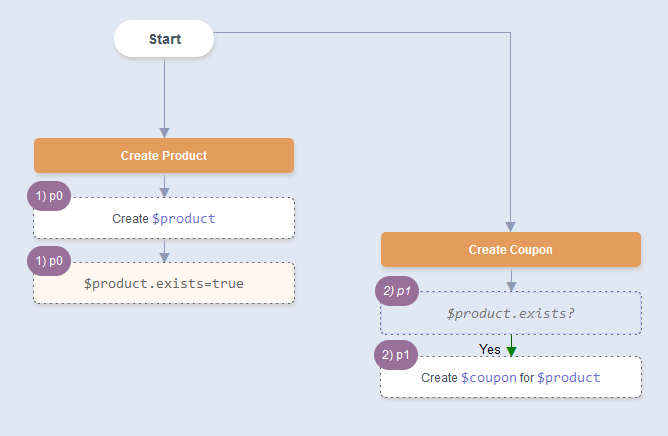
If Create Coupon has a Condition $product.exists==true?
And Create Product has an Outcome $product.exists=true
Then: When we Automate Create Coupon, we will see the sequence of paths.
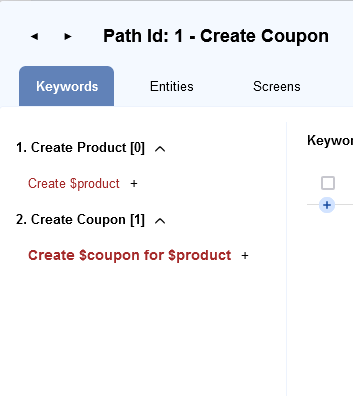
When Create Coupon is run, Create Product will run first and then Create Coupon will run.
We call paths which run as part of precondition matching as prepaths. In this case Create Product is a prepath.
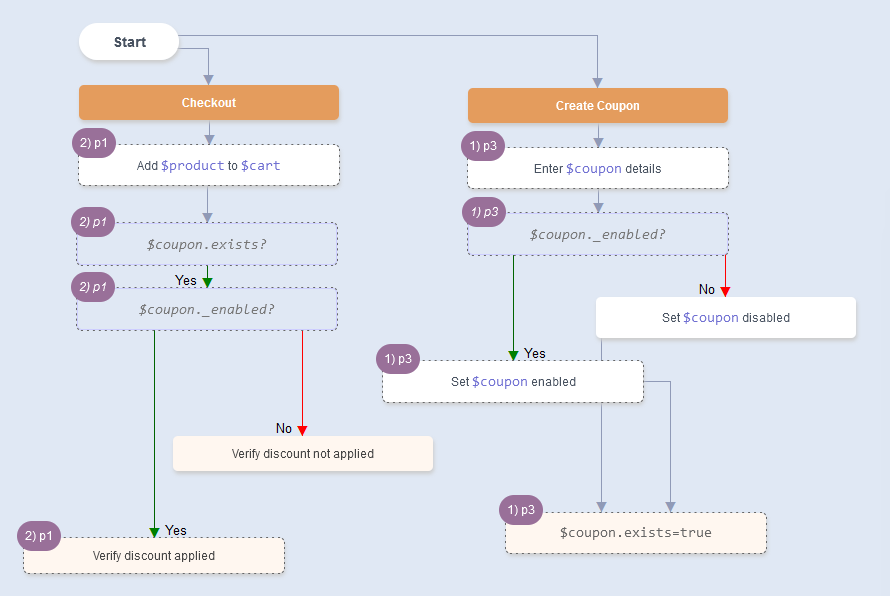
Example 2: User Re-registration should fail
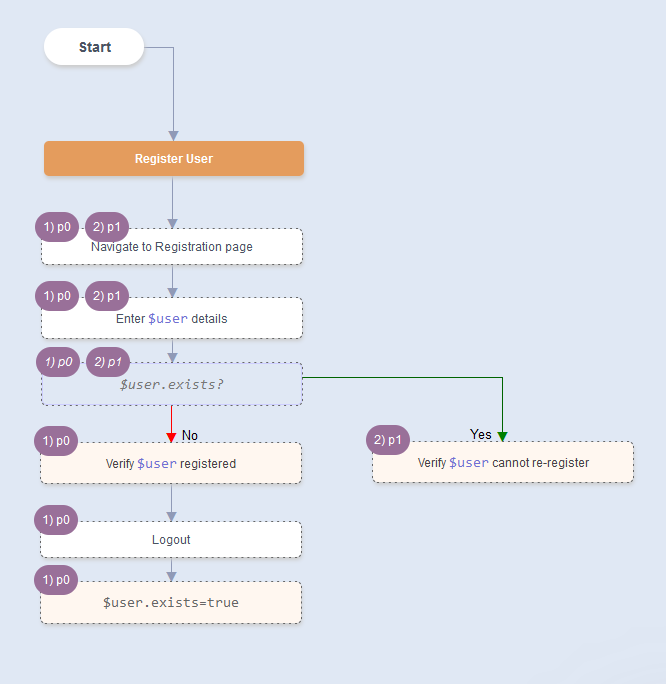
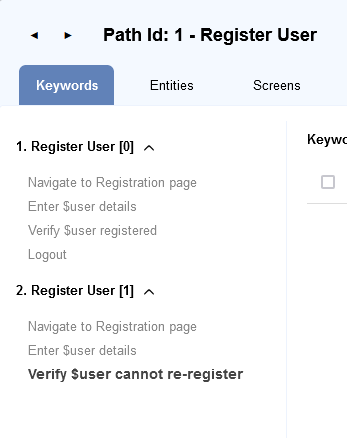
Constant Attribute Condition matching is ensured in Precondition Matching also:
Screen Navigation Management
Section titled “Screen Navigation Management”- Specifying a screen name in an Action node will force navigation to that screen.
Eg. Adding an Action node with just@registrationwill add a Keyword ofNavigate from @base to @registration. - If the previous path was at
@homepagescreen, a keywordNavigate from @homepage to @registrationwill be added. - While traversing a path on the UI, if the screen changes automatically, that screen name can be specified in an Outcome node
This tells Flowcharts that the current screen has changed, and the correct Navigate keywords will be added.
Login Management
Section titled “Login Management”- Specifying
[login=$user]in an Action node, forces the system to logout any existing user and login as this user.
KeywordNavigate from @current_screen to @login_screenwill be added.
KeywordLogin $userwill be added. - Specifying
[login=none]in an Action node, forces the system to logout any existing user.
KeywordNavigate from @current_screen to @logout_screenwill be added.
KeywordLogoutwill be added. - While traversing a path on the UI, if the logged in user changes automatically, that loggedin state can be specified in an Outcome node.
Eg.[login=none],[login=$user2]
This tells Flowcharts that the current loggedin state has changed, and the correct Login/Logout keywords will be added.
Multiple Entity Instances
Section titled “Multiple Entity Instances”To have 2 (or more) entity instances of the same type in a single path, add a number suffix. Eg. $user and $user2
Eg. Make $user manager of $user2
The suffix just lets Flowcharts know that these entities should be treated as different instances in this path. The suffix is ignored while matching prepaths.
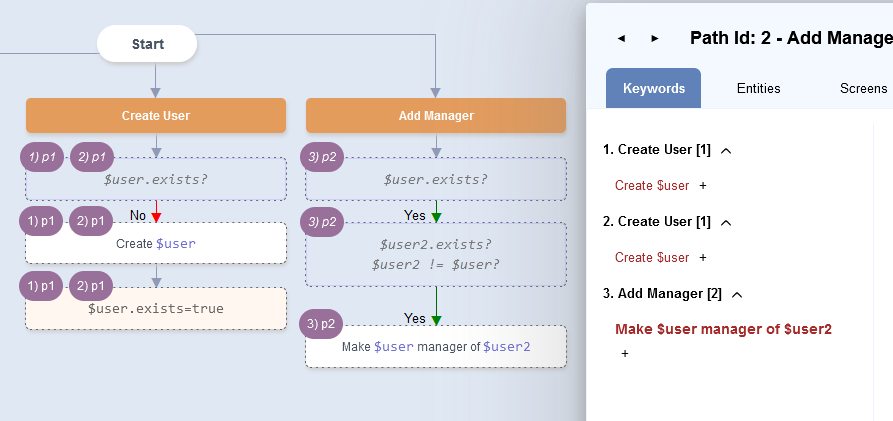
Notice how Create User path is traversed twice - once for $user and again for $user2.
Path Data
Section titled “Path Data”Only the Dataset attached to the last path will be honored. Any datasets attached to prepaths with be ignored.
Next: Overriding Behavior