

Applet Automation
This section details how to test Java Applets. If you are not familiar with Sahi Pro Flowcharts, see Introduction to Sahi Pro Flowcharts.
Approaches
Section titled “Approaches”Java Applets can be automated using the following approaches.
-
Applet Automation Using Only Desktop Automation
- This is available since Sahi Pro v10.0.0.
- This approach needs ONLY Sahi Pro Desktop Engine license.
- Applet elements are automated using JAVA mode, while elements on browser are automated using WINDOWS mode.
-
Applet Automation Using Browser and Desktop Automation
- This is available since Sahi Pro v7.0.0.
- This approach needs both Sahi Pro and Sahi Pro Desktop Engine licenses.
- Applet elements are automated using JAVA_APPLET mode, while elements on browser are automated using BROWSER mode.
Applet APIs
Section titled “Applet APIs”Applets APIs are different from normal JavaScript APIs. Most components are identified by its class name prefixed by "_jv".
Example:
_jvJButton("Test Button")or
_jvJComboBox("ComboBox")Applet also supports _near, _in and _under APIs.
Example:
_jvJComboBox("ComboBox", _near(_jvJLabel("Mouth")));
_highlight(_jvJComboBox("ComboBox", _under(_jvJLabel("Mouth"))));
_setSelected(_jvJComboBox("ComboBox", _near(_jvJLabel("Mouth"))), "Larry");
_click(_jvJButton("sun_small.gif"));
Trouble Shooting
Section titled “Trouble Shooting”Page hangs or Sahi does not recognize any element
Section titled “Page hangs or Sahi does not recognize any element”-
While automating applets using Sahi make sure that java uses browser’s proxy setting. This can be configured in Java Control Panel as shown in below images.
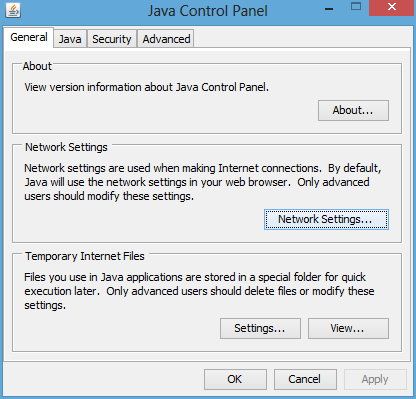
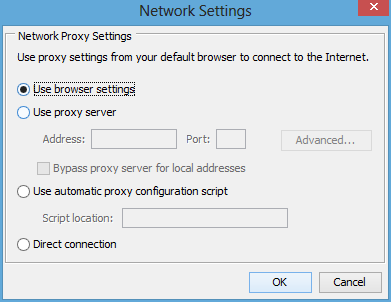
-
Clear Java cache by deleting Temporary Files through the Java Control Panel. Click on the “Settings” button.
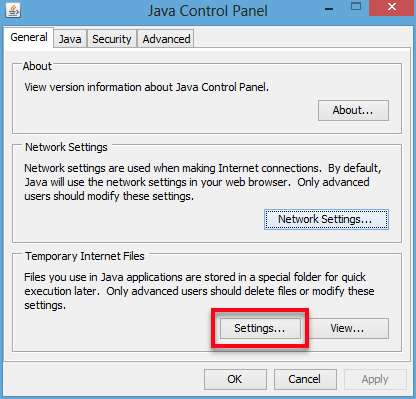
Uncheck the checkbox adjacent to “Keep temporary files on my computer” and click “Delete Files..” then click “Ok” button.
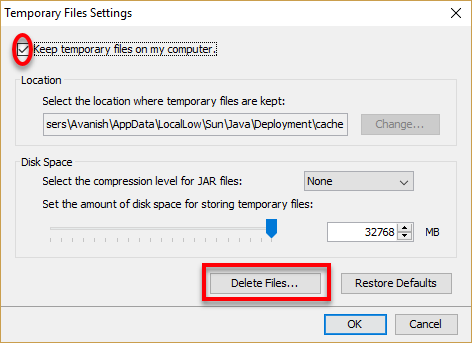
-
Click on the “Configure” link on the Sahi Dashboard and click “download_contenttypes.txt”.
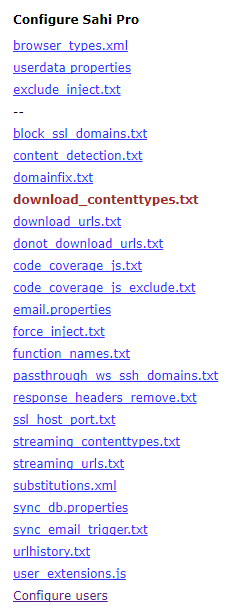
Comment “application/octet-stream”, save and restart Sahi.

Sample applet
Section titled “Sample applet”A sample applet is available at http://sahi.co.in/demo/applet/simple.htm