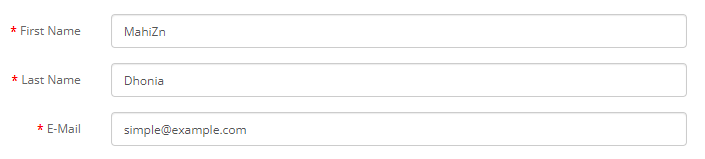
Variable Templates
Variable Templates allow the user to reference variable values in string parameters. During execution of the flow, the referenced variable will be resolved and replaced with its current value. This allows the user to focus on the form of input, instead of worrying about correct syntax for concatenating variables in parameters.
Variables in Data Generator
Section titled “Variables in Data Generator”Example 1: Generating name
Section titled “Example 1: Generating name”- Values of a field can be generated with a combination of some variable values provided at
RUNandData Generatorparameters.
-
Open the
User Registrationflowchart. -
Click on
Runand go toAdvanced Run Settings -
Type the
External Variablefor firstname and lastname.
-
Close
Advanced Run Settingswindow and openAutomatedialog -
On the
Automatedialog, go toEntitiestab and go toData Generatorsub-tab. -
Select the
firstnameattribute and set theprefixto{{var_firstname}}. The generated value can be seen in thePreviewbox.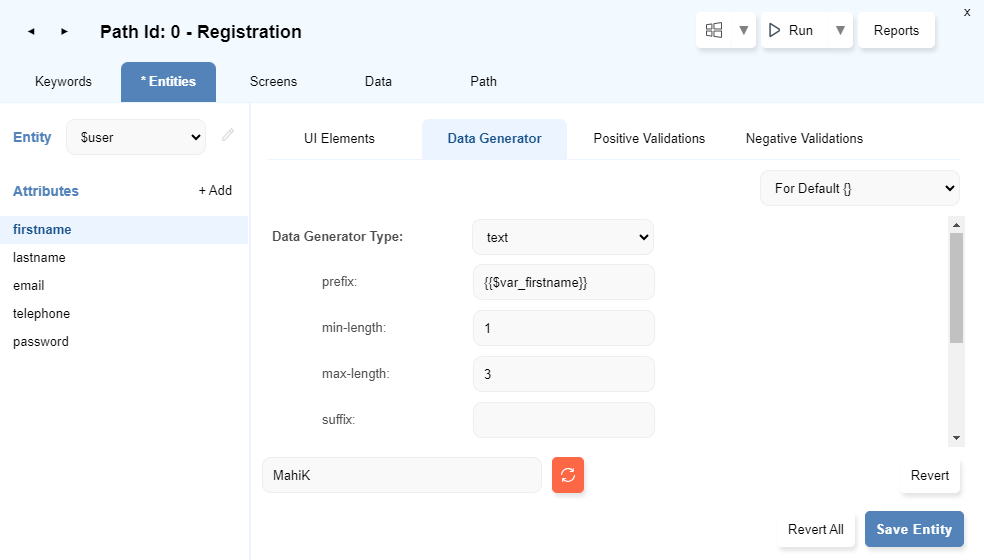
-
Select the
lastnameattribute and set theprefixto{{var_lastname}}. The generated value can be seen in thePreviewbox.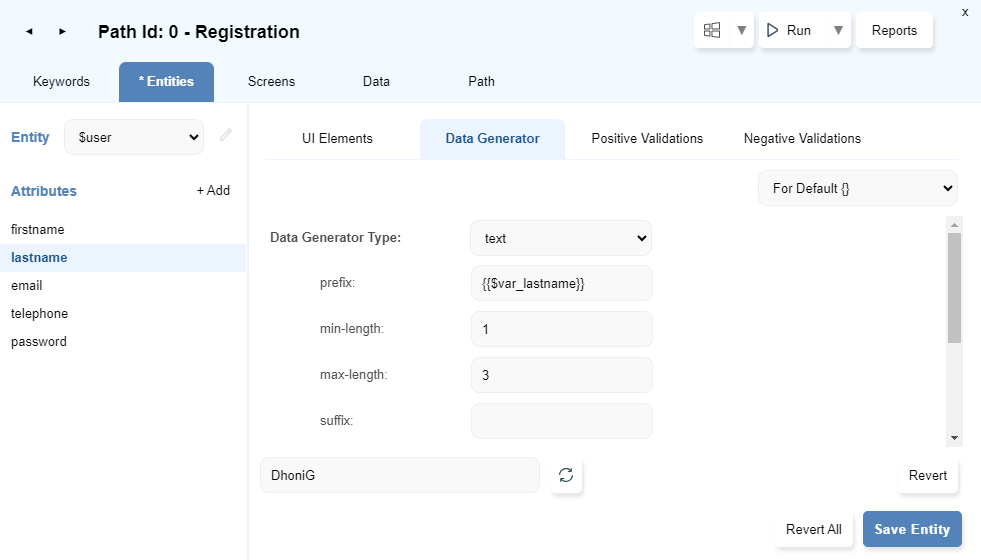
Example 2: Generating email based on other values
Section titled “Example 2: Generating email based on other values”- Values of a field can be generated with a combination of values already generated through
Data Generator.
-
Go to
Data Generatorsub-tab and selectemailattribute -
Set the
namesto{{$this.firstname}}.{{$this.lastname}}. The generated value can be seen in thePreviewbox.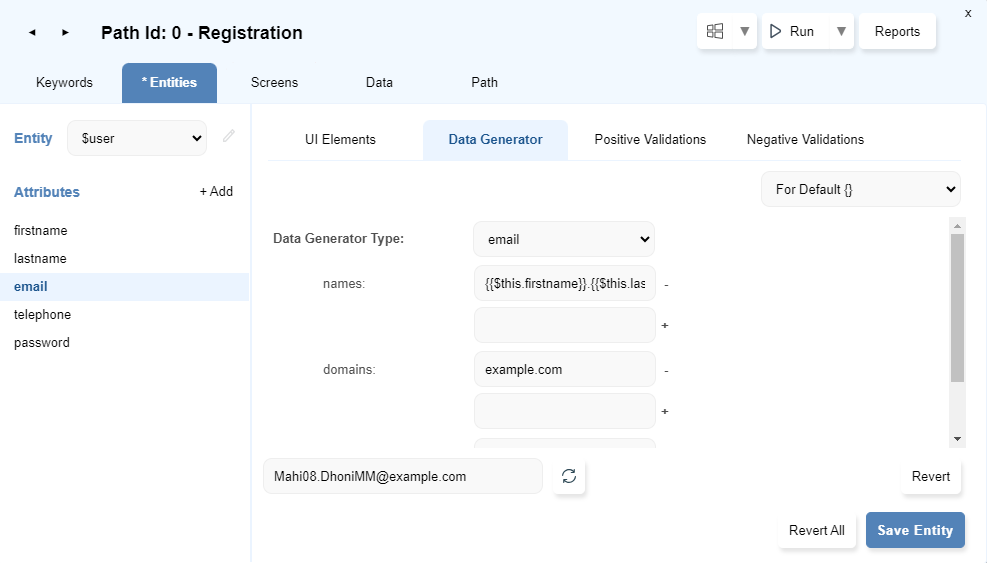
Variable in UI Element
Section titled “Variable in UI Element”-
In
Entitytab ofAutomatedialog, theUI Elementcan be a variable reference. This variable value can be provided at runtime throughAdvanced Run Settings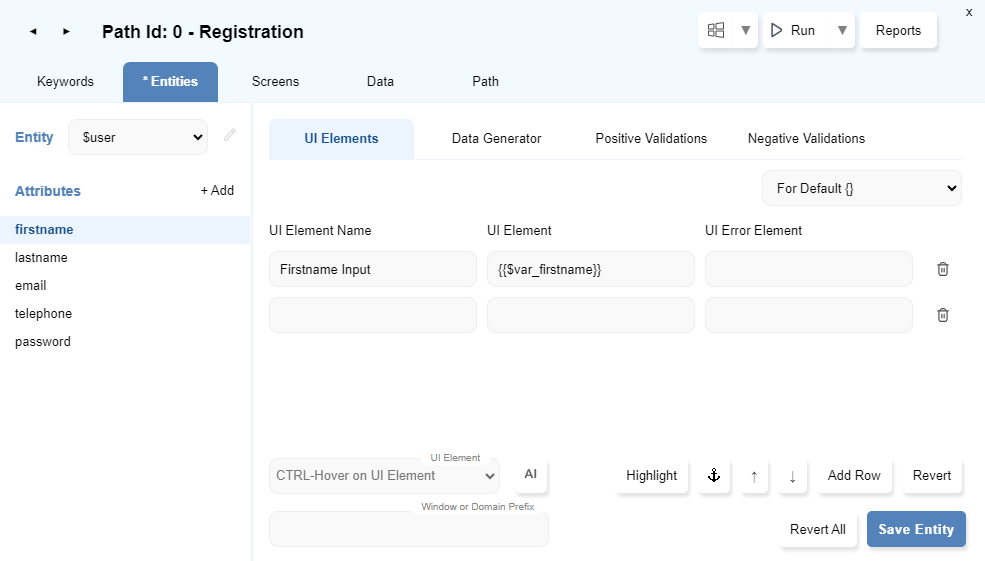
-
In
Screentab ofAutomatedialog, theUI Elementcan be a variable reference. This variable value can be provided at runtime throughAdvanced Run Settings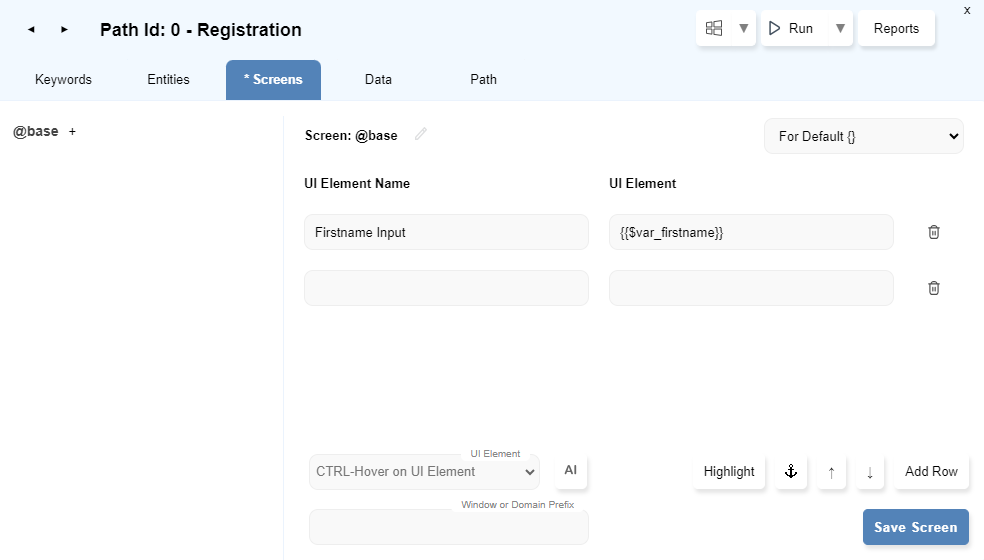
Variables in keyword step parameters
Section titled “Variables in keyword step parameters”Example 3: Using Concatenation
Section titled “Example 3: Using Concatenation”- The
Variable Templatefor email generation can also be provided through theEdit Stepdialog.
-
Open the
User Registrationflowchart. -
On
Automationdialog, underKeywordstab, selectEnter $user detailskeyword. -
Double click on the step
Set ValueforEmail Inputto edit the step. -
Select the
Elementparameter type asJS Codeand fill theUI Elementin the textbox.[The
UI Elementcan be taken from theEntitiestab.] -
Select
Stringtype for theValueparameter. -
Type the concatenation string in the
Valueparameter textbox.
{{$user.firstname}}.{{$user.lastname}}@example.com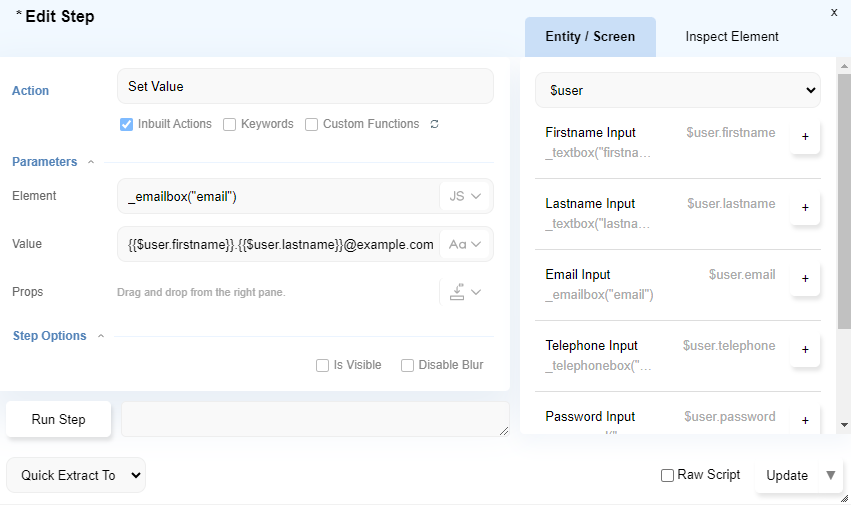
-
Click on
Updatebutton. -
The step for
emailattribute gets updated with the new parameters.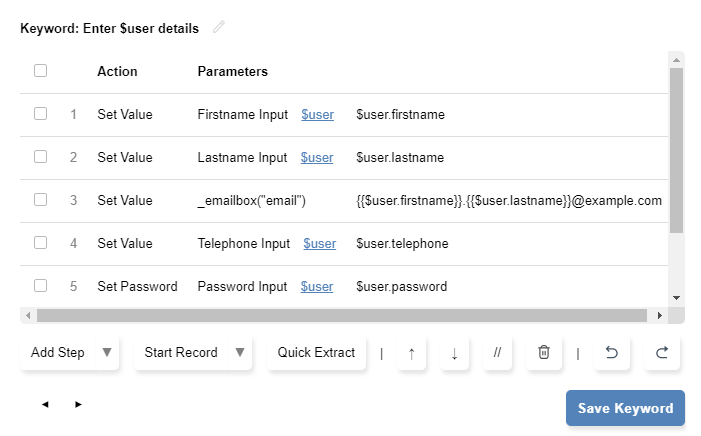
-
Click on
Save Keyword -
Run the flow. It generates random
firstname,lastnameand generates theemailby concatenating both along with the provided domain.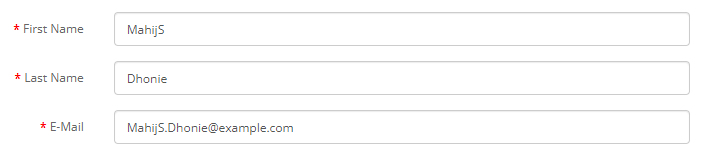
Example 4: Using in REST API Call
Section titled “Example 4: Using in REST API Call”- The
Variable TemplateforREST API Callcan also be provided through theBodyasRaw.
-
Open the
User Registrationflowchart. -
On
Automationdialog, underKeywordstab, selectEnter $user detailskeyword. -
Add step
REST API CallwithBodyas raw. -
Fill up the relevant field with all required information.
-
Select
BodyasRaw. -
Pass
Variable TemplateinRawtextarea.{"title":"{{$post.name}}","dueDate":"2024-12-18T12:51:54.969Z","completed":{{$post.comp}}"From": "whatsapp:+{{$creatio.phoneNumber}}"}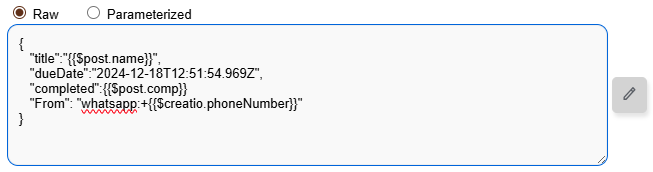
-
Click on
Updatebutton. -
The
REST API Callstep’sbodyis updated withvariable template. -
Click on
Save Keyword -
Run the flow. It will send a
REST API Callwith theBodyvalue asVariable Templatevalue.
User-defined value
Section titled “User-defined value”Example 5: Passing value at Runtime
Section titled “Example 5: Passing value at Runtime”- The values for an attribute can be passed externally by providing
key value.
-
On the
User Registrationflowchart, open theAutomatedialog. -
Click on
Runbutton and go toAdvanced Run Settingssection. -
In the
External Variablestextbox, typeemail=simple@example.com.
The format used here iskey=value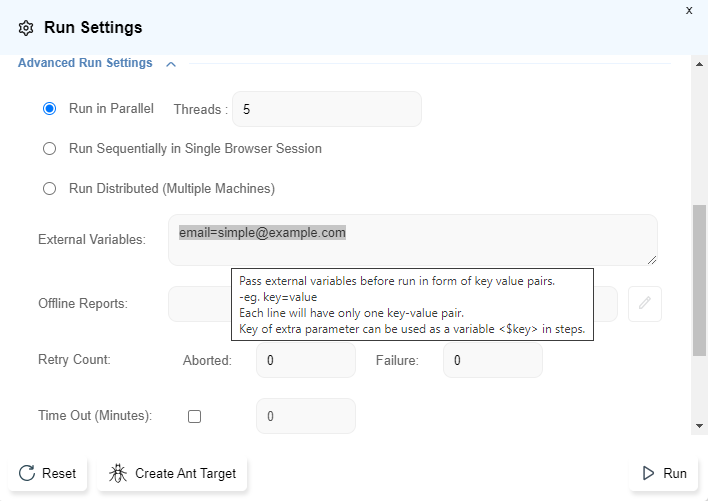
-
Go to the
Edit Stepdialog foremailattribute -
Let the
Elementtype asJS Code. -
Let the
Valueparameter type beString. -
Type
{{$email}}in theValueparameter textbox.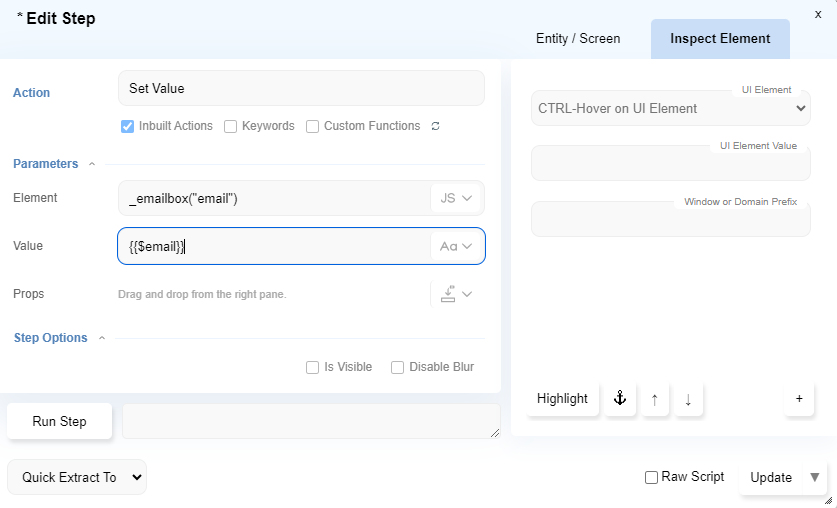
-
The step for
emailattribute gets updated with the new parameters.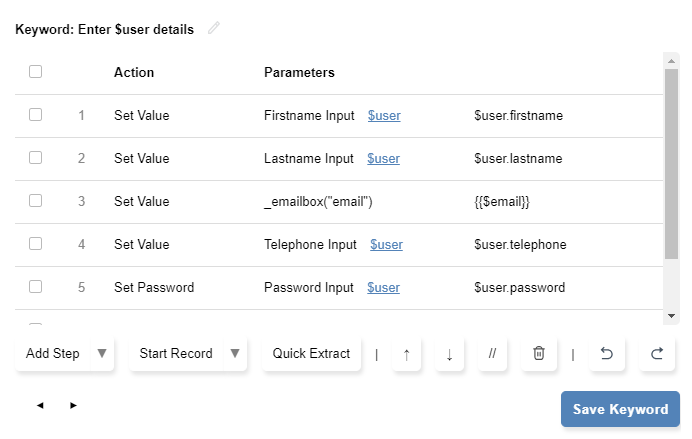
-
Click on
Run. It will use theemailsame as defined underExternal Variables