Java GUI Application Automation
This section details how to test Java Application. If you are not familiar with Sahi Pro Flowcharts, see Introduction to Sahi Pro Flowcharts To automate java applications using Sahi Pro Classic, refer Java GUI Application Automation.
Introduction
Section titled “Introduction”Sahi Pro Desktop Engine provides support for automation of Java Application.
Automating Java Application
Section titled “Automating Java Application”Launch Java Application from Flowcharts.
Section titled “Launch Java Application from Flowcharts.”-
On the Flowcharts window, click on the dropdown arrow next to Launch and then select
Launcher Settings.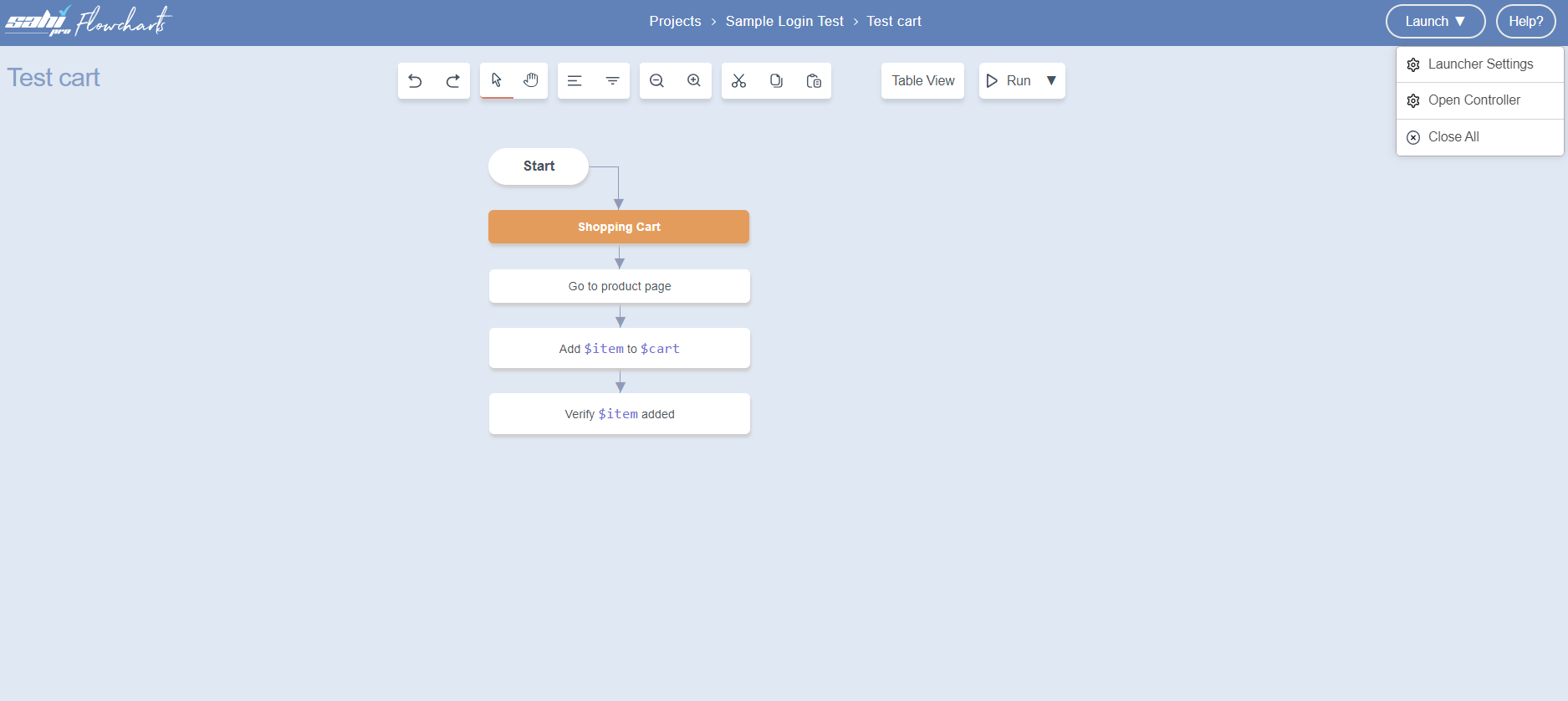
-
Launcher Settingsdialog opens.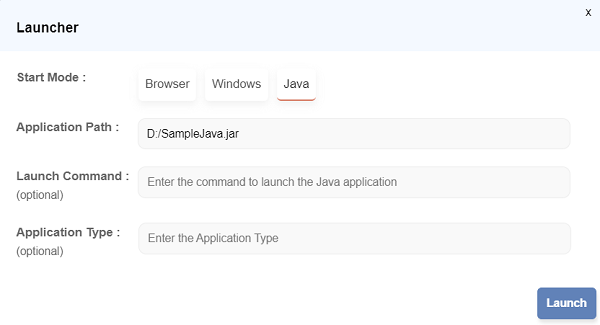
Description of the image labeling:
- Select the Mode: Java
- Type or paste the absolute Application path (The Application for which you are making this automated flowchart).
-
Click on Launch to launch the Application.
Launch Java Application from command-line
Section titled “Launch Java Application from command-line”-
Open a command prompt and cd to sahi/userdata/bin (or click on the “Bin” link on the Sahi Dashboard).
-
For Windows: Invoke java_app.bat with the Java application jar file path to start the application
(Download and save the Java aplication on local file system before hand).D:\Sahi_Pro\userdata\bin>java_app.bat <java -jar applicationPath> -
For Linux: Invoke java_app.sh with the Java application jar file path to start the application
(Download and save the Java application on local file system before hand).~/sahi_pro/userdata/bin>./java_app.sh <java -jar applicationPath> -
To Launch Flowcharts Controller, click on the dropdown arrow next to Launch and then select
Open ControllerOn the Flowcharts window.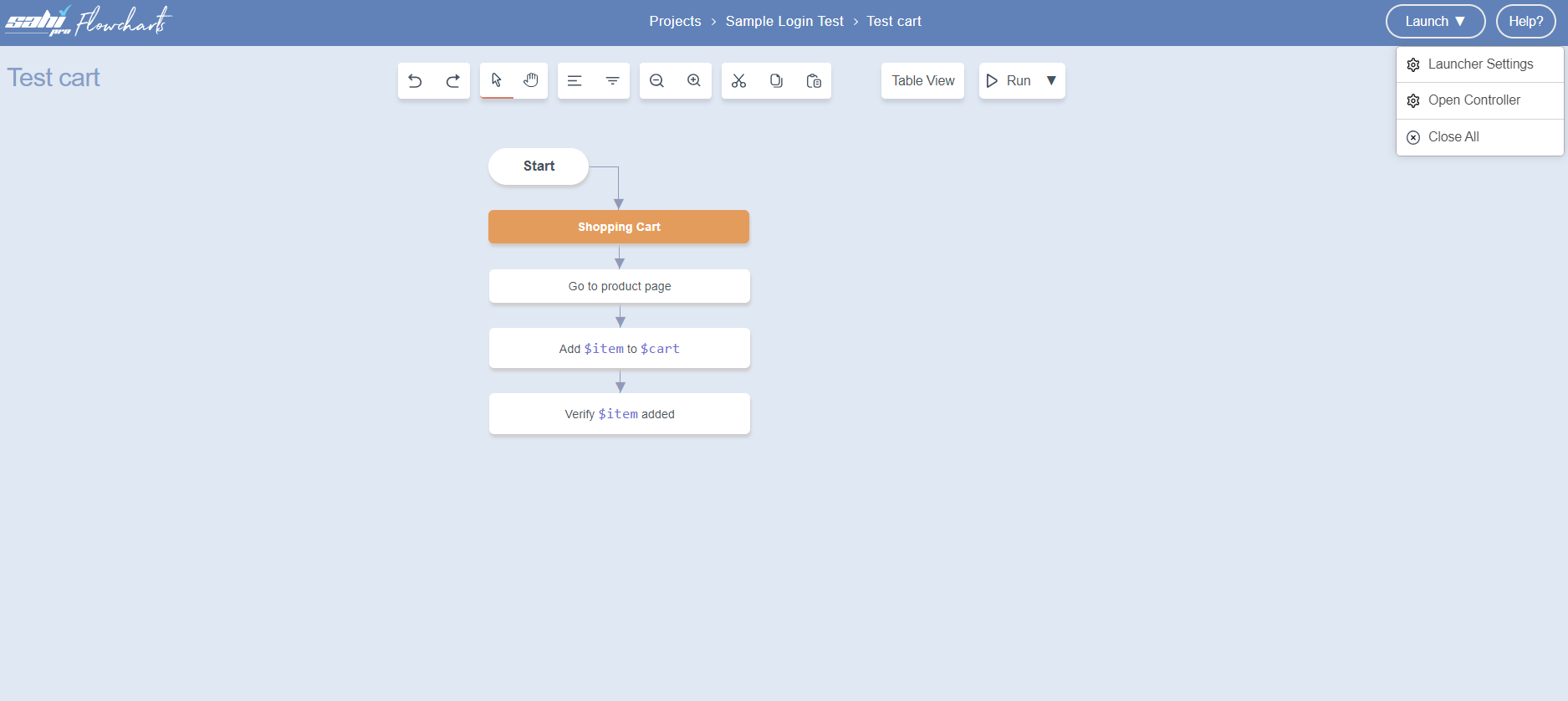
You can now start automating. use CTRL-Hover to identify various elements on the Java Application.
Add Steps Notes
Section titled “Add Steps Notes”-
To start a Java application from batch file, use inbuilt action
Execute.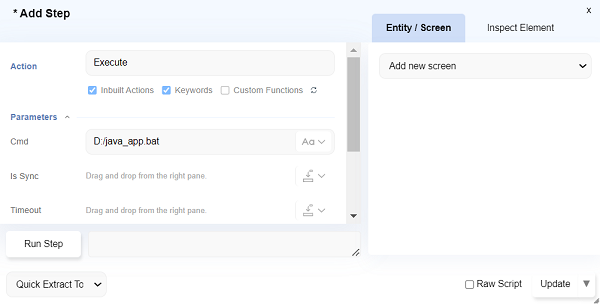
-
To start a Java application using Inbuilt Action
Launch Java Application.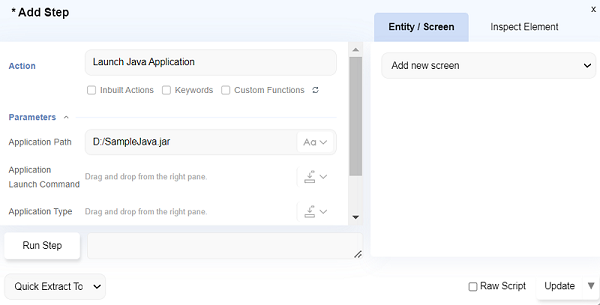
-
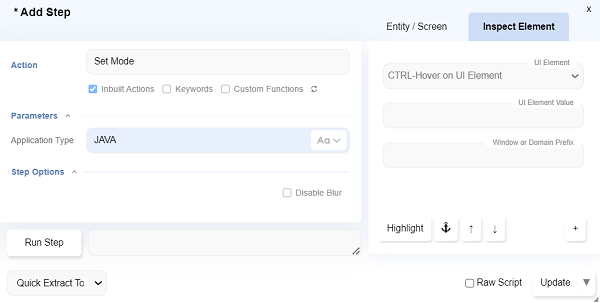
All code interactions with Java application will need to be preceded by inbuilt action
Set Modeand Application Type asJAVA.