

iOS Automation - Getting Started
This section helps you quickly get started with iOS Automation. To automate an IOS Devices/Simulators using Sahi Pro Classic, refer iOS Automation - Getting Started.
Introduction
Section titled “Introduction”Sahi iOS testing is available as part of the Sahi Pro Mobile Engine module. It allows automation of both iOS devices and simulators having iOS version 9.3 and above. It provides the familiar Sahi features and API paradigm available for browser testing. This includes the ability to record and playback scripts, edit scripts using the Editor, run suites etc.
Pre-requisites
Section titled “Pre-requisites”- Desktop
- iOS testing requires a Mac machine running macOS 10.12.6 or later. It is not supported on Windows and Linux.
- The machine needs to have Xcode 9.2 or above installed. (Run
xcodebuild -versionto verify.) - The path to the active Xcode developer directory needs to be set. To check if it is set, do the following.
- Open a Terminal shell, and run the following command
xcode-select --print-path - You should see something similar to
/Applications/Xcode.app/Contents/Developerif the active directory has been set. If you have Xcode installed as/Applications/Xcode.app, this would already be set. - If the active directory is not set, you will see an output similar to the following.
xcode-select: error: unable to get active developer directory, use sudo xcode-select --switch path/to/Xcode.app to set one (or see man xcode-select) - Run the following command to set the active directory.
sudo xcode-select --switch /Applications/Xcode.app
The above command assumes that Xcode is available as/Applications/Xcode.app. If you have named your Xcode app as Xcode9.2.app, the above command would be
sudo xcode-select --switch /Applications/Xcode9.2.app - Verify that the active directory is set by running
xcode-select --print-pathagain.
- Open a Terminal shell, and run the following command
- Simulator
- Xcode will automatically install simulators with version iOS 11 or above. If you wish to test on iOS 9.3 or iOS 10.3, install the simulators through Xcode.
- There are no specific prerequisites required to test on a simulator.
- Device
- Testing on a device involves a few steps. Refer to Testing on a Device for pre-requisites and details, after going through this quick tutorial.
Download and Install Sahi Pro Mobile Engine
Section titled “Download and Install Sahi Pro Mobile Engine”You need to install Sahi Pro Mobile Engine before you can proceed with the Quick Tutorial
Quick Tutorial
Section titled “Quick Tutorial”This tutorial involves automating a sample app on an iOS simulator. Sahi Pro Mobile Engine ships with a few iOS Test Apps. We will use SahiTestApp in this tutorial. We will be running the tutorial on iOS 16.4 - iPhone 14 Pro Max Simulator. But this can be run on any Simulator having version iOS 9.3 or above.
Connect Session and Element Identification
Section titled “Connect Session and Element Identification”-
Start the Simulator
Start a simulator explicitly using the Simulator app. We can also start it with start_simulator.sh detailed in Testing on a Simulator. But we will just use the Simulator app for now.- Start the Simulator app from the Xcode menu -
Xcode -> Open Developer Tool -> Simulator. - Start the specific simulator from the Simulator app menu -
Hardware->Device->iOS 16.4->iPhone 14 Pro Max - Note down the Simulator UUID. This is needed to install SahiTestApp, in the next step.
-
To get the Simulator UUID, open a Terminal shell, and run
xcrun simctl list devices -
You should see output similar to the following.
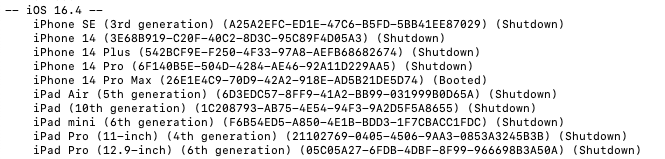
NOTE that the output will have simulators for different iOS versions, and also different OS types like tvOS, watchOS etc.
NOTE that your Simulator UUIDs will be different. -
From the output, locate the
iOS 16.4 - iPhone 14 Pro Maxsimulator entry. It looks like this. As you can see, this shows up as Booted.
-
- Start the Simulator app from the Xcode menu -
-
Install the Test App
SahiTestApp needs to be installed on the booted Simulator, before we can automate it.-
Sahi provides a shell script,
install_testapps_on_simulator.sh, to install all Sahi iOS test apps in one go. -
Open a Terminal shell and navigate to
<SAHI_INSTALLATION_FOLDER>/userdata/bin/iOS/testappsfolder. -
Type
./install_testapps_on_simulator.sh <SIMULATOR_UUID>where<SIMULATOR_UUID>is the Simulator UUID you noted above.
Based on the specific xcrun output above, this will look like./install_testapps_on_simulator.sh 26E1E4C9-70D9-42A2-918E-AD5B21DE5D74NOTE again that your Simulator UUID will be different.
-
All the test apps should now get installed on your booted simulator.
-
-
Now that we have installed SahiTestApp on the Simulator, start Sahi Dashboard and click on the
Flowcharts. -
On the Flowcharts window, click on the dropdown arrow next to Launch and then select
Launcher Settings.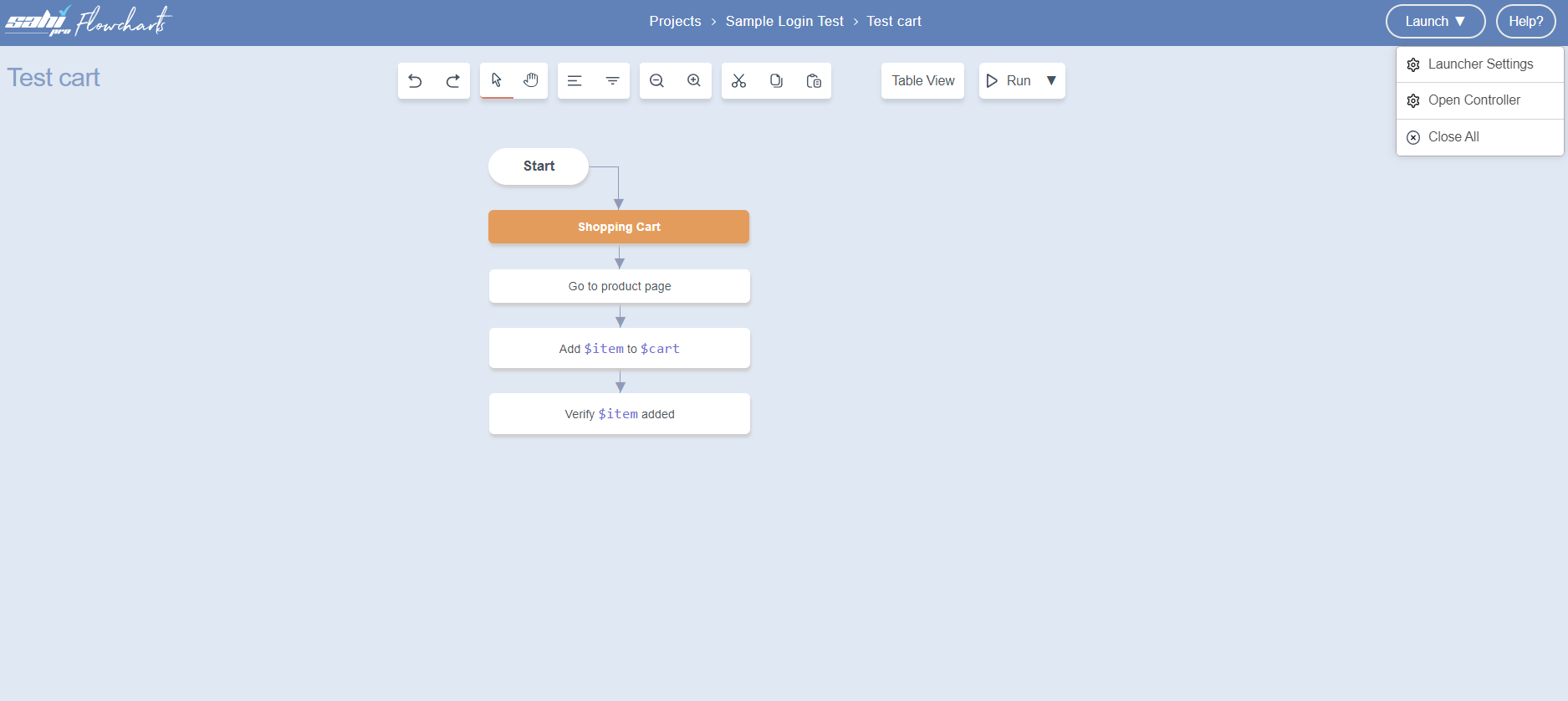
-
Launcher Settingsdialog opens.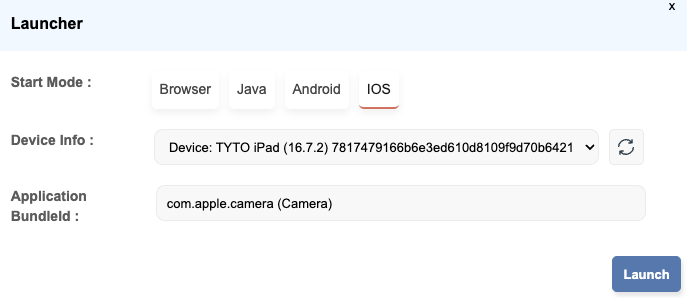
Description of the image labeling:
- Select the Mode: IOS
- The
Device Info:dropdown lists all the Simulators installed on the Mac machine. The booted Simulator will have a (Booted) suffix. IfDevice Infois not populated automatically, choose the booted Simulator from the dropdown. - Type
com.sahipro.ios.test.SahiTestAppin theApplication BundleIdtextbox. You will notice that a bunch of suggested apps comes up, but Sahi test apps are not part of the suggestions. So, we need to manually type it the first time. Sahi will remember it from the next time onwards.
-
Click on Launch to launch the Application.
-
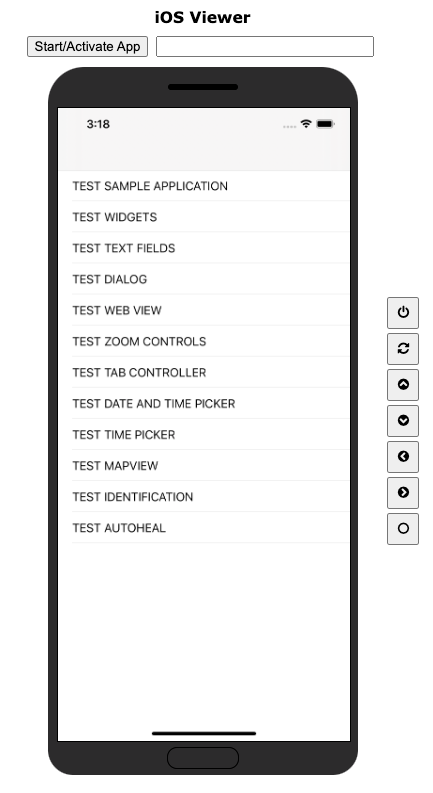
This will bring up the iOS Viewer in the default browser.
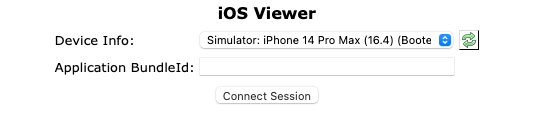
-
Click on
Connect Session -
This will start the SahiTestApp application on the Simulator, and the iOS Viewer will display the screenshot of the application.
Automating a Keyword
Section titled “Automating a Keyword”This is similar to automating a Sahi Pro Flowcharts keyword for normal browser testing.
-
To automate a Keyword, click on a node from the Sahi Pro Flowcharts page, click on the
Automate, click onStart Recordbutton, Actions done on the application in IOS Simulator are recorded automatically. -
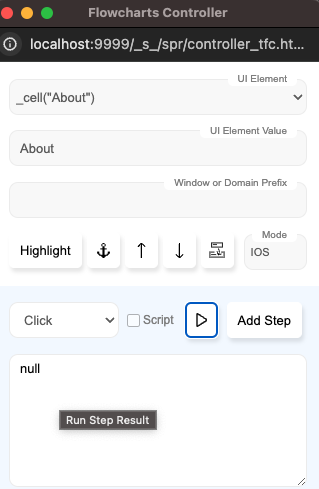
Steps can also be recorded from the Flowcharts Controller.
-
A. You can use Click, Set, Assert, choose ‘Other Actions’ to perform an action on the Application on the IOS Simulator.
B. You will need to record these steps explicitly by clicking on ‘Add Step’.
-
Playback
Section titled “Playback”-
On the
Automatedialog click onRunbutton.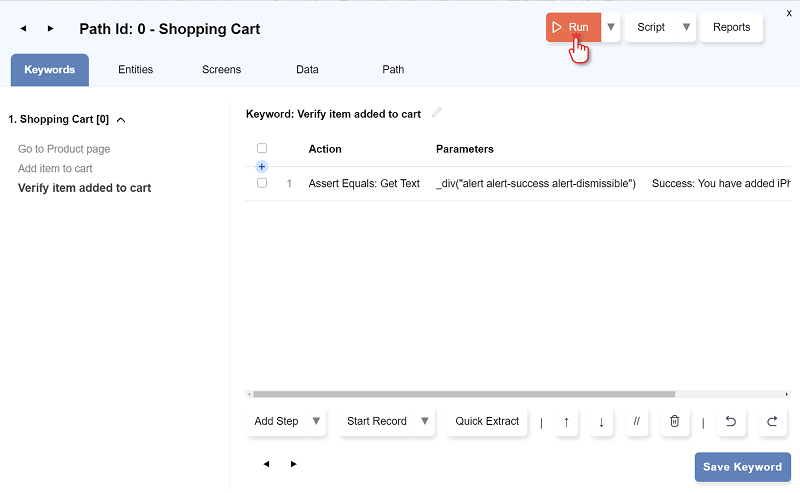
-
The
Run Settingsdialog opens. Select the ModeIOSand clickRUN.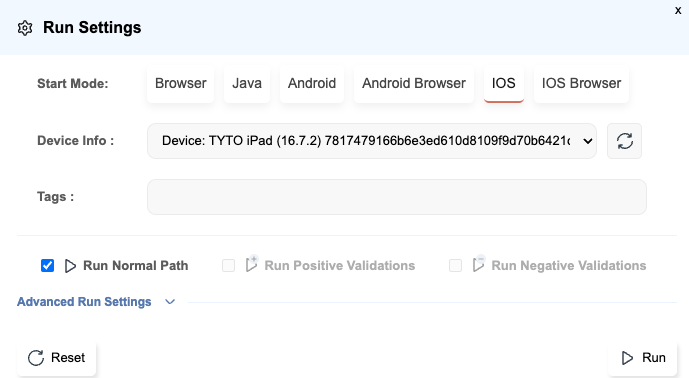
View Report
Section titled “View Report”-
Click on the
Reportsbutton..
-
The Report opens in a new browser tab.

-
Click on
Disconnect Sessionbutton in the Viewer to disconnect the session.
Further Reading
Section titled “Further Reading”iOS Automation in Detail
iOS Accessor APIs
Mobile APIs
Working with Multiple Modes in a Single Script