

Manage Sahi Pro Version Updates, Rollbacks, Engines and Support Patches
Update Sahi Pro to a new version, roll back to an earlier one, install engines and apply support patches.
Open Product Updates
Section titled “Open Product Updates”-
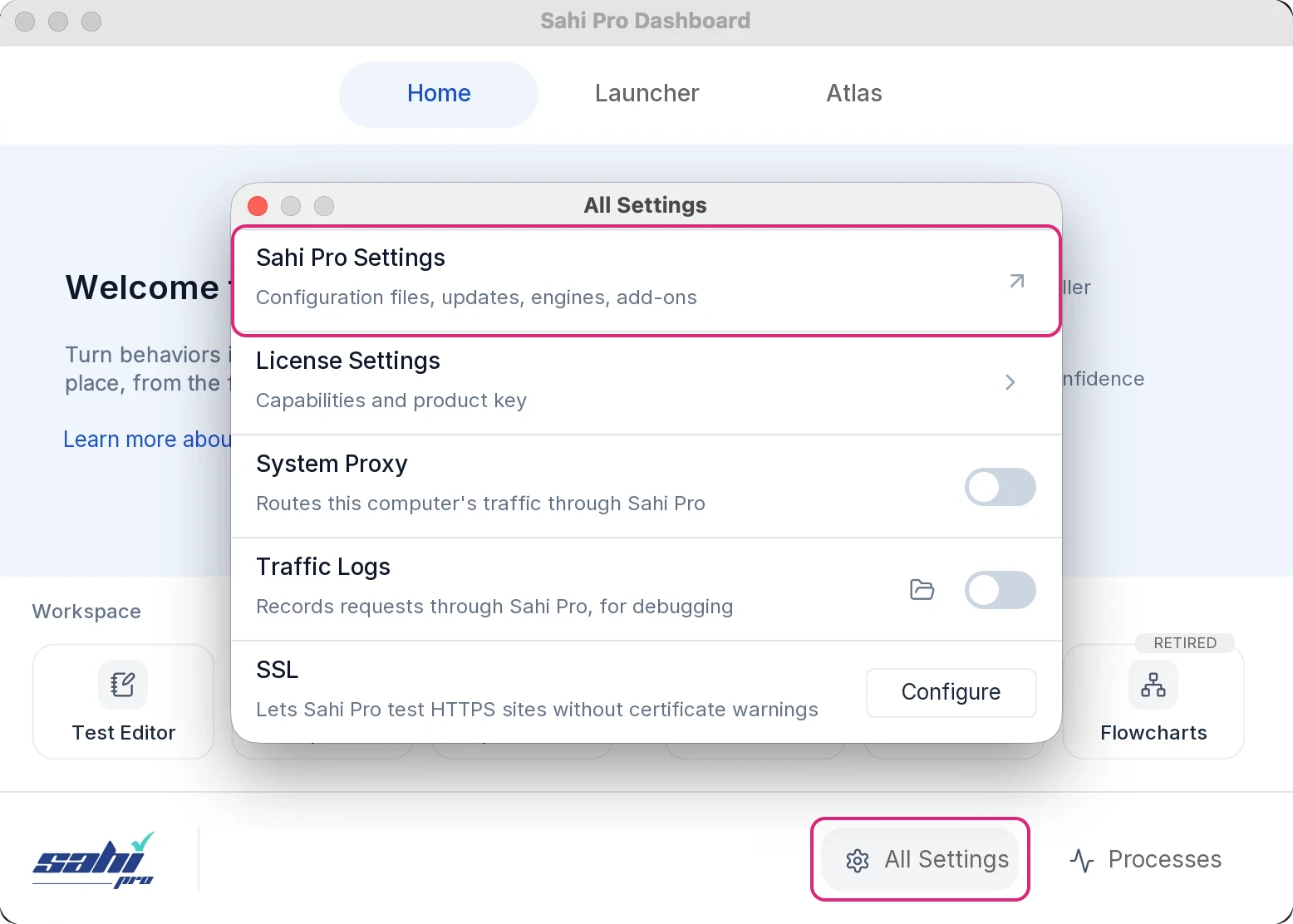
Click All Settings on the Dashboard. The All Settings window opens.
-
Click Sahi Pro Settings. The Sahi Pro Settings page opens.
-
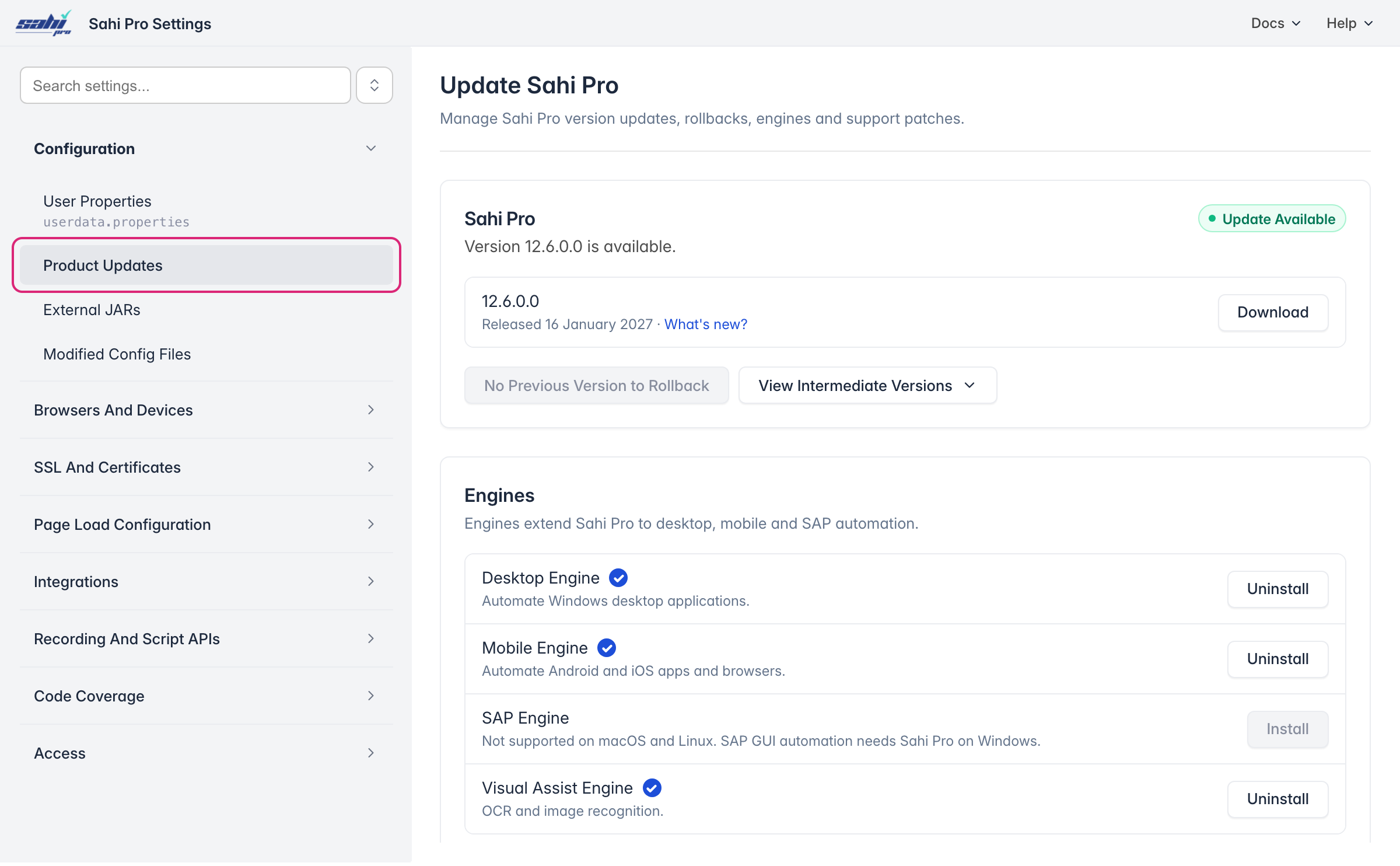
In the menu on the left, open Configuration and click Product Updates. The Update Sahi Pro page shows your version and any update, the engines, and support patches.
Install Updates
Section titled “Install Updates”When a newer version is out, the Sahi Pro card shows Update Available.
Install a Major Version
Section titled “Install a Major Version”-
Open Product Updates.
-
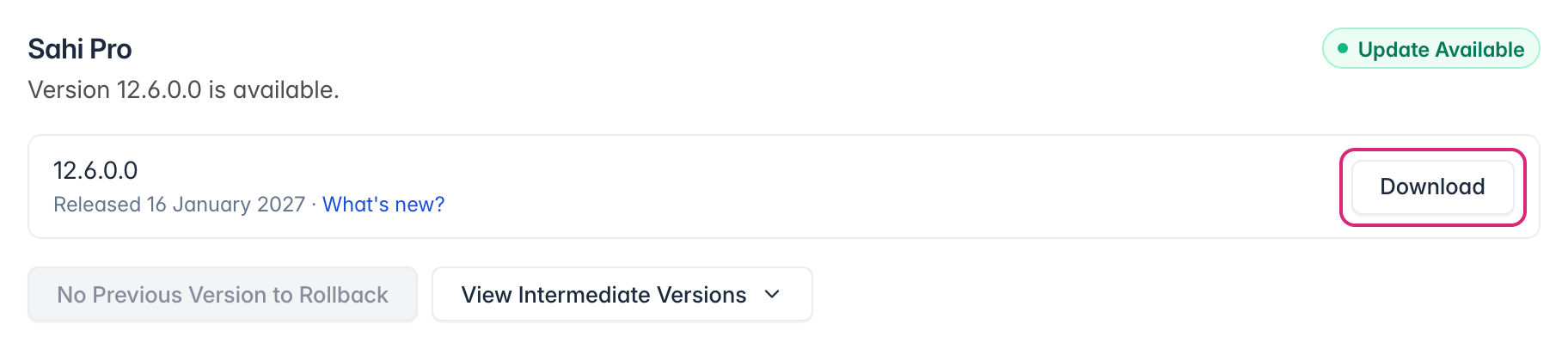
Next to the new version, click Download. The download starts at once, with no confirmation, and takes a few minutes.
-
When the download finishes, the button changes to Install. Click it.
-
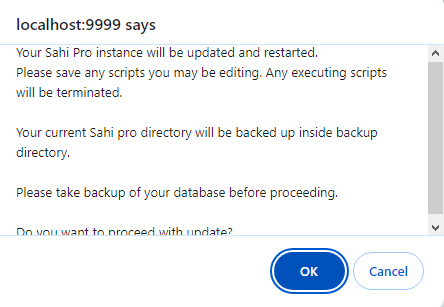
Back up your database, then click Install in the Install Major Update? dialog. Sahi Pro backs up its current directory, installs the new version and restarts. Save any scripts you’re editing first; scripts that are running stop.
Install a Minor Version
Section titled “Install a Minor Version”-
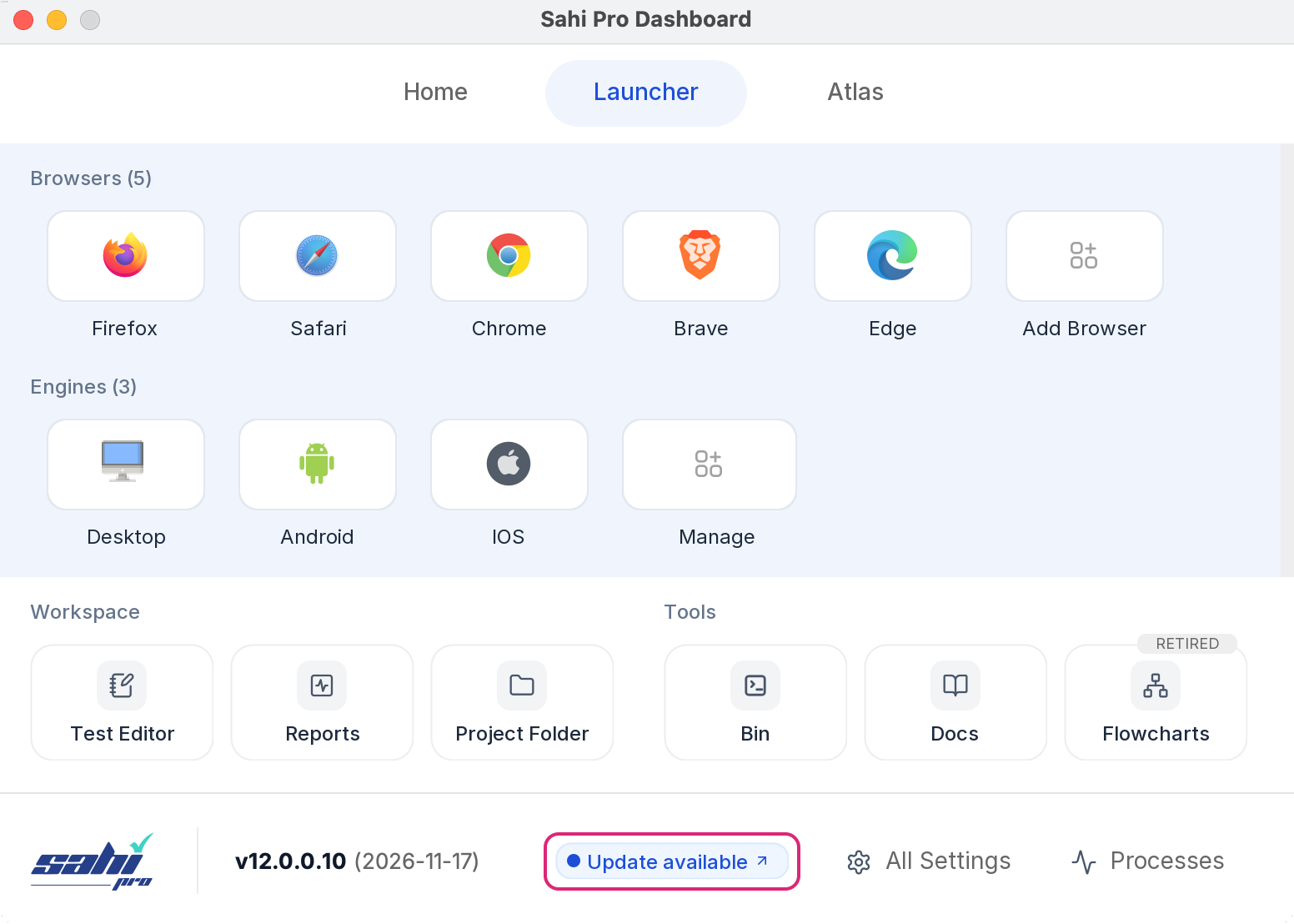
Open Product Updates. When an update is out, you can also click Update available at the bottom of the Dashboard.
-
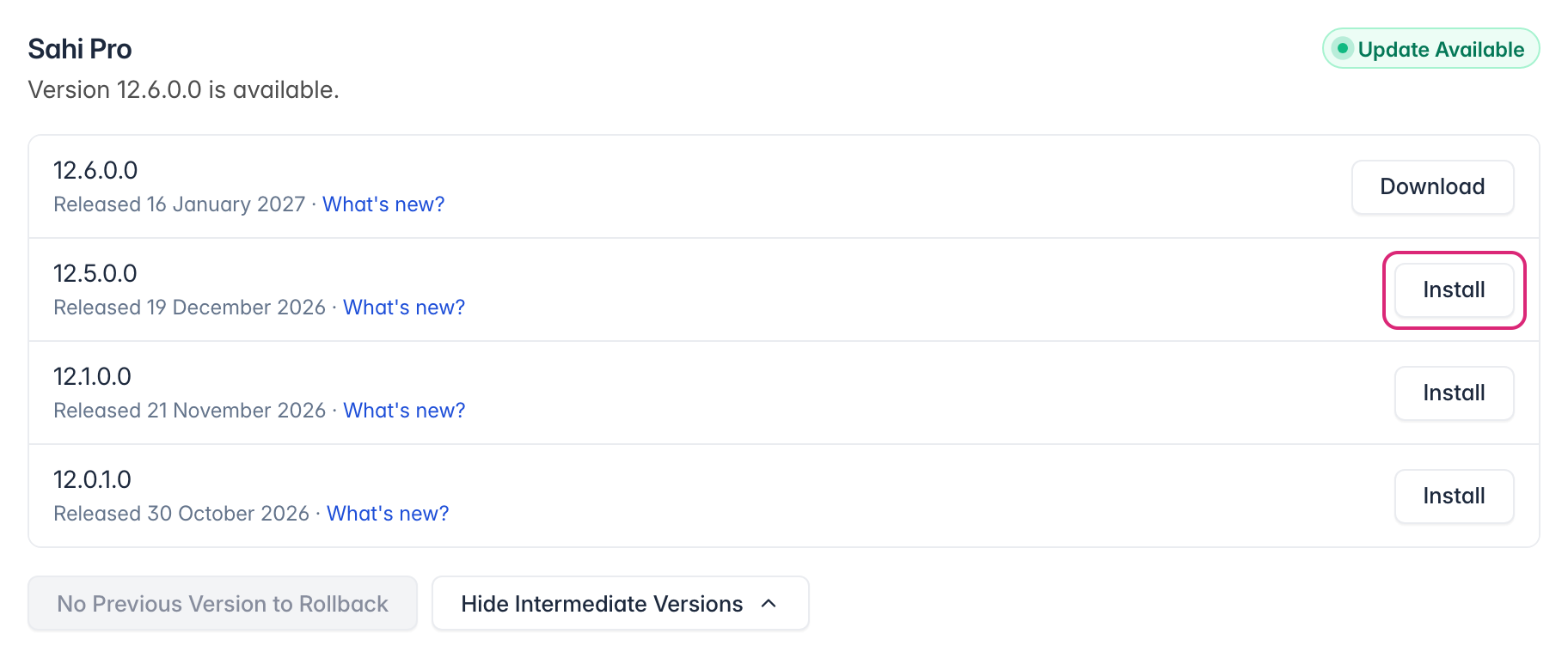
Click View Intermediate Versions, then Install next to the version you want.
-
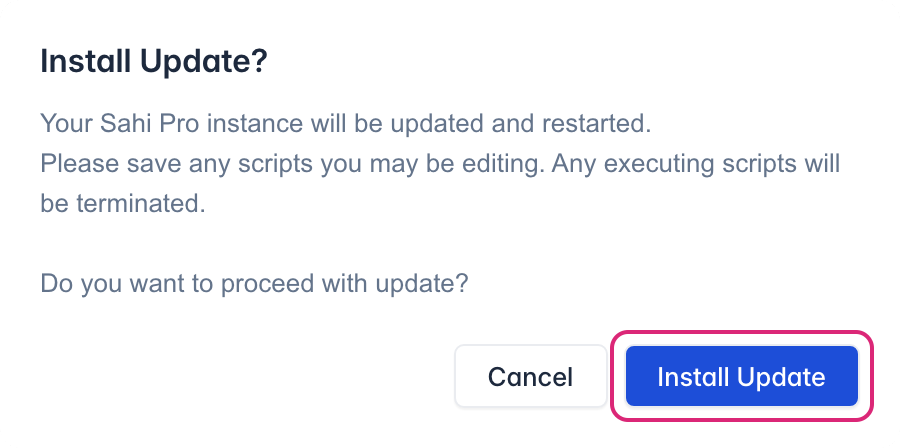
In the Install Update? dialog, click Install Update. Sahi Pro updates and restarts. Save any scripts you’re editing first; scripts that are running stop.
-
A new Sahi Pro console opens for each engine installed on your computer.
Roll Back
Section titled “Roll Back”If an update or a patch causes problems, undo it. Sahi Pro undoes changes one at a time, the latest first: first the patches applied to the current version, then the version itself. With nothing to undo, the button reads No Previous Version to Rollback and can’t be clicked.
-
Open Product Updates, or refresh it if it’s open.
-
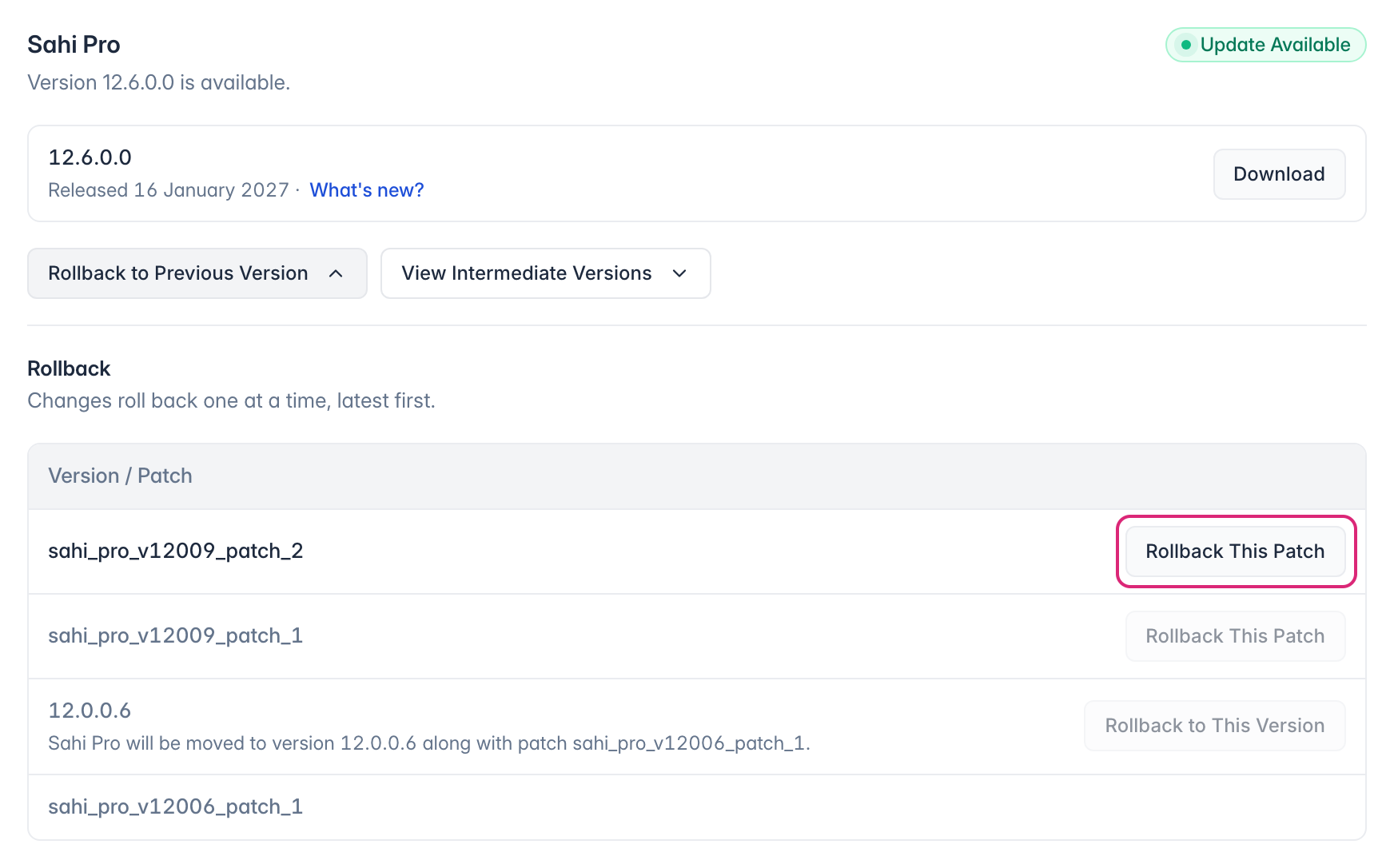
Click Rollback to Previous Version. The Rollback list opens under it, newest first. Only the first row can be rolled back; the others wait until the newer changes are undone.
-
Click Rollback This Patch next to a patch, or Rollback to This Version next to an earlier version. A version row says which patch comes back with it.
-
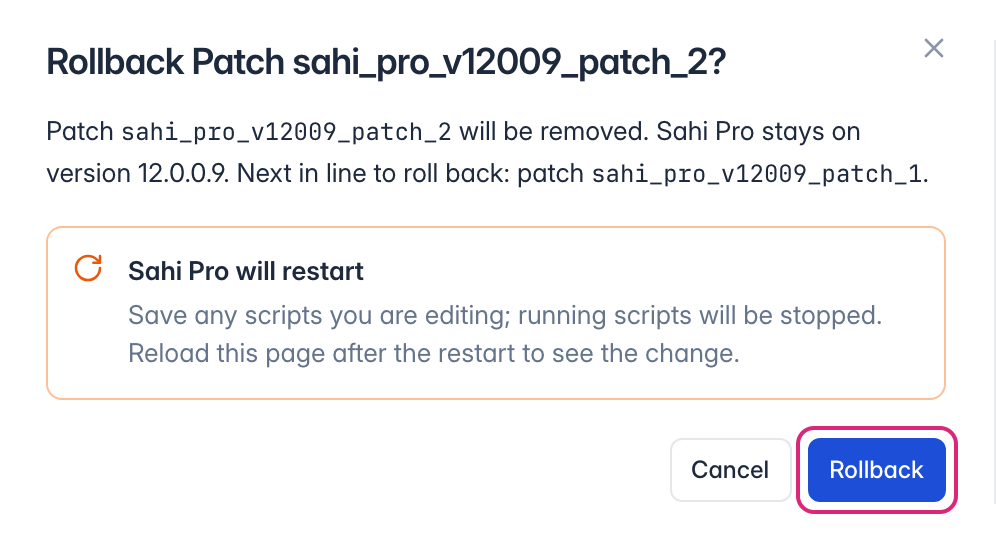
In the dialog, check what will change, then click Rollback. Sahi Pro restarts. Save any scripts you’re editing first; scripts that are running stop.
Install Engines
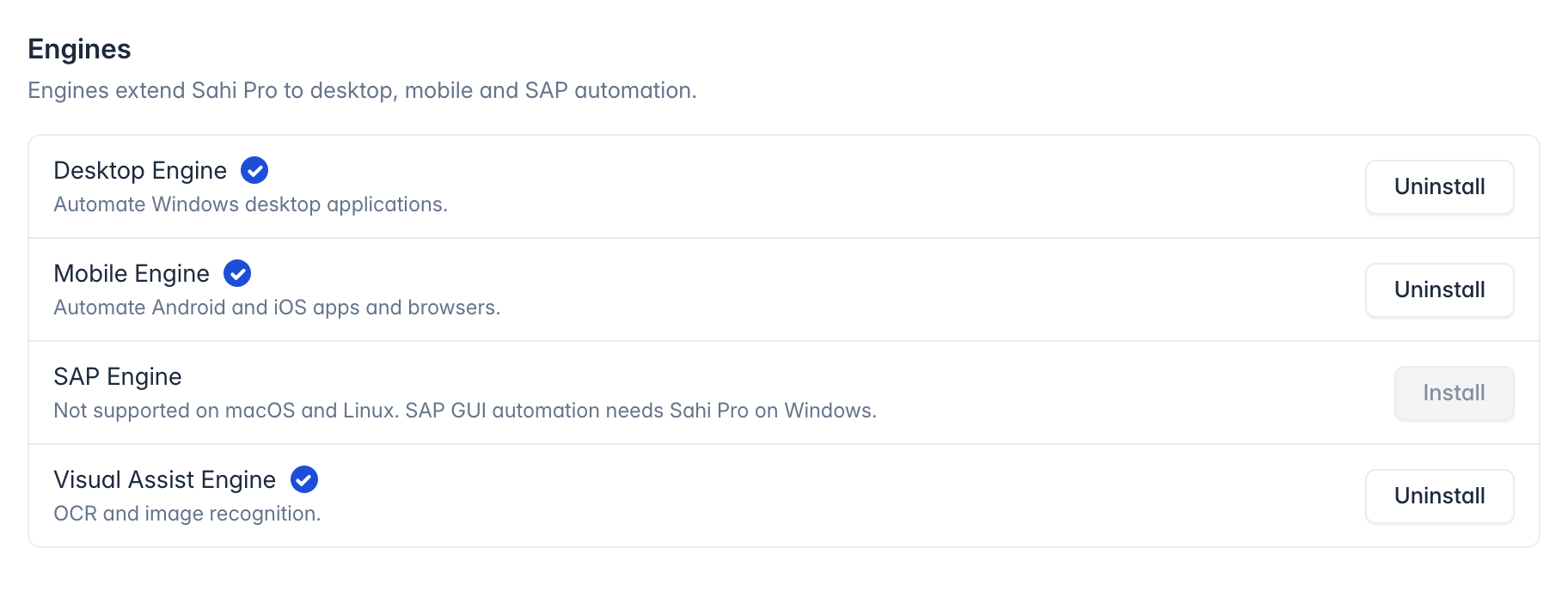
Section titled “Install Engines”Install the Desktop, Mobile, SAP and Visual Assist Engines from the Engines section. Each engine needs its own license.
-
Open the Product Updates page.
-
Under Engines, click Install next to the engine. An engine that’s already installed shows Uninstall instead.
-
In the Install dialog, click Install.
Sahi Pro restarts once the engine is installed, so save any scripts you’re editing first. Scripts that are running stop. Engines you installed earlier are synced to the latest update at the same time.
-
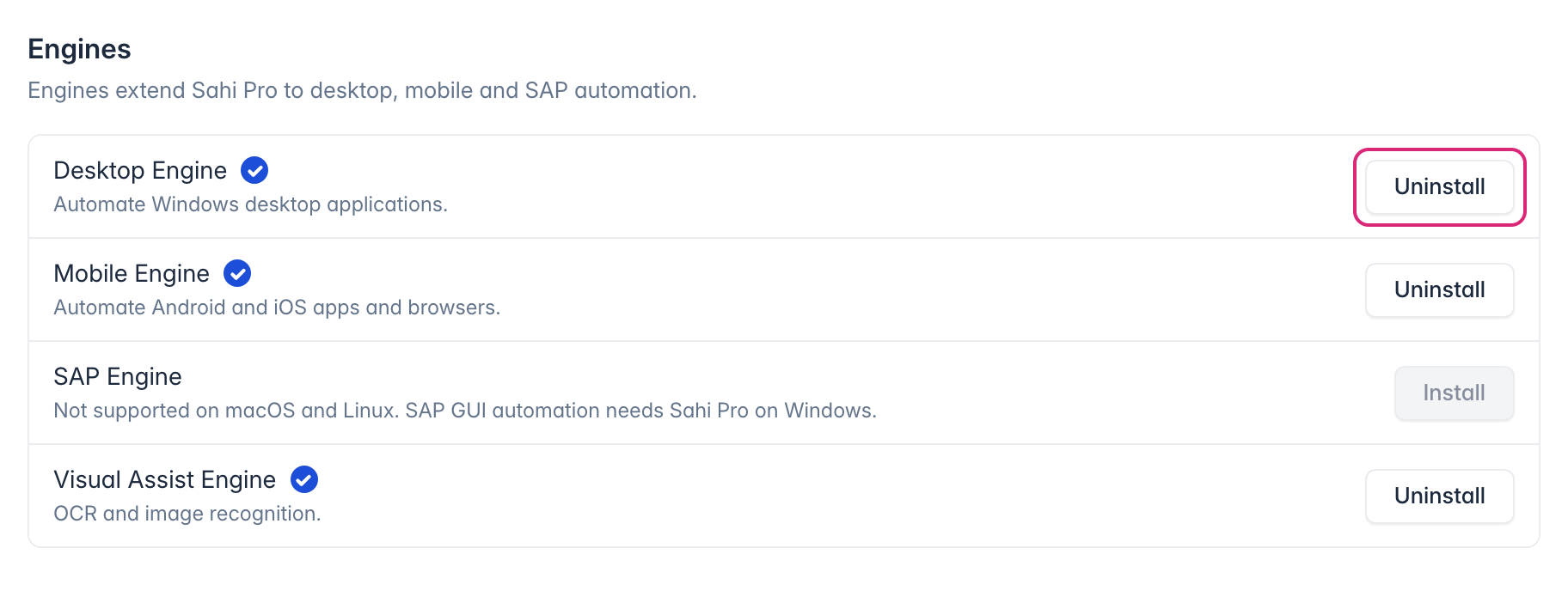
To remove an engine you no longer need, click Uninstall next to it.
-
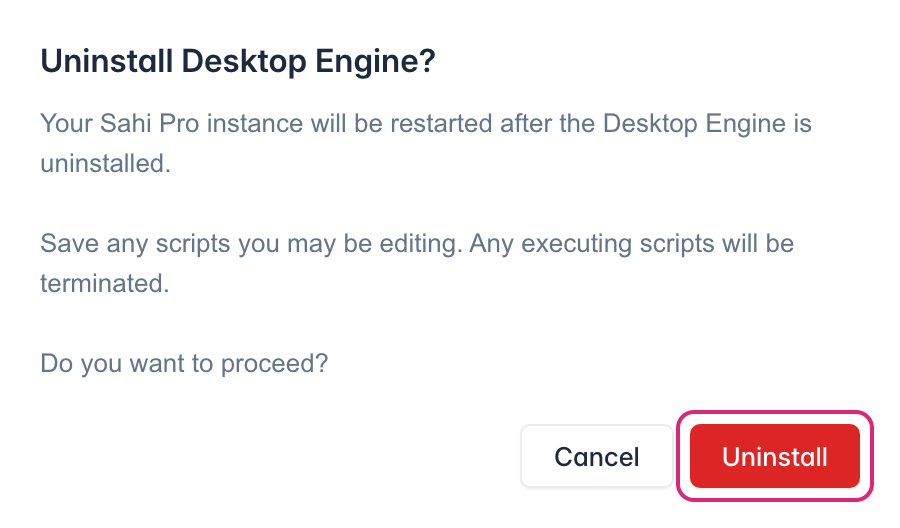
In the dialog, click Uninstall. Sahi Pro restarts once the engine is removed.
Sync Engines After an Update
Section titled “Sync Engines After an Update”Engines installed from the Product Updates page are updated along with Sahi Pro. An engine installed from its own installer file stays on its version when you update Sahi Pro. Engines then marks it Out of sync and names it in a message, such as “Desktop Engine is out of sync with Sahi Pro 12.0.0.10.”
- Open the Product Updates page, or refresh it if it’s open.
- Click Sync Add-ons.
- Back up your database, then click Sync Add-ons in the dialog. Sahi Pro restarts, so save any scripts you’re editing first. Scripts that are running stop.
Install Patches
Section titled “Install Patches”Apply a support patch that Sahi Pro support sends you, either as a file or as a link.
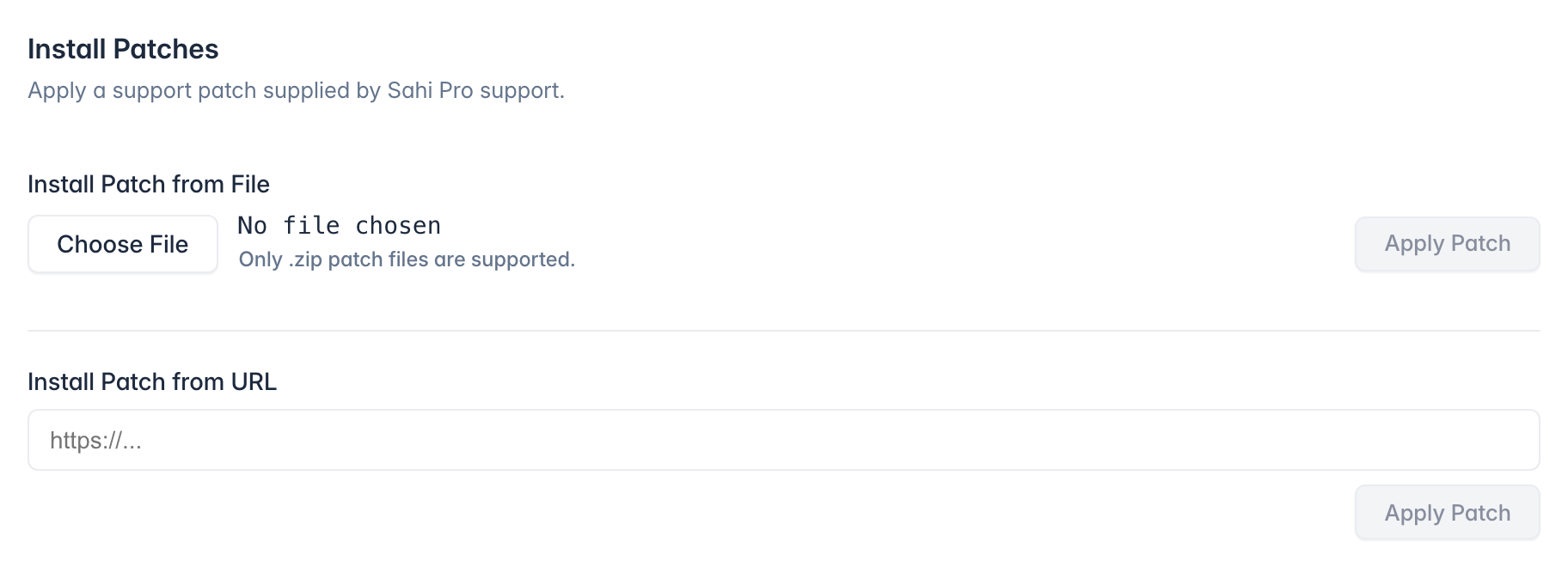
- From a file: under Install Patch from File, click Choose File, pick the
.zippatch, then click Apply Patch. In the Apply Patch? dialog, click Apply Patch. - From a link: under Install Patch from URL, paste the
https://link, then click Apply Patch. In the Install Update? dialog, click Install Update.
Sahi Pro restarts once the patch is applied. Save any scripts you’re editing first; scripts that are running stop.