

Authorization
Authenticate REST requests with Basic Auth, OAuth 1.0 or OAuth 2.0.
An API that holds private data asks who’s calling. Choose how a request authenticates on the Authorization tab: No Auth, Basic Auth, OAuth 1.0 or OAuth 2.0.
No Auth
Section titled “No Auth”The request is sent without credentials.
Basic Auth
Section titled “Basic Auth”Enter the Username and Password the API accepts.
OAuth 1.0
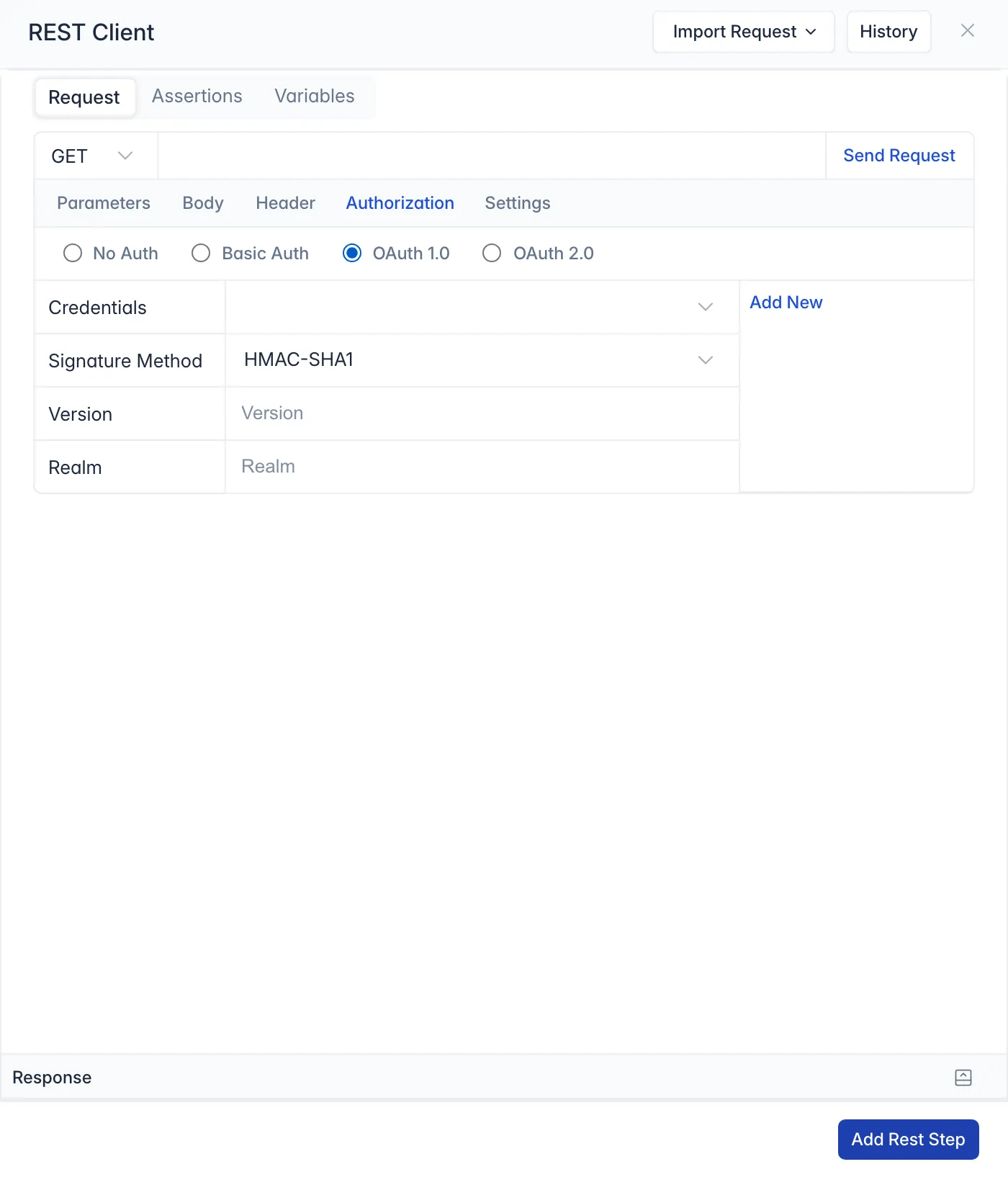
Section titled “OAuth 1.0”Signs the request with OAuth 1.0. Set:
- Credentials: choose saved credentials, or Add New. Give them a name you’ll recognise, and enter the Consumer Key, Consumer Secret, Token and Token Secret from the API provider.
- Signature Method:
HMAC-SHA1orHMAC-SHA256, as the API requires. - Version and Realm: as the API requires.
OAuth 2.0
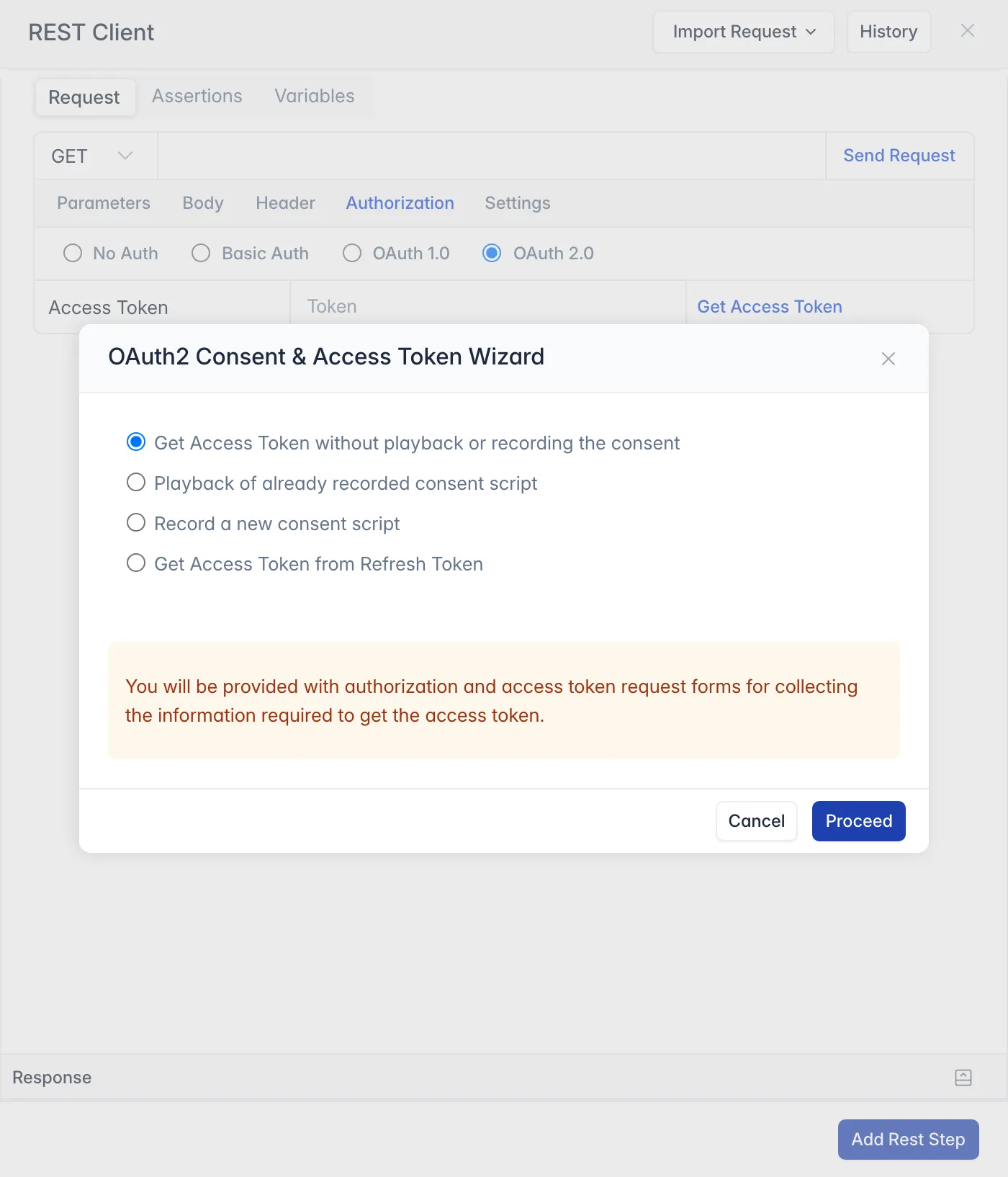
Section titled “OAuth 2.0”If you already have an access token, enter it in Access Token and send the request. Otherwise, click Get Access Token to open the OAuth2 Consent & Access Token Wizard, and choose how to get the token:
| Option | When to use it |
|---|---|
| Get Access Token without playback or recording the consent | The token can be obtained without a user signing in and giving consent |
| Playback of already recorded consent script | You already recorded the steps of signing in and giving consent |
| Record a new consent script | You haven’t recorded those steps yet |
| Get Access Token from Refresh Token | You have a refresh token to exchange for a new access token |
Record a Consent Script
Section titled “Record a Consent Script”Many APIs only give a token after a user signs in and agrees to share their data. A consent script records those steps once, so later runs get a fresh token without anyone signing in by hand:
- In the wizard, choose Record a new consent script and name it.
- Click Proceed. A browser window opens and asks for the authorization details from the API provider.
- On the provider’s sign-in page, enter the user name and password, and allow the permissions it asks for.
- The Access Token Request form opens with the authorization code filled in. Fill in the other details and click Get Access Token.
- The Access Token field in the REST Client is filled in. Click Send Request: the API now answers with its result.
To test other APIs from the same provider, choose Playback of already recorded consent script next time.