Integrate with TeamCity
TeamCity and other Continuous Integration systems can trigger Sahi scripts as part of the build process using Sahi's ANT target.
Sahi with TeamCity
Section titled “Sahi with TeamCity”Automation is useless without Continuous Integration. Sahi suites should be periodically executed and CI systems can trigger suites when code changes happen. Sahi suites can be triggered via ANT. We configure TeamCity to call Sahi’s ANT target and then make Sahi’s logs accessible from TeamCity.
Prerequisites
Section titled “Prerequisites”Before integration, you will first need an ant target to run the suite file. You can create the ANT target from the Editor’s Run Configuration. Save the file in any path accessible by TeamCity (say C:\teamcity_sahi) and lets call it build.xml.
In the build.xml make sure that:
-
scriptDirpoints to where your Sahi scripts will reside on your TeamCity machine. This will mostly be the local directory where the scripts are checked out via Git or SVN. If your checkout directory isE:/automation/scripts/your build.xml should have<property name="scriptDir" value="E:/automation/scripts/"/> -
Offline reports path should be configured correctly. The path in report tag in build.xml should be the same as that used in Publish HTML Reports in Jenkins configuration In this example, we use
<report type="html" logdir="C:/teamcity_sahi/logs/html/"/> -
If email is configured to be sent at the end of a build, the path to
email.propertiesinbuild.xmlshould point to the correct location. You will need to copySahiPro/userdata/config/email.propertiesintoC:/teamcity_sahi/email.propertiesand have this inbuild.xml<property name="emailproperties" value="C:/teamcity_sahi/email.properties"/>
Configure TeamCity
Section titled “Configure TeamCity”-
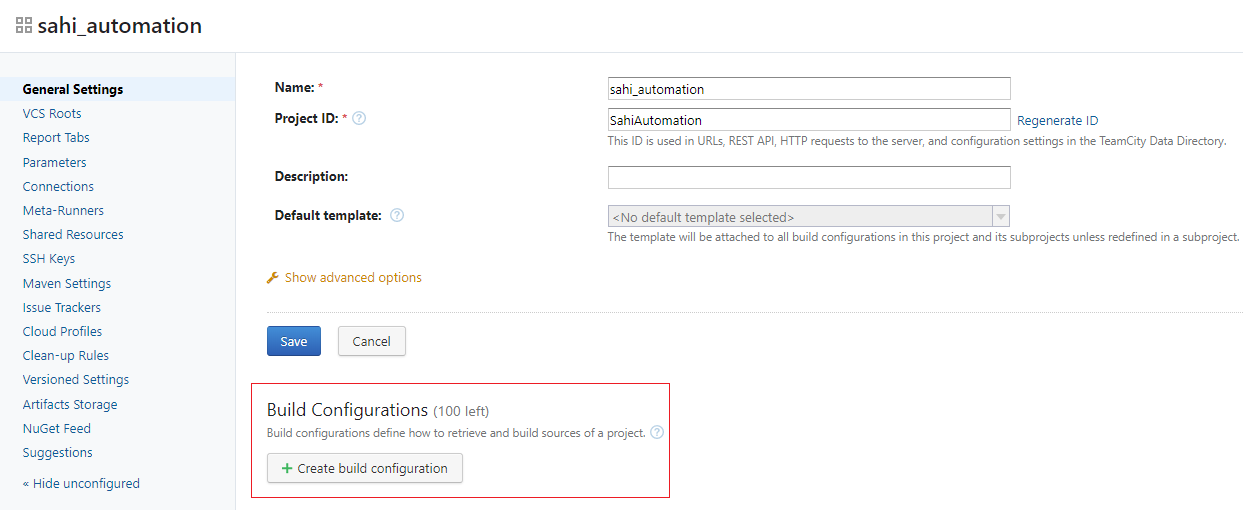
Create a new project with name as
sahi_automation(This will be the name of the project identified by TeamCity.) -
Now edit project settings
-
Click on
Create build configuration. Specify build configuration name asrun_sahi_scriptsand click onCreate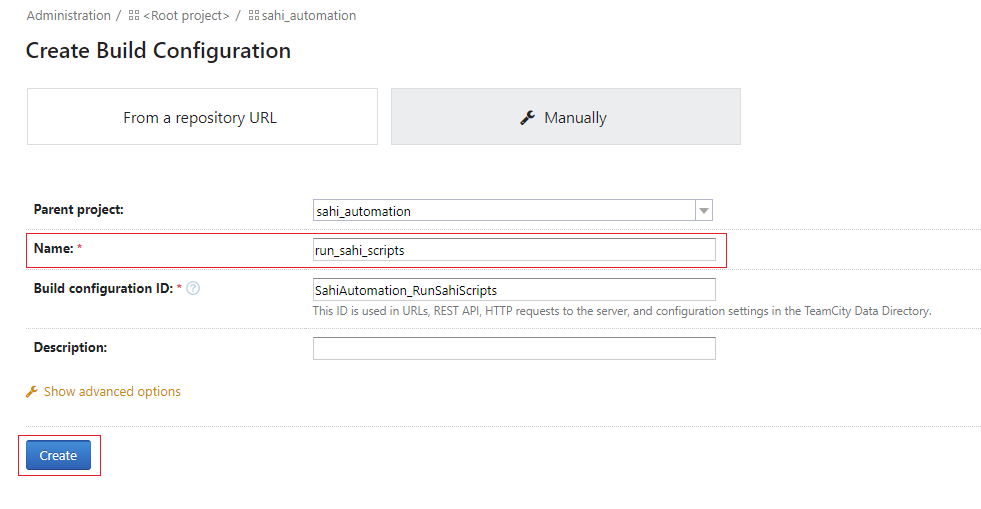
-
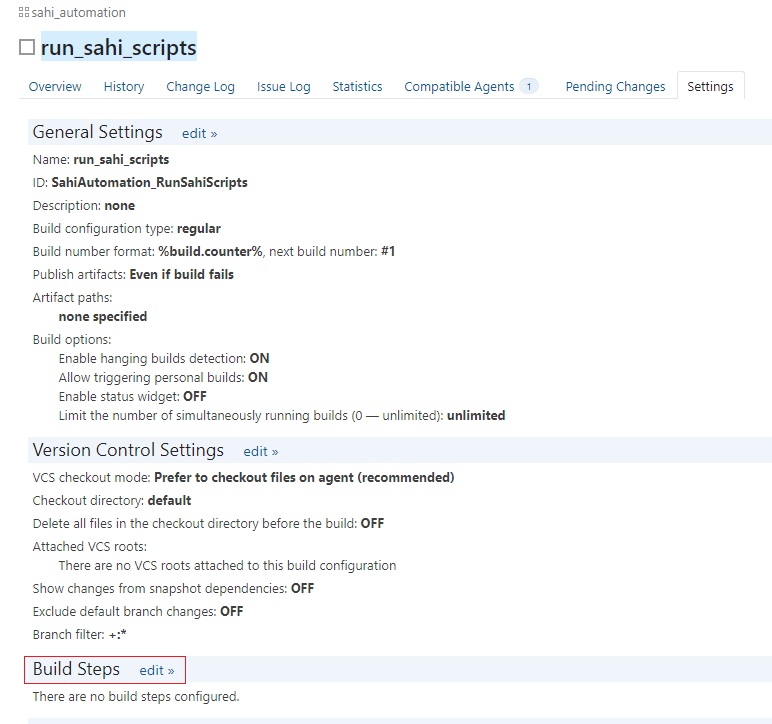
Now go to build configuration settings and add build steps
-
Choose
Runner typeasAntand specify the path to the build.xml file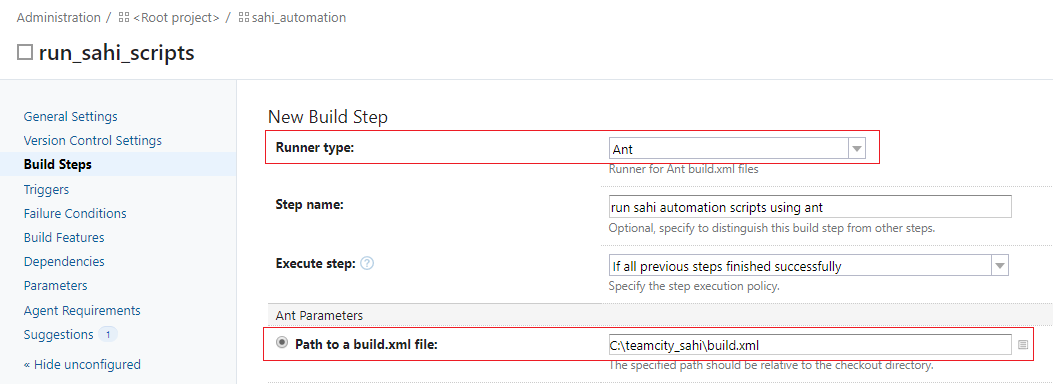
-
To publish HTML reports after build, go to build configuration settings. Edit general settings and specify
Artifact paths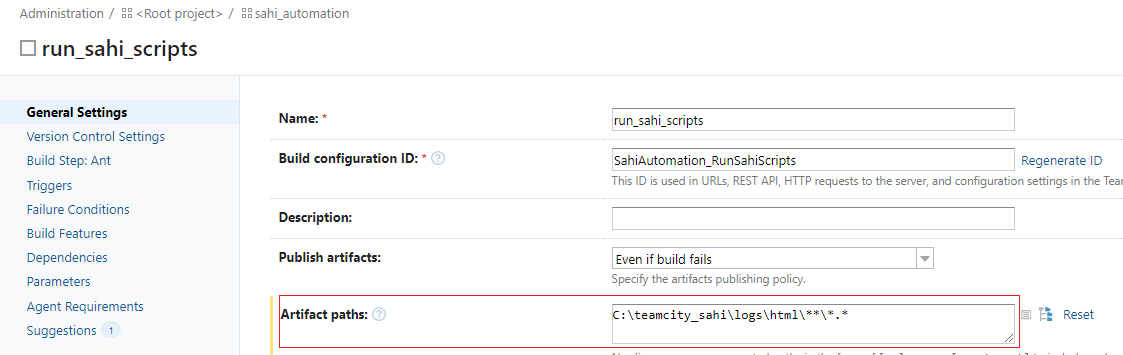
View Sahi Pro HTML Logs in TeamCity
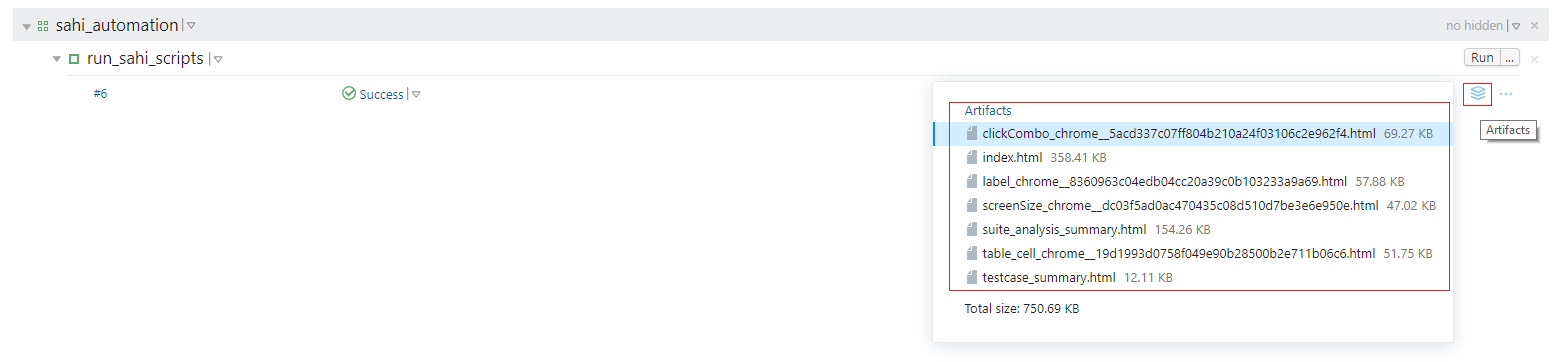
Section titled “View Sahi Pro HTML Logs in TeamCity”Once Artifacts are configured, one can find Sahi’s report logs by hovering over on the “Artifacts” icon on the right side for that specific build number on the TeamCity project page.