

Assertions and Variables
Check values in a REST response, keep them in variables for later steps, and add the REST step to the keyword.
A request that returns something isn’t proof that the API works. Assertions check that the response holds the values you expect, and variables keep values from it, such as an ID or a token, for the steps that follow.
Here, the request GET https://dummyjson.com/products?limit=3 returns three products and a total of 194. The steps check the total and keep it in a variable.
Check a Value and Keep It
Section titled “Check a Value and Keep It”-
Send the request, and in the Response, open Body › Tree.
-
Tick the key you want, such as
total, and hover over it. Assert and Store show on its row.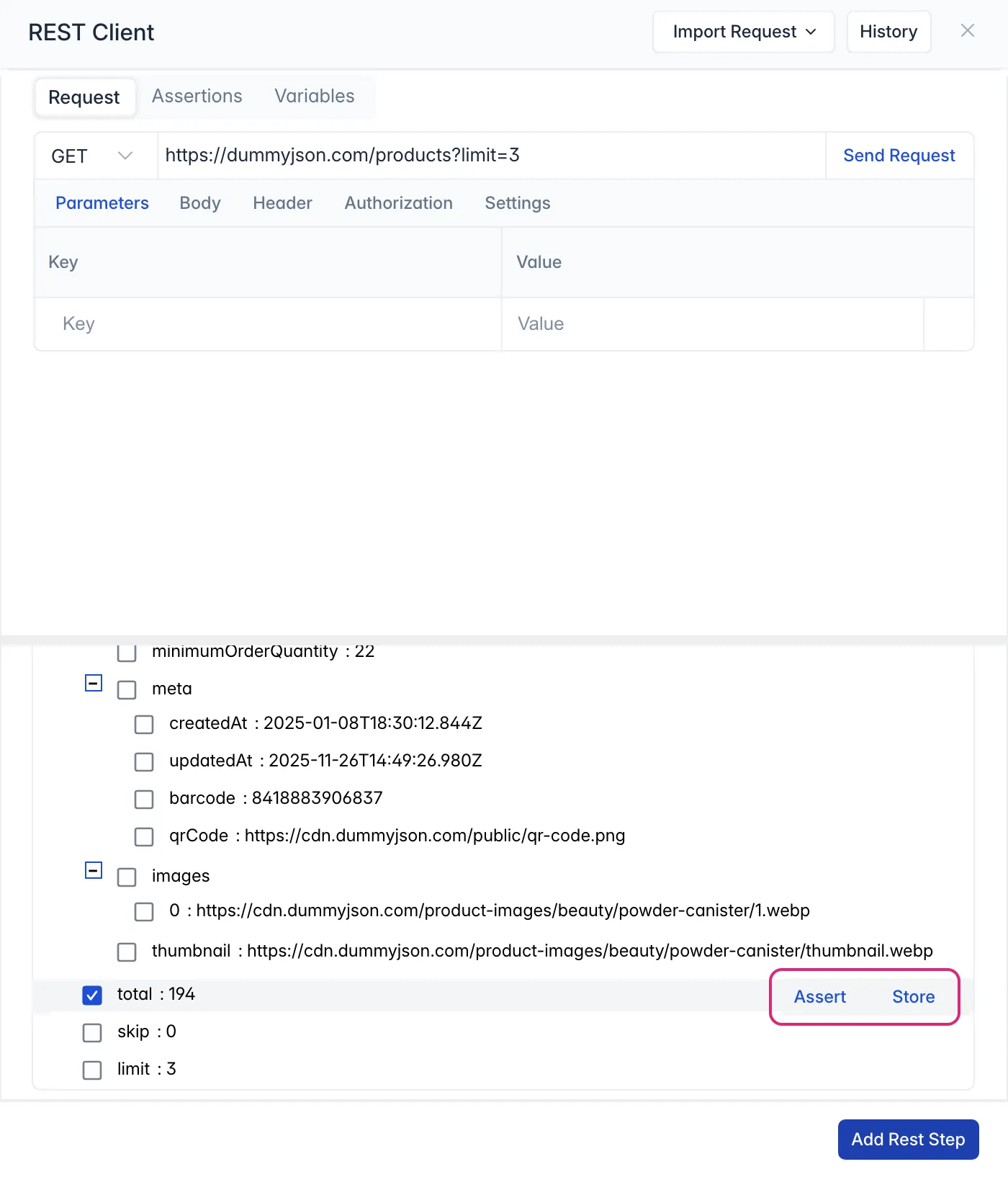
-
Click Assert. The Assertions tab opens with a row for
total: the Assertion Type is Equals, and the Expected Value is the value in the response,194. A green check shows that the response passes.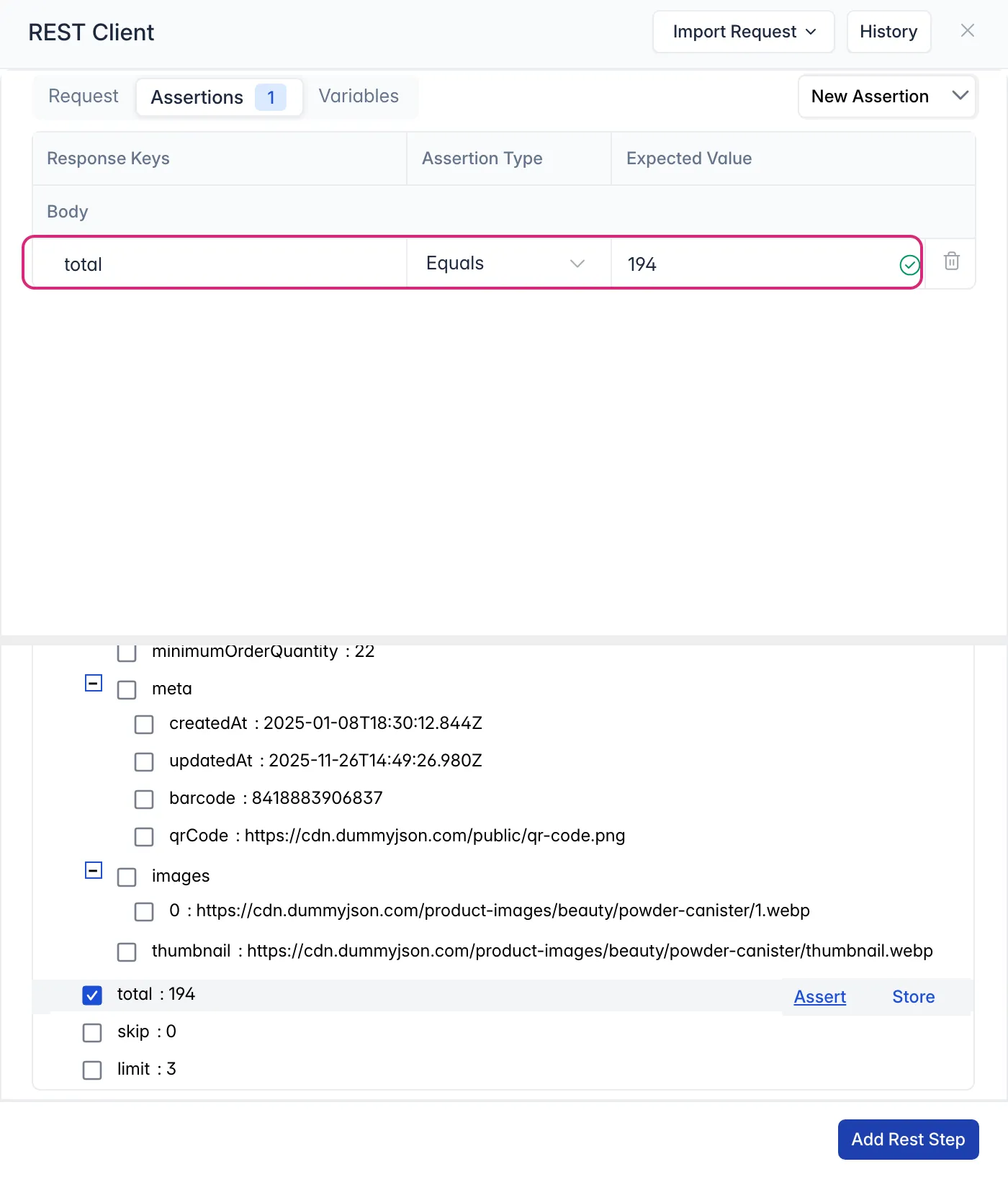
-
The response stays below. Hover over
totalagain and click Store. The Variables tab opens with a row fortotal, kept in the variable$vartotal. Change the Variable Name if you like.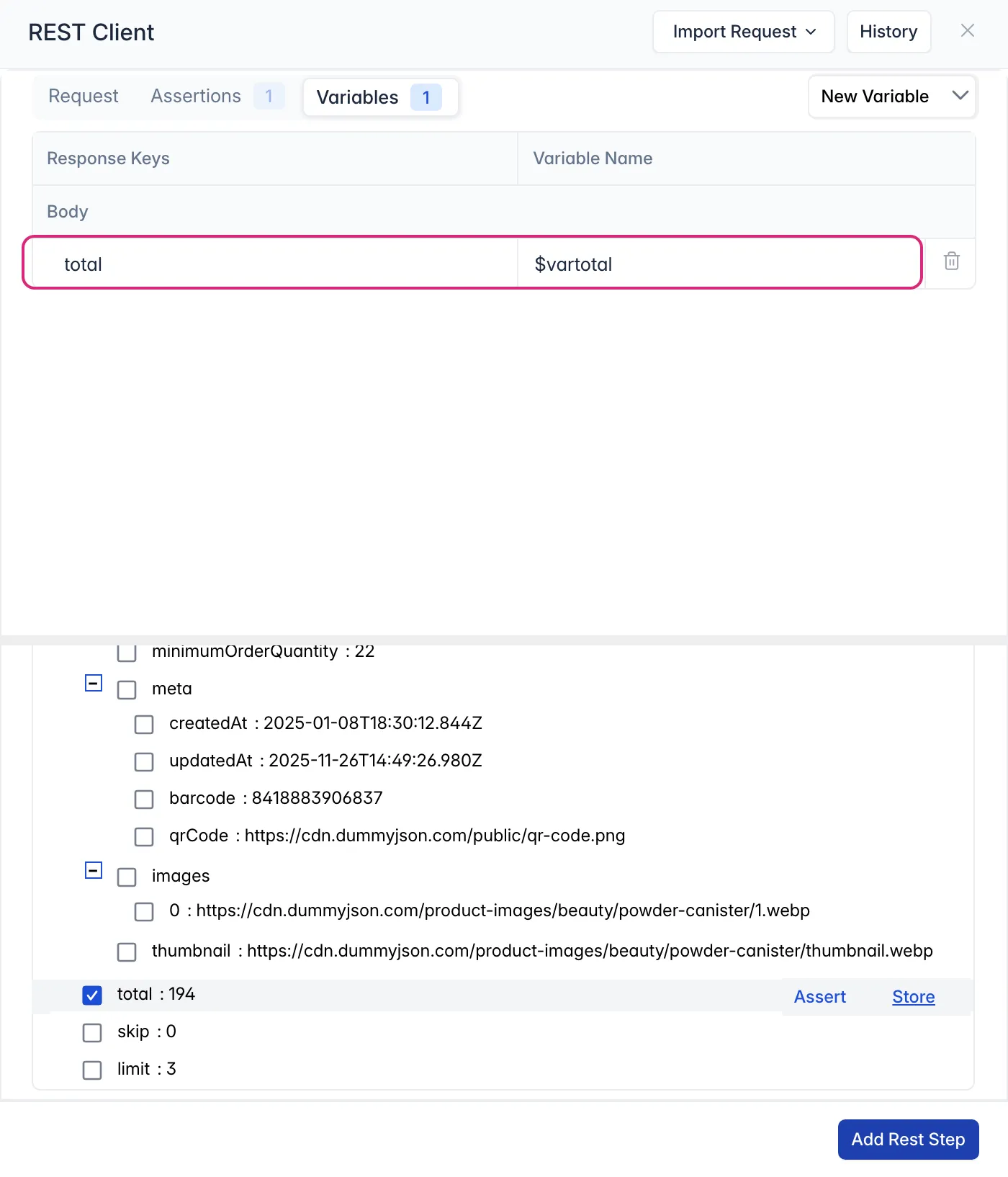
-
Click Add Rest Step. The request is added to the keyword as a step, with its assertions and variables. Save the file.
To tick several keys at once, use Assert and Store in the Response header instead of on a row. The number on the Assertions and Variables tabs shows how many each holds.
Assertion Types
Section titled “Assertion Types”| Assertion Type | Passes when the value |
|---|---|
| Equals | is the expected value |
| Contains | contains the expected value |
| Not Null | has any value |
To add an assertion by hand, click New Assertion and choose what it checks: Body, Header, Status or Raw Response. Click the bin on a row to remove it.
Variables
Section titled “Variables”Later steps use a variable by its name, such as $vartotal. To add one by hand, click New Variable and choose Body, Header, Status or Raw Response.
Change a REST Step
Section titled “Change a REST Step”Open the step from the keyword’s steps. The REST Client opens with the request, its assertions and variables, and the button reads Update Rest Step.
When the step runs, its results appear in Reports.