

Run Sahi Script on iPad
Sahi can be used for testing the fluid nature of web apps and its functionality on different devices. In this post, we will be looking into running Sahi scripts on iPad. Before I go ahead and mention how to do this, there are few important notes about this kind of execution:
- You can not install Sahi on iPad. Sahi must be installed and running on a different computer in the same network.
- The scripts which will be executed on iPad will not be recorded on the iPad. These scripts will be recorded on the computer itself, by resizing the browser and changing the user agent to iPad.
- Only the test run happens on the iPad, to check if the web app renders correctly on iPad or not.
With these points in mind, let us move ahead and configure our iPad for the run. While following these steps, use the IP address of the machine on which Sahi is running
-
To start configuring the iPad, click on the settings icon on the home screen.

-
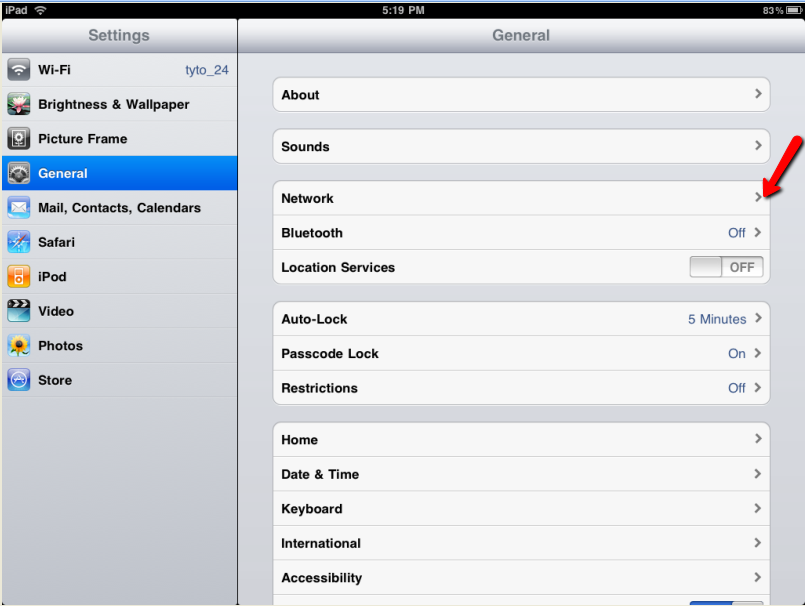
This will open the general settings option panel. Click on the network tab:
-
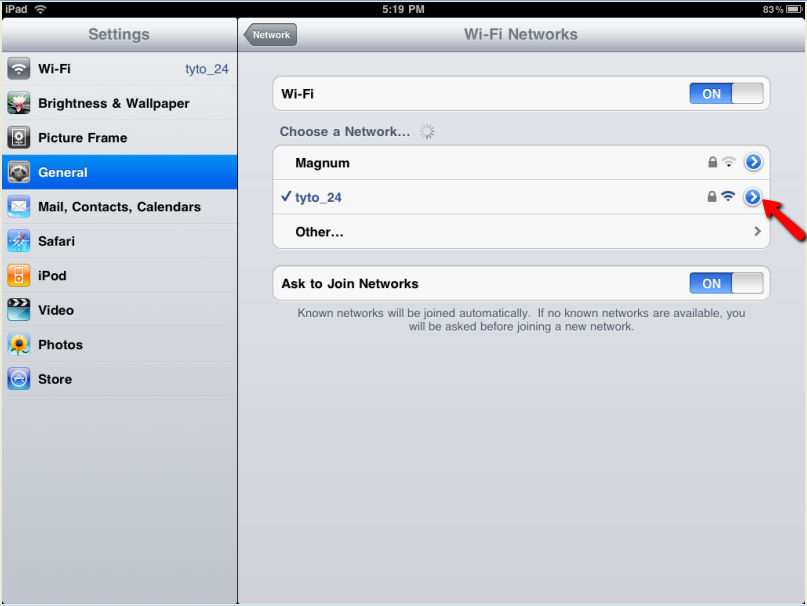
This will show all the network options that are present for connection. In the wi-fi settings click on the network that is being used by both the iPad and the machine running Sahi. I am using Tyto_24 so I will click on the arrow button next to it.
-
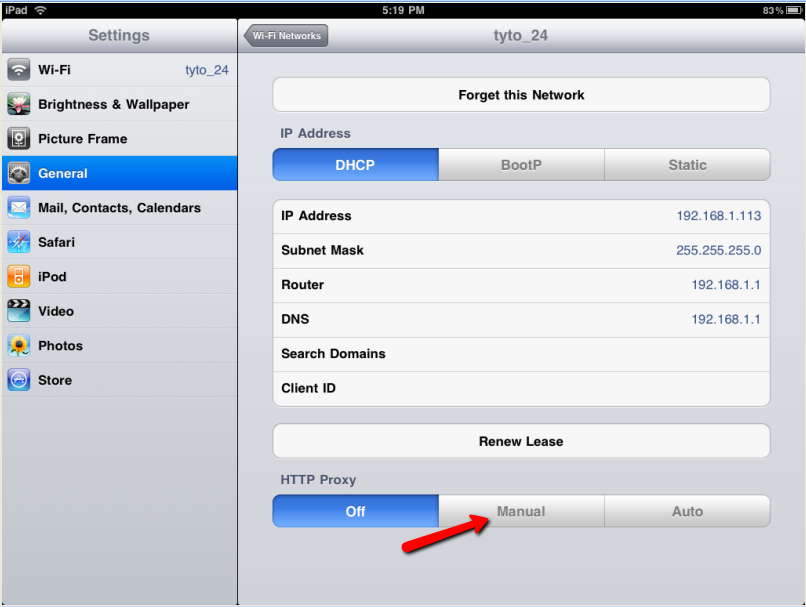
This will open the settings for that particular network and show a bunch of details about the network. What we are interested is the proxy for the network. In case you are within another proxy, such as your corporate proxy, you need to make changes in the Sahi installed in your machine. Let us click on the manual button of proxy.
-
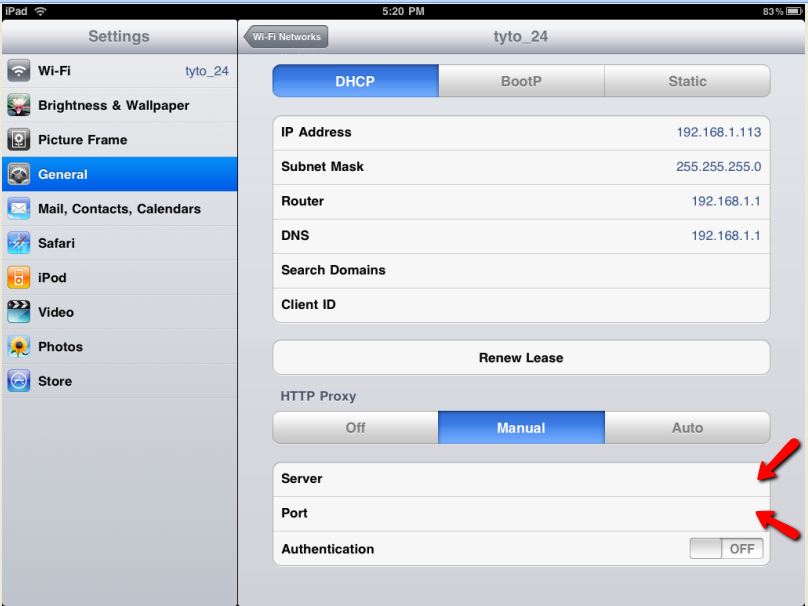
This opens up the settings panel for the proxy. The two fields which we are interested in are the proxy and port. We need to set these ports to our computer running Sahi on port 9999 so that the iPad can use the Sahi on the machine to run the scripts.
-
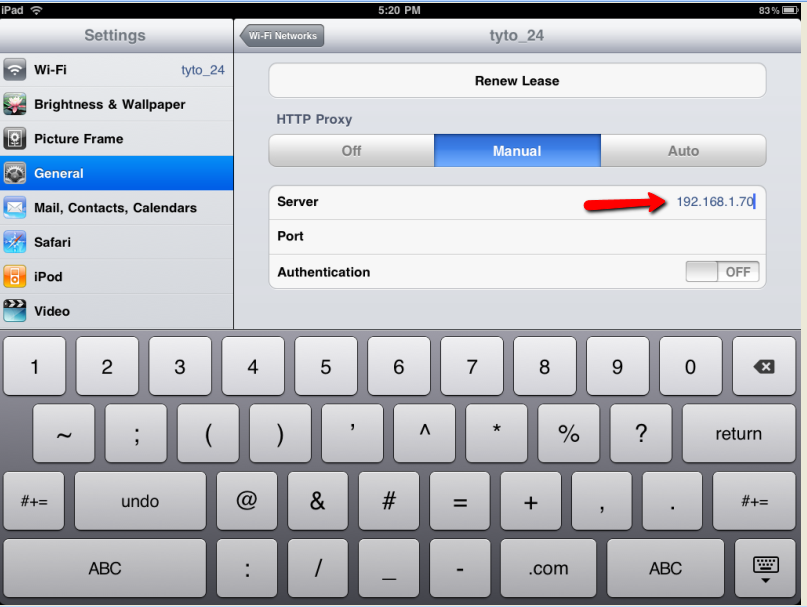
Set the proxy to the IP address of your machine. Look here for instructions on how to get the IP address of your system.
-
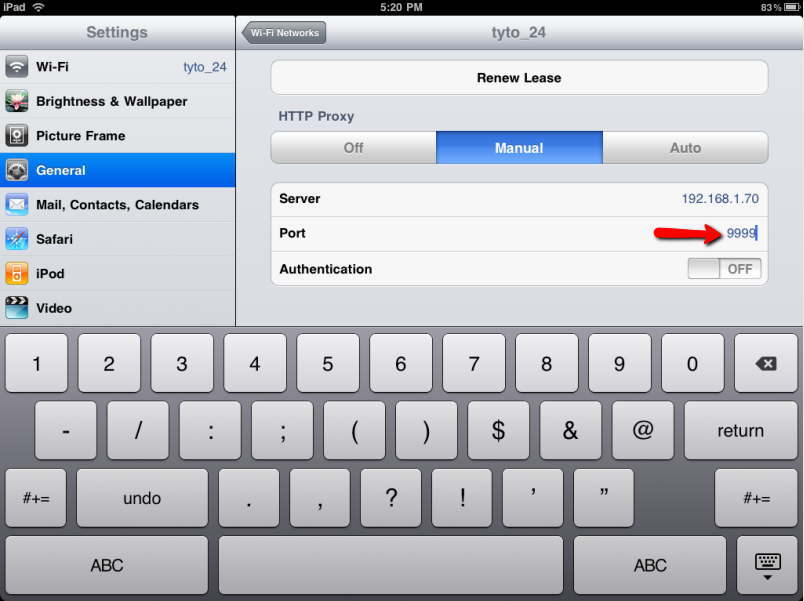
Also set the port to 9999. This will ensure that it is going to route through Sahi installed and running on the machine.
-
Configure Safari to accept cookies always:
-
In Safari 5.1 or later:
Safari -> Preferences -> Privacy -> Select “Never” under “Block Cookies”
-
In Safari 5.0 or earlier:
Safari -> Preferences -> Security -> Select “Always” under “Accept Cookies”
-
-
Open Safari and go to
http://<your machine's IP>:9999, such ashttp://192.168.1.70:9999. The Sahi Pro start page opens. -
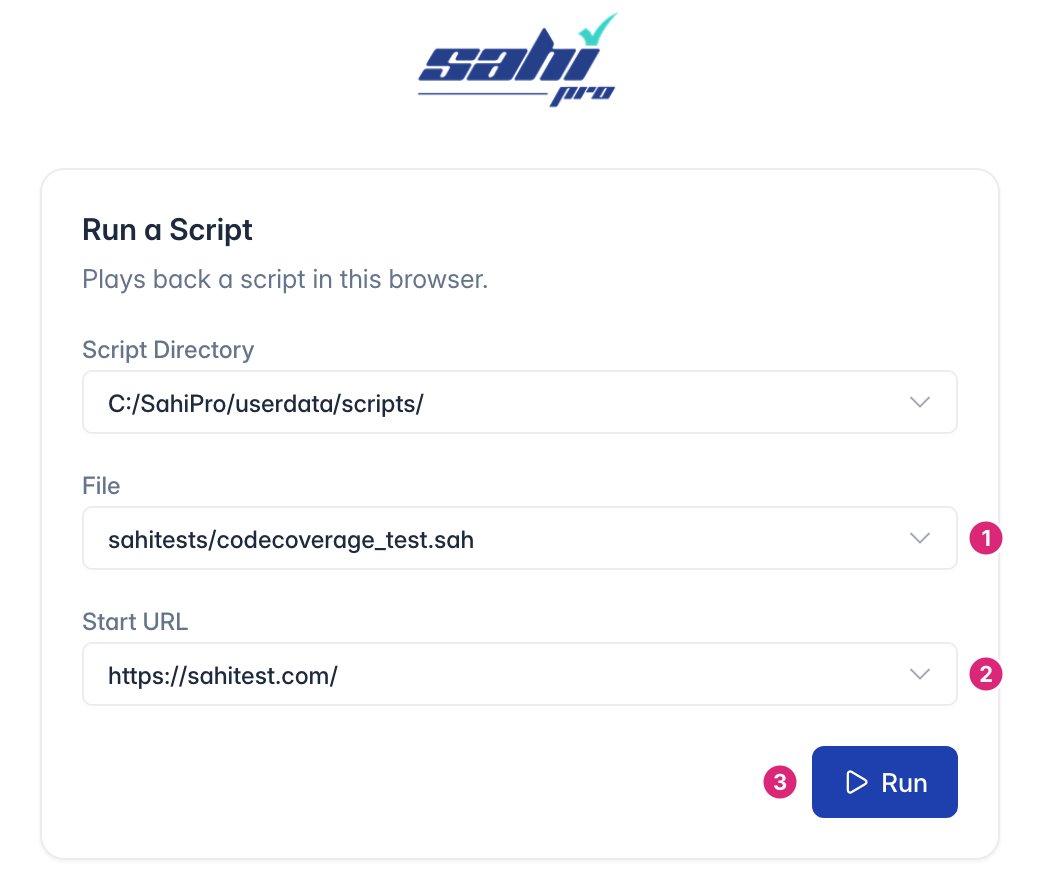
In Run a Script, choose the File to run [1], enter the Start URL [2] and tap Run [3]:
-
Safari opens the start URL and the test runs.
The test’s report is in Reports on the machine that runs Sahi Pro.