

Sahi Configuration (Basic)
Sahi may need a few configuration tweaks to make it work on your system.
Configure Browsers in Dashboard
Section titled “Configure Browsers in Dashboard”Sahi’s Dashboard lists the browsers installed on your systems. Sahi tries to look in default installation locations of different browsers.
If a particular browser, eg. firefox, is installed but not visible on the Dashboard, do the following:
-
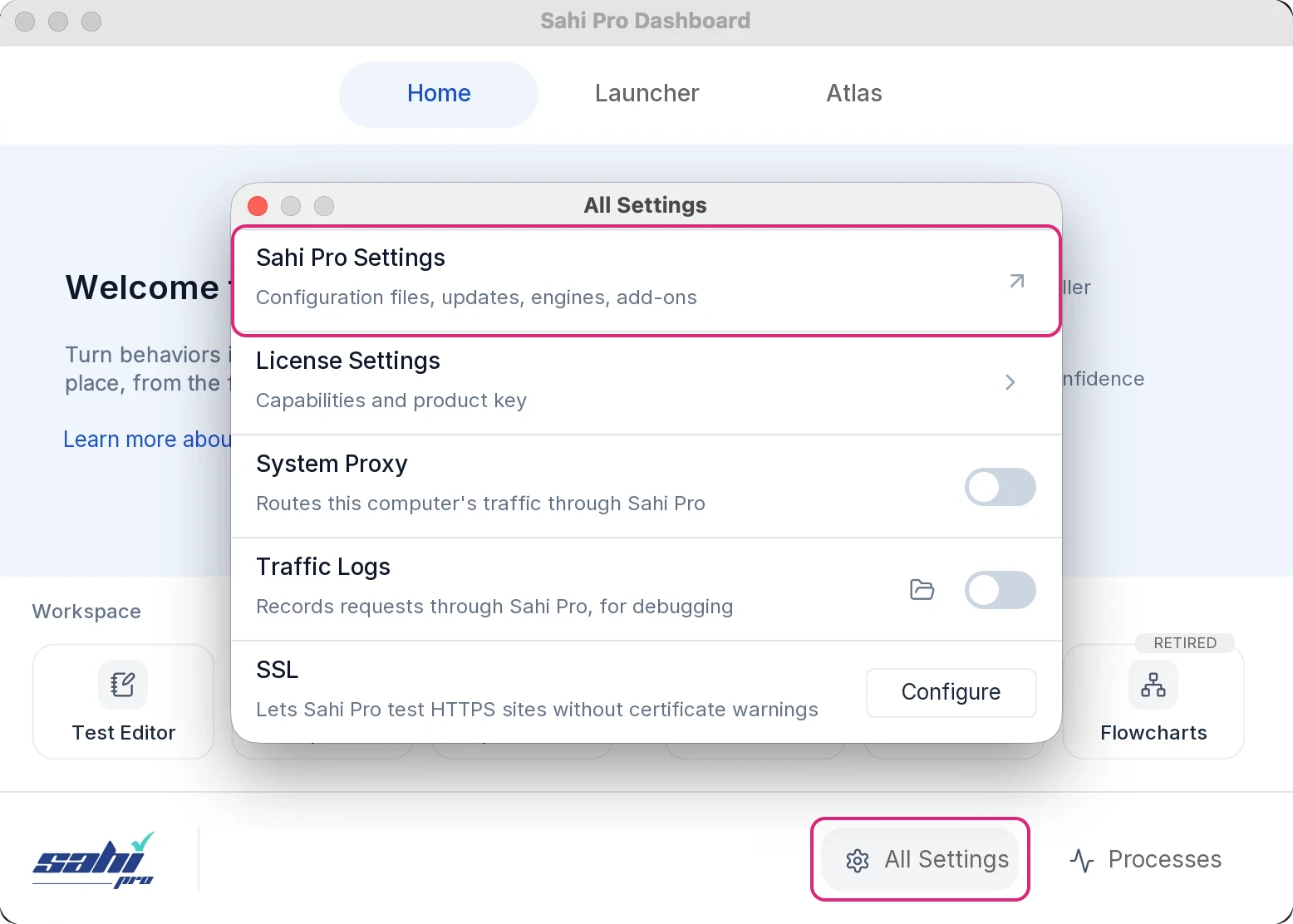
Click All Settings on the Dashboard. The All Settings window opens.
-
Click Sahi Pro Settings. The Sahi Pro Settings page opens.
In the menu on the left, open Browsers And Devices and click Browser Definitions (
browser_types.xml).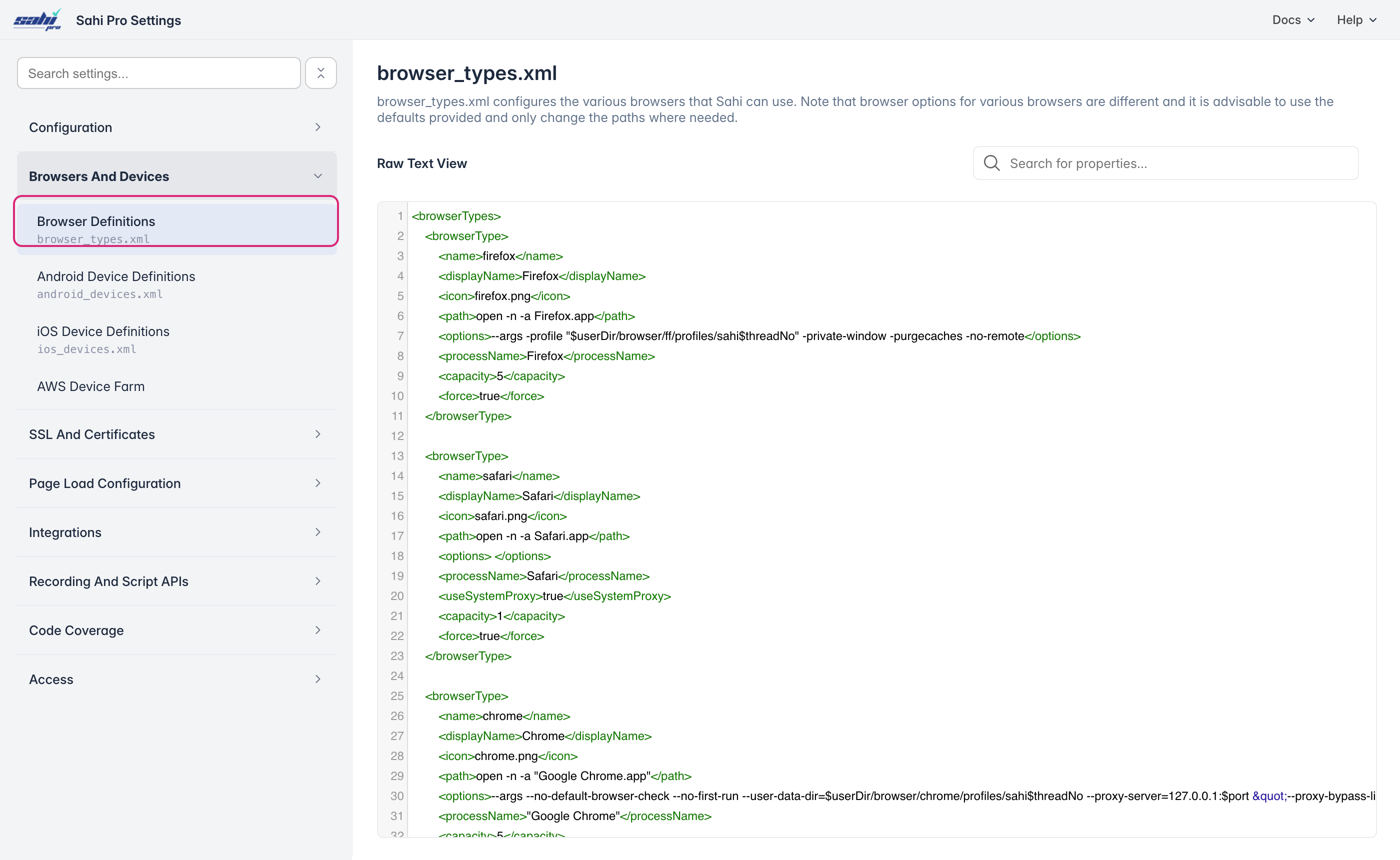
-
Look for a browserType node with
<name>firefox</name> -
Locate the
pathelement and change the value to what is on your machine. For example, Change<path>$ProgramFiles\Mozilla Firefox\firefox.exe</path>to
<path>C:\Program Files\Mozilla Firefox\firefox.exe</path> -
Normally, you do not need to change any other option
-
Click
Save, close the browser, restart Sahi. You should now see firefox on the Dashboard
browserType Node
Section titled “browserType Node”<browserType> <name>firefox</name> <displayName>Firefox</displayName> <icon>firefox.png</icon> <path>$ProgramFiles\Mozilla Firefox\firefox.exe</path> <options>-profile "$userDir/browser/ff/profiles/sahi$threadNo" -private-window -purgecaches -no-remote</options> <processName>firefox.exe</processName> <capacity>5</capacity> <useSystemProxy>false</useSystemProxy> <force>false</force> </browserType>| Element | Value |
| name | Key by which this browserType will be referred. This can be any value without spaces. |
| displayName | Text displayed on the Dashboard |
| icon | Icon to be displayed. These are bundled inside Sahi |
| path | Path to the browser executable. If you run this from a command line, it should invoke the browser |
| options | Browser startup options. Sahi launches browsers with some preconfigured settings like proxy, cookie isolation, SSL etc. using the options. There are specific settings for different browsers and should not be modified by the user. Internet Explorer 8+Internet Explorer 6,7 options tag needed but is blank Firefox Google Chrome Safari options tag needed but is blank Opera options tag needed but is blank PhantomJS |
| processName | Process name for looking up PID of process. Sahi will do a tasklist or ps with this name to identify the process to kill |
| capacity | Maximum number of browsers simultaneously executable without overwhelming the system. This depends on your system and you can configure this based on your judgement |
| useSystemProxy | true/false. Specifies if Windows system proxy settings should be changed to use Sahi Proxy. Needed by Internet Explorer and Safari on Windows |
| force | true/false. Sahi checks to see that the path attribute above is correct and available on the system. On some Operating Systems the path is not really a file path but a command to invoke the browser. Use force=true in those cases |
Variables used in browser_types.xml
Section titled “Variables used in browser_types.xml”| Variable | Value |
|---|---|
| $userDir | Path to Sahi’s userdata directory |
| $threadNo | Do not modify. Sahi dynamically substitutes this value during the test run. |
| $XXX | Sahi looks for a System environment property of name XXX and replaces its value. For example, $ProgramFiles will be replaced with C:\Program Files on Windows |
Other browser modifications needed
Section titled “Other browser modifications needed”
Safari
Section titled “Safari”You can only run Safari in one thread if you want it to be killed properly. Also make sure no other Safari instances are running before you invoke this. Otherwise, new pages may open in tabs.
Configure SSL
Section titled “Configure SSL”Sahi acts as a proxy between the browser and website. For SSL sites, this means that Sahi behaves like a man in the middle. To make Sahi work properly on SSL sites, a particular Sahi root certificate needs to be accepted.
Sahi allows various methods to accept the root certificate
-
Click All Settings on the Dashboard. The All Settings window opens.
-
Next to SSL, click Configure.
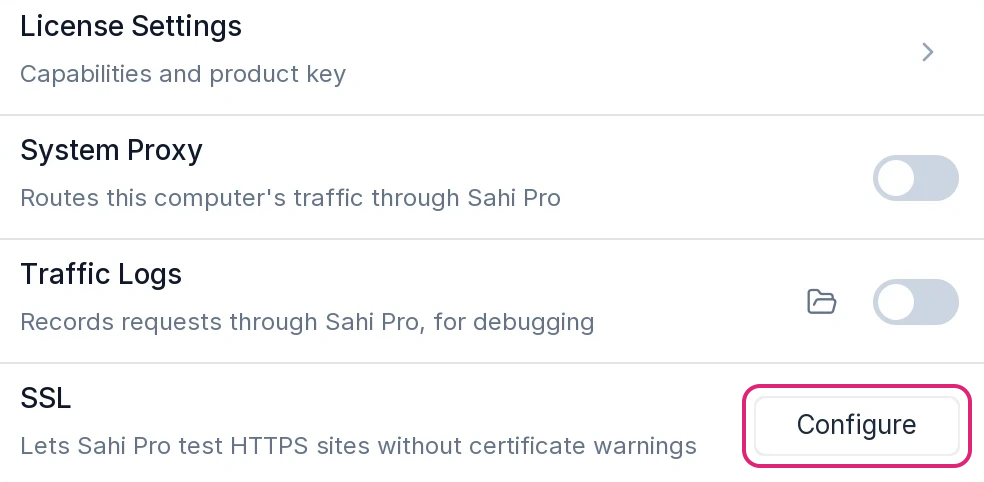
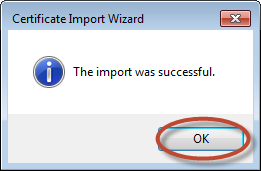
Sahi will try to use certutil on Windows to add the root certificate. This will work if you have the correct privileges. If it succeeds you will see something like this on your Sahi console.

-
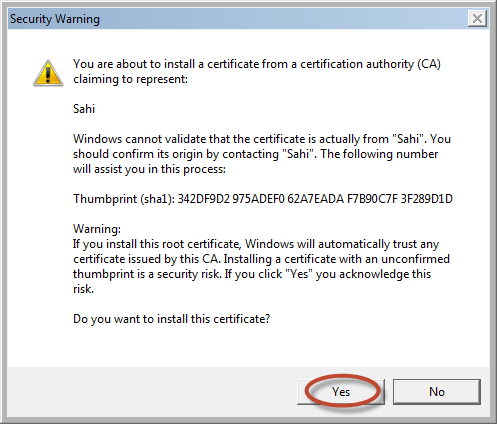
If step 1 does not succeed automatically, a security window will be opened.

Click Yes to accept the certificate.
-
If step 2 does not work either, then a different screen would popup. Follow these steps.
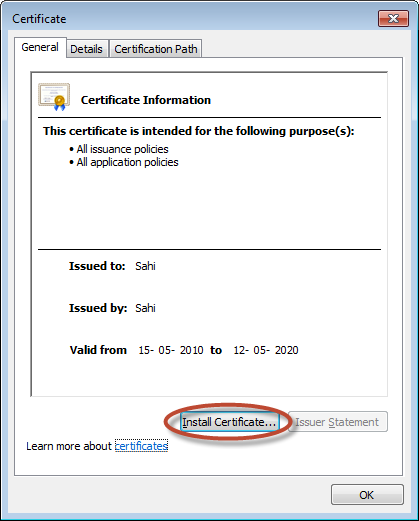
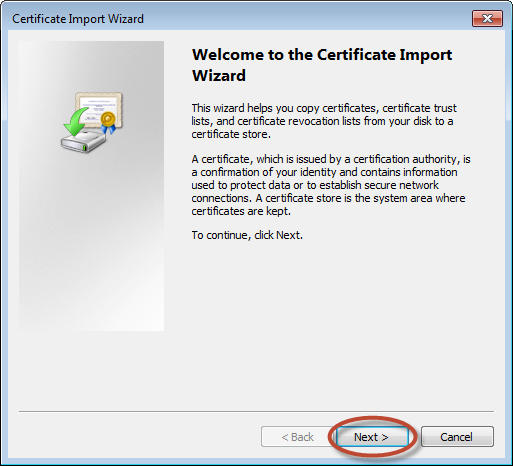
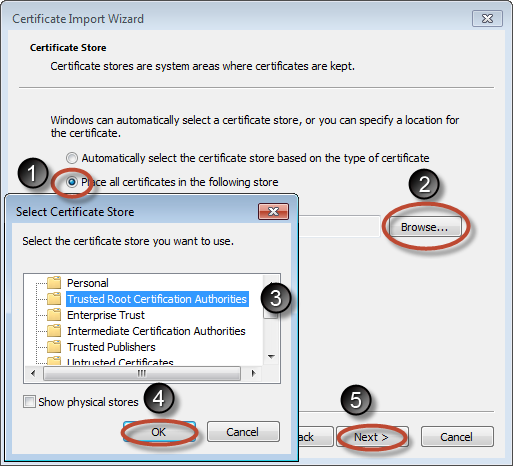
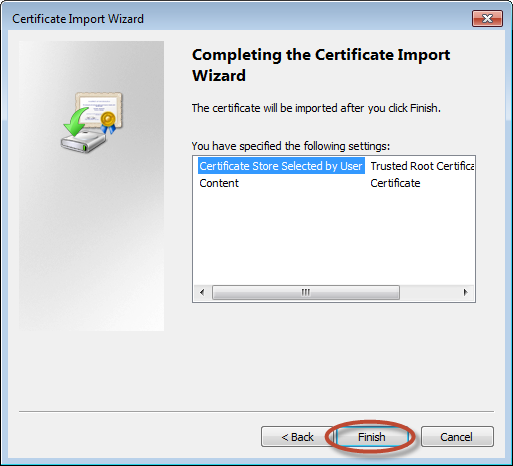
Enabling weaker algorithms on Java 1.7 and later
Section titled “Enabling weaker algorithms on Java 1.7 and later”Symptom: When connecting to a specific https site, any browser opened from the Sahi Dashboard fails to connect, with an error message Received fatal alert: handshake_failure. Sahi can not connect to the desired URL.
Resolution: Check if you are able to connect to https://www.google.com via Sahi.
If you could access https://www.google.com, but not your other sites, it is possible that these servers have certificates with a weaker algorithm. To fix it, do the following:
-
See what your java path is from the Controller->Info tab. You should see something like this:
Java Installed Directory: D:\Dev\Programs\jdk7\jre -
Open
<jre_dir>/lib/security/java.securityfile in a text editor. (In our case, it is D:\Dev\Programs\jdk7\jre\lib\security\java.security) -
Look for
jdk.certpath.disabledAlgorithms. In our case, it looks like:jdk.certpath.disabledAlgorithms=MD2 -
Comment it out, so that it looks like this:
#jdk.certpath.disabledAlgorithms=MD2 -
Restart Sahi, and check again.
For Linux
Section titled “For Linux”-
Open a Terminal and navigate to
<SAHI_INSTALLED_DIRECTORY>/userdata/bin. Run the following command at the prompt.Terminal window ./add_ssl_root_cert_linux.sh
For Mac
Section titled “For Mac”-
Sahi should already be running before you run the following command.
-
Open a Terminal and navigate to
<SAHI_INSTALLED_DIRECTORY>/userdata/bin. Run the following command at the prompt.Terminal window ./add_ssl_root_cert_mac.sh
For Mobile Device
Section titled “For Mobile Device”- To configure SSL on mobile device refer here and perform the
step 1tostep 6.
External Proxy
Section titled “External Proxy”If you normally need a proxy to access websites, you will have to tell Sahi to use that proxy. You configure the external proxy by editing /userdata/config/userdata.properties and setting these properties:
Proxy AutoConfig Script
Section titled “Proxy AutoConfig Script”If you normally use a proxy pac file, you need to tell Sahi to use it. To check, go to Internet Explorer -> Tools -> Internet Options -> Connection -> LAN Settings
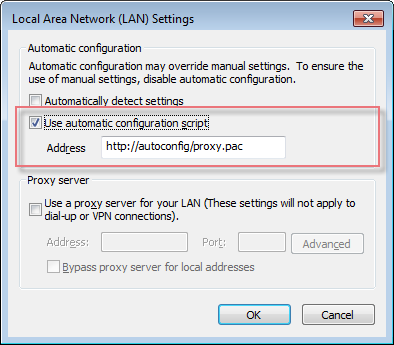
The value in Address is what we want.
Open userdata.properties and add
# Replace http://autoconfig/proxy.pac with your relevant proxy URLext.http.proxy.pac.url=http://autoconfig/proxy.pacIf the Address looks like
file://C:/proxy.pacUse
ext.http.proxy.pac.url=C:/proxy.pacFixed Proxy
Section titled “Fixed Proxy”Check if you normally use a fixed proxy
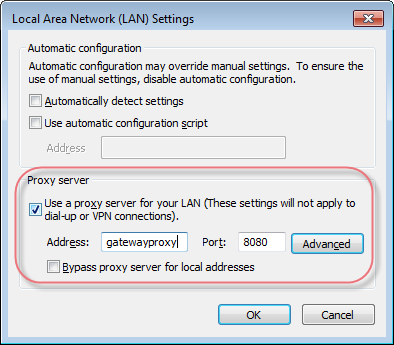
If yes, modify userdata.properties like this:
ext.http.proxy.enable=trueext.http.proxy.host=external_proxy_server_hostname_or_ipext.http.proxy.port=external_proxy_server_portIf your proxy needs authorization, you should set these properties too.
ext.http.proxy.auth.enable=trueext.http.proxy.auth.name=proxy_authorization_usernameext.http.proxy.auth.password=proxy_authorization_passwordYou should do the same with ext.https settings for https sites. In addition, if you need to bypass the external proxy for some local sites you need to configure that too in sahi.properties like this
ext.http.both.proxy.bypass_hosts=localhost|127.0.0.1|*.yourinternaldomain.comNote that there is only one bypass setting for both http and https.
Configuring Proxy on Mac
Section titled “Configuring Proxy on Mac”Sahi automatically configures the proxy on Mac before launching a browser. Sahi assumes that your default networkserviceorder is Wi-Fi If it is something else, eg. AirPort, you need to add
mac.networkserviceorder="AirPort"to userdata.properties. Restart Sahi and check.
Depending on your Mac version, you may see a prompt to enter username/password like this:
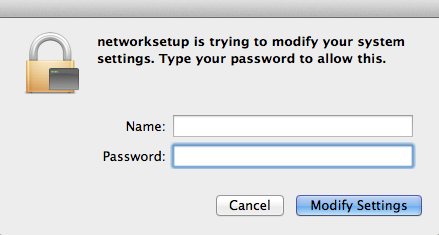
You need to disable this prompt using one of the ways specified at this link: osx - Prevent networksetup from asking password - Stack Overflow.
If Safari is opening more than one window while running the Sahi script than follow solution given here How to stop Safari reopen on last page - Apple Communities
Configure VPN proxy settings
Section titled “Configure VPN proxy settings”-
Select your VPN and click on Settings.

-
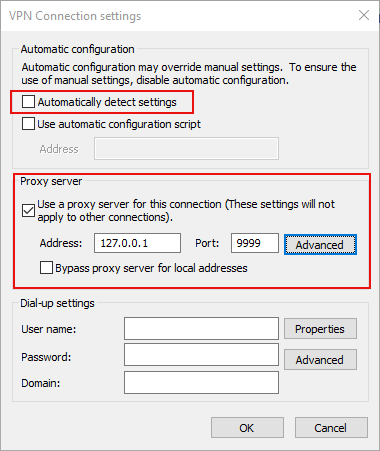
Uncheck the checkbox adjacent to “Automatically detect settings”. Configure “Proxy Server”. Enter the “Address” as “127.0.0.1” and “Port” as “9999” if you have not modified the default port.
-
Click “OK” button.