

SAP GUI Automation - Getting Started
This section details how to test SAP GUI Applications. If you are not familiar with Sahi Pro, see Quick Tutorial on Sahi Pro To automate SAP GUI applications using Sahi Pro Flowcharts, refer SAP GUI Automation - Getting Started .
Start SAP GUI Automation
Section titled “Start SAP GUI Automation”-
Scripting must be enabled in SAP GUI client.
-
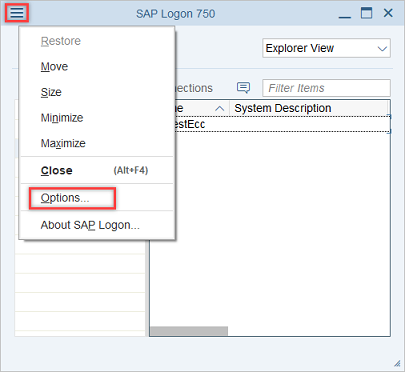
Open SAP GUI options from top right corner of SAP Logon pad.
-
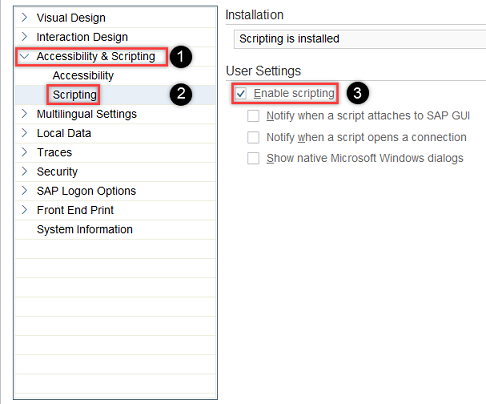
Go to Accessiblity & Scripting → Select Scripting.
-
Check the Enable scripting checkbox under User Settings.
-
Ensure that scripting is not disabled in the Registry for SAP GUI client as follows :
- On the Start menu, choose Run.
- In the Open box, enter
regedit.exe. - In the Registry Editor, check the value for following subkeys. If the value is set as
0, modify it as1to enable scripting. Ignore this if the subkeys are not present.
HKEY_LOCAL_MACHINE\SOFTWARE\SAP\SAPGUI Front\SAP Frontend Server\Security\UserScripting
HKEY_LOCAL_MACHINE\software\Wow6432Node\sap\SAPGUI Front\SAP Frontend Server\Scripting
-
-
Scripting must be enabled in SAP GUI server. Start RZ11 transaction and set the following profile parameters as applicable :-
-
Parameter
sapgui/user_scriptingmust be set as TRUE. -
Parameter
sapgui/user_scripting_disable_recordingmust be set as FALSE. If TRUE, recording will be prohibited. -
Parameter
sapgui/user_scripting_force_notificationmust be set as FALSE. If TRUE, SAP GUI server would notify for every scripting activity. -
Your SAP administrator may have set parameter
sapgui/user_scripting_per_useras TRUE to enable scripting only for specific users. If this parameter is set as TRUE, ensure that your SAP administrator has enabled scripting for you. -
Up to patch level 16 of SAP GUI for Windows 7.40 and patch level 3 of SAP GUI for Windows 7.50, parameter
sapgui/user_scripting_set_readonlymust be set as FALSE. If TRUE, a READ ONLY version of SAP GUI Scripting is activated.
-
-
Start Sahi Dashboard
-
Ensure
SAP Automation is enabled.Disable SAP Automationlink must be visible on Sahi dashbord from the Processes settings. “Sahi SAP agent started!” message appears on Sahi Pro console.Feb 19, 2020 2:48:30 PM net.sf.sahi.test.ProcessHelper executeINFO: cmd /C D:\Sahi_Pro\sap\bin\SahiSAP.exe -port=9999 > D:\Sahi_Pro\sap\SAP_log.txt>>>> Sahi SAP agent started!Feb 19, 2020 2:48:40 PM net.sf.sahi.test.ProcessHelper$PIDGatherer runINFO: PIDs: [8668]; 10491 ms -
Ensure that in userdata.properties,
sahi.sap.saplogon.execpathspecifies the correct path for SAP logon pad.
Using the Controller and Element Identification
Section titled “Using the Controller and Element Identification”-
To Launch Sahi Controller, click the SAP icon on the Sahi Dashboard.

-
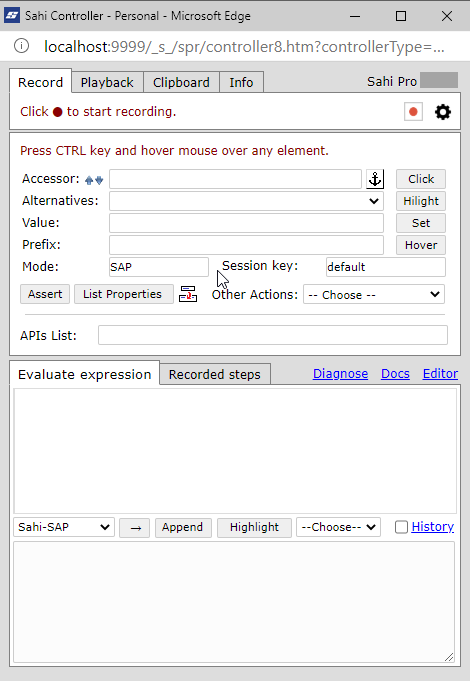
On the Controller, go to the Record tab.
The Controller can be used to interact with the SAP GUI application. User can Identify, Click, Set, Assert, choose Other Actions, or user can even Test an expression from Evaluate Expression to perform an action on the SAP GUI application.
-
To identify an element, press the CTRL key, hover over any element.
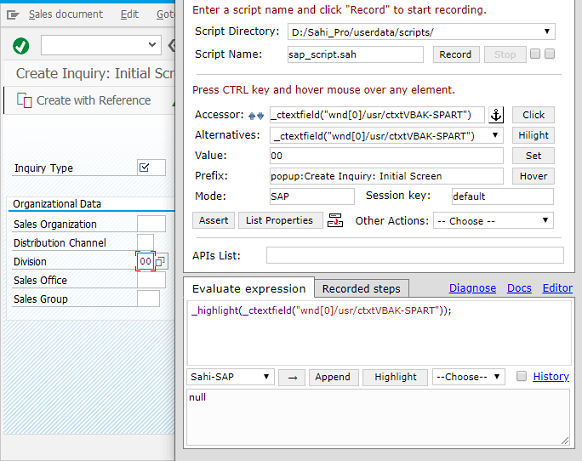
Accessor:shows the Sahi accessor for that elementAlternatives:shows all alternative accessors for that elementValue:shows the value of the current element. Mostly this is the input text or the visible text.Prefix:window name.Mode:shows the Automation mode
Evaluate Expression
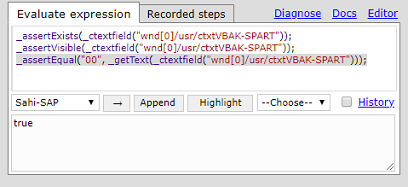
Section titled “Evaluate Expression”Evaluating SAP GUI Application expression through Controller. It helps while identifying elements or while debugging.
-
Put a valid Sahi expression in the Evaluate Expression box
-
Select mode as ‘Sahi-SAP’
-
Click on → The result will be seen in the bottom box.
-
AppendWhile recording, selecting and clicking onAppendwill append the steps to the currently recording script. This is mainly used for manually append any step from Evaluate Expression to the currently recording script. -
HighlightCan be used on selected text to highlight the element (shows a red 1 pixel border briefly). Invokes the_highlightfunction. -
Drop downLists some actions like Click, Get Value, Get Text etc.
Recording a script
Section titled “Recording a script”This is similar to recording a Sahi script for normal browser testing.
-
To record a script, launch the Controller, provide a script name and click ‘Record’. Actions done on the SAP GUI client application are recorded automatically.
-
Steps can also be recorded from the Controller.
-
A. You can use Click, Set, Assert, choose ‘Other Actions’ to perform an action on the SAP GUI client application.
B. You will need to record these steps explicitly by clicking on ‘Append’.
-
Run Tests
Section titled “Run Tests”From Controller
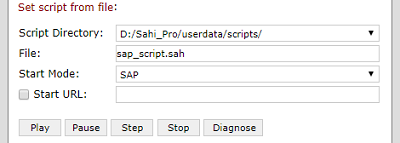
Section titled “From Controller”Once a script is recorded, you can run it from the Controller itself, with Run.
-
-
Choose the script.
-
Select Start Mode as
SAP. -
You can leave the Start url blank. This is not used for SAP GUI client application.
-
Click on Play to run the script.
-
Click on Logs to view the logs of the played back script.
From the Editor
Section titled “From the Editor”You can run the script from the Editor as well.
- Choose the script/suite/scenario from the Editor and click Run.
- Choose the Start Mode as SAP.
- Choose either of the two options - ‘Run in single machine’ or ‘distributed (multiple machines)’.
- Press Run to run the test.
Refer Run Tests from the Editor for a better understanding.