

Record Tests for Mobile Browsers
Record tests for a mobile browser from a desktop browser, by giving it a phone's screen size and user agent from the Sahi Pro start page.
A test recorded in a desktop browser can fail in a mobile browser. Many applications change their layout on a small screen, or serve a different mobile page, so elements move or get different names. To record steps that match what the phone shows, make the desktop browser look like the phone: give it the phone’s screen size and user agent.
-
From the Sahi Pro Dashboard, launch a browser, such as Chrome. It opens on the Sahi Pro start page.
-
Set up the browser as the phone, then open your application:
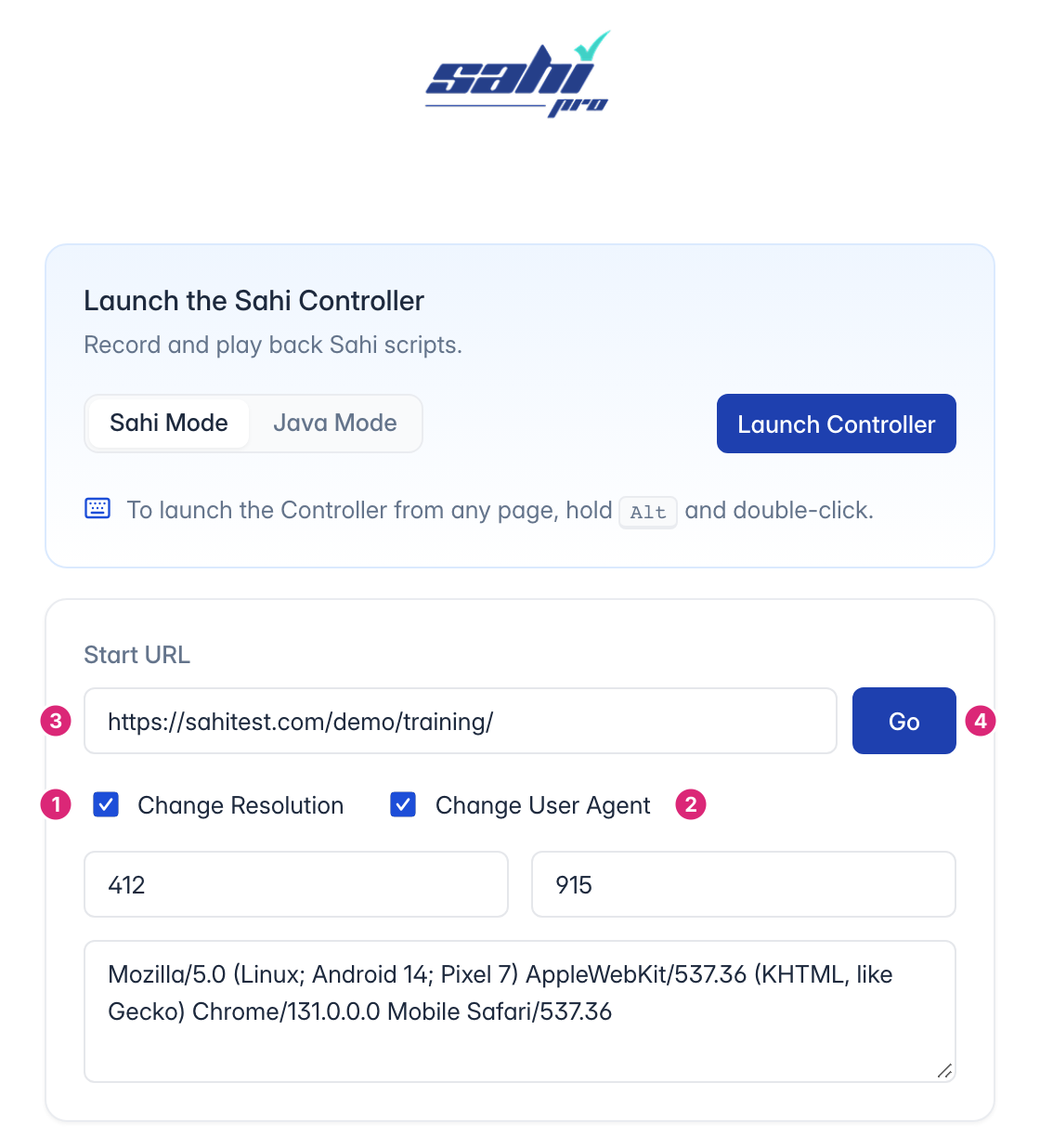
- Tick Change Resolution and enter the phone’s screen width and height in pixels, such as 412 and 915.
- Tick Change User Agent and enter the phone browser’s user agent string.
- Enter the address of your application in Start URL.
- Click Go.
The browser opens the mobile version of your application. Record your steps from there with the Controller, as you would for a desktop browser. To run the tests on a real phone, see Run Tests on Mobile Browsers.