

Script Report
Read a script report: each test case, keyword and step, the error and screenshot for a failed step, healed steps, data sets and retries.
A script report shows one scenario file or script from a run, down to each step. It’s where you find out why a test failed: which step, what Sahi Pro expected, what it found, and what the page looked like.
Open it from a suite report: click the scenario file in the navigator or in the list of scenario files. It opens in a tab of its own.
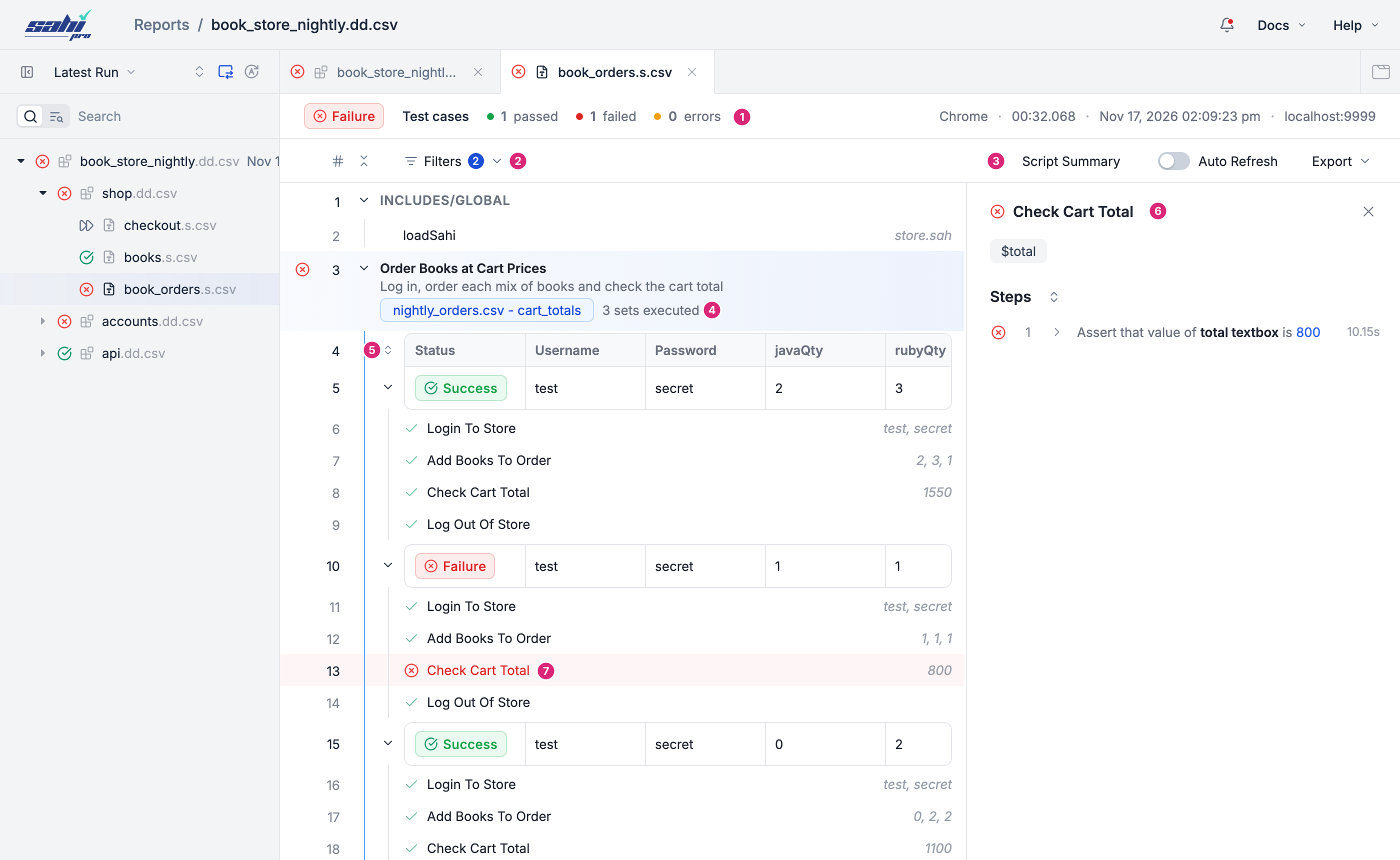
- Header: the status, how many test cases passed, failed and hit an error, and the browser, time taken, start time and node.
- Filters for what the report shows (see Choose What to Show).
- Script Summary, Auto Refresh and Export.
- Test data: the data file and group a data-driven test case used, and how many sets ran.
- Data sets: each set’s status and values.
- Steps panel: the steps of the keyword you clicked.
- A failed keyword, in red.
Test Cases, Keywords and Steps
Section titled “Test Cases, Keywords and Steps”The report lists the scenario file the way it’s built:
- INCLUDES/GLOBAL comes first, with the keyword files the scenario file loads, such as
store.sah. - Then each test case, with its description and a status icon.
- Under each test case, its keywords, with the values passed to them in grey on the right, such as
test, secret.
Click a test case’s arrow to open or close it.
Click a keyword to see its steps in the panel on the right. Each step reads as a sentence, such as “Enter value 2 in q textbox”, with the time it took. A keyword’s parameters, such as $total, show above its steps.
Find Why a Step Failed
Section titled “Find Why a Step Failed”A failed or errored keyword is red, and so is its test case. Click the keyword, then click the red step in the panel to open its details:
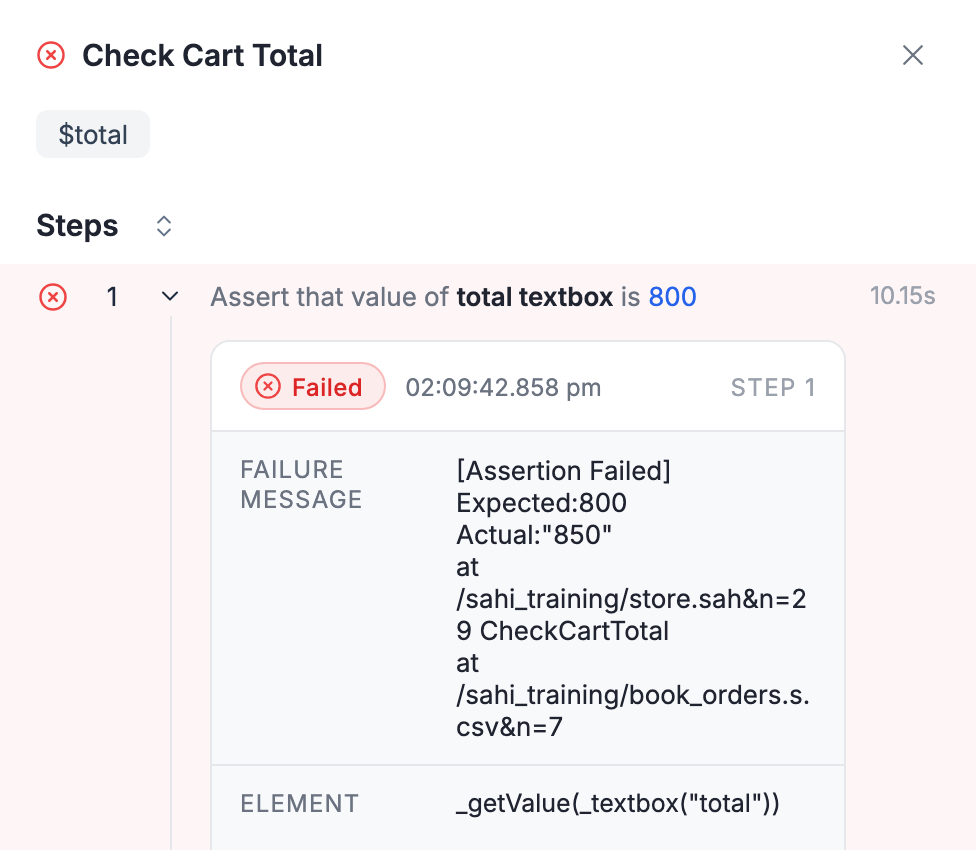
- Failed or Error, the time and the step number.
- Failure Message or Error Message: what went wrong, such as an assertion that expected 800 and found 850, or an element that wasn’t found. Under it, the line in the keyword file and in the scenario file where it happened, such as
store.sah&n=29for line 29 ofstore.sah. - Element: the element the step acted on, such as
_getValue(_textbox("total")). - Screenshot: when a step fails or hits an error, Sahi Pro locks the browser window, brings it into focus and takes a screenshot, so you can see what the page looked like.
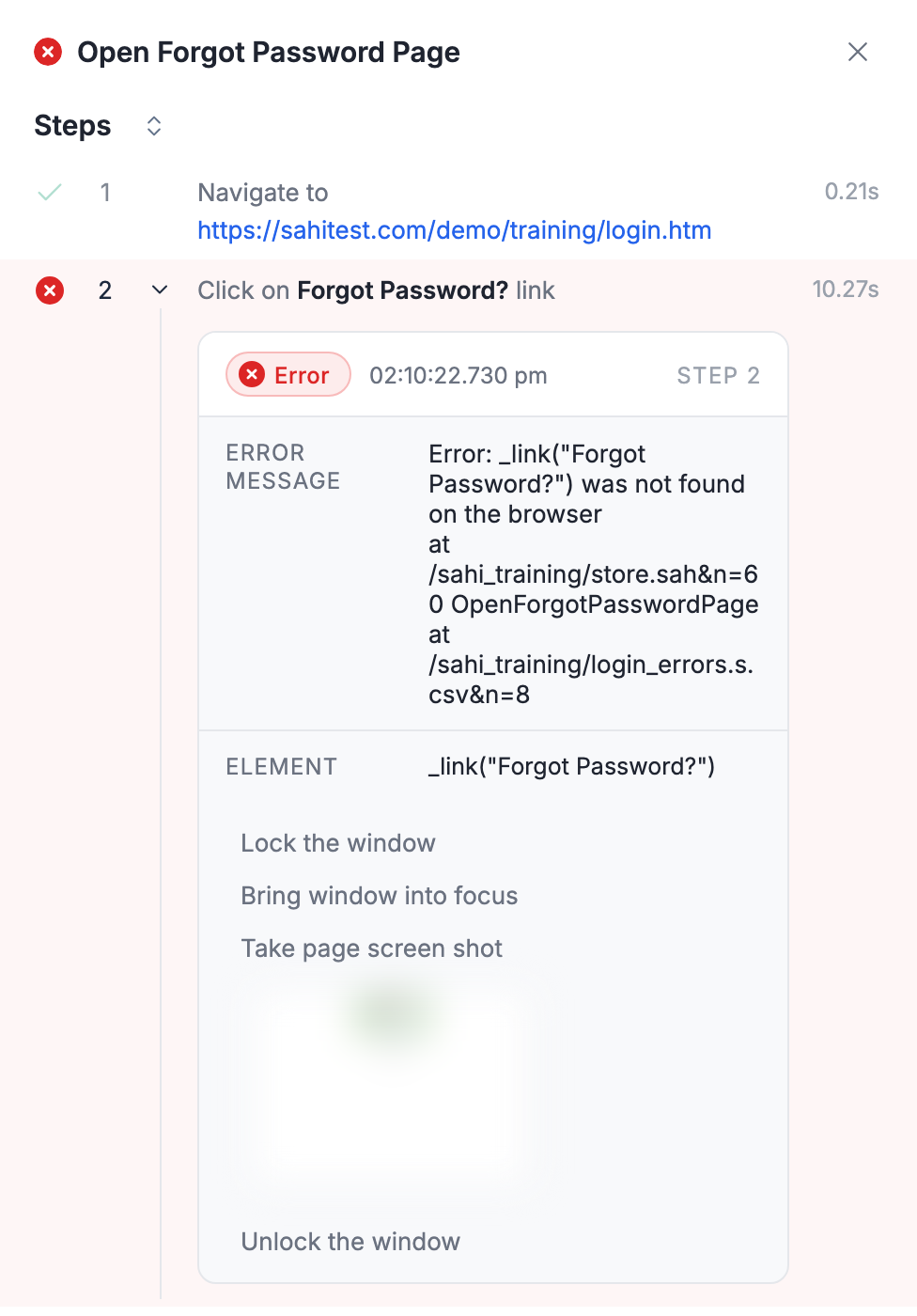
An error looks the same, with Error Message in place of Failure Message:
Healed Steps
Section titled “Healed Steps”When an element isn’t found, Autoheal can find a matching one, so the test carries on instead of failing. This happens when the application changes, for example when a button’s label changes from “Add” to “Add to Cart”. A healed step passes, but you need to know about it, because the test should be updated.
Healed steps are marked Healed on the test case, the keyword and the step, and the header counts them, such as 1 healed. Open the step to see what changed:
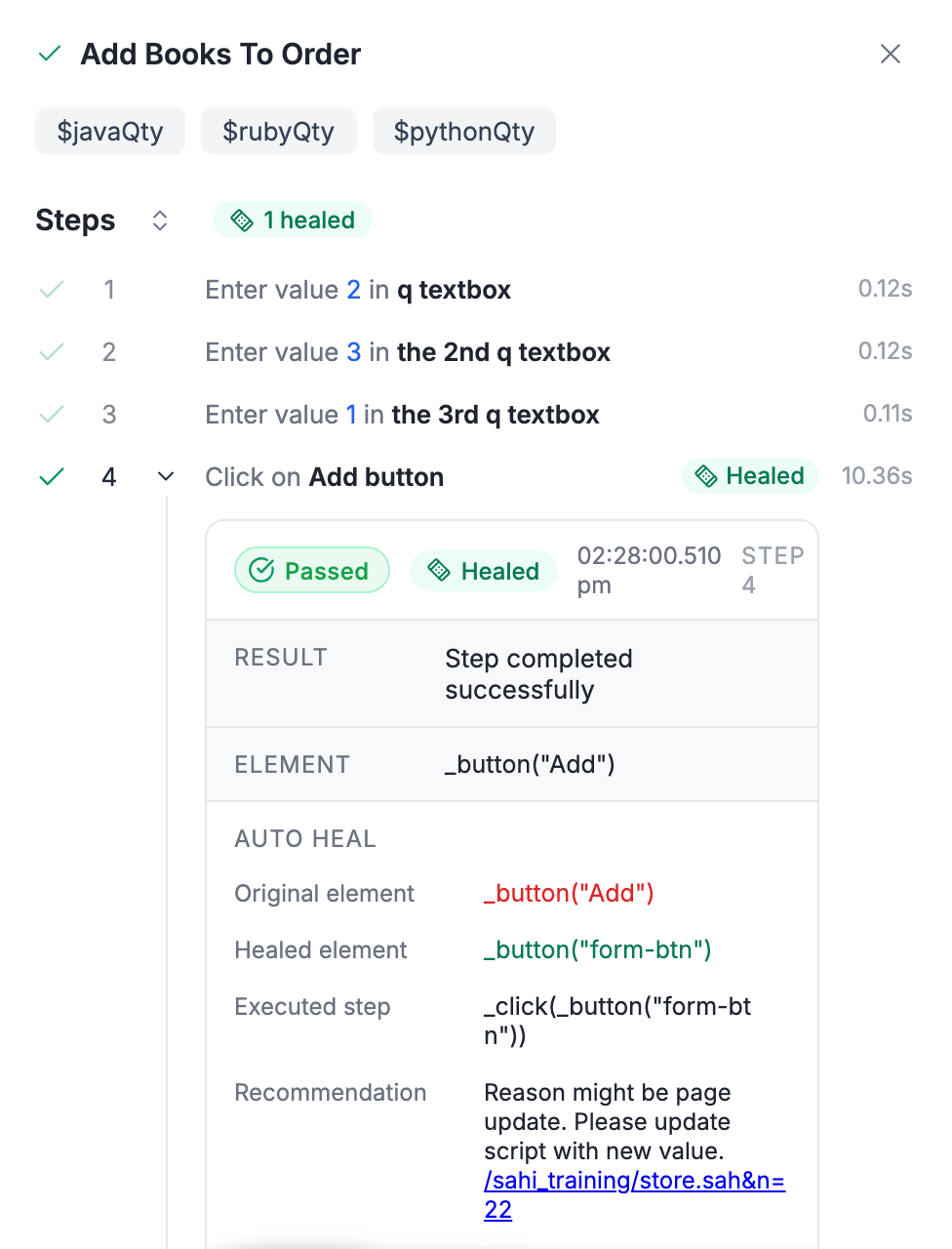
- Original element: the element in your test, which wasn’t found.
- Healed element: the element Sahi Pro used instead.
- Executed step: the step as it actually ran.
- Recommendation: what to do, with a link to the line in the keyword file to update.
Data-Driven Test Cases
Section titled “Data-Driven Test Cases”A test case that runs with a test data file runs once for each row. The report shows the data file and group under the test case, such as nightly_orders.csv - cart_totals, and how many sets ran, such as 3 sets executed.
Each set has its own row in a table, with its status and the values it used, one column for each column of the data file:
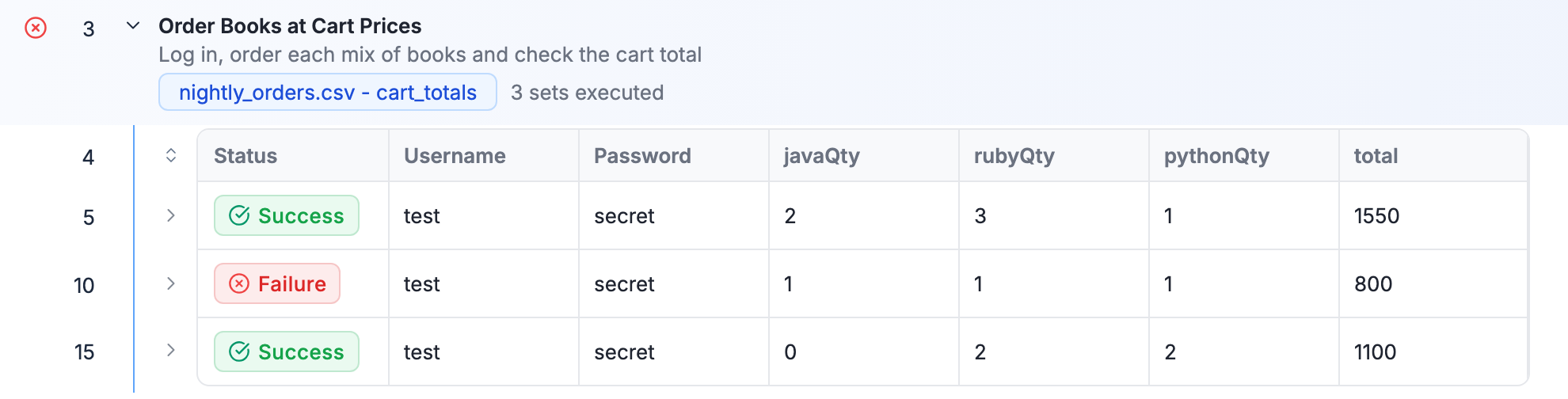
So when one set out of many fails, you can see straight away which values it used, such as 1, 1, 1 and 800. Click the arrow at the start of a row to see the keywords that ran with those values, or the arrows above the table to open or close every set.
Retried Test Runs
Section titled “Retried Test Runs”When a run is set to retry failed scenario files (Retry Count in the run’s Advanced Settings), the report keeps every attempt. The header shows which one you’re looking at. Click it to switch:
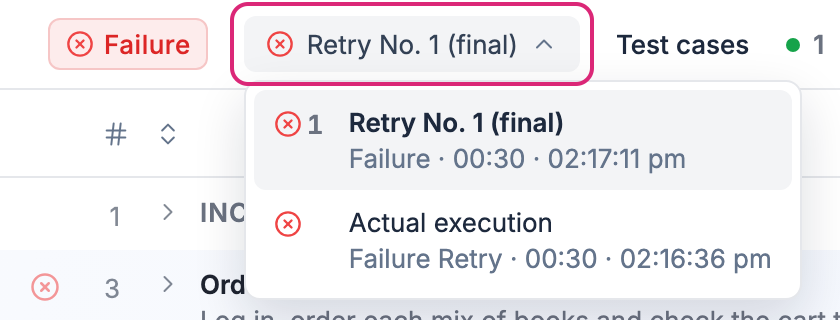
- Actual execution is the first attempt.
- Retry No. 1, Retry No. 2 and so on are the retries. The last one is marked (final), and its status is the file’s final status.
Choose What to Show
Section titled “Choose What to Show”Click Filters to choose what the report shows. The number on the button is how many are on:
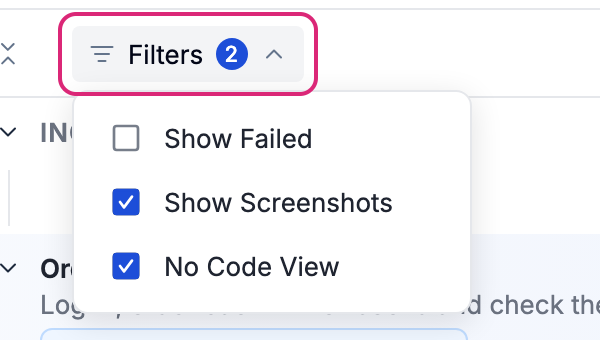
- Show Failed shows only the test cases that failed or hit an error. Turn it on in a long report to go straight to the problems.
- Show Screenshots shows the screenshots in each step’s details.
- No Code View shows the steps as sentences, such as “Enter value 2 in q textbox”. Turn it off to see each step as Sahi Script, such as
_setValue(_textbox("q"), "2").
Script Summary
Section titled “Script Summary”Click Script Summary for an overview of the file:
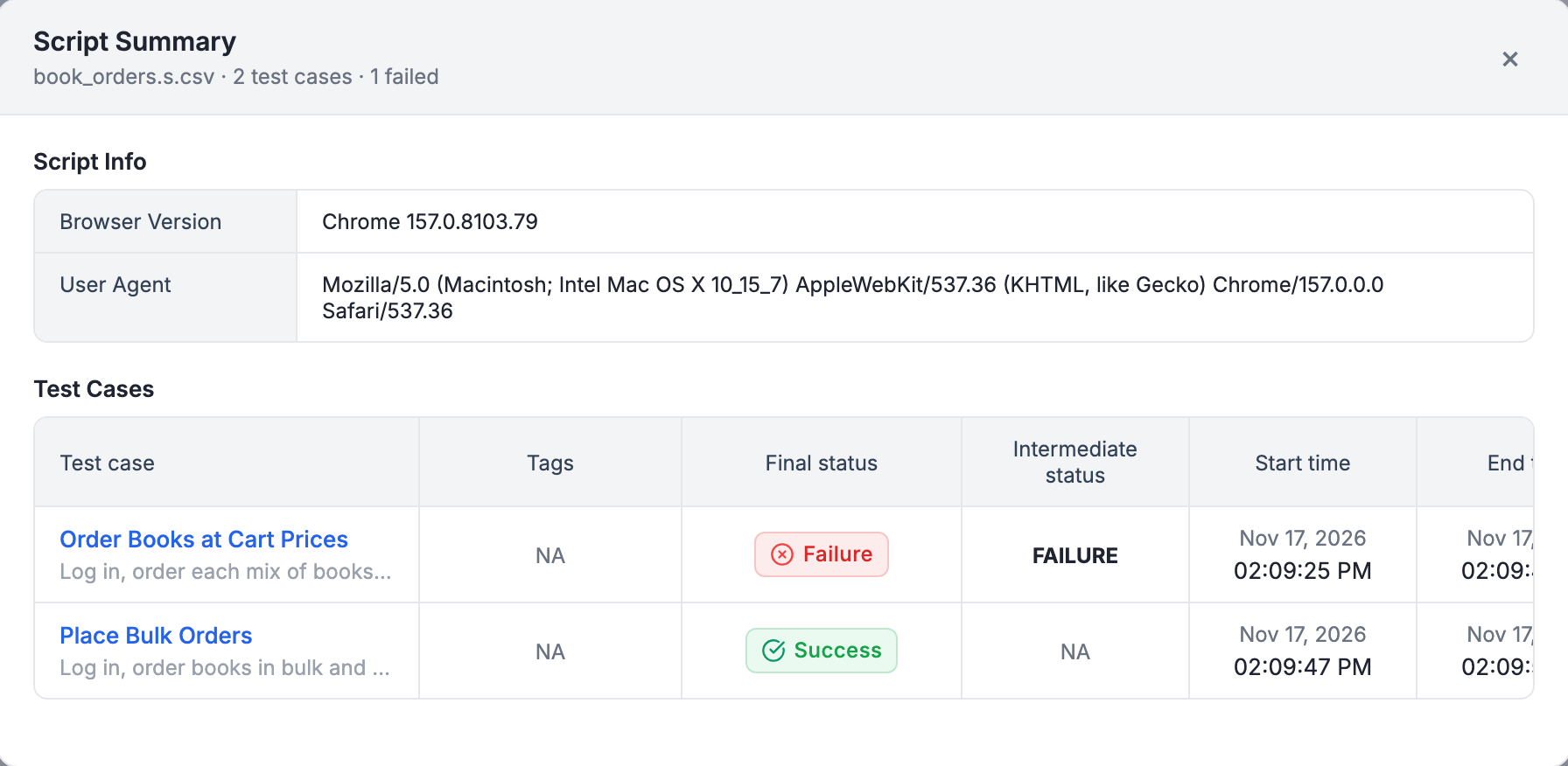
- Script Info: the browser version and user agent the file ran in.
- Test Cases: each test case with its tags, final status, intermediate status, and start and end time.
- Artifacts: the files the run saved, such as screenshots, when there are any.
Watch a Running Test and Export
Section titled “Watch a Running Test and Export”- Turn on Auto Refresh to follow a scenario file while it runs. The report reloads every 2 seconds until the file ends.
- Export has Export to PDF, Export to Excel and Download all Artifacts, the same as in the suite report.