

Reports List
Find a test run in the reports list, filter and arrange its columns, and compare, consolidate, download, sync or delete reports.
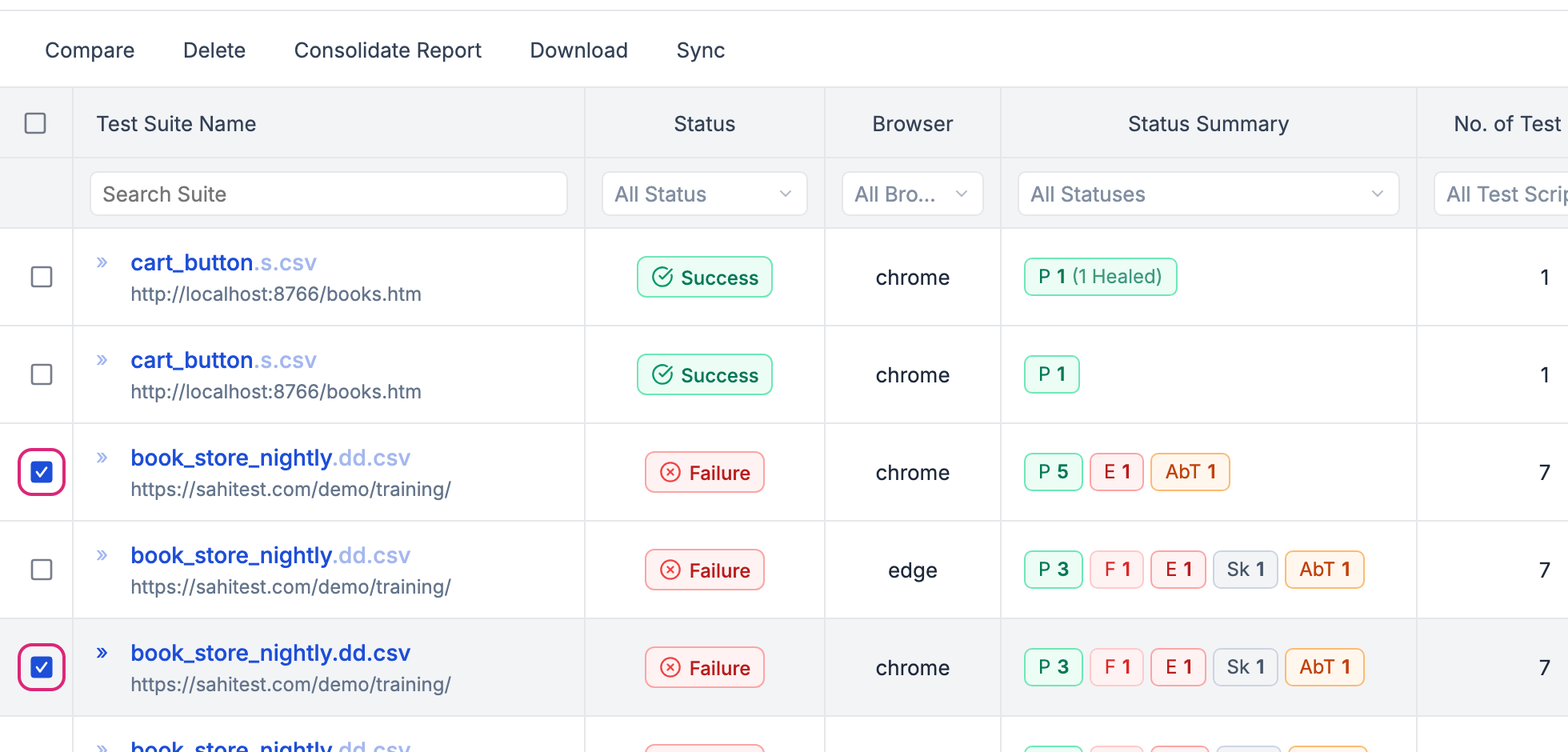
The reports list is the first page that opens in Reports. It lists every test run, newest first, so you can find the run you need, check how a suite has done over several runs, and share results with others.
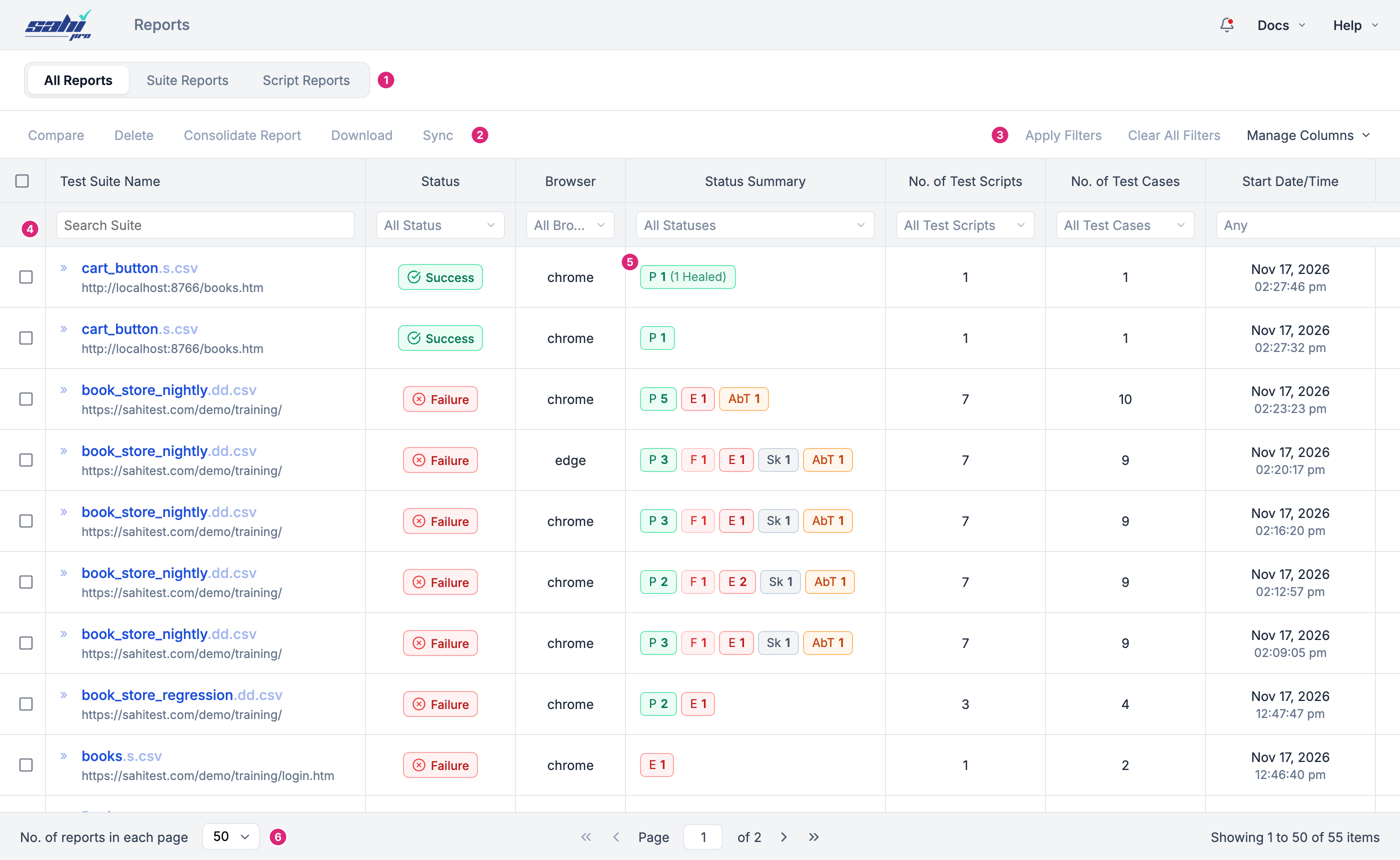
- Tabs: All Reports shows every run. Suite Reports shows only suite runs, and Script Reports only scenario files and scripts run on their own.
- Actions for the reports you select: Compare, Delete, Consolidate Report, Download and Sync.
- Apply Filters, Clear All Filters and Manage Columns (see Find a Run).
- Filter row: a filter under each column.
- Status Summary: how many scenario files ended with each status.
- Reports in each page: 10, 25, 50 or 100, with the page controls next to it.
What Each Column Shows
Section titled “What Each Column Shows”| Column | What it shows |
|---|---|
| Test Suite Name | The suite, scenario file or script, with the start URL under it. Click it to open its suite report. |
| Status | The run’s final status. |
| Browser | The browser the run used. |
| Android, iOS | The device the run used, for mobile runs. Hidden until you turn them on in Manage Columns. |
| Status Summary | A pill for each status, with the number of scenario files that ended with it: P passed, F failure, E error, Sk skipped, Ab aborted, AbT aborted timeout, NS not supported and InAb internal aborted. Healed files show in brackets, such as P 1 (1 Healed). Click a pill to open the suite report with only those files. |
| No. of Test Scripts | The number of scenario files and scripts in the run. |
| No. of Test Cases | The number of test cases in the run. |
| Start Date/Time, End Date/Time | When the run started and ended. |
| Time Taken | How long the run took. |
| Origin Machine | The machine the run came from. Runs synced from other machines show their machine name here. |
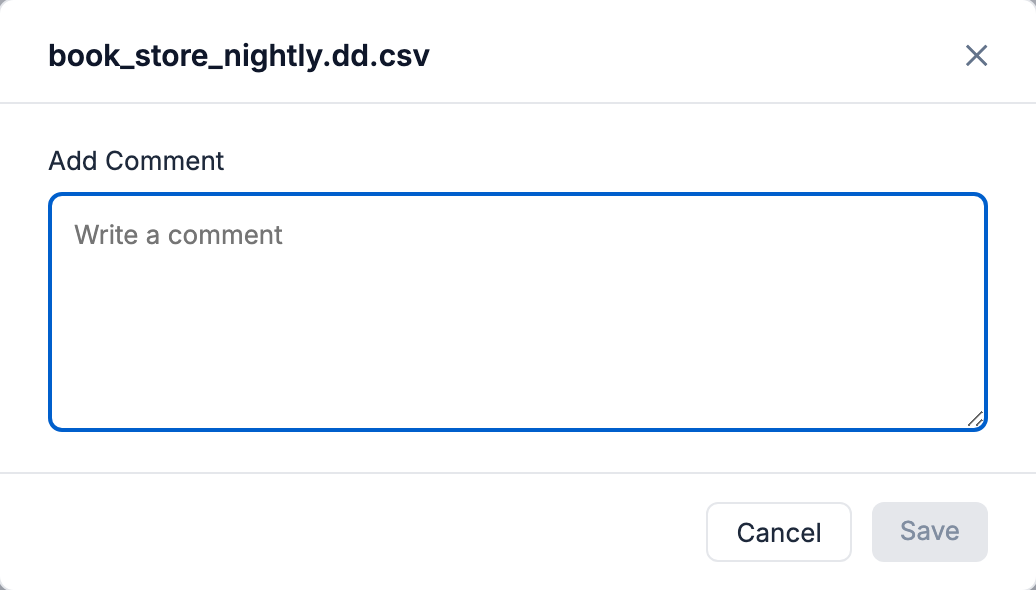
| Comment | A note anyone can add to a run, such as “Known issue in the payment page”. Click Add Comment, type the note and click Save. |
Find a Run
Section titled “Find a Run”The list holds every run ever saved, so it grows fast. Filter it to find the runs you need:
-
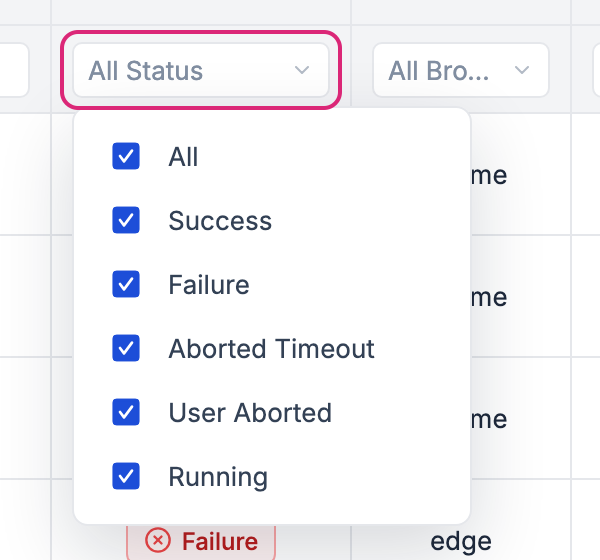
Set a filter under any column. For example, choose the statuses you want under Status:
The filters are:
Filter Choices Test Suite Name Type part of the name. Status, Browser, Status Summary, Origin Machine The values in the list, such as the statuses and browsers your runs have used. No. of Test Scripts, No. of Test Cases 1, 2 - 5, 6 - 10, More than 10. Start Date/Time Any, Today, Yesterday, Last 7 days, Last 30 days, or a Custom range with From and To dates. Time Taken Under 1 min, 1 - 5 min, 5 - 10 min, Over 10 min. Comment Type part of the comment. -
The list narrows straight away, to the runs on the page. Click Apply Filters to search every saved report.
-
Click Clear All Filters to see all runs again.
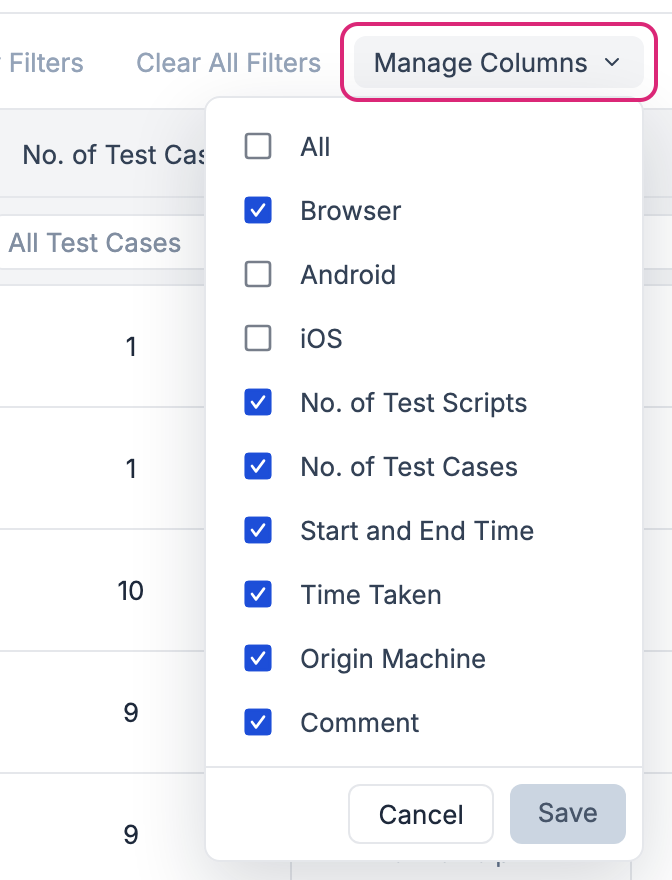
To show or hide columns, click Manage Columns, tick the columns you want and click Save:
Select Reports
Section titled “Select Reports”The actions work on the reports you select. Tick the box at the start of each row, or the box in the heading row to select every report on the page:
Compare Runs
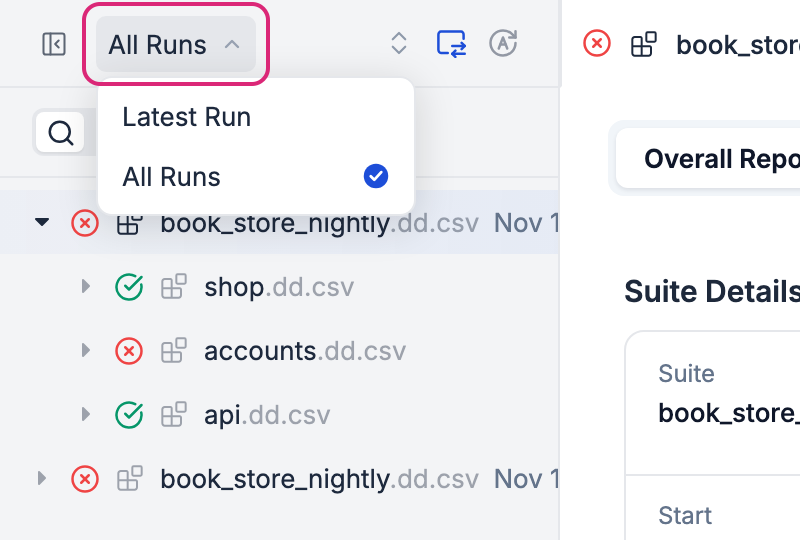
Section titled “Compare Runs”When a run fails, the first question is often whether it failed the last time too. Select two or more runs of the same suite and click Compare. The newest one opens as a suite report, with the navigator’s menu set to All Runs, so the runs you selected are listed one below the other. Click a run to open its report:
Consolidate Reports
Section titled “Consolidate Reports”To share the results of several runs at once, such as every suite run of a release, select the runs and click Consolidate Report. It shows each run’s Status Summary, No. of Scripts, Test Case Status Summary, No. of Test Cases and Origin Machine, with a Total row:
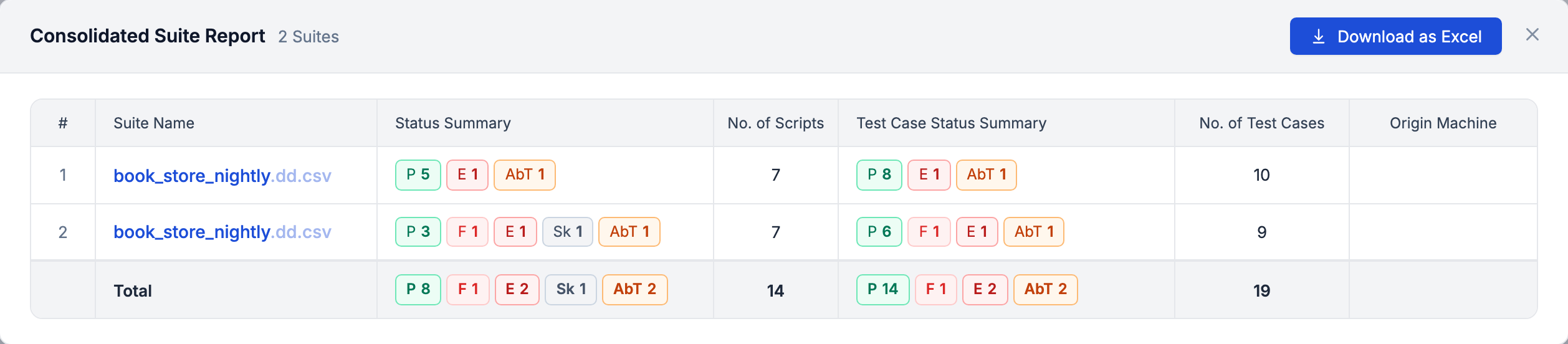
Click Download as Excel to save it as a spreadsheet.
Download Reports
Section titled “Download Reports”To keep reports outside Sahi Pro, or to attach them to an email or a CI build, download them as files:
-
Select the reports.
-
Click Download.
-
In Download As, choose a format and click Download:
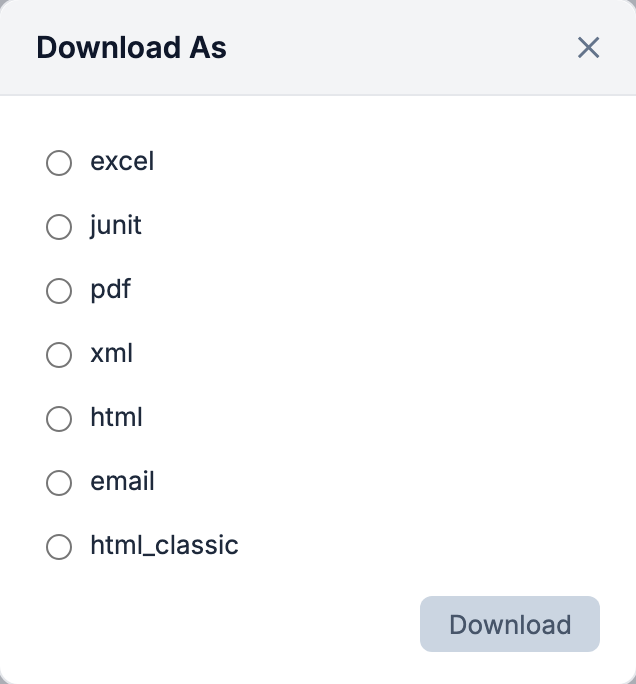
Format Gives you html The reports as web pages you can open without Sahi Pro. html_classic The same reports in a simpler layout. pdf A PDF of each report. excel A spreadsheet of the results. junit JUnit XML, for CI tools such as Jenkins. xml The report data as XML. email A short HTML summary, the kind sent in report emails.
To download the reports of some scenario files inside a suite, use Download Reports in the suite report. To add your own format, see Customize Reports.
Sync Reports
Section titled “Sync Reports”When tests run on several machines, each machine keeps its own reports. Sync sends them to one central Sahi Pro, so everyone can see all the runs in one list:
-
Select the reports.
-
Click Sync.
-
Fill in the dialog and click Sync:
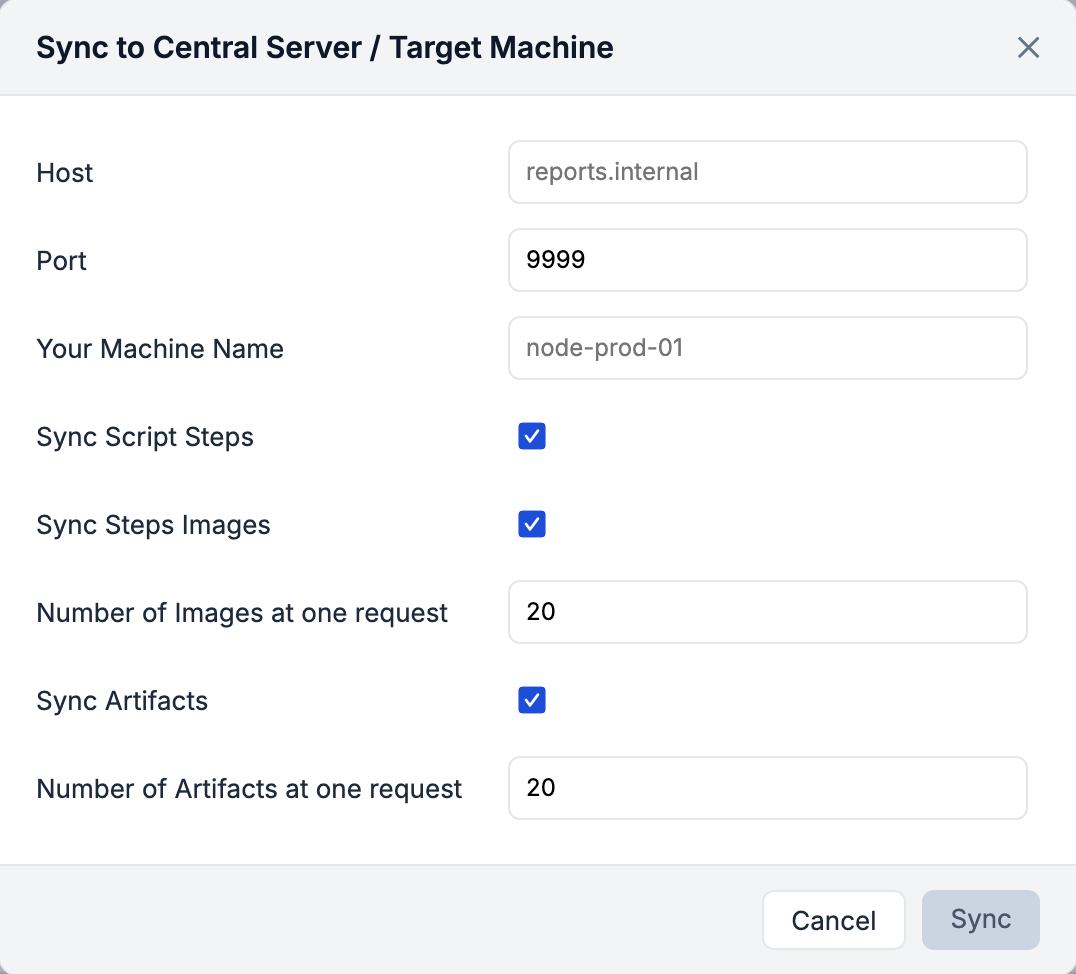
Field What to enter Host, Port The central Sahi Pro machine, such as reports.internaland9999.Your Machine Name The name this machine’s runs get in Origin Machine on the central machine. Sync Script Steps Send each step, not only the totals. Sync Steps Images Send the screenshots, in batches of Number of Images at one request. Sync Artifacts Send the other files saved with the run, in batches of Number of Artifacts at one request.
To sync every run automatically when it ends, see Sync Reports to Central Database.
Delete Reports
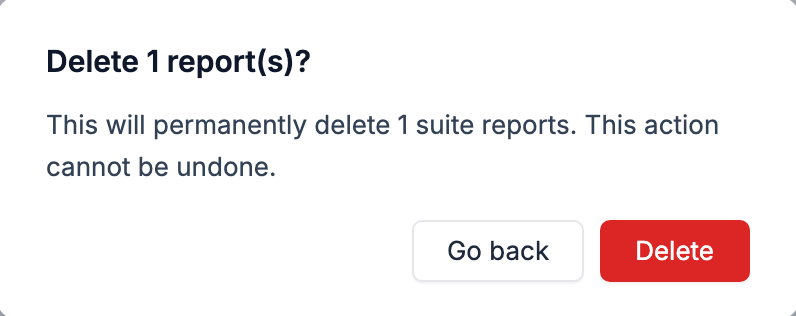
Section titled “Delete Reports”Old reports take space in the database. Select the reports you no longer need and click Delete. Sahi Pro asks first, because a deleted report can’t be brought back:
To delete reports by age or by time taken, from the command line, see Delete Old Reports.