

Run Tests via Controller
Run a keyword, part of a test case or all of it from the Sahi Controller while you build it, step through a run, fill in missing variables and see the result.
While you build a keyword, the Sahi Controller runs it straight away in the browser you’re recording in, so you can check your work without leaving it.
Run Part of a Test Case
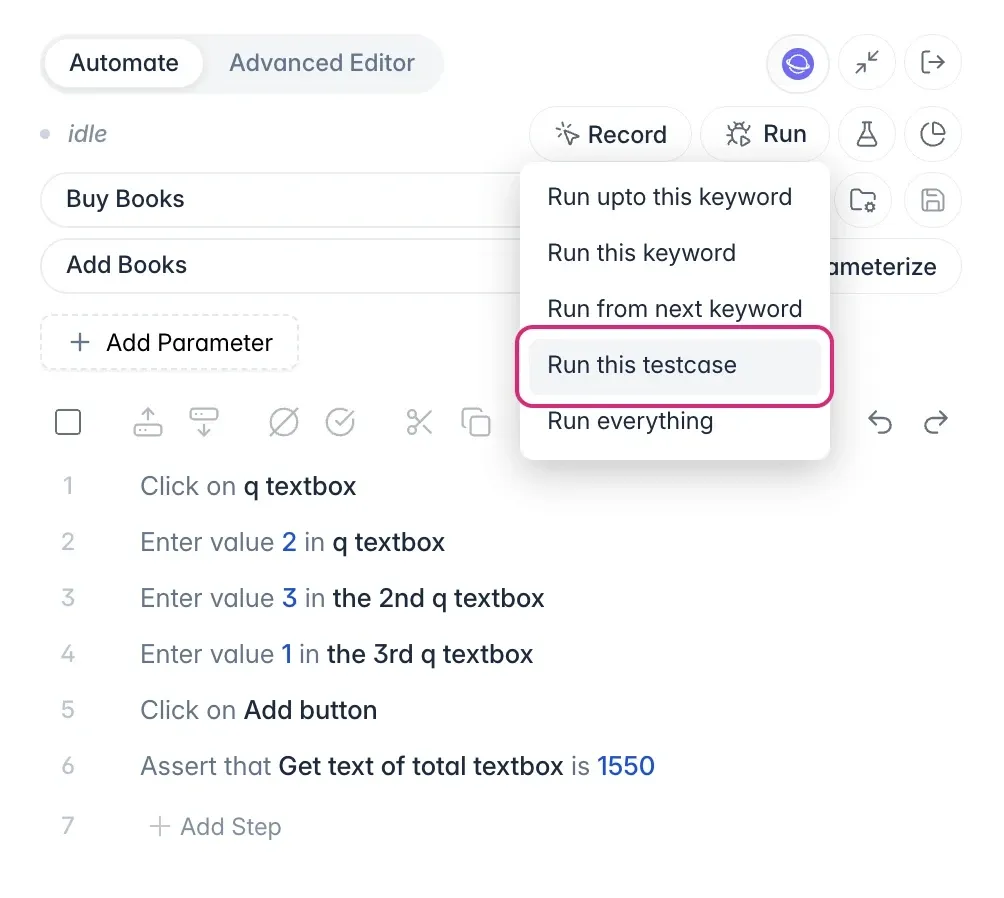
Section titled “Run Part of a Test Case”You don’t always need to run the whole test case to check your work. Run only the part you’re working on, or all of it. Hover over Run and choose:
- Run upto this keyword
- Run this keyword
- Run from next keyword
- Run this testcase
- Run everything
Pause and Step Through a Run
Section titled “Pause and Step Through a Run”If a run fails and you can’t see why, pause it and go one step at a time to find the step that goes wrong. While it runs, use Pause, Play, Step (one step at a time) and Stop.
Fill In Missing Variables
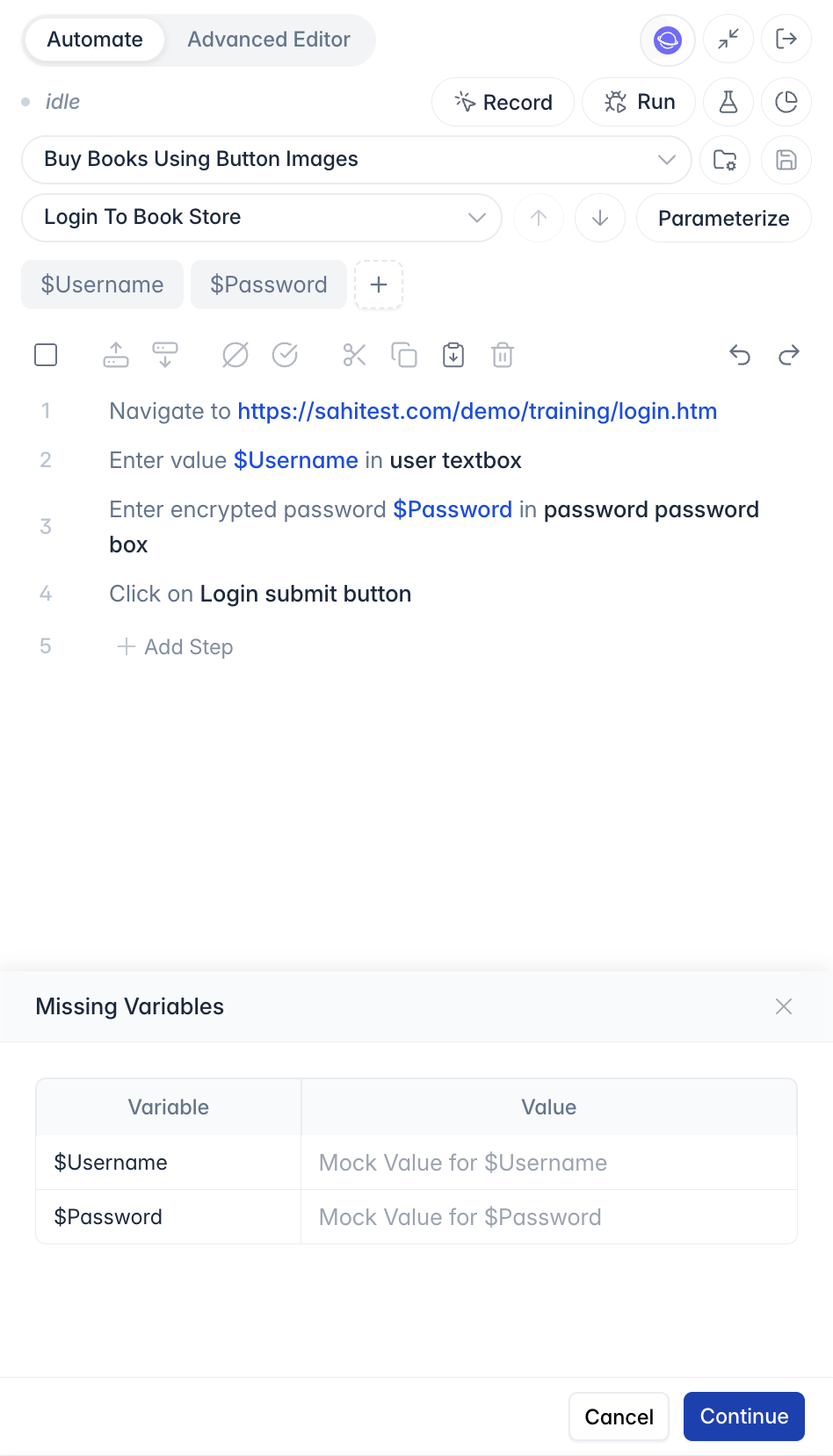
Section titled “Fill In Missing Variables”A keyword often gets its values from somewhere else: its parameters from the test case or a test data file, or a value stored by an earlier keyword. Run that keyword on its own, such as Login To Book Store with Run this keyword, and nothing passes those values in. Missing Variables lists them so you can type a value for each, then click Continue.
See the Result
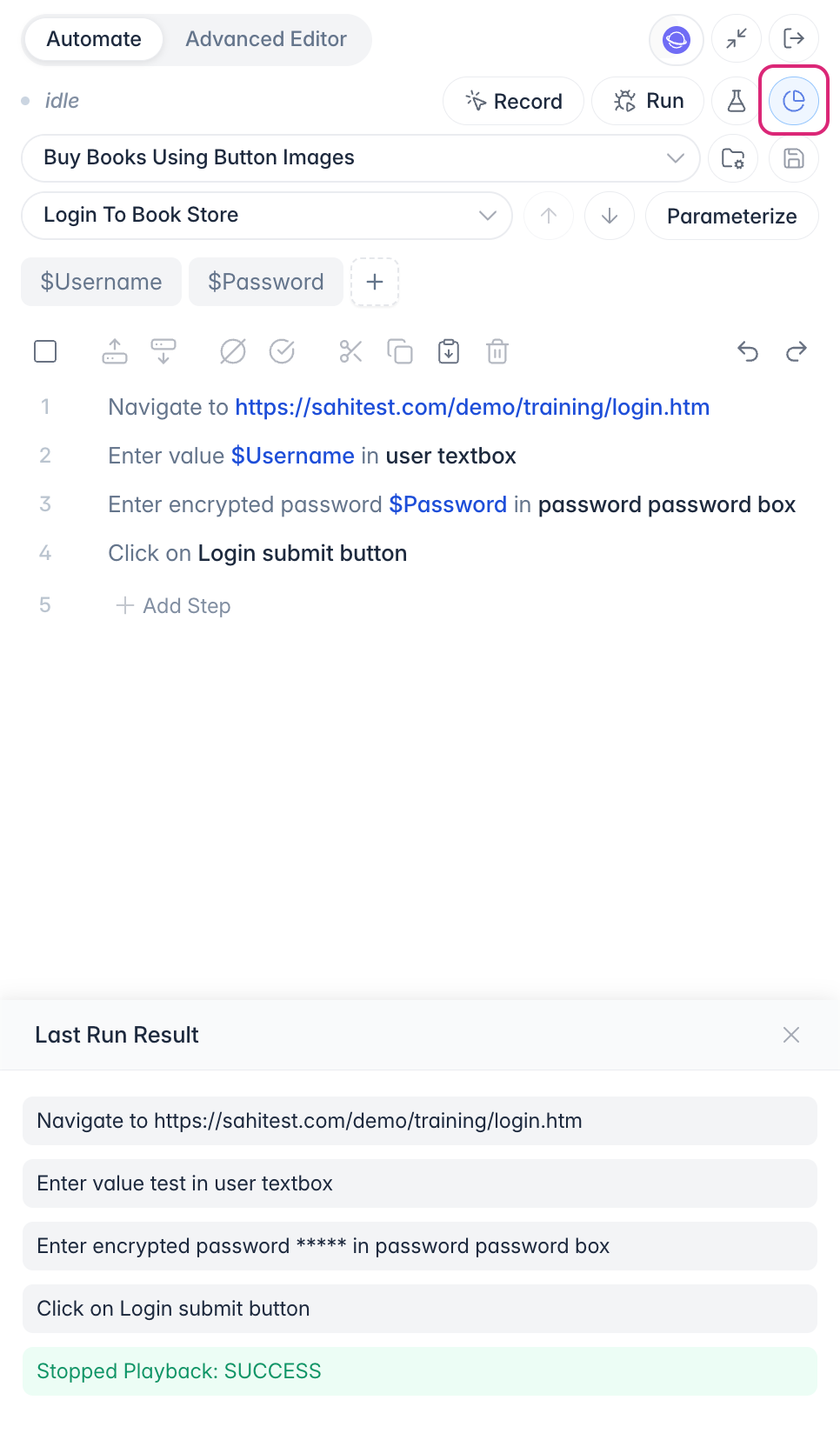
Section titled “See the Result”When the run finishes, View Last Run Result shows each step’s result, and Reports in the bottom bar opens the full report.
If a run waits for a long time, Diagnose in the ⋮ menu helps find out why. See Debugging slowness using Diagnose.