Run Tests on Mobile Browsers
Since Sahi uses a proxy and injects Javascript, Sahi scripts can run on most mobile browsers.
Pre-requisites
Section titled “Pre-requisites”-
The Mobile device and System on which Sahi Pro is running should be on the same network.
-
Find the IP of the laptop (using ipconfig on Windows). We will call it the
laptopIP -
Configure the proxy settings on the device with proxy host
laptopIPand Sahi port9999a) Run below commands in the command prompt (this will set proxy globaly and takes effect right away):
-
To set proxy in Android device/emulator:
adb shell settings put global http_proxy <host>:<port>Eg.
adb shell settings put global http_proxy 10.10.2.50:9999-
To check proxy of Android device/emulator:
adb shell settings get global http_proxyTo disable proxy in Android device/emulator:
adb shell settings put global http_proxy :0
-
b) Alternetive way to set proxy in Android device/emulator are below:
For
Android device/emulatorhaving version 8 and above,- Turn off the mobile data.
- Go to Settings > Network & internet > wi-fi > (AndroidWifi) settings > Edit > Advanced options > Proxy > Select the Manual Proxy.
- Configure Proxy.
- After setting the proxy, please turn off the wi-fi and turn on again to reflect the proxy.
For
Android emulator onlyhaving version 7 and below,- Go to Settings > Wireless & networks > Cellular networks > Access Point Names > (create)Sahi_Proxy.
- Configure APN.
APN:localhost.sahitest.com
proxy host:laptopIP from previous step
proxy port:9999
-
Run From Mobile Device
Section titled “Run From Mobile Device”-
Start Sahi on a laptop that is on the same network as the mobile device.
-
On the mobile browser, navigate to
http://laptopIP:9999/. eg.http://10.10.2.50:9999/ -
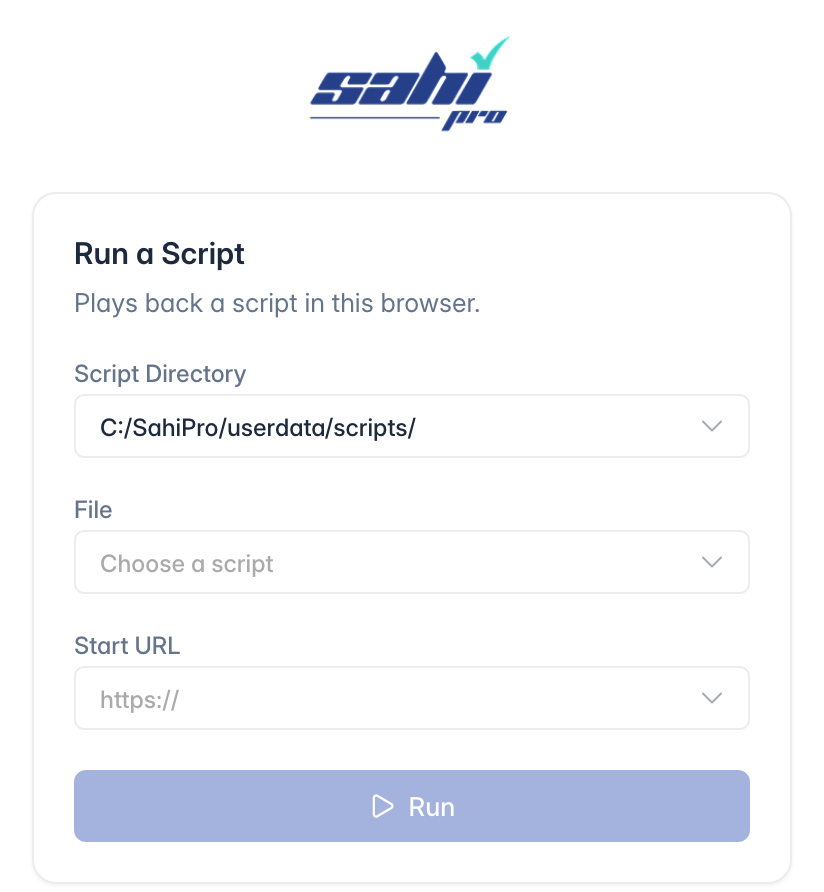
The Sahi Pro start page opens, with Run a Script at the top:
-
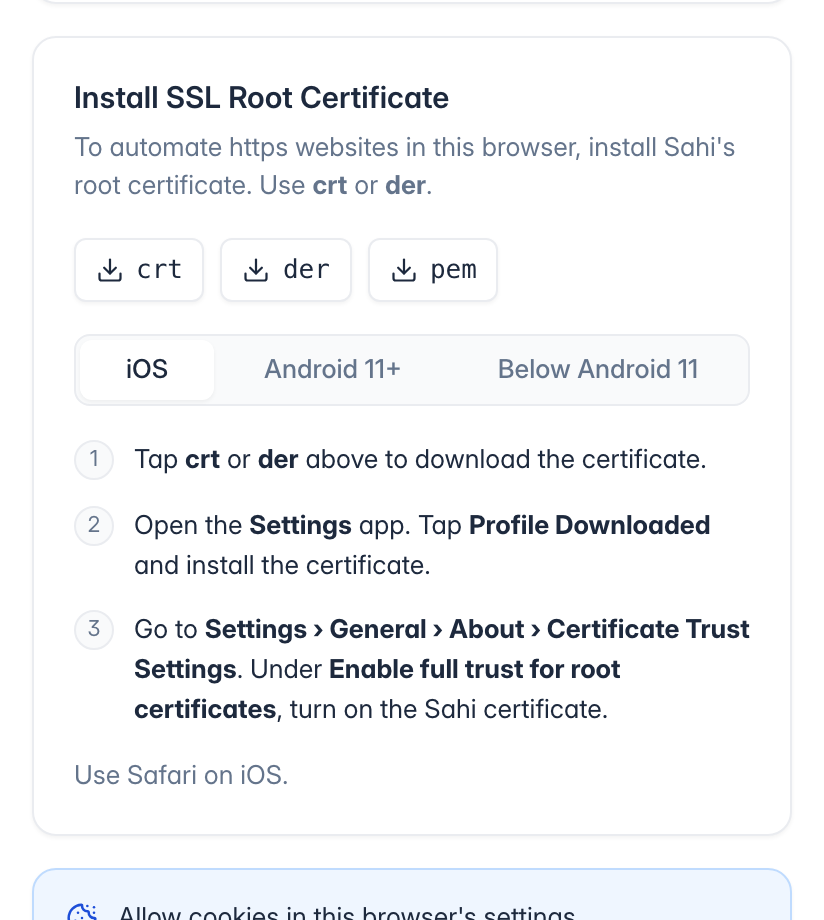
For automating HTTPS websites in mobile browsers, Sahi’s root certificate must be installed. Below are the steps to install Sahi’s root certificate:
-
In Install SSL Root Certificate on the start page, tap crt or der to download Sahi’s root certificate. The tabs below the buttons repeat the steps for iOS, Android 11+ and Below Android 11:
For Android 11 and above version
- Open Settings.
- Go to Biometrics/Security > Other security settings/Credential Storage (depend on devices) > Install certificates from storage > CA Certificate.
- Accept the warning alert.
- Browse to the downloaded certificate and select it.
- Confirm the certificate installation.
For below Android 11 version
- Open the downloaded file (if not open automatically) and proceed to the certificate installation process.
For iOS device
-
Open the Settings app on your iOS device.
-
You should see a notification that a
Profile Downloadedoption is available.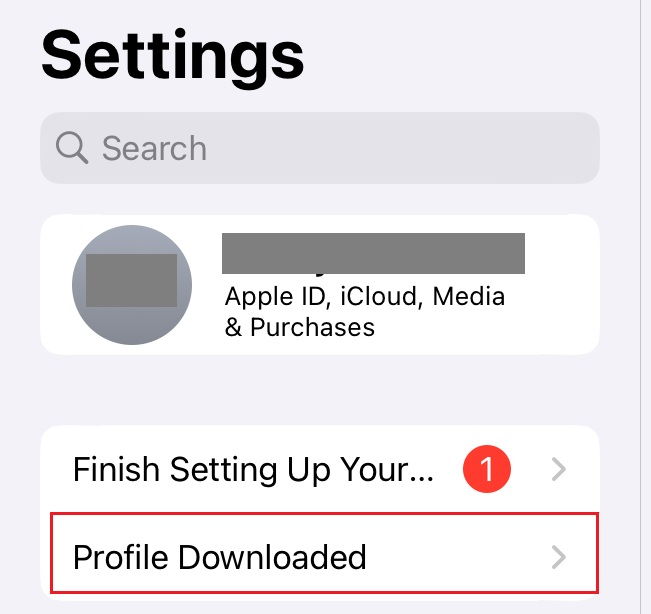
-
Tap on the
Profile Downloadedand proceed to the certificate installation process. -
In order to open SSL websites in iOS device, turn on SSL trust for Sahi root certificate. Go to
Settings→General→About→Certificate Trust Settings. UnderEnable full trust for root certificates, enable trust for the certificate.
-
-
Ensure that cookies are allowed in the mobile browser settings.
-
In Run a Script, choose the File to run, enter the Start URL, and tap Run.
Run Android Browser Script From Sahi Pro Editor
Section titled “Run Android Browser Script From Sahi Pro Editor”-
Install Sahi Pro Mobile Web Runner on the device.
-
Launch the application on the device.
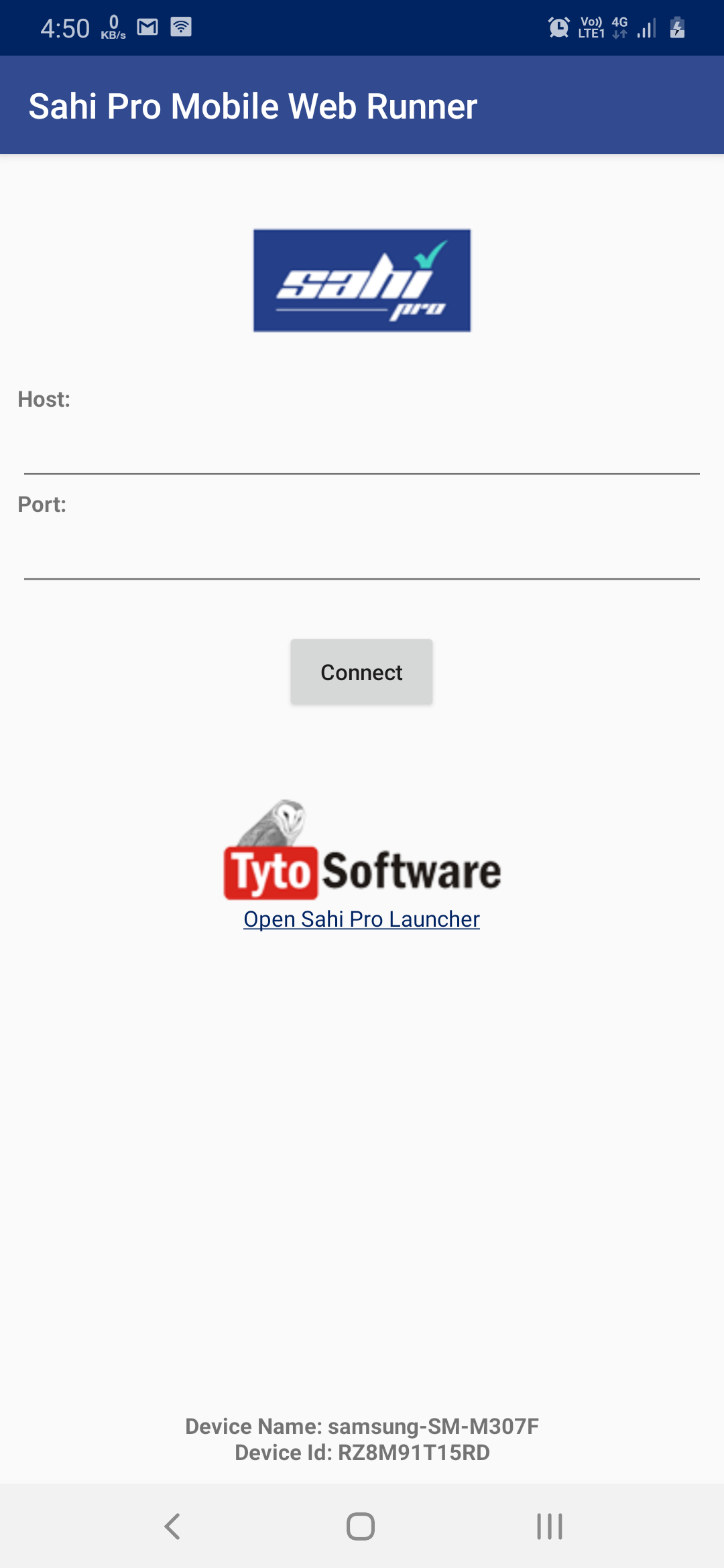
-
Configure the proxy host and port in the application and Click on
Connect.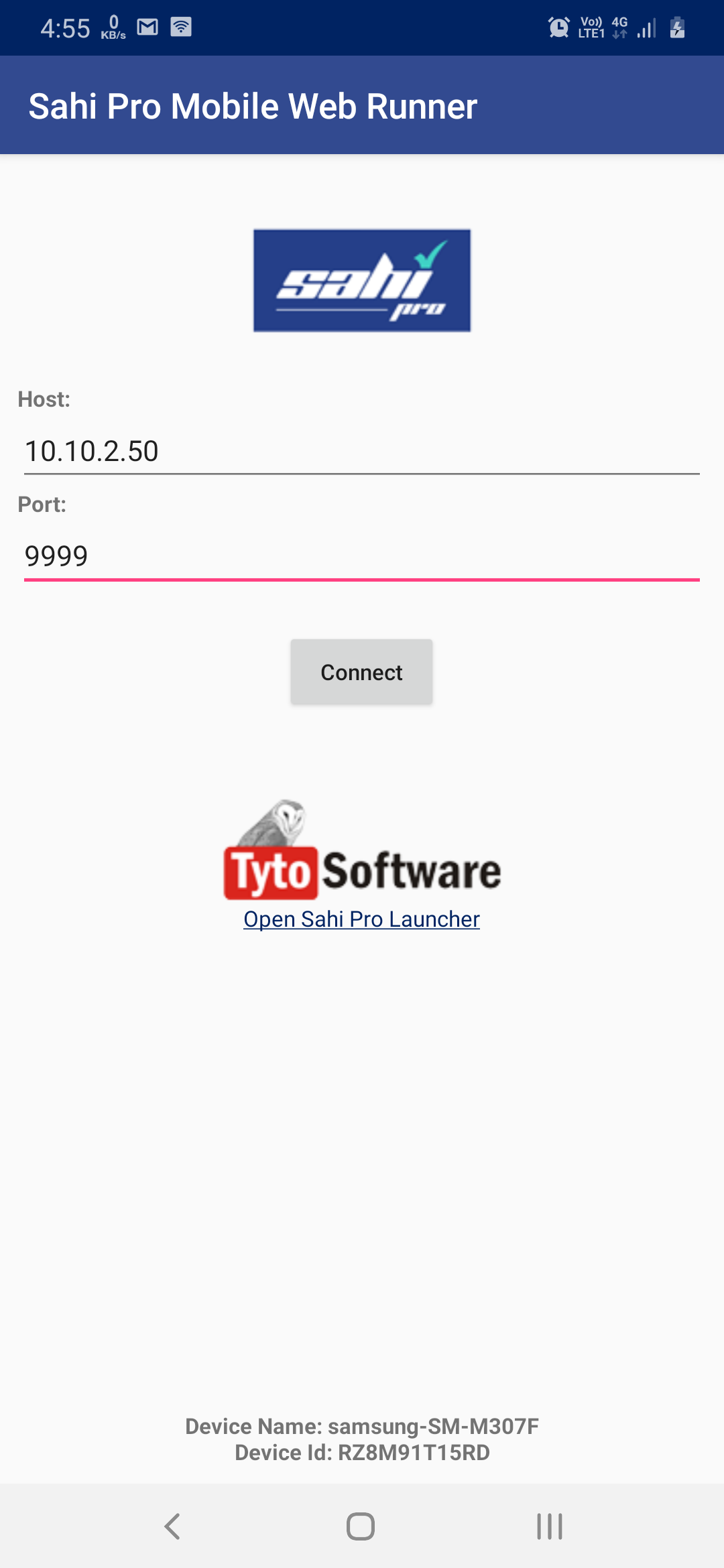
-
You will prompt to allow
Screen Cast. Click onStart Now.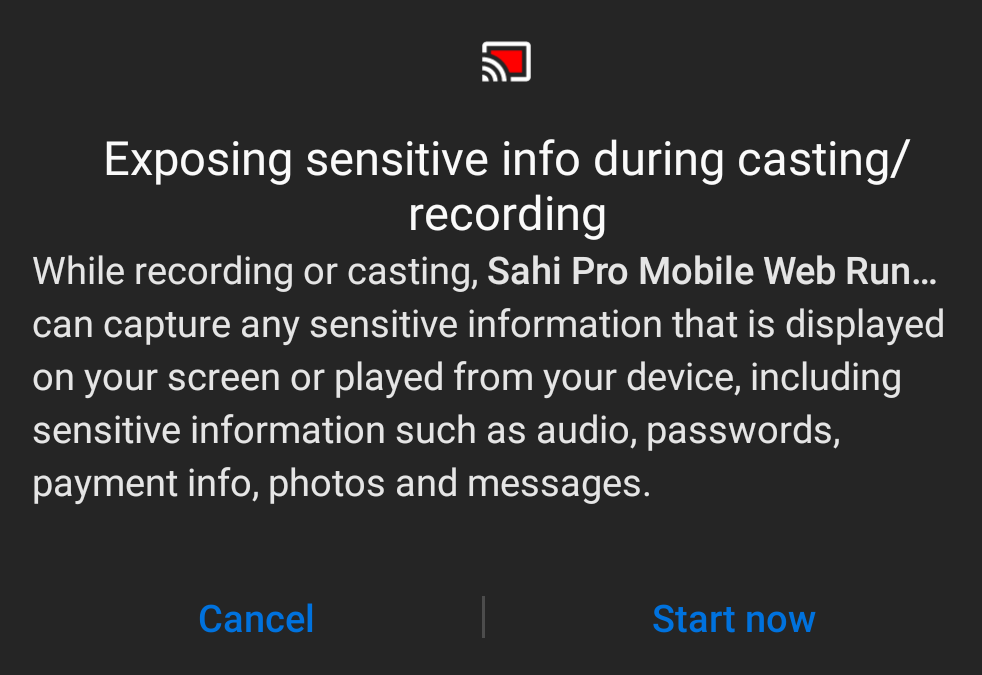
-
Once the application is connected to Sahi Pro,
connection establishedmessage will be shown on the application.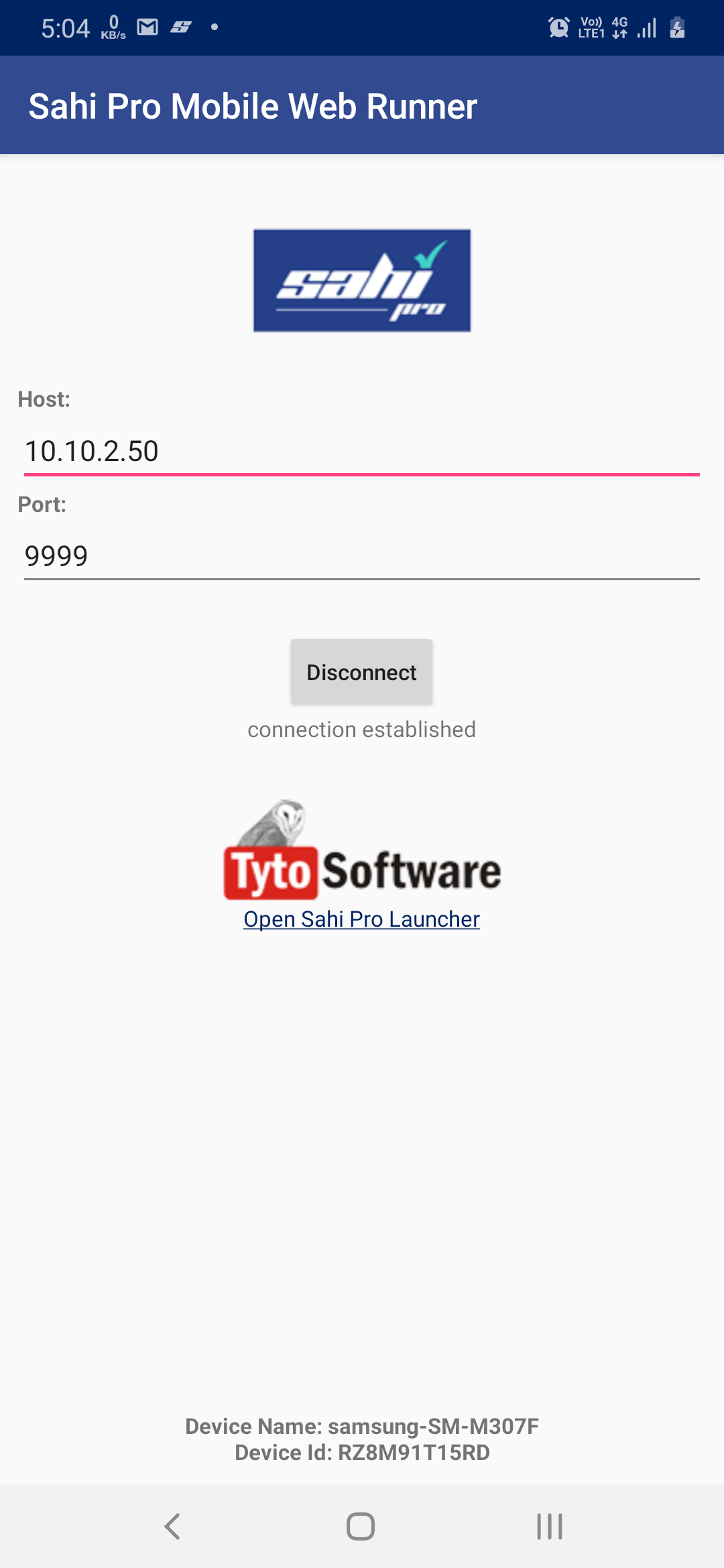
-
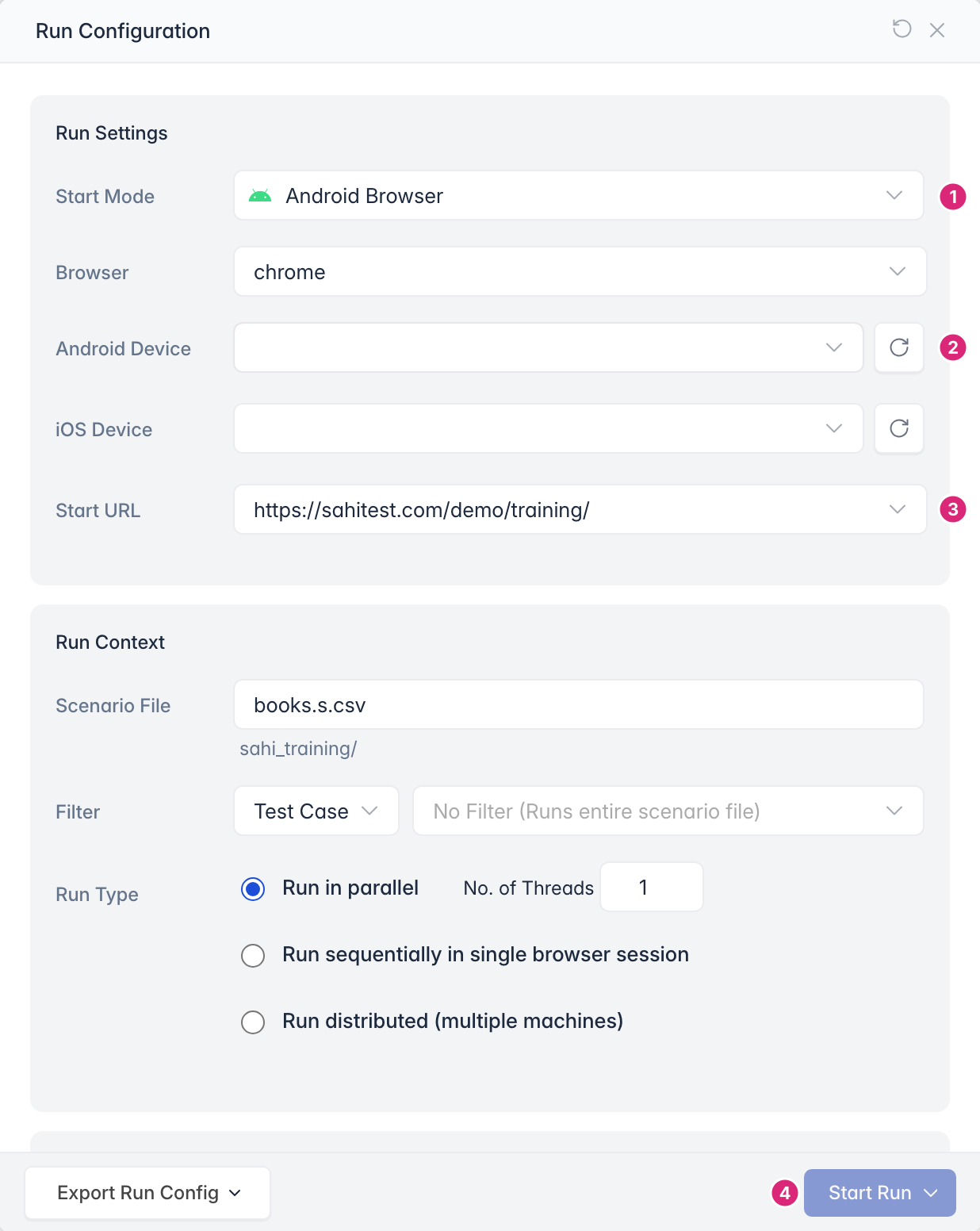
In the Editor, open the test to run in the Android browser, then:
- Click Run to open the Run Configuration, and choose Android Browser in Start Mode.
- Choose the device in Android Device. Click the refresh icon next to it if the device isn’t listed.
- Enter the Start URL.
- Click Start Run.
Run iOS Browser Script From Sahi Pro Editor
Section titled “Run iOS Browser Script From Sahi Pro Editor”-
Follow the
step 1tostep 5from Run From Mobile Device. -
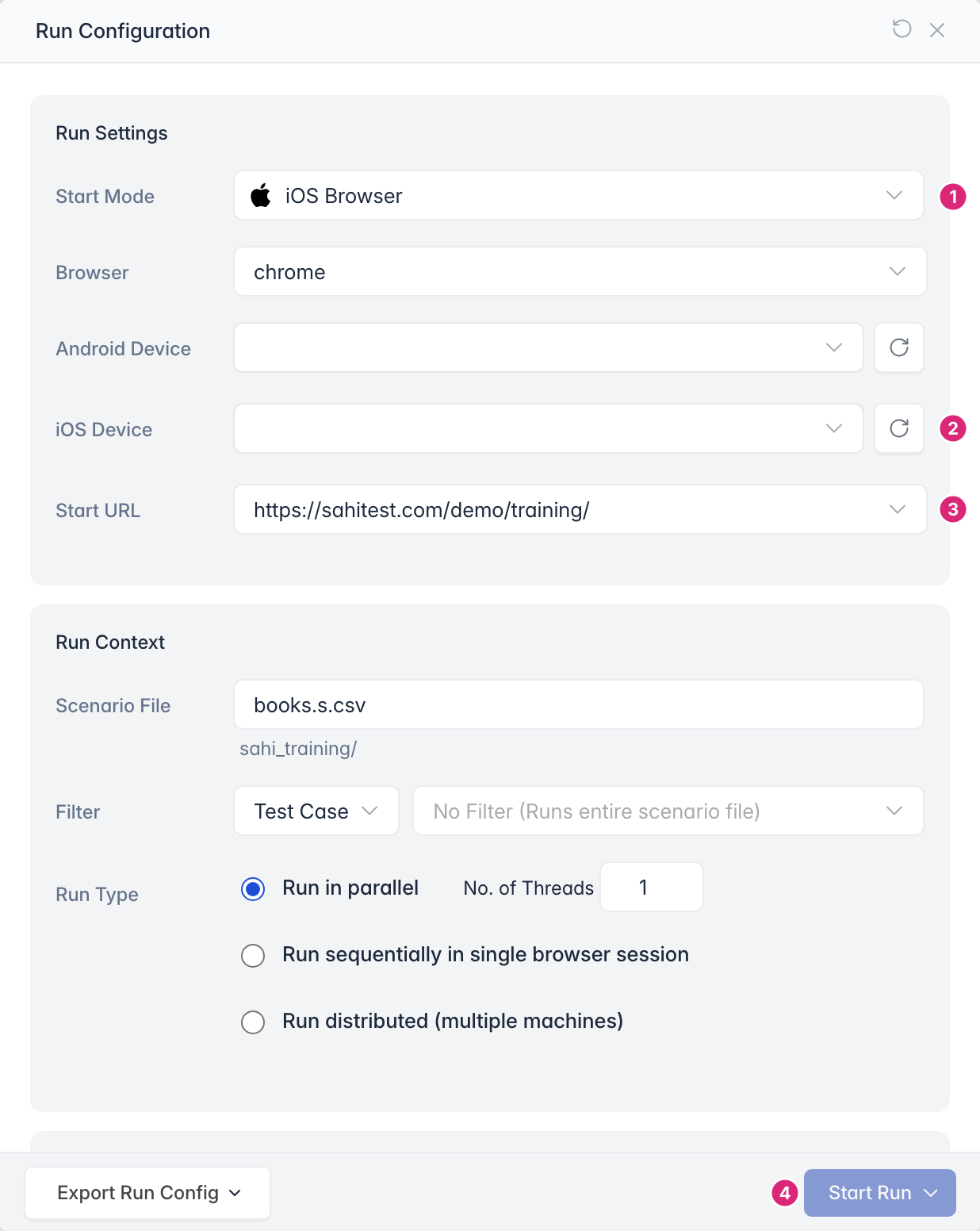
In the Editor, open the test to run in the iOS browser, then:
- Click Run to open the Run Configuration, and choose iOS Browser in Start Mode.
- In iOS Device, choose the device that has
Remotein its name. - Enter the Start URL.
- Click Start Run.