Parameters and Data Generators
Turn a keyword's recorded values into parameters, so each test run can use new data from a data generator or a test data file.
Say you record signing up a user called john. The keyword now enters john on every test run. The first run works, but the next one fails if the application doesn’t allow the same username twice. To avoid this, replace the recorded values with parameters, so each run can use different data. The data comes from one of two places:
- A data generator makes a new value on every test run, such as a new username each time. This page shows how.
- A test data file holds the exact values to use, one row per test run. Loop Through a Test Data File shows how.
On this page, you record a keyword that registers a user on the sample application, and let data generators fill in the form.
Record the Keyword
Section titled “Record the Keyword”- Create a scenario file named
register, the same way you createdbooks. - Add a test case named
Register New User, with one keyword,Register User. Select the keyword and keep the suggested keyword file. - With Register User selected, click Automate. Set Start URL to
https://sahitest.com/demo/training/register.htmand click Launch Controller. - Click Record, then fill in the form in the browser:
- Username:
john - Password and Confirm Password:
secret123 - Address:
12th main street - the terms checkbox
- Username:
- Click Register, then click Stop Recording and Save in the Controller.
Sahi Pro records the passwords encrypted. It also records a check that the Registered Successfully message appeared.
Parameterize the Keyword
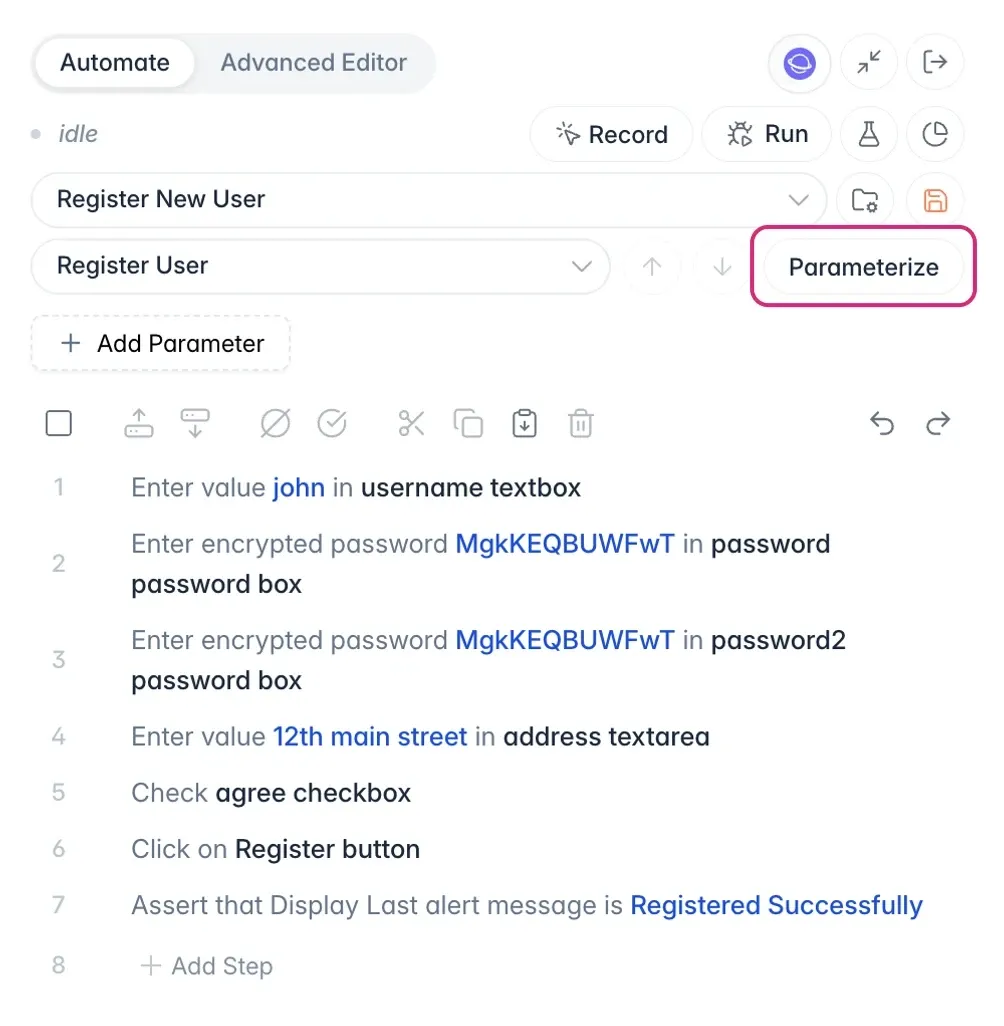
Section titled “Parameterize the Keyword”You can parameterize a keyword in the Controller, right after you record it, or later in the No-Code Test Editor. Both have a Parameterize button and open the same dialog. Here, you use the Controller.
-
In the Controller, with Register User selected, click Parameterize.
-
The Parameterize dialog lists each recorded value, with a parameter name that Sahi Pro suggests, such as
$Username. You can rename any of them.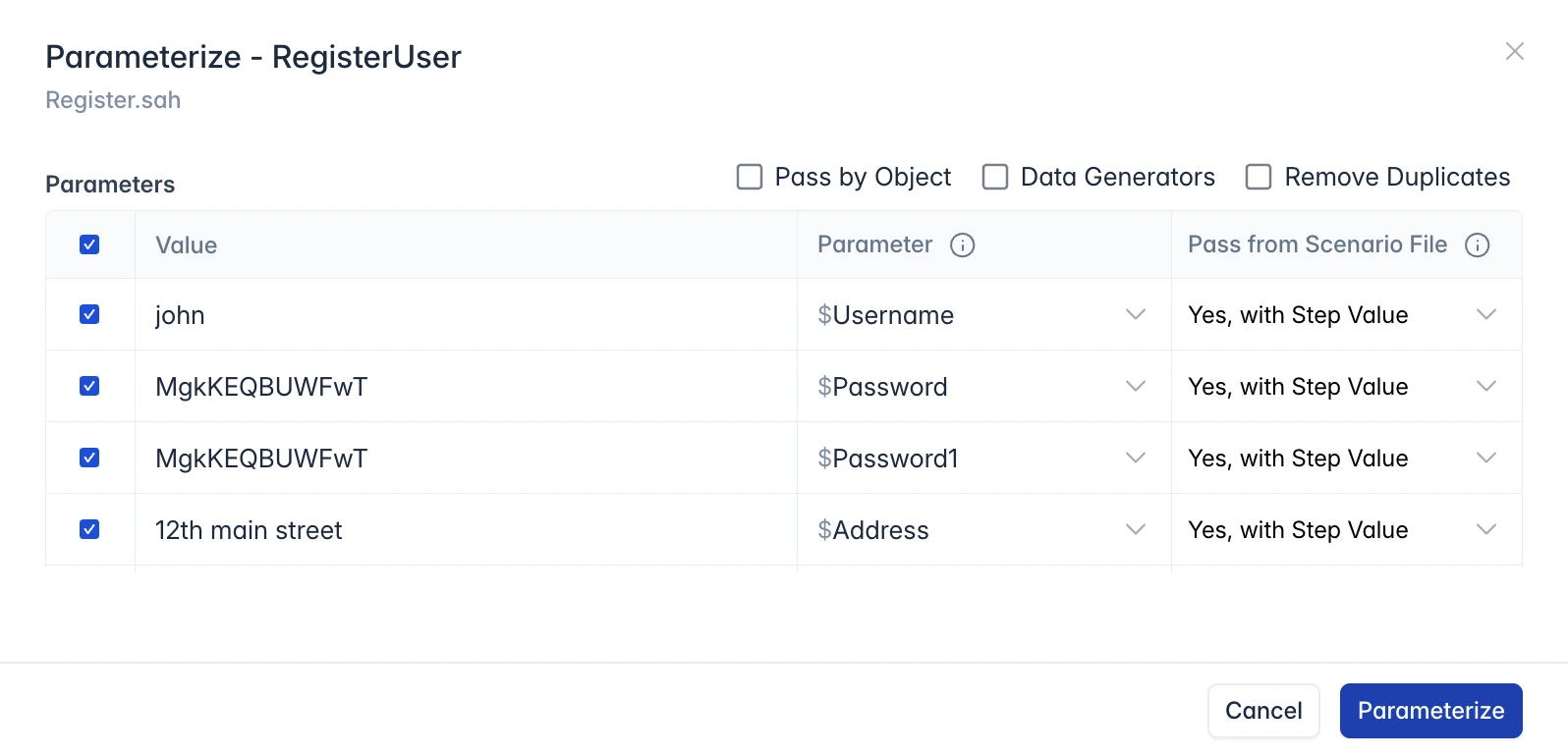
-
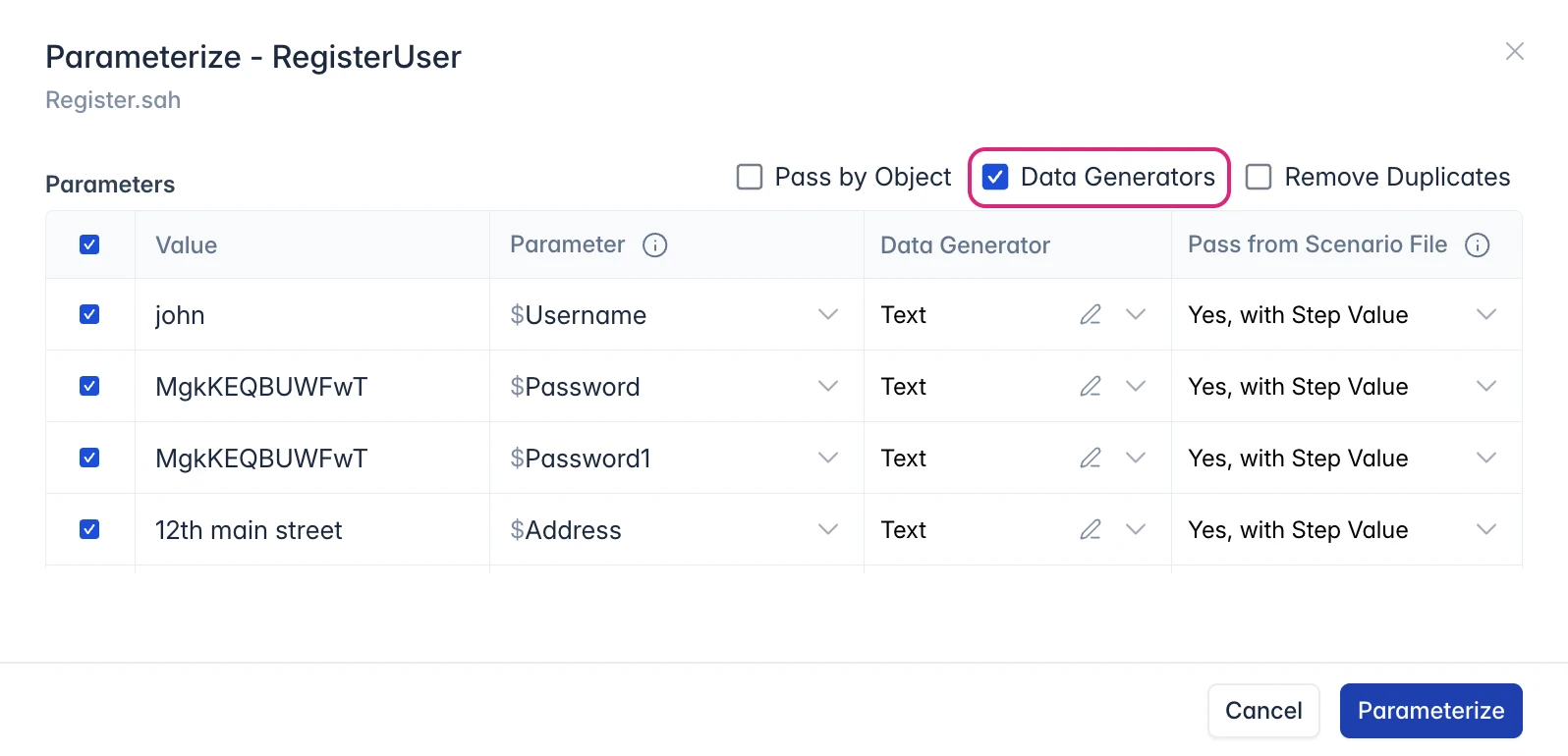
Select the Data Generators checkbox. It’s off by default. A Data Generator column appears, and each parameter gets a generator, such as Text. Each parameter still uses its recorded value until you choose which ones should use their generator.
-
In Pass from Scenario File, choose where each parameter’s value comes from:
- Yes, with Step Value uses the recorded value. Every row starts here.
- Yes, with Scenario Value uses a value you pass to the keyword from the scenario file.
- No Value, using Data Generator uses a new value from the generator on every test run. You can choose it when Data Generators is selected.
Open the list in the
johnrow.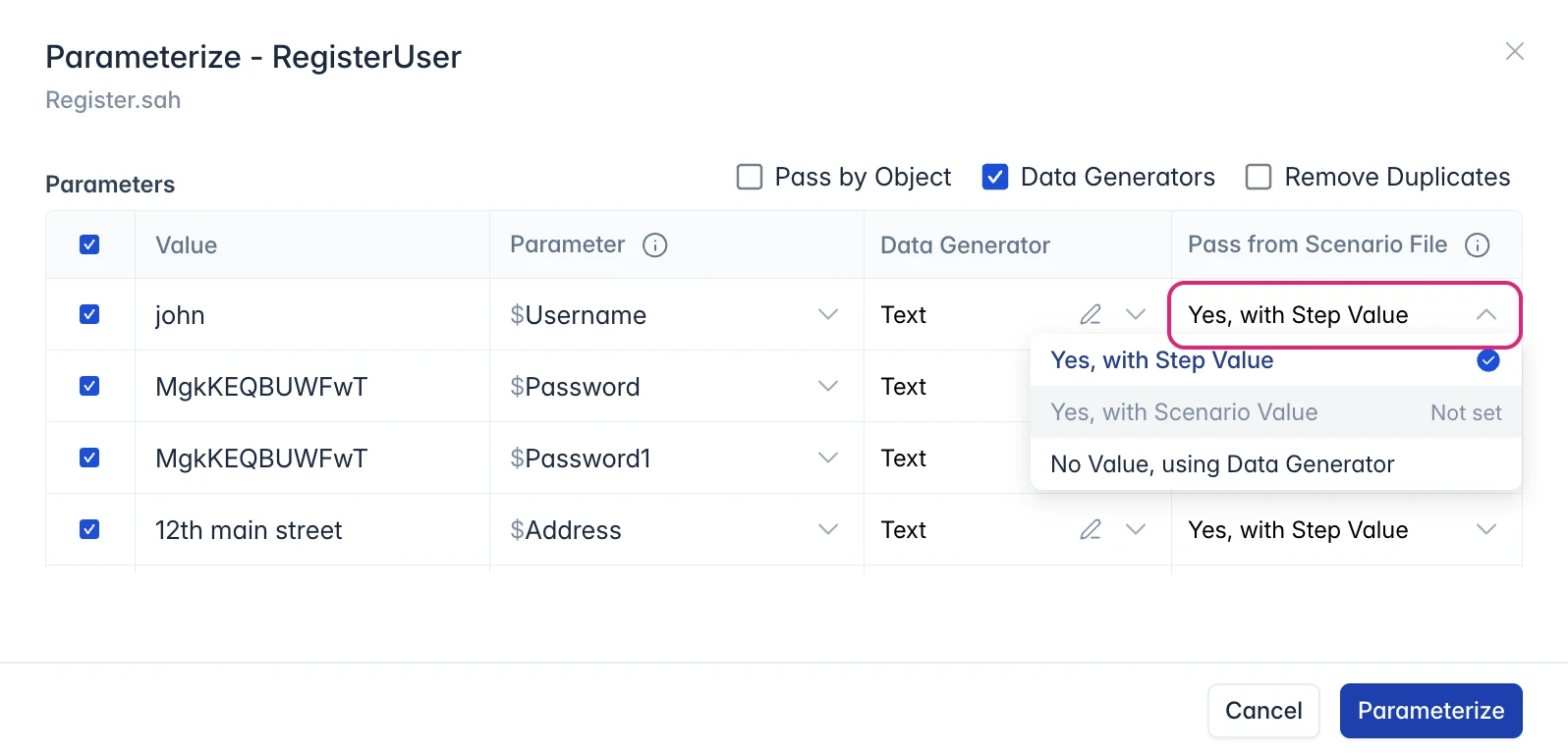
Choose No Value, using Data Generator. The recorded value
johnis struck through, because the generator replaces it. Leave the other rows on Yes, with Step Value, so only the username changes on each test run.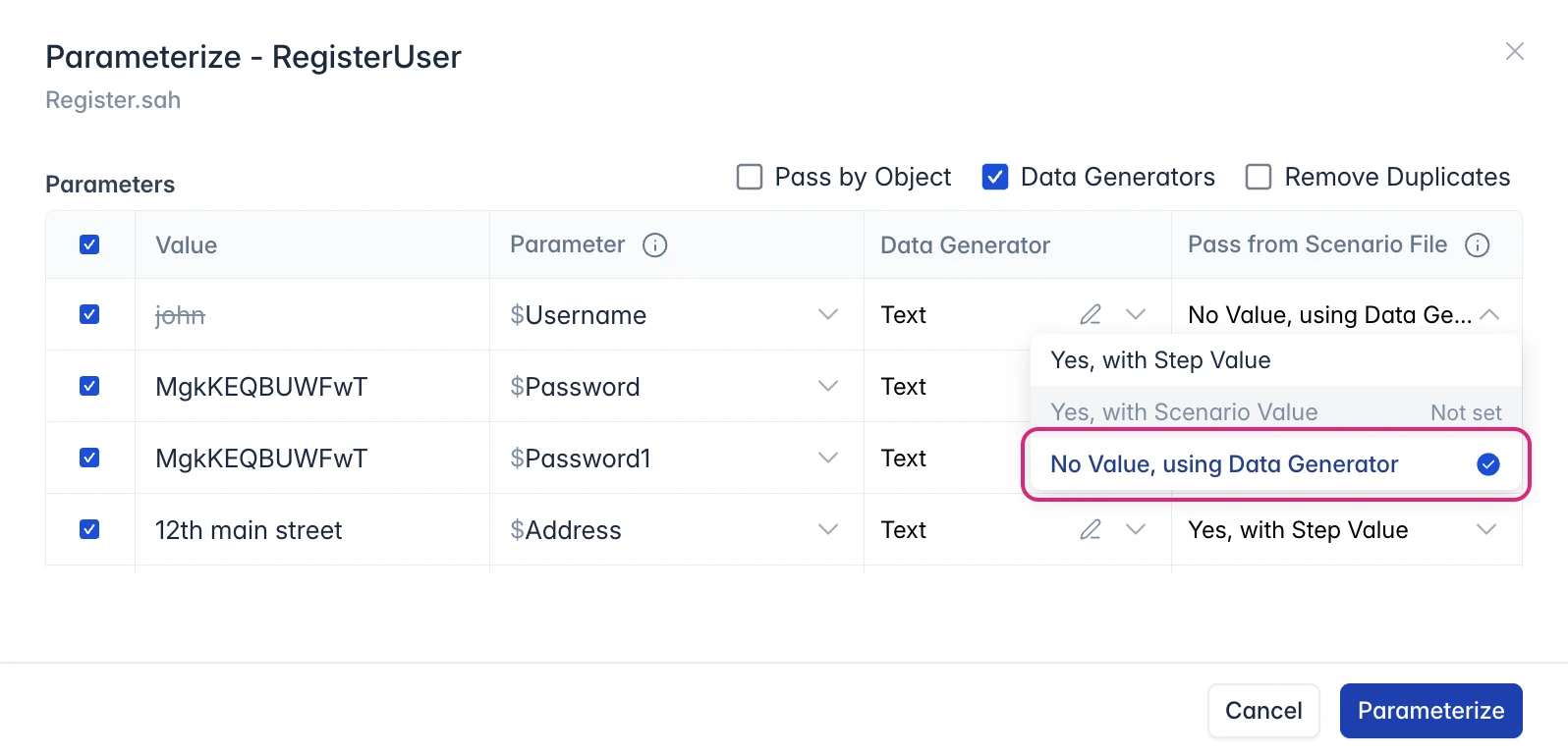
-
Select Remove Duplicates. The two password fields have the same value, so they now share one parameter,
$Password, and always get the same value.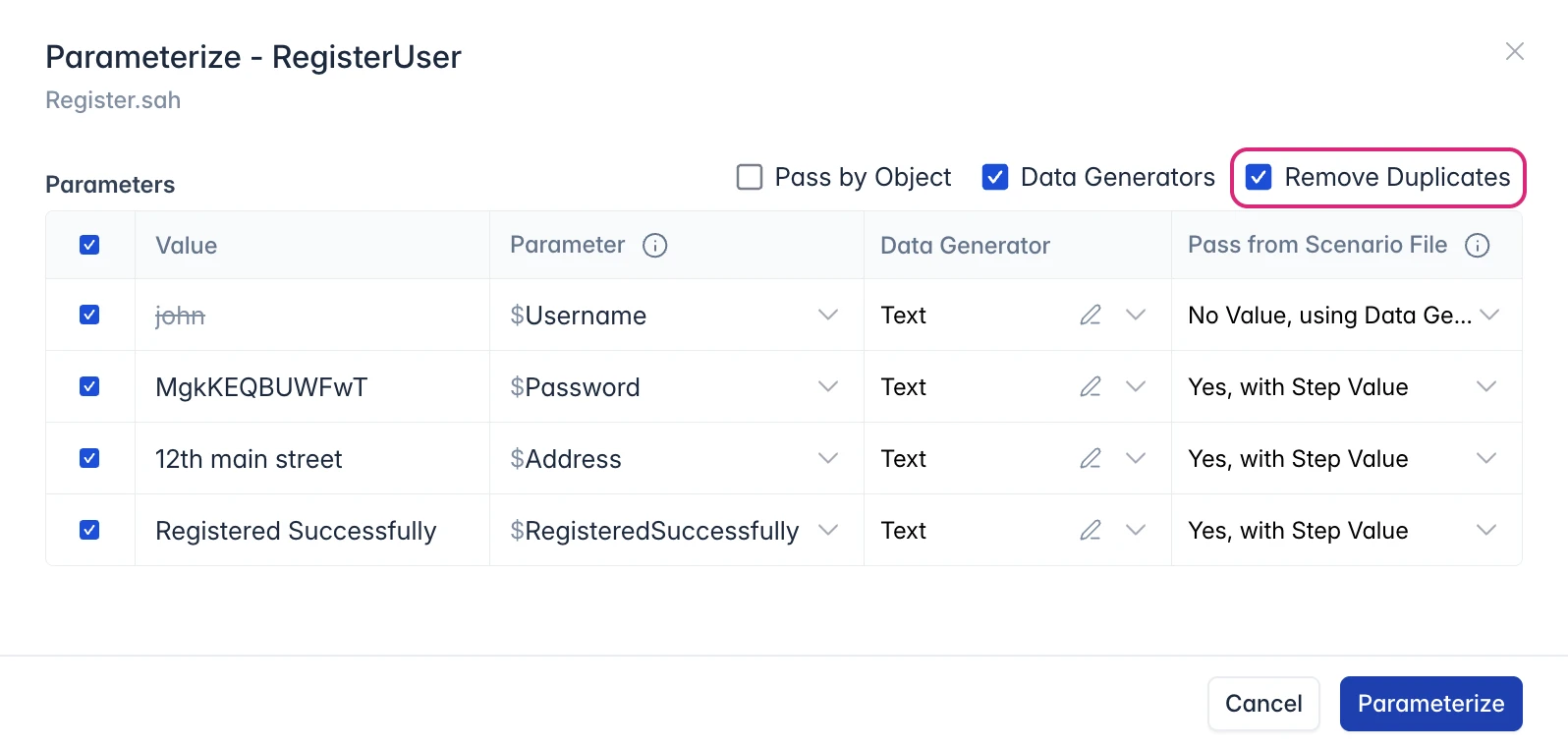
-
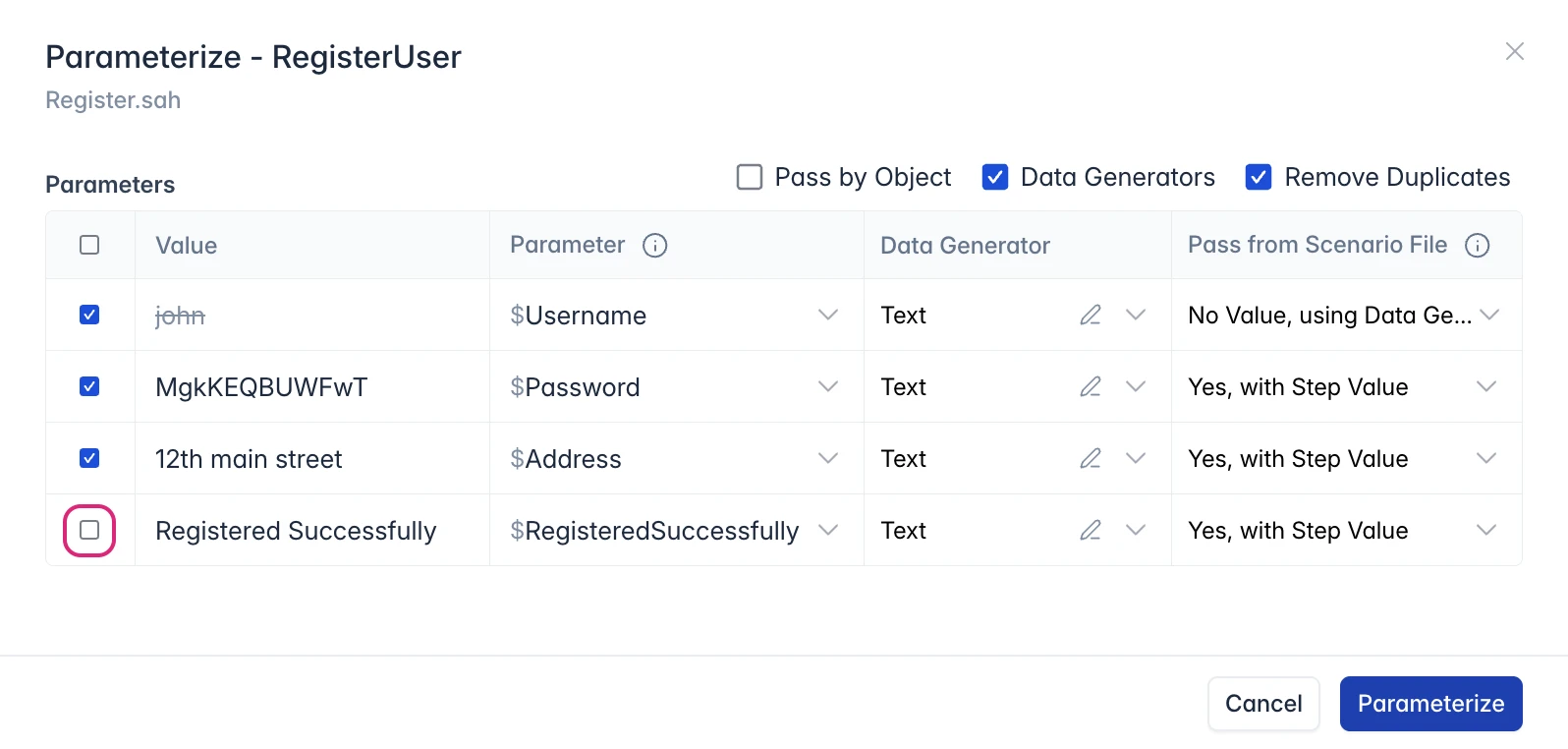
A value that never needs to change doesn’t need a parameter. For example, the last step checks for the message Registered Successfully, which never changes. Clear the checkbox on its row.
-
To shape the values a generator makes, click the pencil icon in its Data Generator cell. For example, for
$Username, set Prefix touser_and Include Timestamp to Yes, then click Apply. Sample Value shows what a generated username looks like.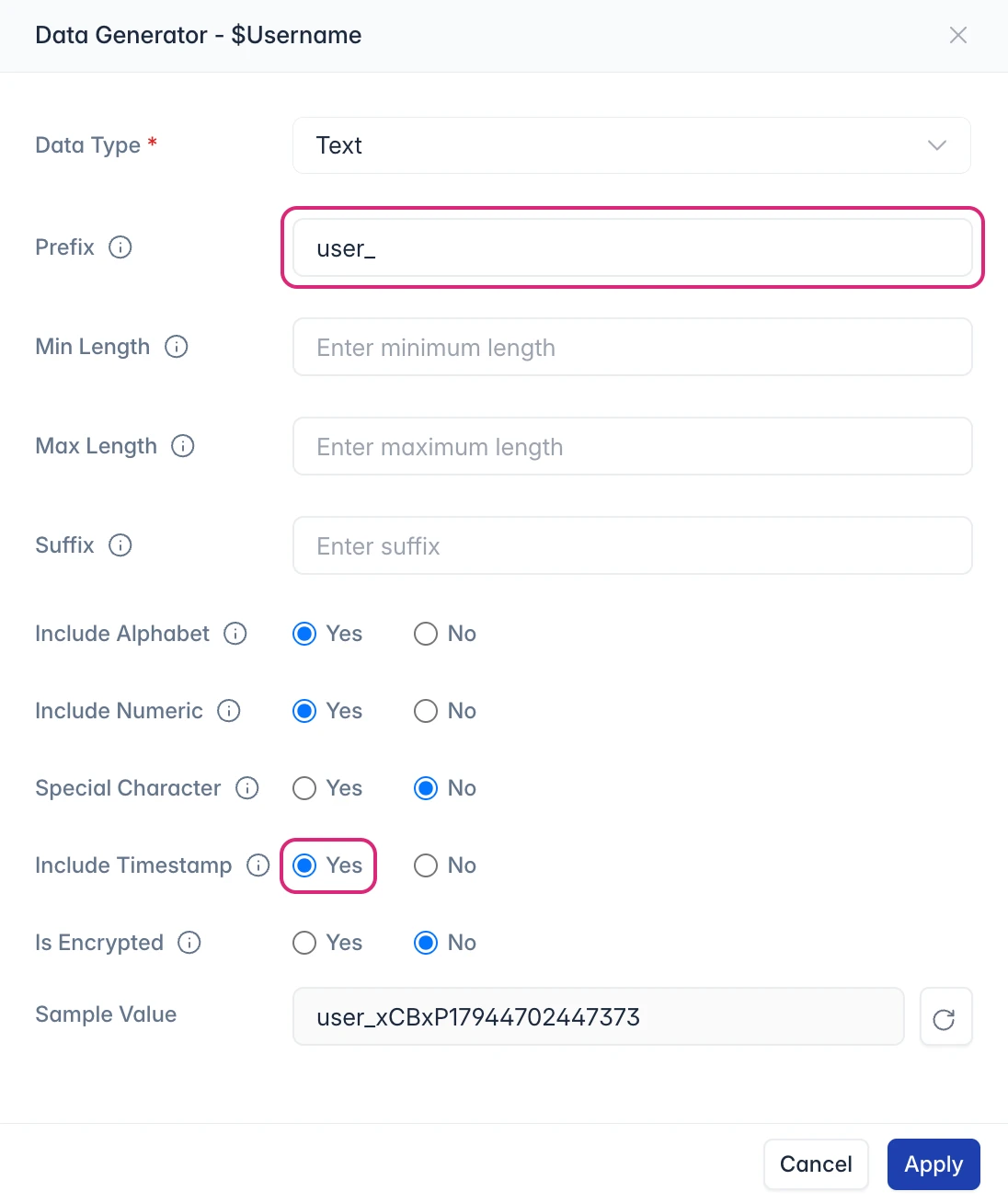
-
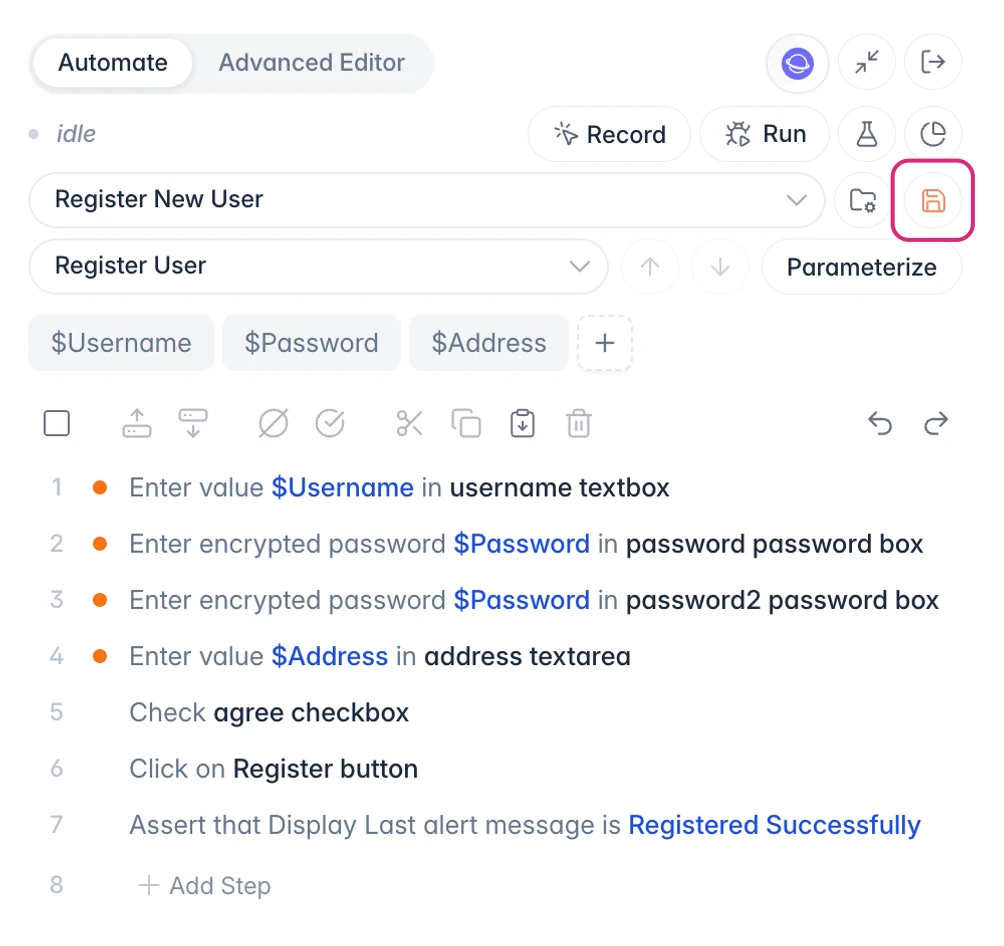
Click Parameterize. The parameters appear above the steps, and the steps use them in place of the recorded values. Modified steps get an orange dot until you save.
-
Click Save.
Run with Generated Data
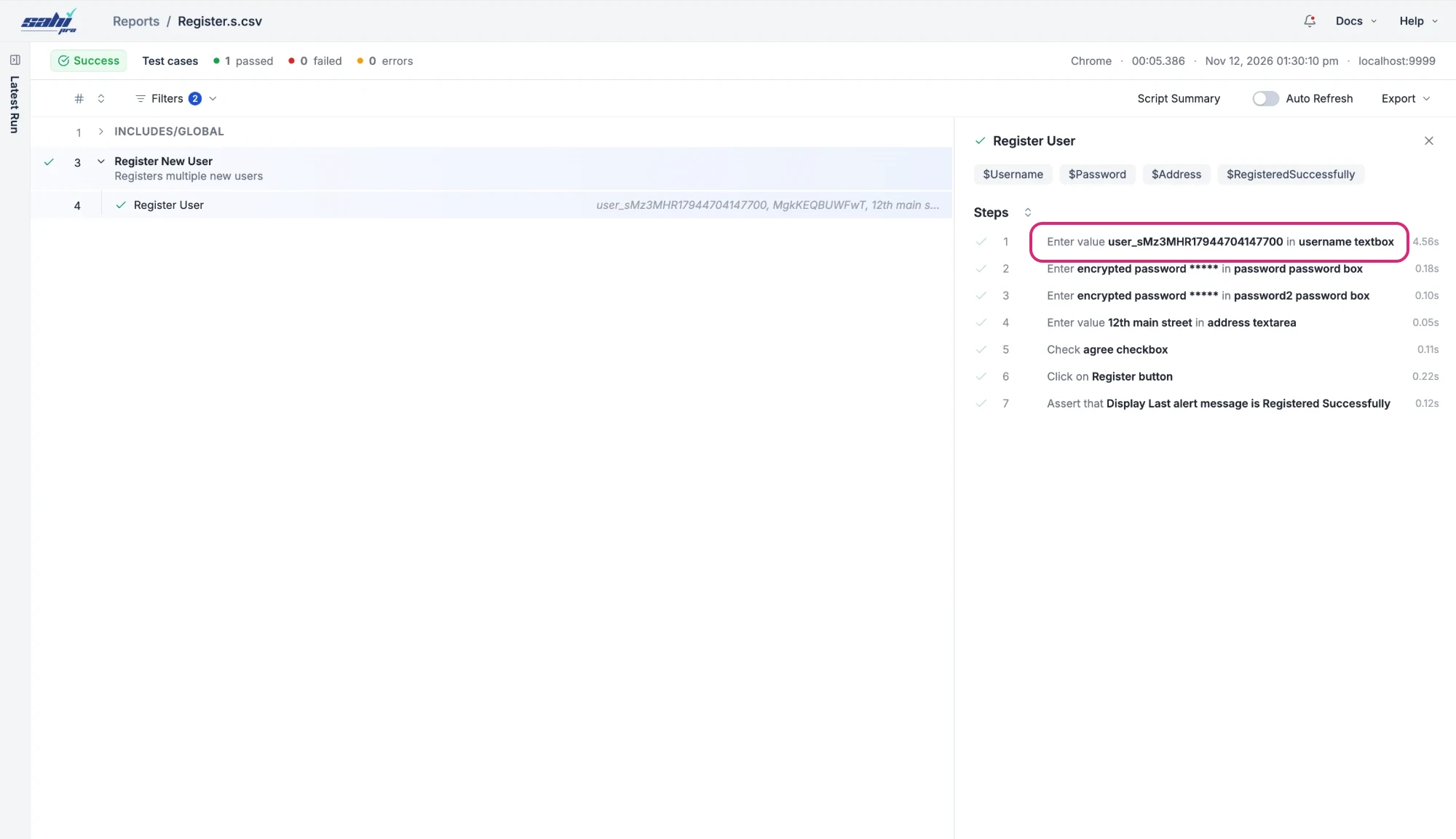
Section titled “Run with Generated Data”In the Controller, hover over Run and choose Run this testcase. Run it again, and open Reports after each run.
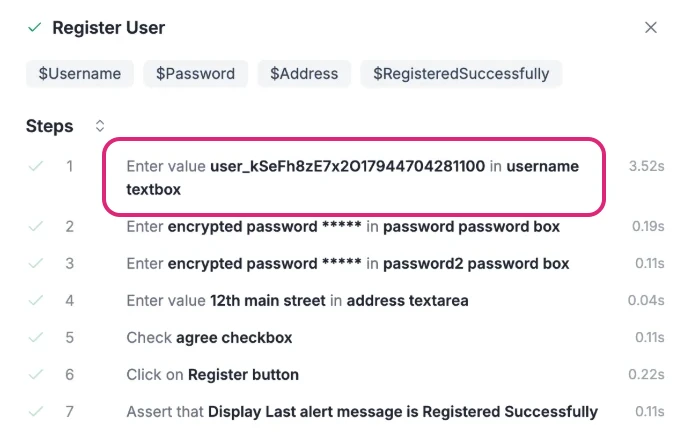
Each test run uses a new username, such as user_sMz3MHR17944704147700 in one run and user_kSeFh8zE7x2017944704281100 in the next. The report shows the value used in each step.
In the next run, the same step enters a different username: