

Sahi Flex Support
Introduction
Section titled “Introduction”Sahi Pro provides support for automation of flex applications via the Sahi Flex Library (SFL).
To enable automation, the flex application needs to be compiled with Sahi’s swc file.
Compile with sfl.swc using command line
Section titled “Compile with sfl.swc using command line”You can compile your flex application with sfl using the following command (Change sfl version as needed)
mxmlc yourapp.mxml -include-libraries+=sfl4.swc --output=yourapp.swfCompile using Ant
Section titled “Compile using Ant”When compiling using Ant, we need to specify the compiler.include-libraries option
<mxmlc file="sample.mxml"> ... normal options <compiler.include-libraries dir="D:/sahi/sfl" append="true"> <include name="sfl4.swc" /> </compiler.include-libraries></mxmlc>Compile using Adobe Flash Builder (Add SWC files to Flex Builder projects)
Section titled “Compile using Adobe Flash Builder (Add SWC files to Flex Builder projects)”-
In Flex Builder, select your Flex project in the Navigator.
-
Select Project > Properties. The Properties dialog box appears.
-
Select Flex Compiler in the tree to the left. The Flex Compiler properties panel appears.
-
In the “Additional compiler arguments” field, enter the following command:
-include-libraries "sfl4.swc"
Recording a flex application
Section titled “Recording a flex application”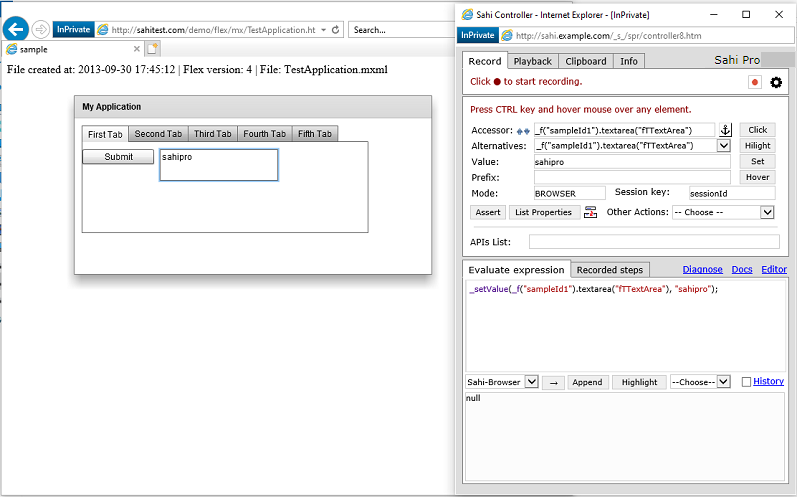
From the dashboard, open any browser and navigate to your flex application. Press ALT and double click on the document window of the page which you want to record. Sahi’s Controller window will popup. You can now start recording your Flex application.
Flex functions are slightly different from the normal JavaScript APIs.
Example
_f("flex_app_id").textinput("username2")The code above identifies a mx.controls::TextInput field inside a flex application identified by _f("flex_app_id")
Identification of Flex Components
Section titled “Identification of Flex Components”Sahi identifies flex components based on the type (class name) of element and one of its visible/significant attributes. The attributes may be one of label, text, name, automationName, toolTip, id, autoGeneratedName, index or some other attribute which is relevant to that element.
mx components are identified as lower case of their class names. Eg. mx.controls::TextInput corresponds to function _f("id").textinput("id2")
Spark components are identified with an s_ prefix. Eg. spark.components::TextArea corresponds to function _f("id").s_textarea("id2")
Recognizing Custom Components
Section titled “Recognizing Custom Components”Sahi, by default, adds support for most mx and spark components.
If your component is not recognized, do the following:
- Ctrl-hover (⌘-hover on Mac) on the element which is a parent of the element you want to recognize. You can use up/down arrows near the Accessor field on the Controller.
- Once a parent element is identified, click on the “List Properties” button on the Controller. It will list down all components inside the parent and also all attributes.
- In the fully qualified classnames visible, make an intelligent guess to narrow down your element of interest. Suppose your class name of interest is
my.package::MyClass
To enable Sahi to recognize custom components in your application, edit sahi_pro/userdata/config/user_extensions.js and add,
SflWrapper.prototype.addCustomMetaData = function(){ this.addMetaData({qn: "my.package::MyClass", attributes: ["label", "text", "name", "automationName", "toolTip", "id", "autoGeneratedName", "index"], action: "click", value: "label", apiName: "myotherclass"});}In the above,
- change
my.package::MyClassto your relevant class - For clickable elements, keep
action:"click". For text input elements, useaction:"setValue" - Set
valueto the attribute which conveys the value of that field. For example, a dateField will have selectedDate as its value attribute. This will be visible in the “Value” field on the Controller, and is used in assertions. - The name of the function is by default the lowercase of the classname. If apiName attribute is specified, that is used instead. Eg. in the above case, the function becomes
_flex("id").myotherclass("id2"). If apiName was omitted, the function would have been_flex("id").myclass("id2").
Performing actions on Flex elements
Section titled “Performing actions on Flex elements”Sahi’s Action functions also work with Flex elements.
Examples:
_click(_f("mxComponents").button("ColumnChart"));
_setValue(_f("mxComponents").textinput("txt1"), "English");_setValue(_f("sparkComponents").s_richeditabletext("richEdTxt"),"Hi there!");
_setSelected(_f("sparkComponents").s_combobox(0),"Cucumber");
Relational operators in SFL
Section titled “Relational operators in SFL”SFL supports near, inside, leftOf, rightOf and under APIs.
The usage of these functions is a little different from the Sahi relation functions.
-
The relation functions are called as member functions.
_f("fid").textinput("u").near(_f("fid").label("User"))_f("mxC").datagriditemrenderer("/@fictitious.com/").rightOf(_f("mxComponents").datagriditemrenderer("Mary Jones")) -
They can be chained to use multiple relations.
_f("fid").textinput("u").near(_f("fid").label("User")).inside(_f("fid").vgroup("SettingsPanelView"))
Known Issues
Section titled “Known Issues”- For the Ctrl-hover (⌘-hover on Mac) to work, one needs to click on the Flex app and bring it in focus.
- File upload/download are not currently supported.
- NumericStepper recording does not work. However it can identified from the Controller and scripted.
- Parallel run of scripts using testrunner causes scripts to fail. Keep value of threads to 1 in testrunner.bat
Tips on usage
Section titled “Tips on usage”The flex recorder in Sahi is not as sophisticated as the web recorder.
To introspect and identify elements, one can use the Evaluate Expression box.
Ctrl-hover (⌘-hover on Mac) on any Flex element. It will populate something like
_f("sampleId1").textinput("username")-
One can see all attributes of the textinput field by one of the following
-
Ctrl-hover (⌘-hover on Mac) on element and Click on List Properties
-
Copy the accessor into Evaluate Expression box and click “Test->”
-
Explicity put component.listProperties() into Evaluate Expression box and click “Test->”
_f("sampleId1").textinput("username").listProperties()
-
-
To fetch the value of an element, use _getValue() function. Depending on the type of element, Sahi will correctly return its “value” attribute.
_assertEqual("abcd", _getValue(_f("mxComponents").textarea("textarea"))); -
To fetch the text of an element, use _getText() function. On flex it fetches the textual content of the component (behaves like innerText in HTML).
_assertEqual("abcd", _getText(_f("mxComponents").textarea("textarea"))); -
To fetch any property of an element, use .get Example
_f("sampleId1").textinput("username").get("text")or
_f("sampleId1").textinput("username").get("label") -
To execute any member function of an element, use
.executeFn(arg1, arg2 ...)
Example_call(_f("sampleId1").popupbutton("menu").executeFn("open"));or
var $fontSize = _fetch(_f("sampleId1").textinput("username").executeFn("getStyle", "fontSize")); -
To see which Flex components make up a particular component, use introspect() Example
_f("flexId").textinput("tId").introspect()This will show a list of all elements inside the textinput field. The output may look something like:
textinput0>Panel4>username>HaloBorder17:mx.skins.halo::HaloBordertextinput0>Panel4>username>UITextField8:mx.core::UITextField #abcd -
To see all elements in a flex component, (especially when an element is not identified) use
_f("sampleId1").introspect() -
To check if an element exists, use _exists or .exists()
_assert(_exists(_f("mymovie").datagrid(0)));//or_assert(_f("mymovie").datagrid(0).exists()); -
To check if an element is visible, use _isVisible or .isVisible()
_assert(_isVisible(_f("mymovie").datagrid(0)));//or_assert(_f("mymovie").datagrid(0).isVisible()); -
To get data from a grid, use .getGridData()
_assertEqual([["a", "a1"],["b", "b1"]], _f("mymovie").datagrid(0).getGridData()); -
If getGridData does not work or if we are dealing with a graph, it is easier to get the dataprovider of the element and verify that the data is correct. To get the dataprovider, do
_f("mymovie").datagrid(0).get("dataProvider")This will return a JSON string. To get an object out of it, use
var obj = eval("(" + _f("mymovie").datagrid(0).get("dataProvider") + ")");obj will now be an array of objects, which looks something like this:
[{"balance":"1000","category":"Personel Care","date":"15/12/2010","description":"ATM Fee","price":"1000","quantity":"1000","payee":"ABC","amount":"1000","datePaid":"15/12/2010","status":"success","action":"buy"}] -
Sometimes similar elements may be created in a flex app, but only the top most active container may be of relevance while automation. For example a tab pane may have multiple tabs and each tab screen may have a “Save” button. The sequence of navigation of tabs may give different indexes to these different Save buttons. To fix this, Sahi can be told to strictly work only with visible elements using _setStrictVisibilityCheck
// Force Sahi to only find visible elements_setStrictVisibilityCheck(true, _f("myapp"));// Perform actions on visible elements only_click(_f("myapp").button("Save"));// Remove strict visibility check_setStrictVisibilityCheck(false, _f("myapp")); -
SFL supports indexes and regular expressions just like normal Sahi functions.
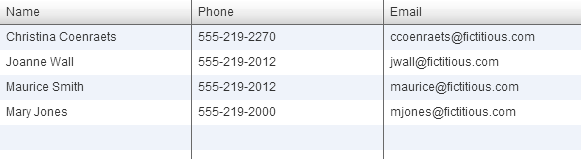
For example, to look for maurice@fictitious.com we could do
// returns maurice@fictitious.com_getText(_f("mxComponents").datagriditemrenderer("/@fictitious.com/[2]"));//using relation and regular expression//returns maurice@fictitious.com_getText(_f("mxComponents").datagriditemrenderer("/@fictitious.com/").rightOf(_f("mxComponents").datagriditemrenderer("Maurice Smith"))) -
In some flex apps with lots of dynamically loading parts, it may be customary to show a rotating icon with “Loading…” or some such message. Sahi can be told to wait till this message disappears using _setFlexReadyCondition. At the start of your script add this:
<browser>_setFlexReadyCondition(function(fl){return !_isVisible(fl.uitextfield("Loading..."));});</browser>
Flex app and Sahi Pro version
Section titled “Flex app and Sahi Pro version”Your Flex app needs to be compiled with the appropriate swc file based on the Flex SDK used. It does not have a dependence on the Sahi Pro version itself.
The swc files available for compilation can be found inside the sahi_pro/sfl folder.