

Applet Automation Using Only Desktop Automation
This section details how to automate Java Applets using only Desktop Automation. If you are not familiar with Applet Automation, refer Applet Automation. To automate a java applets using Sahi Pro Flowcharts, refer Applet Automation Using Only Desktop Automation.
Java Applets can be automated using only Desktop Automation. For this, the Applet elements need to be automated using JAVA mode while the elements on browser need to be automated using WINDOWS mode.
Pre-requisites
Section titled “Pre-requisites”-
You need Sahi Pro version v10.0.0 or above
-
Sahi Pro Desktop Engine needs to be installed.
-
ONLY Desktop capabilities should be enabled. (Needs only Sahi Pro Desktop Engine license)
-
Enable the following property in the userdata.properties file.
windows.identification_on_browser_for_applet.enabled=true
Recording an Applet
Section titled “Recording an Applet”-
From the Sahi Dashboard, launch the Desktop Controller by clicking the Desktop icon on the Sahi Dashboard.
-
Execute the function _launchBrowserForApplet and launch the browser for applet.
_launchBrowserForApplet("https://www.test.example.com/login", "C:/Program Files (x86)/Microsoft/Edge/Application/msedge.exe"); -
You can now start recording. As with normal Sahi, you can use Ctrl-hover (⌘-hover on Mac) to identify various elements on the applet.
-
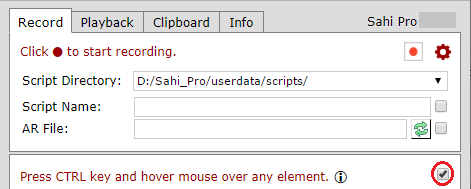
When recording on the browser, in the Controller ensure the checkbox for “enable recording/identification for Windows” is checked.
-
When recording on the applet, in the Controller ensure the checkbox for “enable recording/identification for Windows” is unchecked.
Use of Java Mode
Section titled “Use of Java Mode”-
To use “Evaluate expression” on Java applets, choose
"Sahi-Java".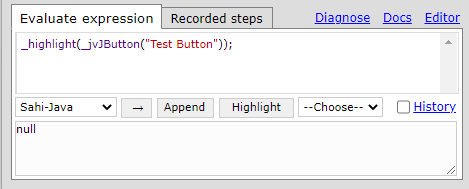
-
Ensure that the script contains _launchBrowserForApplet function to launch the browser for applet.
-
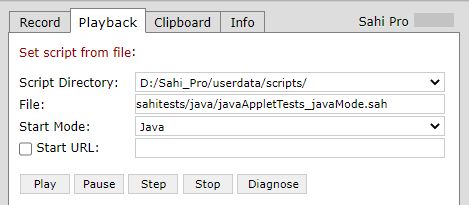
To run the script from the Controller, set its mode to Java, then click Run.
-